How To Install 3X-UI VPN on Debian 13

Running your own VPN server has become essential for privacy-conscious individuals and organizations seeking full control over their internet traffic. The 3X-UI panel offers a powerful, user-friendly solution for managing VPN connections on Debian 13 (Trixie), supporting multiple protocols including VLESS, VMess, Trojan, ShadowSocks, and Wireguard. This comprehensive guide walks you through every step of installing and configuring 3X-UI on Debian 13, from initial system preparation to creating your first VPN user. Whether you’re setting up a personal privacy solution or deploying enterprise-grade VPN infrastructure, you’ll find detailed instructions, troubleshooting tips, and security best practices to ensure a successful deployment.
What is 3X-UI VPN?
3X-UI represents a modern approach to VPN management through its web-based graphical interface built on top of Xray-core technology. Unlike traditional VPN solutions, this panel provides administrators with granular control over user management, traffic monitoring, and protocol configuration without requiring constant command-line intervention.
The panel supports an impressive array of protocols—VLESS, VMess, Trojan, ShadowSocks, Wireguard, Tunnel, Mixed, and HTTP—giving you flexibility to choose the best option for your specific use case. Advanced features include traffic obfuscation to bypass deep packet inspection, multi-layer encryption for enhanced security, and XTLS transport layer security for optimized performance. The intuitive dashboard displays real-time statistics, connection logs, and CPU utilization, making server management accessible even for those with intermediate Linux experience.
Why Choose Debian 13 for 3X-UI Installation?
Debian 13, codenamed “Trixie,” provides an ideal foundation for hosting VPN infrastructure. Its reputation for stability and security makes it a preferred choice among system administrators worldwide. The operating system receives regular security patches and maintains backward compatibility, ensuring your VPN server remains secure and functional over extended periods.
Resource efficiency stands as another compelling advantage. Debian 13 runs smoothly on modest hardware configurations, requiring as little as 2 GB RAM and 25 GB disk space for basic deployments. This lightweight footprint translates to cost savings when hosting on VPS platforms. The vast repository of pre-compiled packages and extensive community documentation further simplify the installation and maintenance processes.
Prerequisites and System Requirements
Before beginning the installation, verify your system meets the minimum hardware specifications. A 1 GHz processor with amd64 architecture, 2 GB RAM, and 25 GB available disk space will suffice for small-scale deployments. However, production environments benefit from enhanced specifications: a dual-core 2 GHz+ processor, 4-8 GB RAM, and 50 GB SSD storage ensure smooth operation under higher loads.
Your server requires a stable internet connection with a public IP address. Root or sudo access is mandatory for system-level configurations. SSH access proves invaluable for managing remote servers securely. Consider obtaining a domain name if you plan to implement SSL/TLS encryption, though this remains optional for initial testing.
Basic command-line proficiency helps navigate the installation process smoothly. Familiarity with text editors like nano or vim, understanding of Linux file permissions, and knowledge of basic networking concepts will accelerate your deployment.
Step 1: Update and Prepare Your Debian 13 System
System updates form the foundation of a secure VPN server. Begin by connecting to your Debian 13 server via SSH and executing the update command:
apt update && apt upgrade -yThis command performs two critical operations. The apt update portion refreshes your local package index, retrieving information about the newest versions of packages and their dependencies. The apt upgrade component then installs available updates while the -y flag automatically confirms all prompts.
The update process typically requires 5-15 minutes depending on the number of packages needing updates and your internet connection speed. Watch for kernel updates, which may appear in the output. If kernel modifications occur, reboot your system to ensure the new kernel loads properly:
rebootAfter the system restarts, verify you’re running Debian 13 by checking the release information:
cat /etc/os-releaseConfigure your timezone to ensure accurate logging and scheduling. Use the timedatectl command to set your geographical location, which helps maintain synchronized timestamps across your infrastructure.
Step 2: Install Required Dependencies
Several essential packages enable 3X-UI to download installation scripts and manage files effectively. Install these dependencies with a single command:
apt install curl wget git unzip -yEach package serves a specific purpose in the installation ecosystem. Curl facilitates downloading the automated installation script directly from the GitHub repository. Wget provides an alternative download method with robust retry capabilities. Git enables version control operations if you choose manual installation routes. Unzip extracts compressed archives containing configuration files and binaries.
Verify successful installation by checking each tool’s version:
curl --version
wget --version
git --version
unzip -v
Should any package fail to install, check your internet connectivity and repository configuration. DNS resolution issues sometimes prevent package downloads. Temporarily switching to Google’s DNS servers (8.8.8.8 and 8.8.4.4) often resolves such problems.
Step 3: Configure Firewall Rules (UFW)
Firewall configuration represents a critical security measure that must precede 3X-UI installation. The Uncomplicated Firewall (UFW) simplifies iptables management through intuitive commands.
Install UFW if not already present:
apt install ufw -yCritical step: Allow SSH access before enabling the firewall to prevent locking yourself out of the server:
ufw allow 22/tcpThis command permits incoming TCP connections on port 22, maintaining your SSH access. For enhanced security, consider changing the default SSH port to a non-standard value, then allowing that specific port instead.
Allow the 3X-UI panel port (typically 2053 or a custom port you’ll specify during installation):
ufw allow 2053/tcpEnable standard VPN protocol ports:
ufw allow 443/tcp
ufw allow 443/udp
Port 443 serves dual purposes—handling HTTPS traffic for the web panel and supporting various VPN protocols that benefit from appearing as standard web traffic.
Activate the firewall:
ufw enableVerify your firewall rules:
ufw status verboseThe output displays all active rules, default policies, and logging status. IPv6 support automatically enables if your system has IPv6 configured. Remember: overly restrictive firewall rules cause connectivity issues, while overly permissive rules compromise security. Strike a balance based on your threat model.
Step 4: Download and Install 3X-UI
The 3X-UI project offers two installation methods. The one-line automated approach suits most users, while manual installation provides additional control.
Method 1: One-Line Installation (Recommended)
Execute the official installation script directly from the GitHub repository:
bash <(curl -Ls https://raw.githubusercontent.com/mhsanaei/3x-ui/master/install.sh)This command downloads and immediately executes the installation script. The script guides you through several configuration prompts. You’ll need to specify:
- Panel port: The web interface access port (default is randomly generated for security)
- Admin username: Your administrative login username
- Admin password: A strong password for panel access
- WebBasePath: An additional URL path component for obscurity (optional)
The installation script automatically handles dependency resolution, service configuration, and initial setup. Pay close attention to the final output, which displays your access credentials and panel URL. Copy this information immediately—losing these credentials requires database manipulation to recover.
Method 2: Manual Installation
For those preferring explicit control over each step, download the installation script first:
wget -N --no-check-certificate https://raw.githubusercontent.com/FranzKafkaYu/x-ui/master/install.shMake the script executable:
chmod +x install.shRun the installation script:
./install.shThis approach allows script inspection before execution. Review the script contents to understand exactly what modifications occur on your system—a good security practice when running automated scripts with root privileges.
The installation creates the x-ui service, downloads the latest Xray-core binaries, sets up the database, and configures the web server. Modern releases include features like database vacuum operations, improved Telegram bot integration, and enhanced subscription management.
Step 5: Start and Enable 3X-UI Service
With installation complete, activate the 3X-UI service using systemd commands. Start the service immediately:
systemctl start x-uiEnable automatic startup on system boot:
systemctl enable x-uiThis configuration ensures your VPN panel restarts automatically after server reboots, maintaining service availability without manual intervention.
Check the service status:
systemctl status x-uiA properly running service displays “active (running)” in green text along with recent log entries. The output shows the process ID, memory usage, and startup timestamp.
Should the service fail to start, examine detailed logs:
journalctl -u x-ui -n 50Common startup failures include port conflicts (another service already using the configured port), permission issues, or corrupted database files. The x-ui command-line tool provides additional troubleshooting options:
x-ui logThis displays the application-specific log file, which often contains more detailed error messages than the systemd journal.
Step 6: Access 3X-UI Web Interface
Open your web browser and navigate to the panel URL. The format follows this pattern:
http://YOUR_SERVER_IP:PORT/WEBBASEPATHReplace YOUR_SERVER_IP with your server’s public IP address, PORT with the configured panel port, and WEBBASEPATH with any custom path you specified during installation.
Find your server’s public IP using:
curl ifconfig.meThe login page presents fields for username and password. Enter the credentials generated during installation. First-time access may trigger browser security warnings about untrusted connections when using HTTP. This is expected behavior before SSL certificate installation.
Troubleshooting connection failures:
- Cannot reach the page: Verify the firewall allows the panel port and the x-ui service is running
- Connection timeout: Check if your VPS provider has additional firewall rules at the infrastructure level
- Incorrect URL: Confirm the IP address, port, and WebBasePath match your installation output
- Browser issues: Try a different browser or clear your cache and cookies
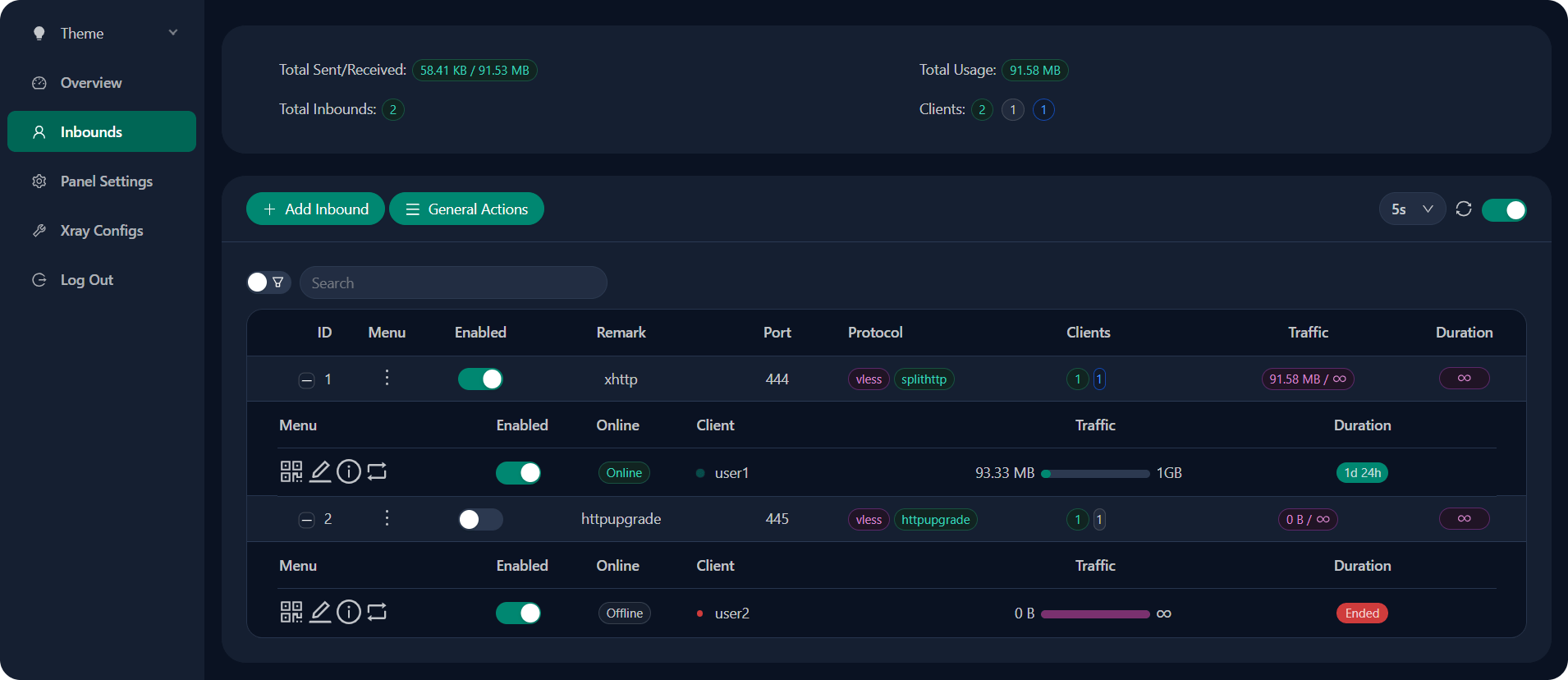
The dashboard displays system metrics including CPU usage, memory consumption, network traffic, and active connections. The interface supports multiple languages and provides quick access to user management, inbound configuration, and system settings.
Step 7: Initial Security Configuration
Security hardening should occur immediately after first login. Navigate to “Panel Settings” from the main menu.
Change default credentials by clicking the user management section. Create a strong password combining uppercase letters, lowercase letters, numbers, and special characters. Passwords exceeding 16 characters with high entropy resist brute-force attacks effectively.
Modify the admin username from its default value. Unique usernames prevent automated attack scripts targeting common administrative accounts.
Adjust the panel port to a non-standard value. While security through obscurity shouldn’t be your only defense, it reduces noise from automated scanners probing standard ports.
Configure WebBasePath if you didn’t during installation. Adding a random string like /admin-a7f2k9p3 makes the panel URL harder to guess. Avoid predictable paths like /admin or /panel.
Enable Fail2ban integration to automatically block IP addresses after repeated failed login attempts. This feature appears in recent 3X-UI versions and provides robust protection against brute-force attacks.
Set appropriate session timeout values. Shorter timeouts enhance security by automatically logging out idle sessions, though they reduce convenience for administrators.
Restrict panel access by IP address if you connect from static IPs. This whitelist approach prevents unauthorized access attempts regardless of password strength.
Document all configuration changes. Record the new credentials, port, and URL in a secure password manager. Losing access credentials to a hardened system proves frustrating to recover.
Step 8: Configure SSL/TLS Certificate (Optional but Recommended)
SSL/TLS encryption protects the administrative interface from eavesdropping and man-in-the-middle attacks. Implementing HTTPS requires a domain name pointing to your server’s IP address.
Configure DNS records through your domain registrar:
- Create an A record pointing your domain (e.g.,
vpn.example.com) to your server’s IPv4 address - Optionally create an AAAA record for IPv6 support
Allow DNS propagation time (5 minutes to 48 hours depending on TTL settings). Verify propagation using:
nslookup vpn.example.comThe 3X-UI panel includes built-in certificate management accessible via the x-ui command menu. Run:
x-uiSelect the option for certificate management. The panel can automatically obtain Let’s Encrypt certificates using ACME protocol. Provide your domain name and email address when prompted.
Alternatively, configure a reverse proxy with Caddy for automatic TLS 1.3 support. Caddy handles certificate issuance and renewal transparently:
Install Caddy:
apt install -y debian-keyring debian-archive-keyring apt-transport-https
curl -1sLf 'https://dl.cloudsmith.io/public/caddy/stable/gpg.key' | gpg --dearmor -o /usr/share/keyrings/caddy-stable-archive-keyring.gpg
curl -1sLf 'https://dl.cloudsmith.io/public/caddy/stable/debian.deb.txt' | tee /etc/apt/sources.list.d/caddy-stable.list
apt update
apt install caddy
Create a Caddyfile configuration:
vpn.example.com {
    reverse_proxy localhost:2053
}
Caddy automatically obtains and renews certificates. This approach also conceals the 3X-UI panel behind standard HTTPS traffic, improving both security and censorship resistance.
Test SSL configuration after implementation. Visit your domain using https:// instead of http://. Valid certificates display a padlock icon in the browser address bar.
Step 9: Create Your First VPN User/Inbound
Inbounds represent VPN server configurations in 3X-UI terminology. Each inbound defines a protocol, port, and associated users.
Navigate to the “Inbounds” section from the dashboard menu. Click the “Add Inbound” button to launch the configuration wizard.
Select a protocol based on your requirements:
- VLESS: Lightweight and efficient, recommended for most users
- VMess: Mature protocol with wide client support
- Trojan: Excellent for bypassing deep packet inspection
- ShadowSocks: Simple and fast, good for basic use cases
- Wireguard: Modern, high-performance option
Configure inbound parameters:
- Remark: A friendly name to identify this configuration (e.g., “Mobile Devices VLESS”)
- Port: Choose an available port (443 or other custom ports)
- Network: Select the transport protocol (TCP, WebSocket, HTTP/2, gRPC)
- Security: Configure encryption settings
Advanced settings include:
- Traffic limits: Set monthly data caps per user
- Expiry dates: Automatically disable accounts after a specified date
- IP limits: Restrict simultaneous connections from different IP addresses
Add client credentials within the inbound configuration. Specify a username/email identifier and optionally set a password or UUID. The panel generates QR codes automatically for easy mobile device configuration.
Save the inbound configuration. The system generates subscription links compatible with various VPN clients. These URLs dynamically update when you modify configurations, ensuring clients always receive current settings.
Test the inbound by attempting a connection from a client device before distributing credentials widely. Verify that data flows correctly and routing rules apply as expected.
Step 10: Connect Client Devices
Client applications vary by operating system. Choose compatible software for your platform:
Windows: v2rayN and Nekoray provide user-friendly graphical interfaces with protocol support for all 3X-UI options.
MacOS: v2rayU and Qv2ray offer native macOS integration. These applications support importing configurations via subscription URLs or QR codes.
Linux: Qv2ray delivers cross-platform consistency, while v2ray-core provides command-line flexibility for advanced users.
Android: v2rayNG remains the most popular choice, with Hiddify offering additional features. Both applications scan QR codes directly from the 3X-UI panel.
iOS: Shadowrocket and Streisand support importing configurations. Apple’s App Store restrictions sometimes limit VPN application availability depending on your region.
Import methods include:
- Subscription URL: Copy the subscription link from 3X-UI, paste into your client’s subscription manager, and update
- QR Code: Use your device’s camera to scan the code displayed in the panel
- Manual configuration: Manually enter connection parameters if automated methods fail
After importing, connect to the VPN and verify functionality:
- Check your public IP address using
https://ifconfig.meor similar services - Confirm the displayed IP matches your VPN server
- Test DNS leak protection using
https://dnsleaktest.com - Measure connection speed with
https://fast.comorhttps://speedtest.net
Slow speeds may indicate suboptimal protocol selection, server overload, or routing issues. Experiment with different protocols and transport methods to identify the best performance for your network conditions.
Managing 3X-UI Panel
The x-ui command-line utility provides comprehensive panel management beyond the web interface. Execute x-ui without arguments to display an interactive menu with options including:
- Start service: Launches the x-ui daemon
- Stop service: Gracefully shuts down the panel
- Restart service: Stops and starts the service
- Status check: Displays current operational state
- View settings: Shows current configuration parameters
- Update panel: Downloads and installs the latest release
- View logs: Displays recent application events
- Check ban logs: Reviews Fail2ban blocked connections
Regular updates maintain security and provide new features. The 3X-UI development team actively releases improvements, with recent versions adding features like periodic traffic reset for inbounds, enhanced Telegram bot functionality, and improved subscription templates.
Monitor resource utilization through the dashboard’s CPU and memory graphs. High resource consumption may indicate a need for server upgrades or user limit adjustments.
Implement backup procedures to protect against data loss. Export the database periodically:
cp /etc/x-ui/x-ui.db /root/backups/x-ui-backup-$(date +%Y%m%d).dbStore backups in multiple locations including off-server storage. Database corruption or accidental deletion becomes recoverable with recent backups available.
Troubleshooting Common Issues
Installation script download failures typically result from DNS resolution problems or firewall restrictions blocking GitHub access. Verify internet connectivity with ping 8.8.8.8 and check DNS configuration in /etc/resolv.conf.
Service startup failures often stem from port conflicts. Identify processes using your configured port:
netstat -tulpn | grep :2053If another service occupies the port, either stop that service or reconfigure 3X-UI to use an alternative port.
Web panel inaccessibility requires systematic verification. Confirm the x-ui service runs with systemctl status x-ui. Check firewall rules permit the panel port with ufw status. Verify the correct URL including IP address, port, and WebBasePath.
Frequent connection drops suggest protocol incompatibility with your network environment. Firewalls and deep packet inspection systems sometimes interfere with certain VPN protocols. Switch to protocols using traffic obfuscation like VMess with WebSocket transport or VLESS with TLS.
Poor performance and slow speeds have multiple potential causes. Check server CPU and memory utilization—resource exhaustion degrades performance significantly. Network latency between client and server impacts speed; choose server locations geographically closer to users. Protocol selection matters; Wireguard often provides superior speeds compared to older protocols. MTU (Maximum Transmission Unit) misconfigurations cause packet fragmentation; test different MTU values to optimize throughput.
SSL certificate errors require verifying DNS records properly resolve to your server IP. Certificate validity periods expire; ensure automatic renewal functions correctly. File permissions on certificate files must allow the x-ui process to read them.
Client connection failures necessitate validating inbound configuration accuracy. Confirm firewall rules permit the configured protocol ports. Test connectivity from different networks to isolate whether client-side network restrictions cause the issue.
Security Best Practices
Maintain vigilant security practices to protect your VPN infrastructure. Apply system updates promptly, particularly security patches addressing vulnerabilities. Configure automatic security updates for critical packages:
apt install unattended-upgrades
dpkg-reconfigure -plow unattended-upgrades
Implement robust authentication mechanisms. Disable password-based SSH authentication in favor of key-based authentication. Edit /etc/ssh/sshd_config:
PasswordAuthentication no
PubkeyAuthentication yes
Change default service ports to reduce automated attack surface. Non-standard ports for SSH and the admin panel decrease the volume of malicious connection attempts.
Deploy Fail2ban to automatically block repeated failed authentication attempts. This intrusion prevention system identifies suspicious patterns and implements temporary IP bans.
Regular security audits identify potential vulnerabilities. Review user accounts, eliminate inactive users, and verify traffic patterns align with expected usage. Unusual traffic spikes may indicate compromised credentials.
Minimize running services to reduce attack vectors. Disable unnecessary daemons and close unused ports. Each additional service represents a potential security risk.
Monitor logs regularly for suspicious activities. Unexpected login attempts from unfamiliar countries, unusual traffic volumes, or repeated failed authentications warrant investigation.
Implement defense in depth—no single security measure provides complete protection. Combine multiple complementary security controls: strong authentication, network segmentation, intrusion detection, and regular audits create a robust security posture.
Performance Optimization Tips
Linux kernel tuning enhances network performance for VPN workloads. Enable TCP BBR congestion control, which improves throughput on networks with packet loss and latency:
echo "net.core.default_qdisc=fq" >> /etc/sysctl.conf
echo "net.ipv4.tcp_congestion_control=bbr" >> /etc/sysctl.conf
sysctl -p
Optimize systemd service configurations to allocate appropriate resources. Adjust file descriptor limits in the x-ui service file if managing many concurrent connections.
Protocol selection significantly impacts performance. VLESS with XTLS transport provides excellent speed while maintaining security. Wireguard offers superior performance for compatible clients. Experiment with different protocols and transports to identify optimal configurations for your use case.
Server location influences latency dramatically. Deploy VPN servers geographically proximate to your primary user base. Multi-server deployments with load balancing distribute traffic efficiently across infrastructure.
Monitor resource utilization proactively. Set up alerts for CPU, memory, disk, and bandwidth thresholds. Scale resources before performance degrades noticeably.
Database optimization becomes relevant for deployments managing thousands of users. The 3X-UI panel includes vacuum operations to reclaim space and optimize performance.
Configure appropriate logging verbosity. Excessive logging consumes disk space and processing resources. Balance between adequate monitoring and performance overhead.
Implement log rotation to prevent logs from filling disk space:
/etc/logrotate.d/x-uiConfigure retention periods and compression settings appropriate for your compliance and troubleshooting requirements.
Congratulations! You have successfully installed 3X-UI VPN. Thanks for using this tutorial for installing the 3X-UI VPN on your Debian 13 “Trixie” system. For additional help or useful information, we recommend you check the official 3X-UI website.
