How To Install Alacritty on Debian 13

If you have spent any time on a Linux system, you already know how much a fast, reliable terminal matters. Default terminal emulators get the job done, but when you are compiling code, managing servers, or running dozens of tabs through tmux, performance starts to drag. That is exactly where Alacritty comes in — a GPU-accelerated, OpenGL-powered terminal emulator written in Rust that delivers blazing speed with zero bloat. In this guide, you will learn how to install Alacritty on Debian 13 “Trixie” using three battle-tested methods: APT (the easiest), Snap (the most up-to-date), and building from source (for power users).
Debian 13 “Trixie” officially released on August 9, 2025, ships with a significantly modernized package stack — Linux kernel 6.12 LTS, GCC 14.2, Python 3.13, and the new APT 3.0 with color-coded dependency resolution. That updated foundation makes this the best Debian version yet for running Alacritty.
By the end of this tutorial, you will have Alacritty installed, configured, and ready to use on Debian 13 — with a TOML config file tuned for daily driver performance.
What Is Alacritty and Why Should You Use It?
Alacritty is a modern, cross-platform terminal emulator that uses your GPU (via OpenGL) to render text instead of your CPU. This single design decision makes it noticeably faster than most software-rendered terminals like xterm or the default GNOME Terminal.
Here is what makes Alacritty stand out:
- GPU-accelerated rendering via OpenGL — text rendering is offloaded to the GPU entirely
- Written in Rust — memory-safe, fast, and actively maintained on GitHub
- TOML-based configuration — clean, version-controllable, human-readable config files
- Cross-platform — works on Linux, macOS, BSD, and Windows
- Minimal by design — no built-in tabs or splits; pair it with
tmuxorzellijfor those features - Supports both X11 and Wayland — fully compatible with Debian 13’s modern display stack
- Available in the official Debian 13 repo — version
0.15.1-3is in thetrixierepository
Alacritty intentionally avoids reimplementing features that other tools already do well. Instead of building in a tab manager, it integrates cleanly with terminal multiplexers. If you have not used tmux before, this is the ideal time to start.
Alacritty vs Other Terminals on Debian 13
| Feature | Alacritty | GNOME Terminal | Kitty | xterm |
|---|---|---|---|---|
| GPU Acceleration | ✓ OpenGL | ✗ | ✓ OpenGL | ✗ |
| Config Format | TOML | GUI / dconf | Python | X resources |
| Written In | Rust | C | C / Python | C |
| Tab Support | ✗ (use tmux) | ✓ | ✓ | ✗ |
| Wayland Support | ✓ | ✓ | ✓ | Limited |
| Resource Usage | Very Low | Medium | Low | Very Low |
Prerequisites
Before you start, make sure your system meets these requirements:
- ✓ Debian 13 “Trixie” installed (desktop or server with a GUI environment)
- ✓ A user account with
sudoprivileges - ✓ Active internet connection
- ✓ Basic comfort using the Linux terminal
- ✓ At least 500 MB free disk space (more if building from source)
- ✓ For Method 3 only: Rust toolchain will be installed (~200 MB additional)
Confirm your Debian version before proceeding:
lsb_release -aYou should see output similar to:
No LSB modules are available.
Distributor ID: Debian
Description:    Debian GNU/Linux 13 (trixie)
Release:        13
Codename:       trixie
If your output says anything other than trixie, stop and upgrade your system first — the package names and repository paths in this guide are specific to Debian 13.
Step 1: Update Your System
Always start with a full system update. This ensures your package index is fresh and avoids dependency conflicts during installation.
sudo apt update && sudo apt upgrade -yWhat this does:
apt update— refreshes the local package index from all configured sourcesapt upgrade -y— upgrades all installed packages to their latest versions- The
-yflag auto-confirms prompts so you do not need to type “yes” manually
After this completes, your system is clean and ready for any of the three installation methods below.
Step 2: Choose Your Installation Method
You have three ways to install Alacritty on Debian 13. Choose the one that fits your needs:
| Method | Best For | Version | Effort |
|---|---|---|---|
| APT (Official Repo) | Most users | 0.15.1-3 (Trixie stable) | ★ Easiest |
| Snap | Users wanting latest upstream | Latest release | ★★ Moderate |
| Build from Source | Advanced users / developers | Latest Git | ★★★ Advanced |
Step 3: Install Alacritty on Debian 13 via APT (Recommended)
The simplest and most reliable way to install Alacritty on Debian 13 is through the official APT repository. Alacritty version 0.15.1-3 ships directly in the trixie main repository, so you do not need to add any third-party sources.
Install Alacritty with APT
Run these two commands:
sudo apt update
sudo apt install alacritty -y
What apt install alacritty does:
- Downloads the
alacrittybinary (~2.4 MB for amd64) along with all required shared libraries - Automatically resolves dependencies:
libfontconfig1,libfreetype6,libwayland-client0,libxkbcommon-x11-0, andncurses-term - Creates a desktop entry so Alacritty appears in your application menu
Verify the Installation
alacritty --versionExpected output:
alacritty 0.15.1Launch Alacritty
You can now open Alacritty in two ways:
- From the terminal: Type
alacrittyand press Enter - From your application menu: Search for “Alacritty” in your desktop environment’s launcher
💡 Pro Tip: If you run alacritty from inside another terminal session, a new Alacritty window opens. You can then close the old terminal.
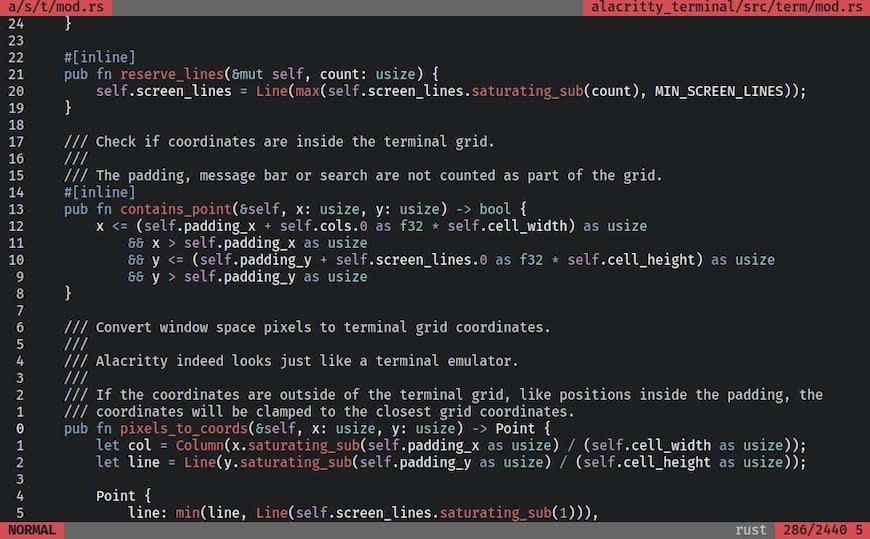
Keep Alacritty Updated (APT Method)
Future updates are handled automatically through the standard Debian update process:
sudo apt update && sudo apt upgrade -yThat is all it takes. Debian’s package manager handles everything.
Step 4: Install Alacritty via Snap (Alternative Method)
If you want the latest upstream version of Alacritty — independent of Debian’s release cycle — use the Snap package. This method runs Alacritty in a self-contained sandbox with its own dependencies bundled in.
Enable Snapd on Debian 13
Snapd is not installed by default on Debian 13, so add it first:
sudo apt update
sudo apt install snapd -y
Next, install the core snap to pull in the latest snapd runtime:
sudo snap install coreImportant: Log out and log back in (or reboot your system) after this step. Snap requires that its binary paths (/snap/bin) are active in your session before you can run any snap packages.
sudo rebootInstall Alacritty via Snap
After rebooting, run:
sudo snap install alacritty --classicThe --classic flag is required for terminal emulators. It disables snap’s strict sandboxing so Alacritty can access your home directory, system fonts, and GPU — all things a terminal needs.
Verify the Snap Installation
alacritty --versionYou should see the current upstream version number, which may be newer than the APT version.
Snap vs APT — Which Should You Choose?
- Use APT if you want stability, minimal disk usage, and standard Debian update workflows
- Use Snap if you want the latest Alacritty features as soon as they release upstream
Step 5: Build Alacritty from Source on Debian 13
Building from source gives you the absolute latest Alacritty code, full control over build flags, and the ability to test pre-release features. This method requires more steps but is well-documented and reproducible.
Install the Rust Compiler
Alacritty requires a modern stable Rust toolchain. The version packaged in Debian may be outdated for building Alacritty, so install Rust via the official rustup installer:
curl --proto '=https' --tlsv1.2 -sSf https://sh.rustup.rs | shFollow the on-screen prompts. When asked about installation type, choose option 1 (default). After installation completes, reload your shell environment:
source $HOME/.cargo/envSet the stable toolchain as your active compiler and update it:
rustup override set stable
rustup update stable
Verify Rust is working:
rustc --versionExpected output example:
rustc 1.78.0 (9b00956e5 2024-04-29)Install Build Dependencies
Now install all the system libraries Alacritty needs to compile on Debian-based systems:
sudo apt install cmake g++ pkg-config libfontconfig1-dev \
libxcb-xfixes0-dev libxkbcommon-dev python3 git -y
What each package provides:
cmake— build system generator required by some Rust dependenciesg++— C++ compiler needed for linking native librariespkg-config— helps the build system locate installed librarieslibfontconfig1-dev— font configuration headers for rendering textlibxcb-xfixes0-dev— XCB extension library for clipboard supportlibxkbcommon-dev— keyboard handling librarypython3— required by some build scriptsgit— needed to clone the source repository
Clone the Alacritty Source Code
git clone https://github.com/alacritty/alacritty.git
cd alacritty
This downloads the full Alacritty source tree into a folder named alacritty in your current directory.
Build the Alacritty Binary
cargo build --releaseWhat this does: Cargo (Rust’s package manager and build tool) compiles Alacritty and all its Rust dependencies in release mode — meaning full compiler optimizations are applied.
⏰ This step takes 5–15 minutes depending on your hardware. A machine with 4+ CPU cores and 4 GB of RAM handles it comfortably.
When the build completes, the compiled binary sits at:
target/release/alacrittyInstall the Binary and Desktop Entry
Copy the binary to your system path and set up the desktop launcher:
sudo cp target/release/alacritty /usr/local/bin
sudo cp extra/logo/alacritty-term.svg /usr/share/pixmaps/Alacritty.svg
sudo desktop-file-install extra/linux/Alacritty.desktop
sudo update-desktop-database
What each command does:
- First line: places the binary in
/usr/local/binso you can runalacrittyfrom anywhere - Second line: installs the Alacritty icon for your desktop environment
- Third line: registers the
.desktoplauncher file with your system - Fourth line: refreshes the desktop database so the new launcher is immediately visible
Install the Terminfo Entry
This ensures that remote SSH sessions and terminal multiplexers correctly recognize Alacritty’s capabilities:
sudo tic -xe alacritty,alacritty-direct extra/alacritty.infoCheck it installed correctly:
infocmp alacrittyIf this command returns output without errors, the terminfo entry is active.
Install the Man Pages
sudo apt install scdoc gzip -y
sudo mkdir -p /usr/local/share/man/man1
sudo mkdir -p /usr/local/share/man/man5
scdoc < extra/man/alacritty.1.scd | gzip -c | sudo tee /usr/local/share/man/man1/alacritty.1.gz > /dev/null
scdoc < extra/man/alacritty-msg.1.scd | gzip -c | sudo tee /usr/local/share/man/man1/alacritty-msg.1.gz > /dev/null
scdoc < extra/man/alacritty.5.scd | gzip -c | sudo tee /usr/local/share/man/man5/alacritty.5.gz > /dev/null
After this, you can access the full manual with man alacritty at any time.
Set Up Shell Completions (Optional but Recommended)
For Bash:
mkdir -p ~/.bash_completion
cp extra/completions/alacritty.bash ~/.bash_completion/alacritty
echo "source ~/.bash_completion/alacritty" >> ~/.bashrc
source ~/.bashrc
For Zsh:
mkdir -p ${ZDOTDIR:-~}/.zsh_functions
echo 'fpath+=${ZDOTDIR:-~}/.zsh_functions' >> ${ZDOTDIR:-~}/.zshrc
cp extra/completions/_alacritty ${ZDOTDIR:-~}/.zsh_functions/_alacritty
For Fish:
mkdir -p $fish_complete_path[1]
cp extra/completions/alacritty.fish $fish_complete_path[1]/alacritty.fish
Step 6: Configure Alacritty on Debian 13
One of Alacritty’s strongest features is its clean, TOML-based configuration system. Since version 0.12, Alacritty uses .toml format exclusively — the older YAML format is deprecated. Configuring Alacritty on Debian 13 takes just a few minutes and dramatically improves your day-to-day experience.
Create the Config File
Alacritty does not auto-create a config file, so make one manually:
mkdir -p ~/.config/alacritty
touch ~/.config/alacritty/alacritty.toml
Open it with your preferred editor:
nano ~/.config/alacritty/alacritty.tomlEssential Configuration Options
Here is a practical starter config with annotations:
# Window appearance
[window]
opacity = 0.95
padding = { x = 8, y = 8 }
dynamic_padding = true
decorations = "full"

# Font settings
[font]
size = 12.0

[font.normal]
family = "JetBrainsMono Nerd Font"
style = "Regular"

[font.bold]
family = "JetBrainsMono Nerd Font"
style = "Bold"

# Scrolling
[scrolling]
history = 10000
multiplier = 3

# Shell (change to your preferred shell)
[shell]
program = "/bin/bash"
args = ["-l"]

# Cursor
[cursor]
style = { shape = "Block", blinking = "On" }
Key settings explained:
opacity— sets window transparency (0.0 = fully transparent, 1.0 = fully opaque)padding— adds space between text and window edges for readabilityhistory— how many lines to keep in the scrollback buffershell.program— lets you set a custom default shell (e.g.,/bin/zsh,/usr/bin/fish)
Apply Changes
Alacritty automatically reloads its configuration whenever you save the file — no restart required. Open the config, edit it, save, and the changes take effect immediately in your active Alacritty window.
To test an alternate config file without overwriting your main one:
alacritty --config-file /path/to/test.tomlTroubleshooting Common Issues
Even with a straightforward install, things occasionally go sideways. Here are the five most common problems and their fixes.
Error 1: “alacritty: command not found” After APT Install
Cause: The binary location is not in your $PATH, or the install did not complete.
Fix:
which alacritty
echo $PATH
If which returns nothing, try reinstalling:
sudo apt install --reinstall alacrittyAlso confirm that /usr/bin is in your $PATH output.
Error 2: Cargo Build Fails on Debian 13
Cause: A known build failure with alacritty v0.15.1 via cargo on Debian 13 is often related to outdated Rust or missing system libraries.
Fix:
rustup update stable
sudo apt install libssl-dev libxkbcommon-dev -y
Then re-run cargo build --release inside the alacritty directory.
Error 3: Snap Version Does Not Launch / GPU Error
Cause: Alacritty via snap needs access to GPU resources, which snap’s security model sometimes blocks.
Fix: Grant the GPU memory control permission manually:
sudo snap connect alacritty:gpu-memory-controlIf you are on Wayland, also verify the environment variable is set:
echo $WAYLAND_DISPLAYIt should return something like wayland-0. If it is empty, your session may not be running Wayland.
Error 4: Blank Screen or Window Opens and Immediately Closes
Cause: OpenGL driver issue — Alacritty cannot initialize the GPU renderer.
Fix: Check your OpenGL status:
glxinfo | grep "OpenGL version"If this command returns an error or shows a very old version, update your GPU drivers:
sudo apt install mesa-utils mesa-vulkan-drivers -yFor NVIDIA GPUs, install the proprietary drivers from Debian’s non-free repository.
Error 5: Font Not Rendering Correctly / Missing Glyphs
Cause: The specified font family is not installed on your system.
Fix: List available monospace fonts:
fc-list : family | grep -i monoInstall a good programming font if needed:
sudo apt install fonts-jetbrains-mono -yThen update the font cache and restart Alacritty:
fc-cache -fvCongratulations! You have successfully installed Alacritty. Thanks for using this tutorial for installing Alacritty terminal emulator on Debian 13 “Trixie” system. For additional help or useful information, we recommend you check the official Alacritty website.
