How To Install AnyDesk on Fedora 43

Remote desktop software has become essential for system administrators, IT professionals, and anyone working across multiple machines. AnyDesk stands out as one of the most reliable remote desktop solutions available for Linux systems, offering exceptional performance and cross-platform compatibility. If you’re running Fedora 43 and need a robust remote access tool, this comprehensive guide will walk you through every step of installing and configuring AnyDesk on your system. You’ll learn multiple installation methods, troubleshooting techniques, and security best practices to ensure a smooth remote desktop experience.
What is AnyDesk?
AnyDesk is a powerful remote desktop application that enables users to access computers from anywhere in the world. Originally developed in Germany, this software has gained popularity for its impressive performance, low latency, and lightweight design. Unlike many competitors, AnyDesk utilizes proprietary DeskRT codec technology that delivers smooth remote control even on slower internet connections.
The software supports file transfers, remote printing, session recording, and unattended access capabilities. For Linux users specifically, AnyDesk provides native support without requiring extensive configuration. Whether you need to provide technical support, access your work computer from home, or manage servers remotely, AnyDesk delivers enterprise-grade functionality with a user-friendly interface.
Prerequisites and System Requirements
Before installing AnyDesk on Fedora 43, ensure your system meets these requirements:
- A functioning Fedora 43 installation (Workstation or Server edition)
- Root or sudo privileges for system modifications
- Active internet connection for downloading packages
- At least 50 MB of available disk space
- Display server (X11 recommended; Wayland may require additional configuration)
Having your system updated before proceeding helps avoid dependency conflicts and ensures compatibility with the latest package versions.
Method 1: Installing AnyDesk via Official RPM Repository
The repository method provides the most convenient installation approach, enabling automatic updates through your system’s package manager. This method is recommended for most users.
Step 1: Update Your Fedora System
Start by refreshing your system packages to ensure you’re working with the latest software versions. Open your terminal and execute:
sudo dnf update -yThis command updates all installed packages and their dependencies. The process typically takes a few minutes depending on your connection speed and pending updates.
Step 2: Add the AnyDesk Repository
Create a repository configuration file to enable AnyDesk installations directly through DNF. Execute this command:
sudo tee /etc/yum.repos.d/anydesk.repo <<EOF
[anydesk]
name=AnyDesk Fedora
baseurl=http://rpm.anydesk.com/fedora/x86_64/
gpgcheck=1
repo_gpgcheck=1
gpgkey=https://keys.anydesk.com/repos/RPM-GPG-KEY
EOF
This configuration file tells DNF where to find AnyDesk packages and verifies their authenticity using GPG signatures. The gpgcheck parameter ensures that only verified packages from AnyDesk get installed on your system.
Some guides suggest disabling gpgcheck for easier installation. However, maintaining GPG verification provides better security by confirming package integrity.
Step 3: Refresh DNF Cache
After adding the repository, refresh your package manager’s cache:
sudo dnf clean all
sudo dnf makecache
These commands clear old metadata and download fresh repository information, ensuring DNF recognizes the newly added AnyDesk repository.
Step 4: Install AnyDesk Package
Now install AnyDesk using a single command:
sudo dnf install anydesk -yDNF will download AnyDesk along with any required dependencies. The package typically measures around 6-8 MB for download. Accept any prompts about importing GPG keys by typing ‘y’ when asked.
The installation process automatically configures AnyDesk to start with your system and registers it in your application menu.
Step 5: Verify Installation
Confirm that AnyDesk installed successfully:
anydesk --versionThis command displays the installed AnyDesk version number. You should see output similar to “anydesk 6.3.2” or whatever the current version is.
Method 2: Installing AnyDesk via Manual RPM Download
Manual RPM installation offers an alternative when repository access fails or when you prefer downloading packages directly.
Step 1: Download the RPM Package
Visit the official AnyDesk download page or use wget from your terminal:
wget https://download.anydesk.com/linux/anydesk_6.3.2-1_x86_64.rpmReplace the version number with the latest available release. You can find current versions on the AnyDesk Linux download page.
Alternatively, navigate to anydesk.com/downloads in your web browser and download the Fedora RPM package manually.
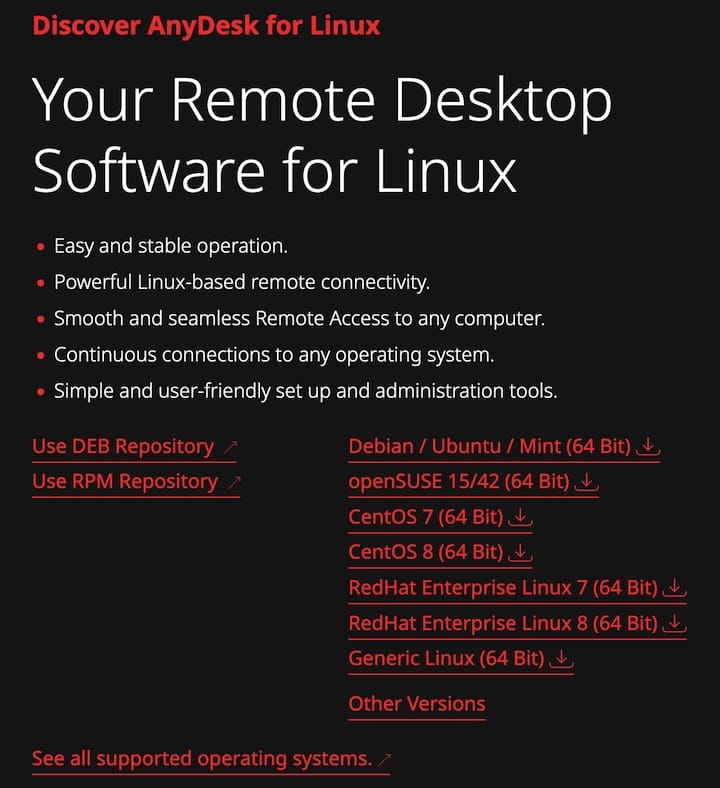
Step 2: Install the Downloaded RPM
Navigate to your downloads directory and install the package:
cd ~/Downloads
sudo dnf install ./anydesk_6.3.2-1_x86_64.rpm -y
Using DNF instead of rpm directly helps resolve dependencies automatically. If you encounter missing dependencies, DNF will attempt to download and install them from your configured repositories.
For systems with dependency issues, try:
sudo dnf install ./anydesk_6.3.2-1_x86_64.rpm --skip-brokenStep 3: Verify Installation
Check that AnyDesk installed properly:
which anydesk
anydesk --version
The first command shows the installation path, while the second confirms the version. You can now find AnyDesk in your applications menu under the Internet or Network category.
Method 3: Installing AnyDesk via Flatpak
Flatpak installations provide containerized applications with enhanced isolation from your base system.
Prerequisites for Flatpak Installation
Fedora 43 includes Flatpak by default. Verify it’s configured correctly:
flatpak remote-add --if-not-exists flathub https://flathub.org/repo/flathub.flatpakrepoThis command adds the Flathub repository if it’s not already configured.
Installation Steps
Install AnyDesk through Flatpak:
flatpak install flathub com.anydesk.Anydesk -yThe containerized installation provides additional security through sandboxing. Flatpak applications run in isolated environments with limited system access, reducing potential security risks.
Verify the installation:
flatpak list | grep -i anydeskWhen to Choose Flatpak
Consider Flatpak when you prioritize security through application sandboxing or when managing multiple application versions. The trade-off involves slightly larger disk space usage due to bundled dependencies.
Launching and Initial Configuration
Starting AnyDesk
Launch AnyDesk from your application menu by searching for “AnyDesk” in your desktop environment. The application appears under Network or Internet categories.
For command-line launches, use:
anydesk &The ampersand runs AnyDesk in the background, freeing your terminal.
For Flatpak installations:
flatpak run com.anydesk.Anydesk &Understanding Your AnyDesk ID
Upon first launch, AnyDesk generates a unique nine-digit identifier for your machine. This AnyDesk ID appears prominently in the main window. Think of it as your computer’s phone number for remote connections.
To connect to your machine, someone needs this ID. Share it only with trusted individuals. The ID remains constant unless you deliberately change it through the settings.
Initial Settings Configuration
Click the menu icon and navigate to Settings. Set a descriptive display name that helps identify your machine during remote sessions. Configure audio settings based on whether you need sound transmission during remote sessions.
Adjust video quality settings according to your typical internet connection speed. Higher quality provides better visual fidelity but requires more bandwidth.
Configuring AnyDesk for Optimal Performance
Security Settings
Security should be your top priority when configuring remote access. Navigate to Settings > Security to configure these critical options:
Unattended Access: Enable this feature to access your Fedora machine even when nobody is physically present. Set a strong password containing uppercase letters, lowercase letters, numbers, and special characters. Avoid dictionary words or personal information.
Permission Profiles: Create specific profiles limiting what remote users can do. You might allow file transfers but disable remote input for certain connections.
Two-Factor Authentication: Enable 2FA for an additional security layer. This requires authentication codes from your mobile device before establishing connections.
Access Control Lists: Whitelist specific AnyDesk IDs that can connect to your machine. This prevents unauthorized connection attempts even if someone discovers your AnyDesk ID.
Display and Performance Optimization
AnyDesk automatically adjusts quality based on network conditions. However, you can manually configure these settings for optimal performance:
Set quality to “High” for local network connections or fast internet. Use “Medium” for standard broadband. Select “Low” or “Custom” for slower connections.
Display Server Considerations: Fedora 43 defaults to Wayland on many desktop environments. AnyDesk works best with X11. If you experience display issues, consider switching to an X11 session by logging out and selecting “GNOME on Xorg” or your desktop’s X11 variant from the login screen.
Common Issues and Troubleshooting
Issue 1: Display Server Not Supported Error
This common error occurs when running AnyDesk under Wayland. The message “display_server_not_supported” indicates compatibility issues with your current display server.
Solution: Switch to X11 by logging out and selecting an X11 session from your login screen. For GNOME users, click the gear icon at login and choose “GNOME on Xorg.”
For permanent switching, edit your GDM configuration:
sudo nano /etc/gdm/custom.confUncomment or add:
WaylandEnable=falseSave the file and restart your system.
Issue 2: Repository GPG Key Problems
Some users encounter GPG signature verification errors when adding the repository. These errors prevent package installation due to signature mismatches.
Solution: Import the AnyDesk GPG key manually:
sudo rpm --import https://keys.anydesk.com/repos/RPM-GPG-KEYThen retry the installation command. Alternatively, some guides suggest temporarily disabling gpgcheck, though this reduces security.
Issue 3: Dependency Conflicts
Older AnyDesk versions required pangox-compat libraries no longer included in modern Fedora releases.
Solution: Modern AnyDesk versions have resolved most dependency issues. If problems persist, enable additional repositories:
sudo dnf install pangox-compat --skip-brokenOr install from RPM Fusion repositories if needed.
How to Use AnyDesk on Fedora 43
Connecting to a Remote Computer
Enter the remote computer’s AnyDesk ID in the connection field. Click “Connect” to initiate the session. The remote user must accept your connection request.
Once connected, you control the remote desktop using your mouse and keyboard. The experience feels remarkably responsive even over moderate internet connections thanks to AnyDesk’s efficient codec.
To accept incoming connections, simply click “Accept” when someone requests access to your machine. Review the incoming AnyDesk ID before accepting to ensure it’s someone you trust.
File Transfer and Management
Click the file transfer icon during an active session to open the file manager. The split-pane interface shows your local files on one side and remote files on the other.
Drag and drop files between panes for quick transfers. This feature works in both directions, making it easy to share documents, retrieve files from remote systems, or backup important data.
Remote Printing: AnyDesk supports printing remote documents to your local printer. When connected to a remote machine, print commands automatically redirect to your local print queue, appearing as if the remote computer were physically connected to your printer.
Best Practices and Security Recommendations
Implementing proper security measures protects your system from unauthorized access:
Create Dedicated Accounts: Set up separate user accounts for remote access with limited privileges. Avoid using accounts with sudo access for routine remote connections.
Regular Password Rotation: Change your unattended access password monthly. Use a password manager to generate and store complex passwords.
Sandboxing Enhancement: Consider running AnyDesk through Firejail for additional security isolation:
firejail anydeskThis creates an additional security boundary around the application.
Monitor Active Sessions: Regularly review your connection history. Check for any unexpected connections that might indicate unauthorized access attempts.
Disable Unnecessary Features: Turn off clipboard sharing, file transfer, or audio transmission when not needed. Each disabled feature reduces potential attack surfaces.
Connection Notifications: Enable desktop notifications for connection requests. This alerts you immediately when someone attempts to access your machine.
Failed Attempt Protection: AnyDesk implements rate-limiting that temporarily blocks IDs after multiple failed connection attempts. This automatic protection helps prevent brute-force attacks against your access password.
Uninstalling AnyDesk from Fedora 43
If you need to remove AnyDesk, the process depends on your installation method.
For repository or RPM installations:
sudo dnf remove anydesk -yRemove the repository configuration:
sudo rm /etc/yum.repos.d/anydesk.repoFor Flatpak installations:
flatpak uninstall com.anydesk.Anydesk -yRemove leftover configuration files:
rm -rf ~/.anydesk
rm -rf ~/.config/anydesk
Verify complete removal:
which anydeskThe command should return no output if AnyDesk was successfully removed.
Congratulations! You have successfully installed AnyDesk. Thanks for using this tutorial for installing the AnyDesk remote desktop software on Fedora 43 Linux system. For additional help or useful information, we recommend you check the official AnyDesk website.
