How To Install Apache ActiveMQ on Ubuntu 24.04 LTS

Apache ActiveMQ stands as one of the most powerful and flexible open-source messaging brokers available today. Built on Java, this robust message-oriented middleware enables seamless communication between distributed applications, microservices, and enterprise systems. Whether you’re building a complex enterprise architecture or implementing message queues for your application, ActiveMQ provides the reliability and performance needed for production environments. This comprehensive guide walks you through every step of installing and configuring Apache ActiveMQ on Ubuntu 24.04 LTS, ensuring you have a fully functional messaging system ready for deployment.
What is Apache ActiveMQ?
Apache ActiveMQ is an open-source message broker written in Java that implements the Java Messaging Service (JMS) API. It serves as a reliable intermediary for asynchronous communication between different applications, enabling them to exchange messages without requiring direct connections. The broker supports multiple protocols including OpenWire, STOMP, AMQP, MQTT, and WebSockets, making it incredibly versatile for diverse integration scenarios.
The power of ActiveMQ lies in its ability to decouple application components. When one service sends a message, ActiveMQ stores it reliably until the receiving service retrieves it. This architecture ensures messages aren’t lost even if the receiving application is temporarily unavailable. ActiveMQ Classic, the version we’ll install in this tutorial, has been battle-tested in countless production environments worldwide.
Key features include support for clustering, master-slave configurations for high availability, message persistence, and comprehensive monitoring through an intuitive web console. The broker excels at handling various messaging patterns including point-to-point queues and publish-subscribe topics, making it suitable for everything from simple task queues to complex event-driven architectures.
Prerequisites and System Requirements
Hardware Requirements
Before diving into the installation process, ensure your system meets the minimum hardware specifications. ActiveMQ requires approximately 60 MB of disk space for the binary distribution itself. However, production environments should allocate at least 200 MB to accommodate message storage, logs, and temporary files.
Memory requirements vary based on your expected message throughput and queue sizes. A minimum of 512 MB RAM works for testing environments, but production deployments benefit from 2 GB or more. CPU requirements remain modest for typical workloads, though high-throughput scenarios may require additional processing power.
Software Requirements
Your Ubuntu 24.04 LTS system needs several components before installing ActiveMQ. Root or sudo privileges are essential for system-level configurations. The most critical dependency is Java, as ActiveMQ runs on the Java Virtual Machine. You’ll need Java Development Kit (JDK) version 11 or higher, or the Java Runtime Environment (JRE) of equivalent version.
A stable internet connection facilitates downloading the necessary packages and ActiveMQ distribution. Basic familiarity with Linux command-line operations helps you follow along smoothly. Finally, access to a text editor like nano or vi enables configuration file modifications.
Step 1: Update Your Ubuntu System
Starting with a fully updated system prevents compatibility issues and ensures you have the latest security patches. Open your terminal and execute the following command to refresh the package repository information:
sudo apt updateThis command contacts Ubuntu’s package repositories and downloads the latest package listings. Next, upgrade all installed packages to their newest versions:
sudo apt upgrade -yThe -y flag automatically confirms the upgrade process, streamlining the update. This step may take several minutes depending on how many packages require updates. System updates form the foundation of a secure and stable server environment, making this seemingly simple step critically important.
Step 2: Install Java on Ubuntu 24.04
Installing Default JDK
Apache ActiveMQ’s Java foundation means installing Java is non-negotiable. Ubuntu 24.04 makes this straightforward with its default JDK package. Execute this command to install the Java Development Kit:
sudo apt install default-jdk -yAlternatively, if you prefer OpenJDK 11 specifically, use this command instead:
sudo apt install openjdk-11-jre -yThe installation process downloads and configures Java automatically. This typically takes a few minutes as the package manager resolves dependencies and installs all required components. The default JDK package includes both the runtime environment and development tools, providing everything ActiveMQ needs.
Verifying Java Installation
Confirming Java installed correctly prevents troubleshooting headaches later. Check your Java version with:
java -versionThis command displays the installed Java version, vendor information, and build details. You should see output indicating Java 11 or higher. The version number appears in the first line of output, typically showing something like “openjdk version 11.0.x” or similar.
If the command returns “command not found,” the installation encountered an issue. Retry the installation command or check for error messages. Most installations complete without issues, and seeing the version information confirms Java is ready for ActiveMQ.
Step 3: Create a Dedicated ActiveMQ User
Security best practices strongly recommend running services like ActiveMQ under dedicated system users rather than root. This limits potential damage if the service becomes compromised. First, create a system group for ActiveMQ:
sudo addgroup --quiet --system activemqThis command creates a system group specifically for ActiveMQ operations. Next, create the user account:
sudo adduser --quiet --system --ingroup activemq --no-create-home --disabled-password activemqThis command creates a system user named “activemq” belonging to the activemq group. The flags ensure this remains a service account: --no-create-home prevents creating a home directory, and --disabled-password disables interactive logins. These restrictions enhance security by limiting the account to service operations only.
The dedicated user approach isolates ActiveMQ’s file system access and process permissions. If a security vulnerability affects ActiveMQ, the attacker’s access remains limited to the activemq user’s privileges rather than having full system control.
Step 4: Download Apache ActiveMQ
Navigate to the Apache ActiveMQ download page or use wget to download directly from the terminal. First, change to a temporary directory:
cd /tmpDownload the latest ActiveMQ version using wget. At the time of writing, version 5.17.0 represents a stable release, though you should check for newer versions:
wget https://dlcdn.apache.org/activemq/5.17.0/apache-activemq-5.17.0-bin.tar.gzThe download may take several moments depending on your connection speed. The compressed archive is approximately 50-60 MB in size. You can verify the download completed successfully by checking the file size matches the official listing on the Apache website.
For enhanced security, consider verifying the download’s integrity using checksums provided on the Apache ActiveMQ website. This extra step ensures the downloaded file hasn’t been tampered with during transfer.
Step 5: Extract and Install ActiveMQ
Extracting the Archive
With the ActiveMQ archive downloaded, extract it to your preferred installation location. Create the installation directory first:
sudo mkdir -p /opt/activemqExtract the downloaded tarball:
sudo tar xzf apache-activemq-5.17.0-bin.tar.gz -C /opt/This command extracts the archive contents into /opt/. Move the extracted files to the installation directory:
sudo mv /opt/apache-activemq-5.17.0/* /opt/activemq/Alternatively, you can extract directly to the final location with appropriate path manipulation. The /opt directory conventionally houses optional or third-party software on Linux systems, making it ideal for ActiveMQ.
Setting Proper Permissions
The activemq user needs ownership of the installation directory to run the service properly. Change ownership recursively:
sudo chown -R activemq:activemq /opt/activemqThis command grants the activemq user and group full control over all files and subdirectories. The -R flag applies changes recursively, ensuring every file receives the correct ownership. Proper permissions prevent “permission denied” errors when ActiveMQ attempts to read configuration files or write logs.
Step 6: Configure Network Access
By default, ActiveMQ binds to localhost only, restricting access to the local machine. To enable remote connections, modify the configuration file. Open the main configuration file:
sudo nano /opt/activemq/conf/activemq.xmlLocate the <transportConnectors> section. You’ll see entries like:
<transportConnector name="openwire" uri="tcp://127.0.0.1:61616?maximumConnections=1000&wireFormat.maxFrameSize=104857600"/>Change 127.0.0.1 to 0.0.0.0 to bind to all network interfaces. This allows connections from remote systems. However, understand the security implications: binding to all interfaces exposes ActiveMQ to your network. Production environments should implement firewall rules and authentication to secure these connections.
ActiveMQ uses multiple ports for different purposes. Port 61616 serves the OpenWire protocol, while port 8161 hosts the web console. Additional protocols like STOMP use port 61613 if enabled. Understanding these ports helps with firewall configuration and troubleshooting connectivity issues.
Step 7: Create SystemD Service File
Managing ActiveMQ through SystemD provides reliable service control and automatic startup. Create a new service file:
sudo nano /etc/systemd/system/activemq.serviceAdd the following configuration:
[Unit]
Description=Apache ActiveMQ Message Broker
After=network-online.target

[Service]
Type=forking
User=activemq
Group=activemq
WorkingDirectory=/opt/activemq/bin
ExecStart=/opt/activemq/bin/activemq start
ExecStop=/opt/activemq/bin/activemq stop
Restart=on-abort

[Install]
WantedBy=multi-user.target
This configuration tells SystemD how to manage ActiveMQ. The [Unit] section describes the service and specifies it should start after network connectivity is established. The [Service] section defines how to start and stop ActiveMQ, running it as the activemq user. The Type=forking directive indicates ActiveMQ spawns a background process. The Restart=on-abort policy ensures SystemD restarts ActiveMQ if it crashes unexpectedly. Finally, [Install] determines when the service starts during the boot process.
Save the file and exit the editor. This service file enables convenient management through standard SystemD commands.
Step 8: Start and Enable ActiveMQ Service
With the service file in place, reload SystemD to recognize the new configuration:
sudo systemctl daemon-reloadThis command refreshes SystemD’s configuration cache. Enable ActiveMQ to start automatically at system boot:
sudo systemctl enable activemq.serviceEnabling the service creates the necessary symbolic links in SystemD’s startup directories. Now start the ActiveMQ service:
sudo systemctl start activemq.serviceThe service starts in the background. Verify it’s running correctly:
sudo systemctl status activemq.serviceLook for “active (running)” in the output. This status confirms ActiveMQ started successfully and is currently operational. The status command also displays recent log entries, helping identify any startup issues immediately.
If the service fails to start, the status output typically includes error messages pointing to the problem. Common issues include Java not being found, permission problems, or port conflicts with other services.
Step 9: Configure Firewall (UFW)
Ubuntu’s Uncomplicated Firewall (UFW) must allow traffic to ActiveMQ’s ports for remote access. Check your firewall status:
sudo ufw statusIf UFW is active, add rules for ActiveMQ ports. Allow the web console port:
sudo ufw allow 8161/tcpThis command permits HTTP traffic to the ActiveMQ web console. Open the OpenWire protocol port:
sudo ufw allow 61616/tcpIf you’re using STOMP protocol, also open its port:
sudo ufw allow 61613/tcpDifferent protocols use distinct ports. OpenWire serves Java clients, STOMP enables messaging from various languages, and the web console provides browser-based management. Only open ports for protocols you actually use, following the principle of least privilege.
For enhanced security, limit access to specific IP addresses rather than opening ports globally. Use UFW’s from clause:
sudo ufw allow from 192.168.1.0/24 to any port 61616 proto tcpThis restricts ActiveMQ connections to clients on the 192.168.1.0/24 subnet.
Step 10: Access ActiveMQ Web Console
Open your web browser and navigate to your server’s IP address with port 8161:
http://your-server-ip:8161/You’ll see the ActiveMQ welcome page. Click “Manage ActiveMQ broker” or navigate directly to:
http://your-server-ip:8161/adminThe login prompt requests credentials. Use these defaults:
- Username: admin
- Password: admin
These default credentials grant full administrative access. The web console displays a dashboard with real-time statistics, queue and topic listings, active connections, and system information. You can send test messages, monitor message flow, and manage various broker settings through this interface.
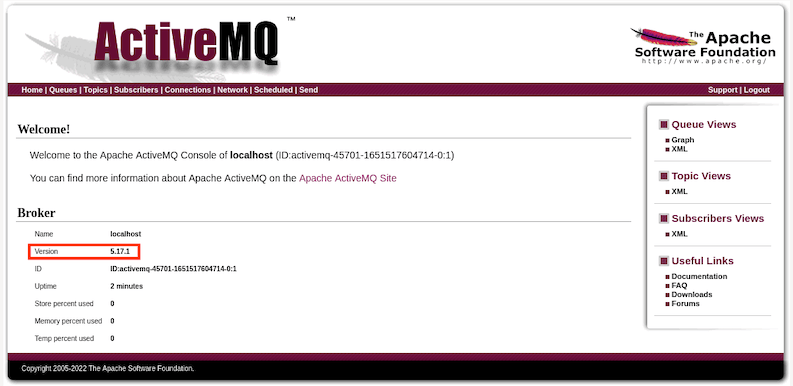
The interface provides visibility into ActiveMQ’s operation. Queue statistics show message counts, consumer numbers, and processing rates. The connections view displays currently connected clients. This visibility proves invaluable for monitoring and troubleshooting messaging applications.
Post-Installation Configuration
Changing Default Admin Credentials
Security demands changing default credentials immediately. These well-known defaults make your broker vulnerable to unauthorized access. Edit the credentials file:
sudo nano /opt/activemq/conf/jetty-realm.propertiesThis file contains user definitions in the format username: password, role. Change the admin password to something strong and unique. You can also add additional users with specific roles. After saving changes, restart ActiveMQ:
sudo systemctl restart activemq.serviceStrong passwords should include uppercase and lowercase letters, numbers, and special characters. Consider using a password manager to generate and store complex credentials securely.
Configuring Memory Settings
ActiveMQ’s memory usage impacts performance significantly. The default settings suit testing but often need adjustment for production workloads. Memory configuration appears in the wrapper configuration or environment variables.
Edit the ActiveMQ wrapper configuration:
sudo nano /opt/activemq/bin/envLocate Java memory settings and adjust the heap size. For example, set initial and maximum heap sizes:
ACTIVEMQ_OPTS_MEMORY="-Xms512M -Xmx2048M"This allocates 512 MB initially and allows growth to 2 GB. Size these values based on your expected message volume and available system resources. Monitor memory usage during operation and adjust as needed. Insufficient memory causes poor performance, while excessive allocation wastes resources.
Testing Your ActiveMQ Installation
Verify ActiveMQ is listening on the correct ports. Use the ss command:
ss -tunlp | grep javaThis displays network sockets associated with Java processes. You should see ActiveMQ listening on ports 61616 and 8161. If ports don’t appear, check the configuration and service status.
Test message queue functionality through the web console. Navigate to the Queues section and create a test queue named “test.queue”. Send a test message by clicking “Send To” and entering message content. Verify the message appears in the queue with a pending count of 1. This confirms basic messaging functionality works correctly.
Check ActiveMQ logs for any errors or warnings:
sudo tail -f /opt/activemq/data/activemq.logLogs provide detailed information about broker operations, connection attempts, and potential issues. Regular log review helps identify problems before they impact production systems.
Common Issues and Troubleshooting
Service Won’t Start
If ActiveMQ fails to start, first verify Java is installed and accessible. Run java -version to confirm. Check the service status for specific error messages:
sudo systemctl status activemq.servicePermission issues commonly prevent startup. Verify the activemq user owns the installation directory. Port conflicts occur if another service uses ActiveMQ’s ports. Use ss -tunlp | grep :61616 to check for conflicts. Stop the conflicting service or configure ActiveMQ to use alternative ports.
Connection Refused Errors
Connection failures typically stem from firewall configuration or binding address issues. Verify UFW allows traffic on ActiveMQ ports. Check the ActiveMQ configuration binds to the correct interface. If you’re connecting remotely, ensure you’re not trying to connect to localhost addresses.
Network configuration may require allowing traffic through additional security layers like cloud security groups or hardware firewalls. Test connectivity using telnet or netcat:
telnet your-server-ip 61616Successful connection indicates network accessibility. Connection refused suggests firewall blocking or ActiveMQ not listening on that interface.
Out of Memory Errors
Memory exhaustion causes ActiveMQ to stop processing messages. Increase JVM heap size in the memory configuration. Monitor memory usage through the web console’s system information page or using system monitoring tools. Consider implementing message paging or other memory management strategies for high-volume scenarios.
Analyze message patterns to identify memory leaks. Persistent messages consume more memory than non-persistent ones. Ensure consumers process messages promptly to prevent queue buildup.
Disk Storage Full
ActiveMQ stores persistent messages on disk. Full disks prevent new message storage. Check available space:
df -h /opt/activemq/dataConfigure store usage limits in activemq.xml to prevent disk exhaustion:
<systemUsage>
  <systemUsage>
    <storeUsage>
      <storeUsage limit="10 gb"/>
    </storeUsage>
  </systemUsage>
</systemUsage>
This limits persistent message storage to 10 GB. Implement message expiration policies and regular log rotation to manage disk usage proactively.
Security Best Practices
Security must be a top priority for message brokers exposed to networks. Change default administrative credentials immediately after installation. Implement authentication and authorization to control who can send and receive messages.
Configure SSL/TLS for encrypted connections. Unencrypted messaging exposes sensitive data to network eavesdropping. Generate SSL certificates and configure transport connectors to use SSL. Limit network access through firewall rules, allowing only necessary IP addresses to connect.
Monitor access logs for suspicious activity. Unusual connection patterns or failed authentication attempts may indicate security threats. Disable unnecessary transport connectors to reduce attack surface. If you only use OpenWire, disable STOMP, MQTT, and other unused protocols.
Implement connection limits to prevent resource exhaustion attacks. Configure maximum connection counts in transport connector URIs. Keep ActiveMQ updated with the latest security patches. Subscribe to Apache ActiveMQ’s security mailing list for vulnerability announcements.
Regular backups protect against data loss. Back up configuration files and persistent message stores. Test restore procedures to ensure backups are viable.
Congratulations! You have successfully installed Apache ActiveMQ. Thanks for using this tutorial for installing Apache ActiveMQ in Ubuntu 24.04 LTS Linux systems. For additional help or useful information, we recommend you check the official Apache ActiveMQ website.
