How To Install Apache Guacamole on Debian 13

Apache Guacamole is a powerful, clientless remote desktop gateway that enables you to access your machines through a web browser without installing any plugins or client software. Whether you need to manage RDP sessions, VNC connections, or SSH terminals, Guacamole provides a unified HTML5-based interface accessible from anywhere. This comprehensive guide walks you through installing and configuring Apache Guacamole on Debian 13 “Trixie,” the latest stable release of this trusted server platform. By following these detailed steps, you’ll have a production-ready remote access solution secured with HTTPS, backed by database authentication, and ready to serve your team or organization.
What You Will Learn
This tutorial covers everything needed to deploy Guacamole successfully on Debian 13:
- Installing build dependencies and compiling the guacd server daemon from source
- Deploying the Guacamole web application using Apache Tomcat
- Configuring database-backed authentication for better security and user management
- Securing your installation with an Nginx reverse proxy and Let’s Encrypt SSL certificates
- Creating connections, managing users, and troubleshooting common issues
Prerequisites and System Requirements
Supported Use Cases and Limitations
Apache Guacamole excels in several scenarios. Remote system administrators use it to manage server infrastructure from a central portal. Support teams leverage it to assist users without requiring VPN access. Development teams access lab environments through a simple browser interface. Educational institutions provide students with remote desktop access to lab computers.
Keep in mind that browser-based remote desktop performance depends on network quality and client device capabilities. While Guacamole supports multiple protocols, each requires specific libraries installed during compilation. Heavy graphical applications may experience latency compared to native RDP or VNC clients.
Server Requirements
For small to medium deployments, provision a server with at least 2 CPU cores and 2-4 GB of RAM. Allocate 20 GB of disk space for the operating system, Guacamole components, logs, and database. The amd64 architecture is officially supported and recommended. Ensure stable network connectivity with sufficient bandwidth for concurrent remote sessions. Your server should have access to target machines on their respective protocol ports: 3389 for RDP, 5900+ for VNC, and 22 for SSH.
Software and Access Requirements
You need a fresh or existing Debian 13 “Trixie” installation with all updates applied. Root access or a user account with sudo privileges is essential. Basic familiarity with the Linux command line, text editors like nano or vim, and SSH connections will make this process smoother.
Environment Preparation on Debian 13
Update System Packages
Begin by ensuring your Debian 13 system has the latest security patches and package versions. Open your terminal and execute:
sudo apt update
sudo apt upgrade -y
This refreshes the package index and upgrades all installed software, providing a stable foundation for Guacamole installation. Keeping your system current prevents compatibility issues and closes known vulnerabilities.
Set Hostname, Timezone, and Locale
Assign a meaningful hostname to identify your Guacamole server:
sudo hostnamectl set-hostname guacamole.yourdomain.comConfigure the correct timezone for accurate logging and audit trails:
sudo timedatectl set-timezone Asia/JakartaReplace with your actual timezone. Verify your locale settings ensure proper character encoding:
localectl statusBasic Firewall and Network Configuration
Debian 13 uses nftables by default, but many administrators prefer UFW for simplicity. Install and configure UFW to allow necessary services:
sudo apt install ufw -y
sudo ufw allow 22/tcp
sudo ufw allow 80/tcp
sudo ufw allow 443/tcp
sudo ufw enable
This opens SSH, HTTP, and HTTPS while blocking other inbound connections. Guacamole’s guacd daemon typically listens on localhost port 4822, so external access isn’t needed. The Tomcat application server runs on port 8080, but you’ll expose it only through the Nginx reverse proxy for security.
Understanding Apache Guacamole Architecture
Guacamole Server and Protocol Libraries
The Guacamole server, called guacd, acts as a proxy daemon translating between web clients and remote desktop protocols. When a user connects through the browser, guacd handles the actual RDP, VNC, or SSH communication with target machines. This architecture keeps protocol complexity server-side, allowing any HTML5-capable browser to function as a remote desktop client.
Protocol support depends on libraries installed during compilation. FreeRDP enables RDP connections to Windows servers and desktops. The libvncserver library provides VNC support for Linux and Unix systems. For SSH terminal access, libssh2 is required. Additional libraries like libtelnet, libjpeg-turbo, libpng, and libwebp enhance functionality and performance.
Guacamole Client Web Application
The client component is a Java web application packaged as guacamole.war. Deployed on a servlet container like Apache Tomcat, it serves the HTML5 interface users see in their browsers. The web app communicates with guacd over a local socket or TCP connection, translating user inputs into protocol-specific commands and rendering the remote desktop display as streaming graphics.
Authentication and Configuration Backend
Guacamole supports multiple authentication methods. The simplest approach uses an XML user-mapping file defining users and connections. However, production deployments benefit from database authentication extensions, which store user accounts, permissions, and connection settings in MySQL, MariaDB, or PostgreSQL. Database-backed authentication enables role-based access control, connection sharing, and detailed audit logging—critical features for team environments.
Installing Required Dependencies on Debian 13
Core Build Tools and Libraries
Compile Guacamole server from source to ensure compatibility with Debian 13 and access to the latest features. Install essential build tools first:
sudo apt install build-essential autoconf automake libtool \
  pkg-config libcairo2-dev libjpeg62-turbo-dev libpng-dev \
  libtool-bin uuid-dev -y
Now add protocol-specific libraries. For RDP support, install FreeRDP development packages:
sudo apt install freerdp2-dev -yEnable VNC connections with libvncserver:
sudo apt install libvncserver-dev -yFor SSH and telnet access, install:
sudo apt install libssh2-1-dev libtelnet-dev -yAdditional optional libraries improve functionality:
sudo apt install libwebsockets-dev libpulse-dev libvorbis-dev \
  libwebp-dev libssl-dev libpango1.0-dev -y
Additional Runtime Dependencies
Guacamole’s web application requires Java and a servlet container. Install OpenJDK and Tomcat:
sudo apt install default-jdk tomcat10 tomcat10-admin tomcat10-user -yNote that Debian 13 may include Tomcat 10. Verify compatibility with your chosen Guacamole version, as some releases require Tomcat 9.
For database authentication, install MariaDB server and client:
sudo apt install mariadb-server mariadb-client -ySecure your MariaDB installation immediately:
sudo mysql_secure_installationFollow the prompts to set a root password and remove test databases.
Downloading and Compiling Guacamole Server on Debian 13
Check Latest Stable Guacamole Version
Visit the Apache Guacamole downloads page to identify the current stable release. At the time of writing, version 1.5.x represents the latest stable branch. Using current versions ensures security patches and feature improvements. Avoid mixing different versions of server and client components.
Download Guacamole Server Source
Download the source tarball using wget:
cd /tmp
wget https://downloads.apache.org/guacamole/1.6.0/source/guacamole-server-1.6.0.tar.gz
Replace 1.6.0 with the actual latest version. Extract the archive:
tar -xzf guacamole-server-1.6.0.tar.gz
cd guacamole-server-1.6.0
Configure Build with Debian 13 Paths
Run the configure script to detect installed libraries and prepare the build environment:
./configure --with-systemd-dir=/etc/systemd/systemThe --with-systemd-dir flag ensures the systemd service file installs to the correct location on Debian 13. Review the configure output carefully. It lists detected libraries and enabled features. Missing libraries appear as warnings. If critical protocols are disabled, install the corresponding development packages and re-run configure.
Compile, Install, and Enable guacd Service
Compile the source code:
makeThis process may take several minutes depending on your server’s CPU. Install the compiled binaries:
sudo make installUpdate the dynamic linker cache so the system finds Guacamole libraries:
sudo ldconfigIf the systemd service file was installed, enable and start guacd:
sudo systemctl enable guacd
sudo systemctl start guacd
Verify the daemon is running:
sudo systemctl status guacdYou should see an active status with guacd listening on port 4822.
Installing Apache Tomcat and Guacamole Client
Install Compatible Apache Tomcat Version
Debian 13 repositories include Tomcat 10, but verify compatibility with your Guacamole version. Some Guacamole releases specifically require Tomcat 9 due to Jakarta EE namespace changes. If necessary, download Tomcat 9 from the Apache Tomcat website and install manually.
For this guide, assuming Tomcat 10 compatibility, ensure it’s installed and running:
sudo systemctl enable tomcat10
sudo systemctl start tomcat10
Check that Tomcat listens on port 8080:
sudo ss -tlnp | grep 8080Download and Deploy guacamole.war
Download the Guacamole client web application matching your server version:
cd /tmp
wget https://downloads.apache.org/guacamole/1.6.0/binary/guacamole-1.6.0.war
Deploy it to Tomcat by copying to the webapps directory:
sudo cp guacamole-1.6.0.war /var/lib/tomcat10/webapps/guacamole.warTomcat automatically extracts and deploys the WAR file. Wait a few seconds, then verify deployment:
ls /var/lib/tomcat10/webapps/You should see a guacamole directory alongside guacamole.war.
Verify Tomcat and guacd Status
Confirm both services are active:
sudo systemctl status tomcat10
sudo systemctl status guacd
If either service shows errors, examine logs:
sudo journalctl -u tomcat10 -n 50
sudo journalctl -u guacd -n 50
Common issues include missing Java, port conflicts, or incorrect file permissions.
Configuring Guacamole Home and Core Settings
Create /etc/guacamole Directory Structure
Guacamole looks for configuration in the GUACAMOLE_HOME directory, typically /etc/guacamole:
sudo mkdir -p /etc/guacamole/{extensions,lib}The extensions folder holds authentication and other extension JARs. The lib folder contains JDBC drivers and supporting libraries.
Set GUACAMOLE_HOME Environment for Tomcat
Tell Tomcat where to find Guacamole configuration by setting an environment variable. Create or edit /etc/default/tomcat10:
sudo nano /etc/default/tomcat10Add this line:
GUACAMOLE_HOME=/etc/guacamoleSave and restart Tomcat:
sudo systemctl restart tomcat10Basic guacamole.properties Configuration
Create the main configuration file:
sudo nano /etc/guacamole/guacamole.propertiesAdd these essential settings:
guacd-hostname: localhost
guacd-port: 4822
These tell the web application how to connect to the guacd daemon. Save the file. More settings will be added after configuring database authentication.
Setting Up Database Authentication
Why Use Database Authentication
Database-backed authentication offers significant advantages over static file-based user mapping. You can create and manage users through the web interface without editing configuration files. Role-based permissions enable granular access control. Connection sharing allows multiple users to access the same resources. Audit logs track who accessed which systems and when—essential for compliance and security investigations.
Create Database, User, and Schema
Log into MariaDB as root:
sudo mysql -u root -pCreate a dedicated database and user for Guacamole:
CREATE DATABASE guacamole_db;
CREATE USER 'guacamole_user'@'localhost' IDENTIFIED BY 'StrongPassword123!';
GRANT ALL PRIVILEGES ON guacamole_db.* TO 'guacamole_user'@'localhost';
FLUSH PRIVILEGES;
EXIT;
Replace StrongPassword123! with a secure password. Download the MySQL authentication extension:
cd /tmp
wget https://downloads.apache.org/guacamole/1.6.0/binary/guacamole-auth-jdbc-1.6.0.tar.gz
tar -xzf guacamole-auth-jdbc-1.6.0.tar.gz
Import the database schema:
cd guacamole-auth-jdbc-1.6.0/mysql/schema/
cat *.sql | mysql -u guacamole_user -p guacamole_db
Enter the database user password when prompted. This creates all necessary tables for user authentication and connection management.
Install Guacamole MySQL Extension
Copy the MySQL authentication extension to GUACAMOLE_HOME:
sudo cp /tmp/guacamole-auth-jdbc-1.6.0/mysql/guacamole-auth-jdbc-mysql-1.6.0.jar \
  /etc/guacamole/extensions/
Download the MySQL JDBC connector:
cd /tmp
wget https://dev.mysql.com/get/Downloads/Connector-J/mysql-connector-j-8.2.0.tar.gz
tar -xzf mysql-connector-j-8.2.0.tar.gz
Copy the JDBC driver to the lib directory:
sudo cp mysql-connector-j-8.2.0/mysql-connector-j-8.2.0.jar /etc/guacamole/lib/Configure Database Settings in guacamole.properties
Edit the Guacamole properties file:
sudo nano /etc/guacamole/guacamole.propertiesAdd database connection settings:
mysql-hostname: localhost
mysql-port: 3306
mysql-database: guacamole_db
mysql-username: guacamole_user
mysql-password: StrongPassword123!
Save the file and restart Tomcat:
sudo systemctl restart tomcat10Monitor logs for errors:
sudo tail -f /var/log/tomcat10/catalina.outSuccessful database connection messages indicate proper configuration.
Creating Initial Guacamole User and Connection
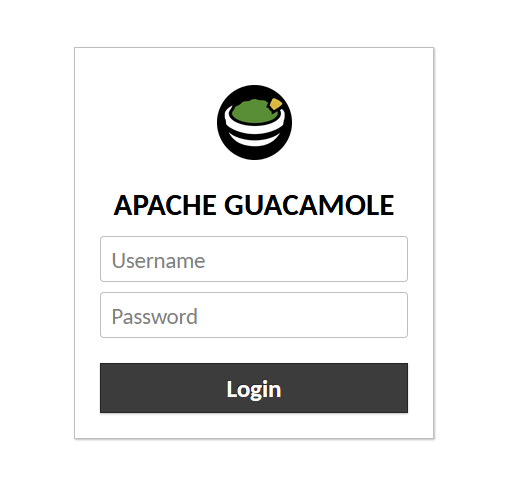
Accessing Guacamole Web Interface
Open your web browser and navigate to:
http://your-server-ip:8080/guacamoleThe default administrator account created by the database schema is:
- Username:
guacadmin - Password:
guacadmin
Log in immediately and change this password.
Creating a New Administrative User
Click your username in the top-right corner and select “Settings”. Navigate to the “Users” tab and click “New User.” Create a personal administrator account with a strong password. Grant it all administrative permissions. Log out and log back in with your new account. Return to Settings → Users and either disable or delete the default guacadmin account for security.
Adding First Remote Desktop Connection
In Settings, navigate to the “Connections” tab and click “New Connection.” Give it a meaningful name like “Windows Server RDP.” Select “RDP” as the protocol. Enter the hostname or IP address of your Windows server. Set the port to 3389 (default RDP). Configure authentication:
- Username:
administrator - Password:
your-password
Under “Display,” set color depth to “True color (32-bit)” for best quality. Enable clipboard integration by checking “Enable clipboard” under “Clipboard.” Save the connection. Return to the home screen and click your new connection to test it. A remote desktop session should open in your browser.
Securing Guacamole with Nginx Reverse Proxy and HTTPS
Why Use a Reverse Proxy
Exposing Tomcat directly to the internet poses security risks. An Nginx reverse proxy provides TLS encryption, protecting credentials and session data in transit. It simplifies access with clean URLs instead of port numbers. You can implement rate limiting, IP restrictions, and additional security headers. The reverse proxy also enables HTTP to HTTPS redirection, ensuring encrypted connections.
Install and Configure Nginx on Debian 13
Install Nginx from Debian repositories:
sudo apt install nginx -yCreate a new server block configuration:
sudo nano /etc/nginx/sites-available/guacamoleAdd this configuration:
server {
    listen 80;
    server_name guacamole.yourdomain.com;

    location / {
        proxy_pass http://localhost:8080/guacamole/;
        proxy_buffering off;
        proxy_http_version 1.1;
        proxy_set_header X-Forwarded-For $proxy_add_x_forwarded_for;
        proxy_set_header Upgrade $http_upgrade;
        proxy_set_header Connection $http_connection;
        proxy_cookie_path /guacamole/ /;
        access_log off;
    }
}
The WebSocket upgrade headers are critical for Guacamole’s real-time communication. Enable the site:
sudo ln -s /etc/nginx/sites-available/guacamole /etc/nginx/sites-enabled/
sudo nginx -t
sudo systemctl restart nginx
Obtain and Configure Let’s Encrypt TLS Certificate
Install Certbot for automated SSL certificate management:
sudo apt install certbot python3-certbot-nginx -yRequest a certificate for your domain:
sudo certbot --nginx -d guacamole.yourdomain.comFollow the prompts to configure HTTPS and automatic HTTP to HTTPS redirection. Certbot modifies your Nginx configuration automatically. Test renewal:
sudo certbot renew --dry-runYour Guacamole instance is now accessible via https://guacamole.yourdomain.com with a valid SSL certificate.
Basic Hardening Tips
Restrict administrative access by IP address in your Nginx configuration. Add this to the server block:
location /guacamole/#/settings/ {
    allow 192.168.1.0/24;
    deny all;
    proxy_pass http://localhost:8080;
}
Configure strong TLS settings by adding:
ssl_protocols TLSv1.2 TLSv1.3;
ssl_ciphers HIGH:!aNULL:!MD5;
ssl_prefer_server_ciphers on;
Keep Nginx, Tomcat, and all system packages updated regularly. Consider implementing fail2ban to block brute-force login attempts.
Managing Users, Groups, and Permissions
Role-Based Access Control Concepts
Guacamole’s database authentication supports sophisticated permission models. Users represent individual accounts with credentials. Groups organize users by department, role, or function. Connections define remote systems. Permissions link users or groups to specific connections with granular access levels: view-only, full control, or administrative rights.
Creating and Assigning Groups
In Settings → Groups, create groups like “IT Admins,” “Helpdesk,” or “Developers”. Add relevant users to each group. Create connections for different environments: production servers, development workstations, or user desktops. Assign connection permissions to groups rather than individual users. This approach simplifies management as your user base grows. When someone joins the helpdesk team, simply add them to the Helpdesk group, and they automatically inherit access to designated connections.
Auditing and Activity Monitoring Basics
Database authentication records connection history in the guacamole_connection_history table. Query this table to generate usage reports, identify inactive connections, or investigate security incidents. Enable detailed logging by setting log levels in /etc/guacamole/logback.xml. Regular log review helps detect anomalies like off-hours access or unusual connection patterns.
Common Issues and Troubleshooting
guacd Not Starting or Crashing
If guacd fails to start, examine systemd logs:
sudo journalctl -u guacd -xeCommon causes include missing libraries detected during compilation. Re-run ./configure in the source directory to identify missing dependencies. Install any reported missing packages and recompile. Port conflicts occur if another service uses port 4822. Change the guacd port by editing /etc/systemd/system/guacd.service and updating guacamole.properties accordingly.
Tomcat or guacamole.war Deployment Problems
Check Tomcat logs for deployment errors:
sudo tail -f /var/log/tomcat10/catalina.outVersion mismatches between Guacamole server and client cause failures. Ensure identical versions. Missing GUACAMOLE_HOME environment variables prevent configuration loading. Verify /etc/default/tomcat10 contains the correct path. Permission issues occur if Tomcat cannot read /etc/guacamole. Ensure proper ownership:
sudo chown -R tomcat:tomcat /etc/guacamoleAuthentication and Login Errors
Database connection failures appear in Tomcat logs as SQL exceptions. Verify database credentials in guacamole.properties match those created in MariaDB. Test database connectivity manually:
mysql -u guacamole_user -p guacamole_dbSchema import failures occur if SQL files are applied out of order. Drop and recreate the database, then re-import schema files in sequence. Password reset requires direct database access. Update the guacamole_user table to reset administrator passwords.
Maintenance, Updates, and Best Practices
Updating Guacamole on Debian 13
Before upgrading, back up your configuration and database:
sudo cp -r /etc/guacamole /etc/guacamole.backup
sudo mysqldump -u root -p guacamole_db > guacamole_db_backup.sql
Download new versions of both server and client. Stop services:
sudo systemctl stop tomcat10
sudo systemctl stop guacd
Compile and install the new server version following earlier steps. Replace guacamole.war and extension JARs with updated versions. Review release notes for configuration changes or database migrations. Start services and test thoroughly before production use.
Regular Backups and Security Practices
Automate daily database backups using cron jobs. Store backups off-site or in cloud storage. Back up /etc/guacamole configuration directory regularly. Test restoration procedures to ensure backups are viable. Limit administrative accounts to necessary personnel only. Enforce strong password policies through Guacamole’s authentication settings. Implement multi-factor authentication using TOTP extensions available for Guacamole. Regularly audit user accounts, disabling inactive ones.
When to Scale or Use Docker
Large deployments benefit from containerization. Docker images simplify deployment across multiple servers. Kubernetes orchestration enables high availability and load balancing. Community-maintained Docker Compose stacks bundle Guacamole, guacd, and database containers for rapid deployment. Consider dedicated database servers when supporting hundreds of concurrent users. Load balancing multiple Guacamole instances distributes connections and provides redundancy.
Congratulations! You have successfully installed Apache Guacamole. Thanks for using this tutorial to install the latest version of the Apache Guacamole remote desktop gateway on Debian 13 “Trixie”. For additional help or useful information, we recommend you check the official Apache website.
