How To Install Apache JMeter on Linux Mint 22

Performance testing is essential for modern web applications. Apache JMeter stands as one of the most powerful open-source tools for load testing and performance measurement, supporting protocols including HTTP, HTTPS, FTP, and JDBC. This comprehensive guide walks through installing Apache JMeter on Linux Mint 22, providing detailed instructions for both beginners and experienced users. The process requires Java installation, proper environment configuration, and verification steps to ensure optimal functionality. Whether testing web applications, databases, or server performance, JMeter on Linux Mint 22 delivers robust testing capabilities. Linux Mint’s stability and user-friendly interface make it an excellent platform for development and testing environments.
Understanding Apache JMeter
Apache JMeter is a Java-based application designed for analyzing and measuring performance across various services. Originally developed for testing web applications, it has expanded to support multiple protocols and testing scenarios. The tool operates in both GUI and non-GUI modes, allowing flexibility for test development and execution. GUI mode facilitates test plan creation and debugging. Non-GUI mode, meanwhile, provides superior performance for actual load testing scenarios. JMeter’s popularity stems from its extensibility, active community, and comprehensive documentation.
Prerequisites
System Requirements
Linux Mint 22 (codenamed Wilma) requires specific hardware specifications for smooth operation. A minimum of 2GB RAM is mandatory, though 4GB or more is recommended for running JMeter alongside other applications. Storage requirements include at least 20GB for the operating system, with 100GB recommended for comfortable workspace and test data storage. An active internet connection is essential for downloading packages and dependencies. Terminal access with basic command-line knowledge will facilitate the installation process.
User Permissions
Installing JMeter requires a non-root user account with sudo privileges. Sudo access enables installing system packages without logging in as the root user, maintaining security best practices. If the account lacks sudo privileges, contact the system administrator to grant appropriate permissions.
Java Requirements
JMeter is a Java application, making Java installation mandatory. The tool requires Java 8 or higher to function properly. OpenJDK versions 11, 17, or 22 are recommended for Linux environments. While Java Runtime Environment (JRE) suffices for running JMeter, installing the complete Java Development Kit (JDK) provides additional tools and flexibility.
Step 1: Update System Packages
Begin by updating the package repository and existing software. This ensures compatibility and security patches are current. Open a terminal window and execute:
sudo apt update && sudo apt upgradeThe system will refresh package lists and upgrade installed software. Enter the password when prompted. This process may take several minutes depending on connection speed and pending updates.
Next, install essential dependencies:
sudo apt install wget apt-transport-https gnupg2 software-properties-commonThese packages enable secure downloads and repository management. The wget utility downloads files from the internet. The apt-transport-https package allows APT to retrieve packages over HTTPS. Press ‘Y’ when asked to confirm installation.
Step 2: Install Java Development Kit (JDK)
Check Existing Java Installation
Verify whether Java is already installed on the system:
java --versionAlternatively, use:
java -versionBoth commands display the installed Java version. If Java is present, the output shows version information including build details. If the system returns “command not found,” Java requires installation.
Installing OpenJDK (Recommended Method)
OpenJDK is the recommended Java implementation for Linux Mint and other Ubuntu-based distributions. Install the default JDK package:
sudo apt install default-jdkThis command installs OpenJDK along with necessary dependencies. The package manager handles all required libraries automatically. Installation typically completes within a few minutes.
For specific OpenJDK versions, use:
sudo apt install openjdk-11-jdkOr for OpenJDK 17:
sudo apt install openjdk-17-jdkThese commands install particular Java versions when projects require specific compatibility. After installation, verify success with:
java -versionThe output should display the newly installed Java version.
Installing Oracle JDK (Alternative Method)
Some projects specifically require Oracle JDK instead of OpenJDK. Download Oracle JDK from the official website after accepting the license agreement. Navigate to the downloads directory and extract the archive:
tar -xzf jdk-22_linux-x64_bin.tar.gzMove the extracted directory to /opt:
sudo mv jdk-22 /opt/This location keeps system-wide applications organized.
Configuring JAVA_HOME Environment Variable
Setting JAVA_HOME enables applications to locate the Java installation. Determine the Java installation path:
update-alternatives --config javaThis command displays all installed Java versions and their paths. Note the path for the selected version. Edit the .bashrc file in the home directory:
nano ~/.bashrcAdd these lines at the file’s end:
export JAVA_HOME=/usr/lib/jvm/java-11-openjdk-amd64
export PATH=$PATH:$JAVA_HOME/bin
Replace the path with the actual Java installation location. Save the file and reload the configuration:
source ~/.bashrcVerify JAVA_HOME is set correctly:
echo $JAVA_HOMEThe output should display the configured path.
Step 3: Download Apache JMeter
Using Official Apache Website
Navigate to the Apache JMeter download page through a web browser. The site displays available versions including stable releases and development builds. Select the latest stable binary version for optimal performance and security. Binary distributions come pre-compiled and ready to use. Avoid source distributions unless planning to modify JMeter itself.
Downloading via Command Line
Command-line downloading provides efficiency and automation capabilities. Use wget to download JMeter directly:
cd /tmp
wget https://dlcdn.apache.org//jmeter/binaries/apache-jmeter-5.6.3.tgz
Replace the version number with the current stable release. The download saves to the /tmp directory by default. Alternatively, use curl:
curl -O https://dlcdn.apache.org//jmeter/binaries/apache-jmeter-5.6.3.tgzBoth tools download files effectively. Monitor the download progress displayed in the terminal. File size typically ranges from 60-80MB depending on the version.
Verifying Download Integrity (Optional)
Download integrity verification prevents corrupted or tampered files. Download the checksum file from the same page:
wget https://dlcdn.apache.org//jmeter/binaries/apache-jmeter-5.6.3.tgz.sha512Verify the checksum:
sha512sum -c apache-jmeter-5.6.3.tgz.sha512The output should indicate “OK” for a successful match. This step ensures file authenticity and completeness.
Step 4: Extract JMeter Archive
The downloaded file uses tar.gz compression format, requiring extraction before use. Navigate to the download directory:
cd /tmpExtract the archive:
tar -xzf apache-jmeter-5.6.3.tgzThe command flags perform specific functions: -x extracts files, -z handles gzip compression, and -f specifies the filename. Extraction creates a new directory containing JMeter files.
Linux Mint’s file manager offers graphical extraction as an alternative. Right-click the archive and select “Extract Here”. This method suits users preferring visual interfaces.
Choose an installation location. Home directory placement keeps JMeter accessible for single users:
mv apache-jmeter-5.6.3 ~/jmeterSystem-wide installation to /opt benefits multiple users:
sudo mv apache-jmeter-5.6.3 /opt/jmeterThe /opt directory conventionally houses optional software packages.
Step 5: Configure JMeter Environment
Setting Up JMeter Path
Adding JMeter’s bin directory to the system PATH enables running JMeter from any location. Edit the .bashrc file:
nano ~/.bashrcAppend this line:
export PATH=$PATH:~/jmeter/binOr for /opt installation:
export PATH=$PATH:/opt/jmeter/binSave the file and reload the shell configuration:
source ~/.bashrcNow JMeter commands work from any directory.
Configuring JMETER_HOME Variable (Optional)
JMETER_HOME variable helps scripts and plugins locate the JMeter installation. Add to .bashrc:
export JMETER_HOME=~/jmeterOr:
export JMETER_HOME=/opt/jmeterThis configuration benefits advanced usage and plugin installations.
JVM Memory Configuration
Java Virtual Machine memory settings significantly impact JMeter performance. Default settings may prove insufficient for large-scale tests. Create a setenv.sh file in the JMeter bin directory:
nano ~/jmeter/bin/setenv.shAdd these lines:
export HEAP="-Xms1g -Xmx1g"
export JVM_ARGS="-XX:MaxMetaspaceSize=256m"
These settings allocate 1GB heap memory and 256MB metaspace. Adjust values based on available system RAM. Systems with 8GB+ RAM can use -Xms2g -Xmx2g for better performance. Make the file executable:
chmod +x ~/jmeter/bin/setenv.shStep 6: Launch Apache JMeter
Starting JMeter in GUI Mode
GUI mode facilitates test plan creation and debugging. Navigate to the JMeter bin directory:
cd ~/jmeter/binLaunch JMeter:
./jmeterOr:
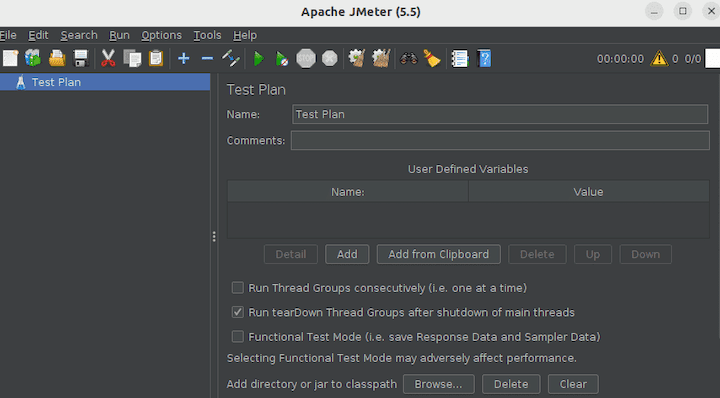
./jmeter.shBoth commands start the graphical interface. The startup process displays initialization messages in the terminal. JMeter GUI appears within seconds, showing the default test plan workspace. The interface includes a tree structure on the left and configuration panels on the right.
Starting JMeter in Non-GUI Mode
Non-GUI mode delivers superior performance for actual load testing. This mode consumes fewer resources and handles higher loads more efficiently. Run tests without the graphical interface:
jmeter -n -t testplan.jmx -l results.jtlThe -n flag specifies non-GUI mode, -t indicates the test plan file, and -l designates the results log. Replace “testplan.jmx” with the actual test plan filename. Results save to “results.jtl” for later analysis.
Additional useful parameters include:
jmeter -n -t testplan.jmx -l results.jtl -e -o /path/to/outputThe -e and -o flags generate HTML reports automatically.
Alternative Launch Methods
Create a desktop launcher for convenient access. Right-click the desktop and select “Create Launcher”. Set the command to:
/home/username/jmeter/bin/jmeterSymbolic links provide another convenient option:
sudo ln -s ~/jmeter/bin/jmeter /usr/local/bin/jmeterThis allows launching JMeter by simply typing “jmeter” in any terminal.
Step 7: Verify Installation
Confirm JMeter installed correctly by checking the version:
jmeter --versionOr from the bin directory:
./jmeter -vThe output displays JMeter version, copyright information, and Java version. Successful installation shows no error messages. Launch the GUI to verify graphical functionality:
jmeterThe interface should open without errors. Create a simple test plan to confirm full functionality. Add a Thread Group from the menu, then add an HTTP Request sampler. Run the test to ensure all components work properly.
Check the jmeter.log file for warnings or errors:
cat ~/jmeter/bin/jmeter.logMinor warnings typically don’t affect functionality, but errors require investigation.
Basic Configuration and Optimization
JMeter Properties Configuration
The jmeter.properties file controls numerous JMeter behaviors. Located in the bin directory, this file contains hundreds of configurable properties. Edit with caution:
nano ~/jmeter/bin/jmeter.propertiesKey properties for improved performance include:
httpclient.reset_state_on_thread_group_iteration=trueThis setting clears cookies and cache between iterations. Another important property:
httpsampler.max_bytes_to_store_per_request=10000This limits stored response data, reducing memory consumption.
Linux System Optimization for JMeter
Operating system tuning enhances JMeter performance during intensive testing. Modify network settings for improved connection handling. Edit sysctl configuration:
sudo nano /etc/sysctl.confAdd these lines:
net.ipv4.tcp_tw_reuse = 1
net.ipv4.ip_local_port_range = 1025 65535
These settings enable TIME_WAIT socket reuse and expand available ports. Apply changes:
sudo sysctl -pIncrease file descriptor limits to prevent “Too many open files” errors:
ulimit -n 65535Make this permanent by editing /etc/security/limits.conf:
sudo nano /etc/security/limits.confAdd:
* soft nofile 65535
* hard nofile 65535
These optimizations allow JMeter to handle thousands of concurrent connections.
Creating Custom Configuration Files
The user.properties file stores custom configurations separately from default settings. This approach prevents configuration loss during JMeter upgrades. Create the file:
nano ~/jmeter/bin/user.propertiesAdd custom properties here instead of modifying jmeter.properties. Environment variables integrate with JMeter tests through various methods. System environment variables become accessible within test plans, enabling flexible test configurations.
Creating Your First Test Plan
Open JMeter GUI to begin test plan development. The workspace displays a default “Test Plan” element. Right-click and select Add > Threads (Users) > Thread Group. This component defines virtual user behavior.
Configure the Thread Group with desired user count, ramp-up period, and loop count. Add an HTTP Request sampler by right-clicking the Thread Group and selecting Add > Sampler > HTTP Request. Enter the target server name or IP address and path.
Add listeners to view results. Right-click the Thread Group and select Add > Listener > View Results Tree. This listener displays individual request and response details. Save the test plan using File > Save As, choosing a descriptive filename with .jmx extension.
Run the test by clicking the green Start button. Monitor results in the View Results Tree listener. Green entries indicate successful requests while red entries show failures.
Common Issues and Troubleshooting
Java-Related Issues
“Command not found” errors indicate Java isn’t in the system PATH. Verify Java installation:
which javaIf empty, reinstall Java or fix PATH configuration. Version compatibility issues arise when using Java versions below 8. Upgrade to OpenJDK 11 or later for optimal compatibility.
JAVA_HOME errors prevent JMeter from locating Java. Set the variable correctly as described in the configuration section. Verify with:
echo $JAVA_HOMEPermission Issues
Execute permission errors on jmeter.sh require permission modification. Navigate to the bin directory and run:
chmod +x jmeter.shThis grants execution rights to the script. Directory access problems require checking ownership and permissions:
ls -la ~/jmeterAdjust ownership if necessary:
sudo chown -R $USER:$USER ~/jmeterPerformance Issues
OutOfMemoryError messages indicate insufficient JVM heap allocation. Increase heap size in setenv.sh as described earlier. GUI mode slowness during heavy load tests stems from resource consumption. Always use non-GUI mode for actual performance testing. GUI mode serves only development and debugging purposes.
Display Issues
Remote X11 forwarding problems affect GUI display over SSH connections. Enable X11 forwarding:
ssh -X user@hostnameAlternatively, use VNC or configure tests for non-GUI execution. Font rendering issues occasionally occur on Linux systems. Install additional font packages:
sudo apt install fonts-dejavu fonts-liberationPlugin Installation Issues
JMeter Plugins Manager sometimes fails to install due to network or permission issues. Download the Plugins Manager JAR manually from the official website. Place it in the lib/ext directory:
cp plugins-manager.jar ~/jmeter/lib/ext/Restart JMeter and access Options > Plugins Manager.
Additional Tools and Plugins
JMeter Plugins Manager simplifies plugin installation and management. Access it through Options > Plugins Manager after installation. Essential plugins include Custom Thread Groups for complex load patterns, Throughput Shaping Timer for precise load control, and PerfMon Server Agent for system metrics collection.
Integration with monitoring tools provides comprehensive performance visibility. Grafana displays real-time metrics beautifully when combined with InfluxDB backend listener. CI/CD pipeline integration enables automated performance testing. Jenkins, GitLab CI, and GitHub Actions support JMeter execution through plugins or scripts.
Reporting tools transform raw results into actionable insights. JMeter’s built-in HTML reports provide excellent visualizations. Third-party tools like BlazeMeter and Taurus offer additional analysis capabilities.
Congratulations! You have successfully installed Apache JMeter. Thanks for using this tutorial for installing Apache JMeter on your Linux Mint 22 system. For additional help or useful information, we recommend you check the official Apache website.
