How To Install Apache Solr on Debian 13

Apache Solr stands as one of the most powerful open-source search platforms available today, built on the robust Apache Lucene library. It delivers enterprise-grade search capabilities, real-time indexing, and advanced analytics features that power everything from e-commerce product searches to content management systems. This comprehensive guide walks you through installing Apache Solr on Debian 13, covering everything from initial setup to security hardening. Whether you’re a system administrator, developer, or DevOps engineer, you’ll find the step-by-step instructions and troubleshooting tips you need to get Solr running smoothly.
Understanding Apache Solr
Apache Solr is a Java-based search server that provides full-text search, hit highlighting, faceted search, and dynamic clustering. The platform excels at handling large-scale search operations with blazing speed and precision. Organizations worldwide rely on Solr for applications requiring sophisticated search functionality, from document management systems to customer data analytics.
The architecture centers on Apache Lucene, which handles the core indexing and search operations. Solr adds a layer of RESTful APIs, making integration straightforward regardless of your programming language. The admin web interface, accessible on port 8983 by default, provides monitoring, configuration management, and query testing capabilities.
Prerequisites and System Requirements
Before diving into the installation, ensure your Debian 13 system meets the necessary requirements. Your server needs at least 2GB of RAM, though 4GB or more is recommended for production environments. Allocate a minimum of 1GB free disk space for Solr itself, plus additional space for your search indexes. A dual-core CPU handles basic workloads, but more cores improve performance under heavy query loads.
Software-wise, you’ll need a fresh or updated Debian 13 installation with root or sudo privileges. Apache Solr requires Java Development Kit (JDK) version 11 or higher, with OpenJDK 17 being the recommended choice for optimal compatibility. Network access is essential for downloading packages and Solr distributions.
Check if Java is already installed by running java -version in your terminal. If Java isn’t present or you’re running an older version, you’ll install it in the upcoming steps.
Update Your Debian System
Start by updating your system packages to ensure you’re working with the latest security patches and software versions. Open your terminal and execute these commands:
sudo apt update
sudo apt upgrade -y
The first command refreshes the package index, while the second upgrades all installed packages. If kernel updates are applied, reboot your system with sudo reboot to ensure all changes take effect properly.
Install Java (OpenJDK 17)
Apache Solr runs on the Java Virtual Machine, making Java installation your next critical step. OpenJDK 17 provides excellent stability and long-term support, making it ideal for Solr deployments.
Install OpenJDK 17 with this command:
sudo apt install openjdk-17-jdk -yVerify the installation succeeded by checking the Java version:
java -version
javac -version
Both commands should display version information for Java 17. Now configure the JAVA_HOME environment variable, which Solr uses to locate your Java installation. Open the environment file:
sudo nano /etc/environmentAdd this line at the end of the file:
JAVA_HOME="/usr/lib/jvm/java-17-openjdk-amd64"Save and exit. Load the new environment variable immediately:
source /etc/environmentConfirm JAVA_HOME is set correctly:
echo $JAVA_HOMEDownload Apache Solr
Navigate to a temporary directory where you’ll download the Solr archive. The /tmp directory works perfectly for this purpose:
cd /tmpSet a variable for the Solr version you’re downloading. Check the Apache Solr website for the latest release, but for this tutorial, we’ll use version 9.4.1:
export SOLR_VERSION="9.4.1"Download the Solr tarball using wget:
wget https://downloads.apache.org/solr/solr-${SOLR_VERSION}/solr-${SOLR_VERSION}.tgzThe download completes in a few minutes depending on your connection speed. For extra security, you can verify the download’s integrity using checksum verification, though this step is optional.
Extract the Solr Archive
Once downloaded, extract the compressed tarball:
tar xzf solr-${SOLR_VERSION}.tgzThis creates a directory named solr-9.4.1 containing the Solr distribution. The extracted folder includes several important subdirectories:
- bin/ – Contains startup scripts and command-line tools
- contrib/ – Houses optional plugins and extensions
- dist/ – Stores the main Solr JAR files
- server/ – The core Solr server engine and configurations
- example/ – Sample configurations and data for testing
List the contents to familiarize yourself with the structure:
ls -la solr-${SOLR_VERSION}/Install Solr as a System Service
The Solr distribution includes an installation script that automates service setup. This script creates a dedicated system user, configures directories, and establishes a systemd service for managing Solr.
Run the installation script with sudo privileges:
sudo bash solr-${SOLR_VERSION}/bin/install_solr_service.sh solr-${SOLR_VERSION}.tgzThe installer performs several operations automatically:
- Creates a ‘solr’ system user with restricted privileges
- Installs Solr binaries to /opt/solr
- Sets up /var/solr as the data directory
- Configures a systemd service file
- Sets proper file permissions and ownership
- Enables automatic startup on system boot
Watch the installation output carefully. You should see confirmation messages indicating successful installation and the Solr service starting on port 8983.
Configure Solr Systemd Service
Understanding how Solr runs as a systemd service helps you manage it effectively. The installer creates a service file at /etc/systemd/system/solr.service. This file defines how systemd controls Solr.
Key service parameters include user and group settings, file descriptor limits (LimitNOFILE), and process limits (LimitNPROC). These limits prevent resource exhaustion under heavy loads.
Manage your Solr service with these essential systemctl commands:
# Start Solr
sudo systemctl start solr

# Stop Solr
sudo systemctl stop solr

# Restart Solr
sudo systemctl restart solr

# Check status
sudo systemctl status solr

# Enable auto-start on boot
sudo systemctl enable solr
The status command displays whether Solr is active, how long it’s been running, and recent log entries. You can also use the older service command format:
sudo service solr startVerify Solr Installation
Confirmation that Solr is running properly involves several checks. First, verify that Solr’s Java process is listening on port 8983:
ss -aplnt | grep 8983This should show a Java process bound to the port. Alternatively, check for the Solr process:
ps aux | grep solrNow access the Solr admin interface through your web browser. If you’re working locally, navigate to:
http://localhost:8983/solrFor remote access, use your server’s IP address:
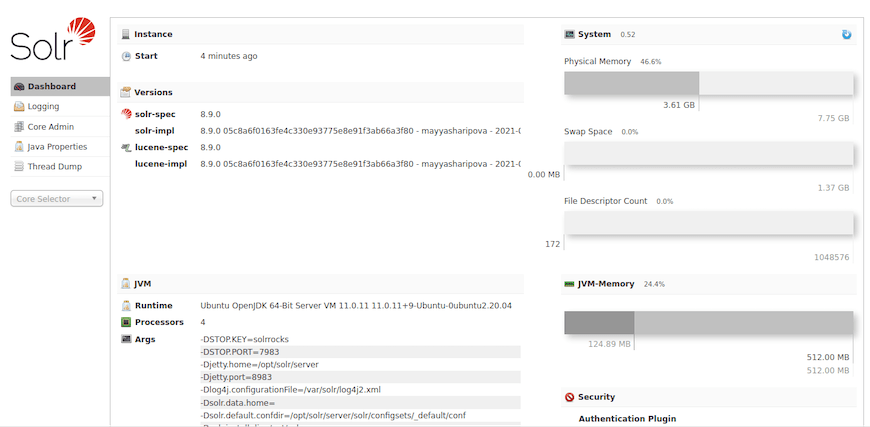
http://your_server_ip:8983/solrThe admin dashboard loads with a clean, modern interface. The left sidebar shows navigation options, while the main panel displays system information including Java version, Solr version, and system resources. This confirms your installation succeeded.
Create Your First Solr Core
Solr organizes data into cores in standalone mode. A core represents a single index with its own configuration and schema. Think of it as a database in traditional RDBMS terms.
Create a core using the command-line interface:
sudo -u solr /opt/solr/bin/solr create -c mycollectionReplace “mycollection” with your preferred core name. The command executes as the solr user to maintain proper permissions.
Alternatively, create cores through the admin web interface by clicking “Core Admin” in the left sidebar and selecting “Add Core.”
Each core contains critical configuration files:
- managed-schema – Defines your document structure and field types
- solrconfig.xml – Controls core behavior, caching, and request handling
- data/ – Stores the actual index files
Navigate to http://localhost:8983/solr/#/mycollection to access your new core’s admin interface.
Configure Firewall Rules
Security matters immensely for search servers. Solr wasn’t designed for direct internet exposure and should run behind proper firewall rules. By default, Solr listens on 127.0.0.1 (localhost), but you’ll want explicit firewall protection.
If you’re using UFW (Uncomplicated Firewall), enable it first:
sudo ufw enableAllow SSH to prevent lockout:
sudo ufw allow 22/tcpFor Solr, allow access only from trusted IP addresses:
sudo ufw allow from 192.168.1.100 to any port 8983Replace 192.168.1.100 with your actual trusted IP address. Check your firewall configuration:
sudo ufw status verboseIf you prefer iptables, use these rules:
# Allow localhost access
sudo iptables -A INPUT -p tcp -s localhost --dport 8983 -j ACCEPT

# Block all other traffic to Solr
sudo iptables -A INPUT -p tcp --dport 8983 -j DROP

# Save rules
sudo iptables-save > /etc/iptables/rules.v4
This configuration ensures only local applications can access Solr directly.
Implement Basic Security Measures
Production Solr deployments require authentication and encryption. Enable basic authentication by creating a security.json file in your Solr home directory.
Create admin credentials:
cd /var/solr/data
sudo -u solr /opt/solr/bin/solr auth enable -credentials admin:YourStrongPassword
This generates a security.json file with hashed credentials. Test authentication by accessing the admin interface – you’ll now need to log in.
For SSL/TLS encryption, generate or obtain SSL certificates. Self-signed certificates work for testing:
keytool -genkeypair -alias solr-ssl -keyalg RSA -keysize 2048 -keystore solr-ssl.keystore.p12 -validity 365Configure Solr to use the keystore by editing /etc/default/solr.in.sh and adding SSL parameters.
Many administrators place Solr behind a reverse proxy like Nginx or Apache, which handles SSL termination and adds another security layer. This approach simplifies certificate management and provides additional access control options.
For remote administration, consider SSH tunneling instead of exposing Solr directly:
ssh -L 8983:localhost:8983 user@your_server_ipThis creates an encrypted tunnel allowing secure remote access.
Performance Optimization
Solr performance depends heavily on Java heap configuration. Edit the Solr include file:
sudo nano /etc/default/solr.in.shFind the SOLR_HEAP setting and adjust based on your RAM:
SOLR_HEAP="2g"For systems with 4GB RAM, allocate 2GB to Solr. Servers with 8GB can use 4GB. Never allocate more than 50% of system RAM to Solr.
Increase system limits to prevent file descriptor exhaustion. The systemd service file should already include LimitNOFILE and LimitNPROC settings. You can also edit /etc/security/limits.conf:
solr soft nofile 65536
solr hard nofile 65536
solr soft nproc 65536
solr hard nproc 65536
Restart Solr after making configuration changes.
Common Troubleshooting Issues
Solr Won’t Start
Check that Java is properly installed and JAVA_HOME is set. Review log files for specific errors:
sudo tail -f /var/solr/logs/solr.logCommon causes include port conflicts (another service using 8983), insufficient memory, or permission problems. Verify the solr user owns /var/solr:
sudo chown -R solr:solr /var/solrCannot Access Admin Interface
Confirm Solr is running with sudo systemctl status solr. Check firewall rules aren’t blocking access. Try accessing from localhost first to isolate network issues. Clear your browser cache if the page won’t load properly.
Slow Query Performance
Analyze query logs for high QTime values, which indicate slow queries. Review your schema definitions for proper field types. Consider adding more RAM or adjusting cache settings in solrconfig.xml. Optimize queries by using filters (fq parameter) instead of including everything in the main query.
Indexing Errors
Schema mismatches cause most indexing failures. Verify your document fields match the schema definitions. Check error logs for specific exception messages. Ensure your data format (JSON, XML, CSV) is valid before indexing.
Configuration Problems
XML syntax errors in solrconfig.xml or schema files prevent Solr from starting. Validate XML files using online validators. Check file paths are correct and files exist. Review permissions on configuration directories.
Testing Solr Functionality
Test your installation by indexing sample data. Solr includes example documents. Use the post tool:
cd /opt/solr/example/exampledocs
sudo -u solr /opt/solr/bin/solr post -c mycollection *.xml
This indexes the example XML files into your core.
Query the indexed data through your browser:
http://localhost:8983/solr/mycollection/select?q=*:*The q=*:* parameter means “match all documents”. The response shows matched documents in JSON format, including the response header, number of documents found, and the documents themselves.
Try more specific queries:
http://localhost:8983/solr/mycollection/select?q=name:iPod&fl=id,name,price&sort=price ascThis searches for “iPod” in the name field, returns only id, name, and price fields, and sorts by price ascending. Experiment with different query parameters to understand Solr’s capabilities.
Update documents by posting modified versions with the same unique ID. Delete documents using delete queries or by specifying IDs.
Maintenance and Best Practices
Regular maintenance keeps your Solr installation healthy. Monitor log files weekly for errors or warnings. Set up log rotation to prevent logs from consuming excessive disk space. Back up your Solr data directory regularly:
sudo tar -czf solr-backup-$(date +%Y%m%d).tar.gz /var/solr/dataStay current with Solr updates and security patches. Subscribe to the Apache Solr security mailing list for notifications. Test updates in a staging environment before applying to production.
Monitor system resources continuously. Track memory usage, disk space, and query response times. Tools like Prometheus and Grafana integrate well with Solr for comprehensive monitoring.
Document your configuration changes and maintain a disaster recovery plan. Regular testing of backup restoration procedures ensures you can recover quickly if needed.
Congratulations! You have successfully installed Apache Solr. Thanks for using this tutorial to install the latest version of the Apache Solr on Debian 13 “Trixie” system. For additional help or useful information, we recommend you check the official Apache website.
