How To Install Apache Tomcat on AlmaLinux 10

Apache Tomcat is the gold standard Java servlet container for deploying enterprise-grade web applications, and pairing it with AlmaLinux 10 gives you one of the most stable, production-ready stacks available on any Linux distribution. Whether you are hosting a Spring Boot API, a Jakarta EE application, or a legacy Java web app, this step-by-step guide walks you through the complete installation, configuration, and security setup of Apache Tomcat 10.1 on AlmaLinux 10 — from a fresh server to a fully operational environment.
What Is Apache Tomcat?
Apache Tomcat is a free, open-source Java servlet container developed and maintained by the Apache Software Foundation. At its core, it implements the Jakarta Servlet, Jakarta Server Pages (JSP), and Jakarta WebSocket specifications — making it the reference implementation for modern Java web application development. Unlike full-blown Java EE application servers such as WildFly or GlassFish, Tomcat is deliberately lightweight and fast. It boots quickly, consumes fewer resources, and carries a mature, battle-tested codebase with an enormous global community behind it.
Tomcat 10.1 specifically introduced support for Jakarta EE 10, which means the namespace for Java APIs shifted from javax.* to jakarta.*. This is an important distinction if you are migrating from Tomcat 9.x — applications that use the old javax.* namespace will not run on Tomcat 10.1 without recompilation. For new projects, Tomcat 10.1 on AlmaLinux 10 is the most modern and forward-compatible setup you can deploy today.
Prerequisites
Before diving in, make sure the following conditions are met:
- A fresh AlmaLinux 10 (Purple Lion) installation on a bare-metal server, KVM virtual machine, or cloud VPS
- Minimum hardware: 1 vCPU, 1 GB RAM, 20 GB disk — 2 GB RAM recommended for production workloads
- A user account with sudo privileges, or direct root access
- Active internet connectivity for downloading packages and the Tomcat binary
- SSH terminal access via OpenSSH, PuTTY, or any terminal emulator
- Java is not pre-installed on AlmaLinux 10 — it will be installed in Step 2
- Both SELinux and firewalld are enabled by default on AlmaLinux 10 and will be configured in Step 10
Step 1: Update Your AlmaLinux 10 System
The very first thing to do on any fresh server is update the system package database. This guarantees you are working with the latest security patches and that dependency resolution during subsequent installs will go smoothly. Run:
sudo dnf update -yIf a new kernel version is installed during the update, reboot before continuing:
sudo rebootOnce back online, confirm your operating system version:
cat /etc/almalinux-releaseYou should see: AlmaLinux release 10.0 (Purple Lion). AlmaLinux 10 is a 1:1 binary-compatible rebuild of Red Hat Enterprise Linux 10, meaning every configuration and package behavior in this guide maps directly to RHEL 10 as well. DNF — the Dandified YUM package manager — is how all software is installed and managed throughout this guide.
Step 2: Install Java 21 (OpenJDK 21)
Apache Tomcat 10.1 requires Java to run. The recommended choice for AlmaLinux 10 is OpenJDK 21 LTS — the Long-Term Support release natively available in the AlmaLinux 10 DNF repositories and fully compatible with Tomcat 10.1. Install both the JRE and development tools:
sudo dnf install java-21-openjdk java-21-openjdk-devel -yFor a lighter headless server environment with no GUI tooling needed, substitute java-21-openjdk-headless instead. Verify the installation:
java -versionThe expected output should read: openjdk version "21.x.x" ...
Next, set the JAVA_HOME environment variable, which Tomcat’s startup scripts depend on. Locate the actual JVM path:
readlink -f $(which java)Create a global profile script:
sudo nano /etc/profile.d/java.shAdd the following line:
export JAVA_HOME=/usr/lib/jvm/java-21-openjdkReload and verify:
source /etc/profile && echo $JAVA_HOMEThe terminal should print the path you just set. With Java 21 in place, your server is ready to run any Java web application targeting the Jakarta EE 10 platform.
Step 3: Create a Dedicated Tomcat Service Account
Security starts before Tomcat is even installed. Running Tomcat as the root user is a serious risk — if a vulnerability in a deployed application is exploited, an attacker would gain full system access. Instead, create a minimal-privilege system account specifically for Tomcat.
Create the group:
sudo groupadd tomcatCreate the user with a no-login shell, assigned to the tomcat group, with /opt/tomcat as its home directory:
sudo useradd -s /bin/nologin -g tomcat -d /opt/tomcat tomcatThe -s /bin/nologin flag prevents interactive SSH or console login for this account. Create the installation directory:
sudo mkdir -p /opt/tomcatThis directory will hold the entire Tomcat installation — binaries, configuration files, log files, and deployed web applications.
Step 4: Download and Extract Apache Tomcat 10.1
Always download Tomcat directly from the official Apache Software Foundation website to guarantee you are getting an unmodified binary. Visit https://tomcat.apache.org/download-10.cgi and note the latest stable 10.1.x release. Navigate to /tmp and download with wget:
cd /tmp
wget https://dlcdn.apache.org/tomcat/tomcat-10/v10.1.48/bin/apache-tomcat-10.1.48.tar.gz
Replace 10.1.48 with the current latest version shown on the downloads page.
Verify the SHA-512 checksum before extracting — this confirms the file was not corrupted or tampered with during download:
sha512sum apache-tomcat-10.1.48.tar.gzCompare the output against the official .sha512 checksum file published on the Apache downloads page. If the hashes match, extract the archive directly into /opt/tomcat using --strip-components=1 to flatten the directory structure:
sudo tar -xzf apache-tomcat-10.1.48.tar.gz -C /opt/tomcat --strip-components=1Verify the directory structure:
ls /opt/tomcatYou should see: bin conf lib logs temp webapps work. Clean up the downloaded archive:
rm -f /tmp/apache-tomcat-10.1.48.tar.gzStep 5: Set Directory Ownership and Permissions
File permission errors are one of the most common causes of Tomcat startup failures. Assign complete ownership of the /opt/tomcat directory tree to the tomcat user:
sudo chown -R tomcat:tomcat /opt/tomcatMake all shell scripts in the bin/ directory executable:
sudo chmod +x /opt/tomcat/bin/*.shLock down the conf/ directory — it contains sensitive configuration files including credentials:
sudo chmod -R 750 /opt/tomcat/confApply general directory permissions:
sudo chmod -R 755 /opt/tomcatConfirm with:
ls -la /opt/tomcatAll entries should be owned by tomcat:tomcat. The conf/ directory should show drwxr-x---, meaning only the tomcat user and group can read it — all other system users are locked out.
Step 6: Configure Tomcat Users and Roles
The Tomcat Manager App and Host Manager are browser-based administrative interfaces for deploying and managing web applications. To access them, you must define user credentials and roles inside tomcat-users.xml:
sudo nano /opt/tomcat/conf/tomcat-users.xmlAdd the following block inside the <tomcat-users> tags, just before the closing </tomcat-users> line:
<role rolename="manager-gui"/>
<role rolename="admin-gui"/>
<role rolename="manager-script"/>
<user username="admin" password="StrongP@ssword123!"
      roles="manager-gui,admin-gui,manager-script"/>
Here is what each role does:
manager-gui— grants access to the HTML-based Manager web interfaceadmin-gui— grants access to the Host Manager interfacemanager-script— enables scripted or CI/CD pipeline deployments via the Manager API
Critical security warning: Never use predictable passwords like admin, tomcat, or manager. These are the first combinations attackers try in automated brute-force scans. Use a randomly generated password of at least 20 characters. Save and close the file when done.
Step 7: Restrict Manager App Remote Access
By default, Tomcat’s Manager App and Host Manager restrict access to localhost (127.0.0.1) only, controlled by a RemoteAddrValve directive in their context.xml files. To allow access from your administrator IP address, edit both files.
Open Manager App context:
sudo nano /opt/tomcat/webapps/manager/META-INF/context.xmlLocate the RemoteAddrValve line and update the allow attribute:
<Valve className="org.apache.catalina.valves.RemoteAddrValve"
       allow="127\.\d+\.\d+\.\d+|::1|YOUR_ADMIN_IP"/>
Repeat the same edit for Host Manager:
sudo nano /opt/tomcat/webapps/host-manager/META-INF/context.xmlNever set allow=".*" in a production environment — doing so exposes the Manager App to the entire internet. If your team manages the server through a VPN or bastion host, use that internal IP only. Save both files before moving on.
Step 8: Create the Tomcat systemd Service Unit File
Using systemd to manage Tomcat is the modern, production-correct approach. It enables automatic startup on boot, clean start/stop/restart lifecycle control, and centralized logging through journald.
Create the service unit file:
sudo nano /etc/systemd/system/tomcat.servicePaste the complete configuration below:
[Unit]
Description=Apache Tomcat Web Application Container
After=network.target

[Service]
Type=forking
User=tomcat
Group=tomcat
Environment="JAVA_HOME=/usr/lib/jvm/java-21-openjdk"
Environment="CATALINA_PID=/opt/tomcat/temp/tomcat.pid"
Environment="CATALINA_HOME=/opt/tomcat"
Environment="CATALINA_BASE=/opt/tomcat"
Environment="CATALINA_OPTS=-Xms512M -Xmx1024M -server -XX:+UseParallelGC"
Environment="JAVA_OPTS=-Djava.awt.headless=true -Djava.security.egd=file:/dev/./urandom"
ExecStart=/opt/tomcat/bin/startup.sh
ExecStop=/opt/tomcat/bin/shutdown.sh
UMask=0007
RestartSec=10
Restart=always

[Install]
WantedBy=multi-user.target
Key directives explained:
- CATALINA_OPTS: Controls JVM memory allocation.
-Xms512Msets the minimum heap size and-Xmx1024Msets the maximum. Adjust both upward based on your server’s available RAM. - JAVA_OPTS: The
headless=trueflag is essential for servers with no display attached. Theurandomentropy source prevents Tomcat from hanging at startup on low-entropy servers. - Restart=always with
RestartSec=10: If Tomcat crashes, systemd automatically restarts it after 10 seconds. - UMask=0007: Ensures all files created by Tomcat are readable only by the
tomcatuser and group — nothing world-readable.
Save and close the file.
Step 9: Enable and Start the Tomcat Service
Reload the systemd daemon to register the new service configuration:
sudo systemctl daemon-reloadStart the Tomcat service:
sudo systemctl start tomcatEnable it to launch automatically on every reboot:
sudo systemctl enable tomcatVerify the running status:
sudo systemctl status tomcatLook for Active: active (running) in the output. To monitor live startup logs, use either command:
sudo journalctl -u tomcat -f
# or
sudo tail -f /opt/tomcat/logs/catalina.out
If the service fails to start, catalina.out is always the first place to look — it contains detailed Java stack traces and Tomcat engine error messages. A missing or incorrect JAVA_HOME is the single most common root cause of startup failures.
Step 10: Configure firewalld and SELinux for Tomcat
Both firewalld and SELinux are active by default on AlmaLinux 10. You must configure both to allow Tomcat traffic — skipping either step will result in connection timeouts or browser errors.
Opening Port 8080 in firewalld
Confirm that firewalld is running:
sudo firewall-cmd --statePermanently open TCP port 8080:
sudo firewall-cmd --permanent --add-port=8080/tcpReload the firewall to apply immediately:
sudo firewall-cmd --reloadVerify port 8080 is listed:
sudo firewall-cmd --list-allConfiguring SELinux for Tomcat
AlmaLinux 10 runs SELinux in enforcing mode by default. Without proper SELinux policy configuration, Tomcat may be blocked from binding to port 8080 even with firewalld open. Install the SELinux management utilities:
sudo dnf install policycoreutils-python-utils -yLabel port 8080 as an allowed HTTP port in the SELinux policy:
sudo semanage port -a -t http_port_t -p tcp 8080Restore the correct SELinux file context for /opt/tomcat:
sudo restorecon -Rv /opt/tomcatDo not disable SELinux or set it to permissive mode in any production environment. It is a mandatory access control boundary that significantly limits the blast radius of a compromised web application. Work with it, not around it.
Step 11: Access and Verify the Tomcat Web Interface
Everything is now in place. Open a web browser and navigate to your server’s IP address on port 8080:
http://YOUR_SERVER_IP:8080You should see the Apache Tomcat 10.1 Welcome Page — the classic page featuring the Tomcat logo and version information. This confirms Tomcat is running and accessible over the network.
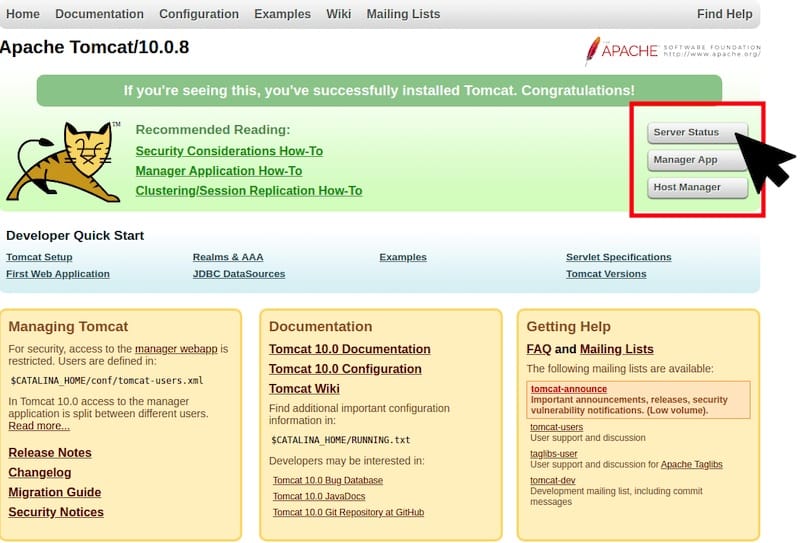
To access the Manager App, click “Manager App” on the welcome page or go directly to:
http://YOUR_SERVER_IP:8080/manager/htmlLog in with the admin credentials set in tomcat-users.xml. From the Manager dashboard, you can deploy .war files, start and stop web applications, monitor active sessions, and review application status. Use the “WAR file to deploy” section to upload a sample application and test end-to-end functionality.
For the Host Manager, navigate to:
http://YOUR_SERVER_IP:8080/host-manager/htmlBoth interfaces working correctly confirm a fully operational Apache Tomcat 10.1 deployment on AlmaLinux 10.
Troubleshooting Common Apache Tomcat Issues on AlmaLinux 10
Even with careful setup, issues can occasionally arise. Here are the most frequent problems and their direct fixes:
Tomcat service fails to start:
Run sudo journalctl -xe | grep tomcat or inspect catalina.out. The most common cause is an incorrect JAVA_HOME path. Verify with readlink -f $(which java) and ensure your systemd unit file reflects the exact same path.
Port 8080 unreachable from the browser:
Verify the port is open: sudo firewall-cmd --list-ports. If 8080 is missing, re-run the firewall-cmd command from Step 10. Check for SELinux denials: sudo ausearch -m avc -ts recent. Confirm Tomcat is listening: ss -tlnp | grep 8080.
403 Forbidden when accessing Manager App:
The RemoteAddrValve in context.xml is blocking your IP. Add your admin or VPN IP to the allow attribute in both webapps/manager/META-INF/context.xml and webapps/host-manager/META-INF/context.xml, then restart Tomcat.
Permission denied errors at startup:
Re-apply ownership: sudo chown -R tomcat:tomcat /opt/tomcat. Verify the SELinux context with ls -Z /opt/tomcat. If context looks incorrect, re-run sudo restorecon -Rv /opt/tomcat.
Java OutOfMemoryError in catalina.out:
Increase the JVM heap in the systemd unit file. Change -Xmx1024M to -Xmx2048M (or higher based on available RAM), then reload and restart:
sudo systemctl daemon-reload && sudo systemctl restart tomcatCongratulations! You have successfully installed Apache Tomcat. Thanks for using this tutorial for installing Apache Tomcat on your AlmaLinux OS 10 system. For additional help or useful information, we recommend you check the official Apache Tomcat website.
