How To Install Apache Tomcat on Debian 13

Apache Tomcat stands as one of the most popular open-source Java servlet containers and web application servers used by developers worldwide. If you’re running Debian 13 and need to deploy Java-based web applications, JSP pages, or enterprise-grade REST APIs, installing Tomcat provides the robust foundation you need. This comprehensive guide walks you through every step of installing and configuring Apache Tomcat on Debian 13, from system preparation to security hardening. Whether you’re a system administrator setting up a production server or a developer creating a testing environment, you’ll find practical instructions, security best practices, and troubleshooting tips to ensure a successful installation.
Understanding Apache Tomcat
Apache Tomcat, often called simply Tomcat, functions as an open-source implementation of Java Servlet, JavaServer Pages, and Java Expression Language technologies. Developed and maintained by the Apache Software Foundation, it provides a pure Java HTTP web server environment for running Java code. Unlike full-fledged application servers, Tomcat focuses on being lightweight and efficient while delivering excellent performance for servlet and JSP applications.
Organizations choose Tomcat for hosting enterprise Java applications, microservices architectures, and web-based business solutions. Its modular design allows it to operate as a standalone server or integrate seamlessly with other web servers like Apache HTTP Server or Nginx. The combination of reliability, extensive community support, and zero licensing costs makes Tomcat an ideal choice for both development and production environments on Debian 13.
Prerequisites and System Requirements
Before diving into the installation process, ensure your Debian 13 system meets the necessary requirements. Your server should have at least 2GB of RAM, though 4GB or more is recommended for production deployments. You’ll need approximately 500MB of free disk space for the Tomcat installation itself, plus additional space for your applications and logs.
Access to a root account or a user with sudo privileges is essential for executing administrative commands throughout this tutorial. Basic familiarity with Linux command-line operations, file permissions, and text editors like nano or vim will help you navigate the installation smoothly. Additionally, an active internet connection is required to download packages and updates.
From a network perspective, ensure you have a clear understanding of which ports Tomcat will use. The default HTTP port is 8080, while HTTPS typically uses 8443. For production environments, having a registered domain name or dedicated IP address improves accessibility and security configuration.
Step 1: Update System Packages
Starting with a fully updated system ensures compatibility and security. Debian’s package management system needs fresh repository information before installing new software.
Open your terminal and execute:
sudo apt updateThis command refreshes the package index from Debian repositories. Next, upgrade all installed packages to their latest versions:
sudo apt upgrade -yThe -y flag automatically confirms the upgrade without prompting. Depending on how many packages require updates, this process may take several minutes. If kernel updates are installed, consider rebooting your system to ensure all changes take effect:
sudo rebootMaintaining current packages protects against known vulnerabilities and ensures all dependencies function correctly with newer software versions.
Step 2: Install Java Development Kit
Tomcat requires Java to execute servlet and JSP code. Debian 13 offers several JDK options, with OpenJDK being the most popular open-source choice.
Install the default Java Development Kit:
sudo apt install default-jdk -yAlternatively, specify a particular version compatible with modern Tomcat releases:
sudo apt install openjdk-17-jdk -yAfter installation completes, verify Java is properly configured:
java -versionYou should see output displaying the installed Java version, such as OpenJDK 17 or 21. Also check the compiler:
javac -versionNow configure the JAVA_HOME environment variable, which Tomcat needs to locate Java. First, identify Java’s installation path:
update-alternatives --config javaThis displays the full path, typically something like /usr/lib/jvm/java-17-openjdk-amd64/bin/java. Note the directory path excluding /bin/java.
Open the environment configuration file:
sudo nano /etc/environmentAdd this line, adjusting the path to match your Java installation:
JAVA_HOME="/usr/lib/jvm/java-17-openjdk-amd64"Save and exit. Load the new environment variable:
source /etc/environmentVerify JAVA_HOME is set correctly:
echo $JAVA_HOMEThis foundational step ensures Tomcat can access Java runtime components during operation.
Step 3: Create Dedicated Tomcat User and Group
Running Tomcat with root privileges poses significant security risks. Following the principle of least privilege, create a dedicated system user specifically for running Tomcat services.
First, create a tomcat group:
sudo groupadd tomcatNext, create the tomcat user with restricted access:
sudo useradd -s /bin/false -g tomcat -d /opt/tomcat tomcatLet’s break down this command. The -s /bin/false flag prevents anyone from logging into the system as the tomcat user, blocking potential shell access if the account is compromised. The -g tomcat assigns the user to the tomcat group. The -d /opt/tomcat sets the home directory where Tomcat will reside. The final tomcat specifies the username.
This configuration creates a service account—a user designed solely for running applications rather than interactive logins. If an attacker exploits a vulnerability in Tomcat, they’ll be constrained by this limited user’s permissions rather than having full system access. This defensive approach represents industry best practice for production server security.
Step 4: Download and Install Apache Tomcat
With prerequisites in place, download the latest stable Tomcat release. As of early 2026, Tomcat 11 represents the newest major version, offering improved performance and support for the latest servlet specifications.
Navigate to the temporary directory:
cd /tmpSet a version variable for convenience:
export VERSION=11.0.2Download Tomcat using wget:
wget https://dlcdn.apache.org/tomcat/tomcat-11/v${VERSION}/bin/apache-tomcat-${VERSION}.tar.gzFor production systems, verify the download’s integrity by comparing checksums from the official Apache Tomcat website. This optional but recommended step ensures the file wasn’t corrupted or tampered with during download.
Create the installation directory:
sudo mkdir -p /opt/tomcatExtract the archive directly into this directory:
sudo tar -xzf apache-tomcat-${VERSION}.tar.gz -C /opt/tomcat --strip-components=1The --strip-components=1 flag removes the top-level directory from the archive, placing Tomcat’s contents directly in /opt/tomcat rather than creating a nested subdirectory.
Now assign ownership to the tomcat user:
sudo chown -R tomcat:tomcat /opt/tomcatThis recursive command ensures the tomcat user owns all files and subdirectories, enabling Tomcat to read configurations, write logs, and deploy applications without permission conflicts.
The /opt/tomcat directory now contains several important subdirectories: bin holds executable scripts, conf stores configuration files, webapps serves as the default location for deploying applications, logs collects runtime information, and lib contains Java libraries Tomcat needs.
Step 5: Configure File Permissions
Proper file permissions strengthen security while maintaining functionality. Execute permission on shell scripts allows Tomcat to start and stop correctly.
Make all shell scripts in the bin directory executable:
sudo sh -c 'chmod +x /opt/tomcat/bin/*.sh'This command targets all files ending in .sh within the bin directory—including startup.sh, shutdown.sh, and catalina.sh, which are essential for Tomcat management.
Verify permissions were applied:
ls -l /opt/tomcat/bin/*.shYou should see -rwxr-xr-x or similar, indicating the owner has read, write, and execute permissions. These carefully configured permissions prevent unauthorized modification while allowing the Tomcat service to function properly.
Step 6: Create Systemd Service File
Modern Linux distributions use systemd for service management. Creating a systemd unit file enables automatic Tomcat startup on boot, simplified management commands, and integrated logging.
Create a new service file:
sudo nano /etc/systemd/system/tomcat.serviceEnter this configuration:
[Unit]
Description=Apache Tomcat Web Application Container
After=network.target

[Service]
Type=forking
User=tomcat
Group=tomcat

Environment="JAVA_HOME=/usr/lib/jvm/default-java"
Environment="JAVA_OPTS=-Djava.awt.headless=true -Djava.security.egd=file:/dev/./urandom"
Environment="CATALINA_BASE=/opt/tomcat"
Environment="CATALINA_HOME=/opt/tomcat"
Environment="CATALINA_PID=/opt/tomcat/temp/tomcat.pid"
Environment="CATALINA_OPTS=-Xms512M -Xmx1024M -server -XX:+UseParallelGC"

ExecStart=/opt/tomcat/bin/startup.sh
ExecStop=/opt/tomcat/bin/shutdown.sh
RestartSec=10
Restart=always

[Install]
WantedBy=multi-user.target
Understanding this configuration helps with future customization. The [Unit] section describes the service and establishes dependencies—here, ensuring network connectivity before Tomcat starts. The [Service] section defines execution parameters, setting the service type to forking because Tomcat’s startup script spawns background processes.
Environment variables configure Java and Tomcat behavior. JAVA_OPTS includes -Djava.awt.headless=true for servers without graphical interfaces and optimizes random number generation for better performance. CATALINA_OPTS controls JVM memory allocation: -Xms512M sets initial heap size, -Xmx1024M sets maximum heap size. Adjust these values based on your server’s available RAM and application requirements. Production servers typically use higher values like -Xms2048M -Xmx4096M for better performance.
The Restart=always directive automatically restarts Tomcat if it crashes, improving reliability. The [Install] section enables the service to start during system boot when you run the enable command.
Save the file and exit the text editor.
Step 7: Start and Enable Tomcat Service
With the service file created, inform systemd of the new configuration:
sudo systemctl daemon-reloadStart the Tomcat service:
sudo systemctl start tomcatTomcat takes a few seconds to initialize. Enable automatic startup on boot:
sudo systemctl enable tomcatYou’ll see a message confirming the service is enabled. Check that Tomcat is running properly:
sudo systemctl status tomcatLook for “active (running)” in the output. The status command displays the service state, recent log entries, and process information. If you see “inactive” or “failed,” review the error messages provided.
Additional useful commands for managing Tomcat include:
sudo systemctl restart tomcat   # Restart the service
sudo systemctl stop tomcat      # Stop the service
sudo journalctl -u tomcat -f    # Follow live logs
The journalctl command provides real-time log monitoring, invaluable for troubleshooting startup issues or monitoring application behavior.
Step 8: Configure Firewall
Debian systems often use UFW (Uncomplicated Firewall) for firewall management. Configuring firewall rules allows external access to Tomcat while maintaining security.
Check UFW status:
sudo ufw statusIf UFW is inactive, enable it:
sudo ufw enableAllow traffic on Tomcat’s default HTTP port:
sudo ufw allow 8080/tcpIf you plan to configure SSL, also allow the HTTPS port:
sudo ufw allow 8443/tcpReload the firewall to apply changes:
sudo ufw reloadVerify the new rules:
sudo ufw status numberedFor production environments, consider restricting access to specific IP addresses or networks. For example, allowing only your office network:
sudo ufw allow from 192.168.1.0/24 to any port 8080Many administrators prefer placing a reverse proxy like Nginx or Apache HTTP Server in front of Tomcat, handling SSL termination and routing at the frontend while Tomcat runs on localhost only. This architectural approach adds security layers and improves performance.
Step 9: Access Tomcat Web Interface
Test your installation by accessing Tomcat through a web browser. Navigate to:
http://your-server-ip:8080Replace your-server-ip with your actual server address. You can find it by running:
hostname -IFor local testing, use:
http://localhost:8080The default Tomcat welcome page appears, displaying the Tomcat cat logo and several navigation links. This page confirms Tomcat is running and accepting HTTP requests successfully.
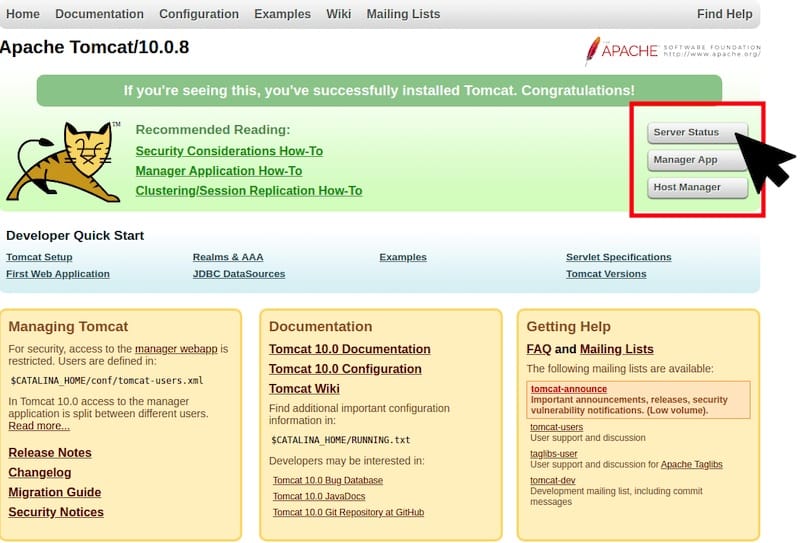
From the command line, test using curl:
curl http://localhost:8080You’ll see HTML output from the default page. If you encounter connection errors, verify that Tomcat is running with systemctl status tomcat and check firewall rules. A “Connection refused” error typically indicates Tomcat isn’t running, while timeout errors suggest firewall blocking.
Step 10: Configure Tomcat Manager and Admin Users
Tomcat includes web-based management interfaces for deploying applications and monitoring server status. By default, these interfaces require authentication.
Edit the user configuration file:
sudo nano /opt/tomcat/conf/tomcat-users.xmlBefore the closing </tomcat-users> tag, add role definitions and user credentials:
<role rolename="manager-gui"/>
<role rolename="manager-script"/>
<role rolename="manager-jmx"/>
<role rolename="manager-status"/>
<role rolename="admin-gui"/>
<role rolename="admin-script"/>
<user username="admin" password="StrongPassword123!@#" roles="manager-gui,admin-gui"/>
<user username="deployer" password="AnotherStrongPass456$%^" roles="manager-script"/>
Replace the passwords with strong, unique credentials. Effective passwords combine uppercase and lowercase letters, numbers, and special characters, with at least 16 characters. Never use common words, personal information, or default credentials like “admin/admin.”
Different roles grant specific permissions. The manager-gui role provides web interface access to the Manager App for deploying and managing applications. The admin-gui role allows access to the Host Manager for virtual host configuration. The manager-script role enables automated deployment through scripts and CI/CD pipelines.
By default, Tomcat restricts Manager and Host Manager access to localhost only. For development environments where you need remote access, modify the context files.
Edit the Manager context file:
sudo nano /opt/tomcat/webapps/manager/META-INF/context.xmlFind the Valve configuration line and comment it out or add your IP address to the allow pattern:
<!--
  <Valve className="org.apache.catalina.valves.RemoteAddrValve"
         allow="127\.\d+\.\d+\.\d+|::1|0:0:0:0:0:0:0:1" />
-->
Repeat for the Host Manager:
sudo nano /opt/tomcat/webapps/host-manager/META-INF/context.xmlWarning: Only disable IP restrictions in secure development environments. Production systems should maintain strict access controls.
Restart Tomcat to apply all changes:
sudo systemctl restart tomcatNow access the Manager App at http://your-server-ip:8080/manager/html using your configured credentials. The interface displays deployed applications, server status, and deployment options.
Step 11: Test Tomcat with a Sample Application
Verify Tomcat properly executes Java code by creating a simple servlet.
Create the directory structure for a test application:
sudo mkdir -p /opt/tomcat/webapps/testapp/WEB-INF/classesCreate a basic servlet file:
sudo nano /opt/tomcat/webapps/testapp/WEB-INF/classes/HelloServlet.javaAdd this simple servlet code:
import java.io.*;
import javax.servlet.*;
import javax.servlet.http.*;

public class HelloServlet extends HttpServlet {
    public void doGet(HttpServletRequest request, HttpServletResponse response)
    throws IOException, ServletException {
        response.setContentType("text/html");
        PrintWriter out = response.getWriter();
        out.println("<html><head><title>Test Servlet</title></head>");
        out.println("<body><h1>Hello from Tomcat on Debian 13!</h1>");
        out.println("<p>Current time: " + new java.util.Date() + "</p>");
        out.println("</body></html>");
    }
}
Compile the servlet:
cd /opt/tomcat/webapps/testapp/WEB-INF/classes
sudo javac -classpath /opt/tomcat/lib/servlet-api.jar HelloServlet.java
Create a deployment descriptor:
sudo nano /opt/tomcat/webapps/testapp/WEB-INF/web.xmlAdd this configuration:
<?xml version="1.0" encoding="UTF-8"?>
<web-app xmlns="https://jakarta.ee/xml/ns/jakartaee"
         xmlns:xsi="http://www.w3.org/2001/XMLSchema-instance"
         xsi:schemaLocation="https://jakarta.ee/xml/ns/jakartaee
         https://jakarta.ee/xml/ns/jakartaee/web-app_5_0.xsd"
         version="5.0">
    <servlet>
        <servlet-name>HelloServlet</servlet-name>
        <servlet-class>HelloServlet</servlet-class>
    </servlet>
    <servlet-mapping>
        <servlet-name>HelloServlet</servlet-name>
        <url-pattern>/hello</url-pattern>
    </servlet-mapping>
</web-app>
Fix ownership:
sudo chown -R tomcat:tomcat /opt/tomcat/webapps/testappRestart Tomcat:
sudo systemctl restart tomcatAccess your test servlet at http://your-server-ip:8080/testapp/hello. You should see the greeting message and current timestamp. This confirms Tomcat correctly compiles and executes Java servlet code.
Security Hardening and Best Practices
Production Tomcat installations require additional security measures beyond basic setup. Remove unnecessary default applications that increase attack surface:
sudo rm -rf /opt/tomcat/webapps/{docs,examples,host-manager,ROOT}Keep only the Manager app if needed for administration, or remove it too for maximum security.
Configure HTTPS using SSL certificates. For testing, generate a self-signed certificate:
sudo keytool -genkey -alias tomcat -keyalg RSA -keystore /opt/tomcat/conf/keystore.jksFor production, obtain certificates from Let’s Encrypt or commercial certificate authorities. Edit /opt/tomcat/conf/server.xml to enable the HTTPS connector on port 8443.
Implement a reverse proxy architecture using Nginx or Apache HTTP Server. This approach handles SSL termination, serves static content efficiently, and provides additional security filtering before requests reach Tomcat. The reverse proxy listens on ports 80 and 443, forwarding only application requests to Tomcat on localhost.
Subscribe to Apache Tomcat security announcements to receive notifications about vulnerabilities. Establish a regular update schedule, testing new Tomcat versions in staging environments before production deployment.
Enable security headers in your applications or via reverse proxy. Headers like Content-Security-Policy, X-Frame-Options, and X-Content-Type-Options protect against common web vulnerabilities.
Implement centralized logging and monitoring. Configure log rotation to prevent disk space exhaustion:
sudo nano /etc/logrotate.d/tomcatAdd configuration for rotating Tomcat logs daily while keeping 30 days of history. Consider integrating with monitoring solutions like Prometheus, Grafana, or cloud-based services for real-time alerts about performance issues or security incidents.
Regular backups protect against data loss and enable quick recovery. Backup configuration files in /opt/tomcat/conf, deployed applications in /opt/tomcat/webapps, and any database contents your applications use.
Troubleshooting Common Issues
When Tomcat fails to start, check the service status first:
sudo systemctl status tomcatReview detailed logs:
sudo journalctl -u tomcat -n 100 --no-pagerCommon startup failures include incorrect JAVA_HOME settings, port conflicts, and permission issues. Verify Java configuration:
echo $JAVA_HOME
java -version
Check if another process uses port 8080:
sudo netstat -tlnp | grep 8080If something else occupies the port, either stop that service or change Tomcat’s port in /opt/tomcat/conf/server.xml.
Permission errors typically stem from incorrect file ownership. Verify the tomcat user owns all necessary files:
ls -l /opt/tomcat/Fix ownership issues:
sudo chown -R tomcat:tomcat /opt/tomcatMemory errors manifest as OutOfMemoryError in logs. Increase heap size by editing the systemd service file’s CATALINA_OPTS variable. Monitor memory usage during operation to determine appropriate values.
Slow performance may result from insufficient resources, misconfigured thread pools, or application inefficiencies. Review the connector configuration in server.xml, adjusting maxThreads and acceptCount parameters. Enable JMX monitoring to track JVM performance metrics in real-time.
Cannot access the web interface? Verify Tomcat is listening on the expected port:
sudo ss -tlnp | grep javaTest local connectivity separately from remote access to isolate network versus application issues. Use curl locally first, then from another machine to identify firewall or network routing problems.
Performance Optimization Tips
Tune JVM garbage collection for better performance. Modern Java versions include sophisticated garbage collectors. For server applications, consider G1GC or ZGC:
Environment="CATALINA_OPTS=-Xms2048M -Xmx4096M -server -XX:+UseG1GC -XX:MaxGCPauseMillis=200"Configure Tomcat’s connector thread pool in server.xml. The maxThreads parameter controls concurrent request handling:
<Connector port="8080" protocol="HTTP/1.1"
           connectionTimeout="20000"
           redirectPort="8443"
           maxThreads="200"
           minSpareThreads="25"
           enableLookups="false"
           compression="on" />
Enable HTTP compression to reduce bandwidth and improve page load times. The compression attribute handles this automatically for text-based content.
Implement database connection pooling in your applications to avoid the overhead of establishing connections for each request. Configure appropriate pool sizes based on expected concurrent users and database capacity.
Consider static content optimization. Serve CSS, JavaScript, and images through a CDN or dedicated web server rather than through Tomcat. This offloads non-dynamic content, allowing Tomcat to focus on application logic.
Use caching strategies extensively. Implement in-memory caches like Ehcache or Redis for frequently accessed data. Cache at multiple levels—application objects, database query results, and rendered page fragments.
Monitor performance continuously using tools like Java VisualVM, JConsole, or enterprise solutions. Establish baseline metrics for response times, throughput, and resource utilization. Performance degradation alerts enable proactive intervention before users experience issues.
Load testing with Apache JMeter helps identify bottlenecks and capacity limits. Simulate realistic user loads in staging environments to validate configuration changes and scaling strategies before production deployment.
Congratulations! You have successfully installed Apache Tomcat. Thanks for using this tutorial to install the latest version of the Apache Tomcat on Debian 13 “Trixie” system. For additional help or useful information, we recommend you check the official Apache website.
