How To Install Apache Tomcat on Fedora 43

Apache Tomcat stands as one of the most trusted and widely-used Java Servlet containers in the world. If you’re running Fedora 43 and need a robust platform to deploy Java web applications, JSP pages, or servlets, Tomcat is your answer. This comprehensive guide walks you through every step of installing and configuring Apache Tomcat on Fedora 43, from initial system preparation to security hardening. Whether you’re a system administrator setting up a production environment or a developer creating a testing platform, you’ll find everything you need right here. By the end of this tutorial, you’ll have a fully functional Tomcat server running smoothly on your Fedora 43 system, complete with systemd integration, firewall configuration, and security best practices.
What is Apache Tomcat?
Apache Tomcat is an open-source implementation of Java Servlet, JavaServer Pages (JSP), and WebSocket technologies. Developed and maintained by the Apache Software Foundation, Tomcat provides a pure Java HTTP web server environment for running Java code. Unlike full Java EE application servers, Tomcat focuses specifically on servlet containers and JSP engines, making it lightweight yet powerful for most web application needs.
Tomcat excels at serving dynamic Java-based web content. It processes servlet requests, compiles JSP pages into servlets, and manages the lifecycle of web applications. Organizations worldwide rely on Tomcat for everything from small-scale development projects to enterprise-level production deployments. The server integrates seamlessly with popular web servers like Apache HTTP Server and Nginx, offering flexibility in architecture design.
Different Tomcat versions serve different purposes. Tomcat 10.x and 11.x implement Jakarta EE specifications, while Tomcat 9.x supports the older Java EE standards. For Fedora 43, we’ll focus on installing Tomcat 10.1, which provides excellent stability, modern features, and long-term support. The choice between versions depends on your application’s requirements and framework compatibility.
Prerequisites
Before diving into the installation process, ensure your system meets the necessary requirements. You’ll need a Fedora 43 system with sudo or root access to execute administrative commands. The server should have at least 2GB of RAM, though 4GB is recommended for better performance, especially if you plan to run multiple applications simultaneously.
Storage requirements are modest—at least 1GB of free disk space covers Tomcat installation and leaves room for application deployment. An active internet connection is essential for downloading packages and dependencies. If you’re working on a remote server, ensure you have SSH access configured properly.
Your technical background matters too. Basic Linux command-line familiarity helps you navigate the terminal confidently. Understanding fundamental system administration concepts like user permissions, service management, and firewall configuration makes troubleshooting easier. Don’t worry if you’re not an expert—this guide explains each step thoroughly.
On the software side, you’ll need Java Development Kit (OpenJDK 11 or 17) installed on your system. Fedora’s package manager handles most dependencies automatically. Standard utilities like wget or curl for downloading files and tar for extracting archives come pre-installed on most Fedora systems. If they’re missing, we’ll install them along the way.
Step 1: Update System Packages
Start with a clean slate by updating your Fedora 43 system. Open your terminal and execute the following command:
sudo dnf update -yThis command refreshes your package repositories and upgrades all installed packages to their latest versions. The -y flag automatically confirms the installation, streamlining the process. System updates patch security vulnerabilities, fix bugs, and ensure compatibility with newly installed software.
The update process typically takes a few minutes, depending on your internet speed and the number of packages requiring updates. You’ll see package names scrolling by as DNF downloads and installs them. Once complete, the system displays a summary showing how many packages were updated.
If you encounter any repository errors, verify your internet connection and check that your system’s repository configuration remains intact. Sometimes mirrors experience temporary issues—waiting a few minutes and retrying often resolves the problem.
Step 2: Install Java OpenJDK
Tomcat requires Java to run. Let’s install OpenJDK 17, the latest long-term support version that works perfectly with Tomcat 10.1:
sudo dnf install java-17-openjdk java-17-openjdk-devel -yThis command installs both the Java Runtime Environment (JRE) and the Java Development Kit (JDK). The development kit includes tools useful for troubleshooting and managing Java applications. The installation completes in under a minute on most systems.
Verify your Java installation by checking the version:
java -versionYou should see output displaying OpenJDK version 17.x.x along with build information. This confirms Java installed correctly and is accessible from the command line.
Now configure the JAVA_HOME environment variable, which Tomcat needs to locate your Java installation. First, find your Java path:
dirname $(dirname $(readlink -f $(which java)))This typically returns /usr/lib/jvm/java-17-openjdk or a similar path. Add JAVA_HOME to your system environment by editing the profile:
echo 'export JAVA_HOME=/usr/lib/jvm/java-17-openjdk' | sudo tee -a /etc/profile.d/java.sh
echo 'export PATH=$PATH:$JAVA_HOME/bin' | sudo tee -a /etc/profile.d/java.sh
source /etc/profile.d/java.sh
Verify the environment variable:
echo $JAVA_HOMEThe output should display your Java installation path. You’re now ready to proceed with Tomcat installation.
Step 3: Create Tomcat System User
Security best practices dictate never running services as the root user. Creating a dedicated system account for Tomcat limits potential damage if the service gets compromised. Execute this command to create the tomcat user:
sudo useradd -m -U -d /opt/tomcat -s /bin/false tomcatLet’s break down what each parameter does. The -m flag creates a home directory for the user. The -U option creates a group with the same name as the user. The -d /opt/tomcat parameter specifies the home directory location where we’ll install Tomcat. Finally, -s /bin/false prevents interactive login, meaning no one can log in as the tomcat user—it exists solely for running the service.
This approach follows the principle of least privilege. The tomcat user has just enough permissions to run Tomcat but cannot perform administrative tasks or access sensitive system areas. If an attacker exploits a vulnerability in your web application, the blast radius remains contained within the tomcat user’s limited permissions.
Step 4: Download Apache Tomcat
Navigate to your temporary directory and download the latest Tomcat 10.1 release:
cd /tmp
wget https://dlcdn.apache.org/tomcat/tomcat-10/v10.1.33/bin/apache-tomcat-10.1.33.tar.gz
The Apache Download Network delivers the file from mirrors closest to your location, ensuring fast downloads. The file size is approximately 11MB and downloads within seconds on most connections.
For enhanced security, verify the download integrity using SHA512 checksums. Download the checksum file:
wget https://dlcdn.apache.org/tomcat/tomcat-10/v10.1.33/bin/apache-tomcat-10.1.33.tar.gz.sha512Then verify:
sha512sum -c apache-tomcat-10.1.33.tar.gz.sha512If the output shows “OK,” your download is authentic and uncorrupted. This step, while optional, protects against tampered downloads.
Alternatively, if wget isn’t available, use curl:
curl -O https://dlcdn.apache.org/tomcat/tomcat-10/v10.1.33/bin/apache-tomcat-10.1.33.tar.gzAlways download from official Apache mirrors. Third-party sources may distribute modified or outdated versions containing security vulnerabilities.
Step 5: Extract and Install Tomcat
Create the installation directory if it doesn’t exist:
sudo mkdir -p /opt/tomcatExtract the Tomcat archive directly into the installation directory:
sudo tar xzf apache-tomcat-10.1.*.tar.gz -C /opt/tomcat/ --strip-components=1The --strip-components=1 flag removes the top-level directory from the archive, placing Tomcat’s contents directly in /opt/tomcat. Without this flag, you’d get an extra directory layer like /opt/tomcat/apache-tomcat-10.1.33/, which complicates path management.
Set proper ownership so the tomcat user controls all files:
sudo chown -R tomcat:tomcat /opt/tomcat/Make shell scripts executable:
sudo sh -c 'chmod +x /opt/tomcat/bin/*.sh'These scripts—including startup.sh and shutdown.sh—control Tomcat’s lifecycle. Without execute permissions, they won’t run. The ownership and permission configuration ensures the tomcat user can read configuration files, write logs, and execute necessary scripts while preventing unauthorized modifications.
Step 6: Configure Environment Variables
Tomcat relies on several environment variables for proper operation. While we set JAVA_HOME system-wide earlier, Tomcat-specific variables belong in its service configuration, which we’ll create in the next step. Understanding these variables helps troubleshoot issues and optimize performance.
CATALINA_HOME points to Tomcat’s installation directory—in our case, /opt/tomcat. CATALINA_BASE specifies the base directory for a Tomcat instance. For single-instance deployments, both variables point to the same location. CATALINA_PID defines where Tomcat writes its process ID file, which systemd uses to track the service.
CATALINA_OPTS and JAVA_OPTS control JVM behavior. CATALINA_OPTS applies only to Tomcat startup and shutdown, while JAVA_OPTS affects all Java processes. Memory settings like -Xms512M (initial heap size) and -Xmx1024M (maximum heap size) prevent out-of-memory errors. Adjust these values based on your server’s RAM and application requirements.
For production environments, consider these JVM options:
-Xms1024M -Xmx2048M -server -XX:+UseG1GC -XX:MaxGCPauseMillis=200 -Djava.awt.headless=trueThe -server flag optimizes for server workloads. The G1 garbage collector (-XX:+UseG1GC) works well for applications with large heaps. The headless option prevents issues on servers without graphical environments.
Step 7: Create Systemd Service File
Systemd manages services on Fedora 43. Create a service unit file for Tomcat:
sudo nano /etc/systemd/system/tomcat.servicePaste this configuration:
[Unit]
Description=Apache Tomcat Web Application Container
After=network.target

[Service]
Type=forking
User=tomcat
Group=tomcat

Environment="JAVA_HOME=/usr/lib/jvm/java-17-openjdk"
Environment="CATALINA_PID=/opt/tomcat/temp/tomcat.pid"
Environment="CATALINA_HOME=/opt/tomcat"
Environment="CATALINA_BASE=/opt/tomcat"
Environment="CATALINA_OPTS=-Xms512M -Xmx1024M -server -XX:+UseParallelGC"
Environment="JAVA_OPTS=-Djava.awt.headless=true -Djava.security.egd=file:/dev/./urandom"

ExecStart=/opt/tomcat/bin/startup.sh
ExecStop=/opt/tomcat/bin/shutdown.sh

RestartSec=10
Restart=always

[Install]
WantedBy=multi-user.target
Save and exit (Ctrl+X, Y, Enter in nano).
This configuration tells systemd everything it needs to manage Tomcat. The [Unit] section provides a description and ensures the service starts after networking is available. The [Service] section defines how to run Tomcat—as a forking process under the tomcat user with specific environment variables.
The Type=forking directive indicates Tomcat’s startup script launches a background process and exits. The ExecStart and ExecStop directives specify which scripts to run for starting and stopping the service. The restart policy (Restart=always with RestartSec=10) automatically restarts Tomcat if it crashes, waiting 10 seconds between attempts.
The [Install] section with WantedBy=multi-user.target enables the service to start automatically at boot when the system reaches multi-user mode.
Step 8: Start and Enable Tomcat Service
Reload systemd to recognize the new service file:
sudo systemctl daemon-reloadStart Tomcat:
sudo systemctl start tomcatEnable it to start automatically at boot:
sudo systemctl enable tomcatCheck the service status:
sudo systemctl status tomcatYou should see “active (running)” in green text along with the main process ID and recent log entries. This confirms Tomcat started successfully and is running properly.
If the status shows “failed” or “inactive,” investigate using the journal:
sudo journalctl -u tomcat -n 50 --no-pagerThis displays the last 50 log entries for the tomcat service. Common startup failures include incorrect JAVA_HOME paths, permission issues, or port conflicts. The logs usually point directly to the problem.
Verify Tomcat is listening on port 8080:
sudo ss -tulpn | grep 8080You should see output showing Java listening on port 8080. If nothing appears, check Tomcat’s logs in /opt/tomcat/logs/catalina.out for startup errors.
Step 9: Configure Firewall (Firewalld)
Fedora 43 uses firewalld to manage firewall rules. Open port 8080 to allow web traffic to Tomcat:
sudo firewall-cmd --permanent --add-port=8080/tcpThe --permanent flag saves the rule across reboots. Reload the firewall to apply changes:
sudo firewall-cmd --reloadVerify the port opened successfully:
sudo firewall-cmd --list-portsYou should see 8080/tcp in the output.
If you plan to configure SSL/TLS later, open port 8443 as well:
sudo firewall-cmd --permanent --add-port=8443/tcp
sudo firewall-cmd --reload
For enhanced security in production environments, restrict access to specific IP addresses or networks. For example, to allow only your office network (192.168.1.0/24):
sudo firewall-cmd --permanent --add-rich-rule='rule family="ipv4" source address="192.168.1.0/24" port protocol="tcp" port="8080" accept'
sudo firewall-cmd --reload
Check firewall status anytime with:
sudo firewall-cmd --stateUnderstanding firewalld zones helps manage complex configurations. The default zone is usually “public,” but you can create custom zones for different network interfaces or security requirements.
Step 10: Configure Tomcat Web Management Interface
Tomcat includes powerful web-based management applications: the Manager App for deploying applications and the Host Manager for managing virtual hosts. Configure administrative access by editing the user configuration file:
sudo nano /opt/tomcat/conf/tomcat-users.xmlFind the <tomcat-users> section and add these lines before the closing </tomcat-users> tag:
<role rolename="manager-gui"/>
<role rolename="admin-gui"/>
<role rolename="manager-script"/>
<user username="admin" password="SecurePassword123!" roles="manager-gui,admin-gui,manager-script"/>
Replace “SecurePassword123!” with a strong, unique password. Use a combination of uppercase, lowercase, numbers, and special characters. Save and exit.
The roles grant different permissions. The manager-gui role allows access to the Manager App’s HTML interface. The admin-gui role provides access to the Host Manager. The manager-script role enables automated deployments via tools like Maven or Gradle.
By default, Tomcat restricts management interface access to localhost only. To access these interfaces remotely, modify the context configuration:
sudo nano /opt/tomcat/webapps/manager/META-INF/context.xmlFind the <Valve> section and comment it out:
<!--
<Valve className="org.apache.catalina.valves.RemoteAddrValve"
       allow="127\.\d+\.\d+\.\d+|::1|0:0:0:0:0:0:0:1" />
-->
Repeat for the Host Manager:
sudo nano /opt/tomcat/webapps/host-manager/META-INF/context.xmlSecurity Warning: Commenting out these restrictions exposes management interfaces to the internet. Only do this on trusted networks. For production servers, keep restrictions in place or configure a reverse proxy with proper authentication.
Restart Tomcat to apply changes:
sudo systemctl restart tomcatStep 11: Verify Tomcat Installation
Open your web browser and navigate to:
http://your-server-ip:8080Replace your-server-ip with your Fedora server’s IP address. For local installations, use http://localhost:8080.
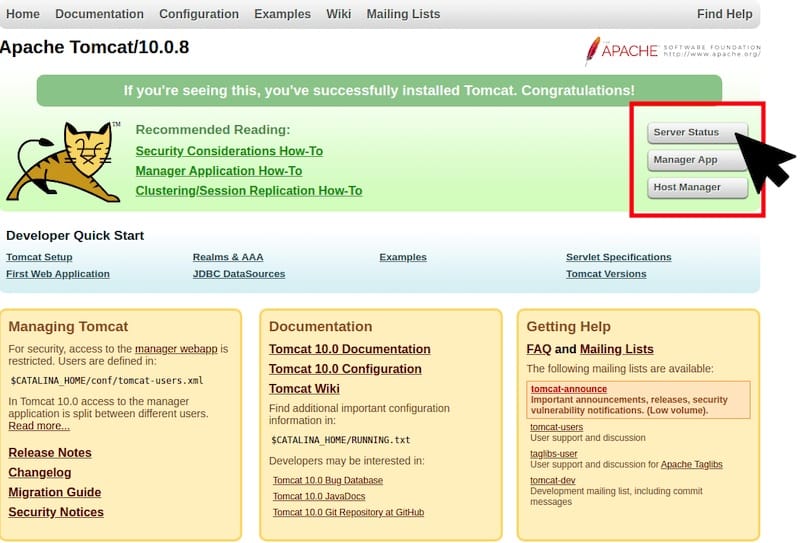
You should see the Apache Tomcat welcome page—a clean interface with Tomcat’s logo and links to documentation. This confirms Tomcat is running and accessible. The page includes server status information and links to example applications.
Test the Manager App by clicking the “Manager App” button or navigating to:
http://your-server-ip:8080/manager/htmlEnter the admin credentials you configured earlier. The Manager App displays deployed applications, allowing you to start, stop, reload, or undeploy them. You can also deploy new WAR files directly through this interface.
From the command line, verify Tomcat processes:
ps aux | grep tomcatYou’ll see multiple Java processes running under the tomcat user. The main process is the Catalina servlet container.
Monitor Tomcat logs in real-time:
sudo tail -f /opt/tomcat/logs/catalina.outThis displays startup messages and ongoing log entries. Press Ctrl+C to stop following the log. These logs are invaluable for troubleshooting application errors and monitoring server behavior.
Security Hardening (Best Practices)
A default Tomcat installation includes features convenient for development but risky in production. Remove default sample applications:
sudo rm -rf /opt/tomcat/webapps/docs /opt/tomcat/webapps/examples /opt/tomcat/webapps/host-manager /opt/tomcat/webapps/managerIf you need the Manager App, keep it but secure it properly with strong passwords and IP restrictions.
Disable the TRACE HTTP method to prevent cross-site tracing attacks. Edit the server configuration:
sudo nano /opt/tomcat/conf/web.xmlAdd this security constraint before the closing </web-app> tag:
<security-constraint>
    <web-resource-collection>
        <web-resource-name>Forbidden</web-resource-name>
        <url-pattern>/*</url-pattern>
        <http-method>TRACE</http-method>
    </web-resource-collection>
    <auth-constraint/>
</security-constraint>
Configure a strong shutdown password in server.xml:
sudo nano /opt/tomcat/conf/server.xmlFind the Server element and change the shutdown attribute to something random and complex:
<Server port="8005" shutdown="ComplexRandomString123!">Consider running Tomcat behind a reverse proxy like Nginx or Apache HTTP Server. This adds an additional security layer, enables SSL/TLS termination, and provides load balancing capabilities for multiple Tomcat instances.
Keep Tomcat updated with security patches. Subscribe to the Apache Tomcat security mailing list to receive vulnerability announcements. Regularly check for updates:
sudo dnf updateEnable audit logging to track all management actions. Configure file permissions to prevent unauthorized modifications—the tomcat user should have read-only access to most files, with write access only to logs and temp directories.
Common Troubleshooting Tips
Port Already in Use: If Tomcat fails to start with a “port already in use” error, another process is occupying port 8080. Identify it:
sudo lsof -i :8080Stop the conflicting process or change Tomcat’s port in /opt/tomcat/conf/server.xml.
Permission Denied Errors: Verify the tomcat user owns all files in /opt/tomcat/ and that shell scripts are executable. Reset permissions:
sudo chown -R tomcat:tomcat /opt/tomcat/
sudo chmod +x /opt/tomcat/bin/*.sh
OutOfMemoryError: Increase JVM heap size in the systemd service file. Edit /etc/systemd/system/tomcat.service and adjust -Xmx values, then reload and restart:
sudo systemctl daemon-reload
sudo systemctl restart tomcat
SELinux Issues: Fedora’s SELinux can block Tomcat operations. Check for denials:
sudo ausearch -m avc -ts recentIf SELinux is causing problems, create custom policies or temporarily set it to permissive mode (not recommended for production):
sudo setenforce 0Cannot Access Remotely: Verify firewall rules, check that Tomcat binds to all interfaces (0.0.0.0) in server.xml, and ensure network routing is correct. Test connectivity:
curl http://localhost:8080If this works but remote access doesn’t, the problem lies in networking or firewall configuration.
Congratulations! You have successfully installed Apache Tomcat. Thanks for using this tutorial for installing Apache Tomcat on your Fedora 43 Linux system. For additional help or useful information, we recommend you check the official Apache website.
