How To Install Apache Tomcat on Linux Mint 22

Apache Tomcat stands as one of the most popular Java servlet containers for running Java web applications in production environments. Linux Mint 22 “Wilma,” based on Ubuntu 24.04 LTS with support extending until 2029, provides an ideal platform for hosting Tomcat servers. This comprehensive guide walks you through every step of installing and configuring Apache Tomcat on Linux Mint 22 — from initial system preparation to securing your deployment with industry best practices.
Whether you’re a developer setting up a local testing environment or a system administrator deploying production infrastructure, this tutorial covers everything you need. You’ll learn how to install Java, download Tomcat, configure systemd services, set up the web management interface, and secure your installation against common vulnerabilities.
Prerequisites and System Requirements
Before diving into the installation process, ensure your system meets the necessary requirements for running Apache Tomcat efficiently.
Hardware Requirements
Your Linux Mint 22 system should have at minimum 2GB RAM and 20GB available disk space, though these baseline specifications will only support minimal workloads. For optimal Tomcat performance — especially when running multiple Java applications simultaneously — consider 4GB RAM or more and at least 100GB storage. A dual-core processor (Intel Core i3 or AMD Ryzen 3 equivalent) provides adequate processing power for most development and small production scenarios.
Software Prerequisites
You’ll need a fully updated Linux Mint 22 “Wilma” installation with terminal access and sudo privileges. An active internet connection is essential for downloading packages and the Tomcat distribution. Basic familiarity with Linux command-line operations and a text editor such as nano or vim will make the process smoother.
Step 1: Update Your System
Starting with a fresh system update prevents compatibility issues and security vulnerabilities that could affect your Tomcat installation. Open your terminal and execute the following command:
sudo apt update && sudo apt upgrade -yThis command refreshes your package repositories and upgrades all installed software to their latest versions. The process typically takes 5–10 minutes depending on your internet speed and how many packages require updates. System updates ensure you have the latest security patches and dependency libraries that Tomcat relies upon.
Step 2: Install Java Development Kit
Tomcat requires Java to run since it is built entirely on Java technology. The Java Development Kit (JDK) provides the runtime environment and necessary libraries.
Choosing the Right Java Version
Apache Tomcat 10 requires Java 11 or later, with OpenJDK being the recommended choice for Linux systems. OpenJDK is open-source, well-maintained, and fully compatible with Tomcat’s requirements. Install OpenJDK 11 with this command:
sudo apt install -y openjdk-11-jdkAlternatively, you can install the default JDK package:
sudo apt install default-jdk -yVerify Java Installation
After installation completes, confirm Java is properly configured:
java -versionYou should see output similar to:
openjdk version "11.0.20" 2023-07-18
OpenJDK Runtime Environment (build 11.0.20+8-post-Ubuntu-1ubuntu1)
OpenJDK 64-Bit Server VM (build 11.0.20+8-post-Ubuntu-1ubuntu1, mixed mode)
Next, locate your Java installation path:
readlink -f $(which java)This typically returns /usr/lib/jvm/java-11-openjdk-amd64/bin/java. Note the path up to the version directory (excluding /bin/java) as you will need it later for environment variables.
Step 3: Create a Dedicated Tomcat User
Running Tomcat as the root user poses significant security risks. Creating a dedicated system user with limited privileges follows security best practices and contains potential breaches. Create the tomcat group and user account:
sudo groupadd tomcat
sudo useradd -r -m -U -d /opt/tomcat -s /bin/false tomcat
This command creates a system user (-r) with a home directory (-m) at /opt/tomcat (-d) and no login shell (-s /bin/false), preventing direct login while allowing the user to run services. The /opt directory serves as the standard location for third-party software packages on Linux systems.
Step 4: Download Apache Tomcat
Obtaining the latest stable Tomcat release ensures you benefit from recent security patches and performance improvements.
Selecting Your Version
Visit the official Apache Tomcat website at https://tomcat.apache.org to identify the current stable release. Tomcat 10.x represents the latest major version implementing Jakarta EE 9 specifications, while Tomcat 9.x remains widely used for Java EE 8 applications. Navigate to your preferred download directory:
cd /tmpDownload the latest Tomcat 10 release using wget:
wget https://downloads.apache.org/tomcat/tomcat-10/v10.1.34/bin/apache-tomcat-10.1.34.tar.gzReplace the version number with the current stable release available at the time of download. The .tar.gz archive contains the complete Tomcat distribution ready for extraction.
Step 5: Extract and Install Tomcat
Extract the Tomcat archive to its permanent location and configure proper permissions.
sudo tar xf apache-tomcat-10*.tar.gz -C /opt/tomcat --strip-components=1The --strip-components=1 flag removes the top-level directory from the archive, placing Tomcat files directly in /opt/tomcat rather than creating a nested version-named folder. Verify the extraction by listing the directory contents:
ls -l /opt/tomcatYou should see directories including bin (executable scripts), conf (configuration files), lib (Java libraries), logs (application logs), and webapps (deployed applications).
Set Proper Ownership and Permissions
Assign ownership of all Tomcat files to the tomcat user:
sudo chown -R tomcat:tomcat /opt/tomcatMake shell scripts executable:
sudo chmod +x /opt/tomcat/bin/*.shThese permissions ensure Tomcat can read its configuration, write logs, and execute startup scripts while maintaining security boundaries.
Step 6: Configure Environment Variables
Tomcat requires the JAVA_HOME environment variable to locate your Java installation. Edit the Catalina startup script:
sudo nano /opt/tomcat/bin/setenv.shIf this file does not exist, create it. Add the following lines:
export JAVA_HOME=/usr/lib/jvm/java-11-openjdk-amd64
export CATALINA_HOME=/opt/tomcat
Adjust the JAVA_HOME path to match your actual Java installation directory found earlier. Save and close the file (Ctrl+O, Enter, Ctrl+X in nano). This configuration ensures Tomcat always finds the correct Java runtime, preventing “JAVA_HOME not found” errors during startup.
Step 7: Create a Systemd Service File
Systemd integration enables automatic Tomcat startup during system boot and provides convenient service management commands. Create a new service file:
sudo nano /etc/systemd/system/tomcat.servicePaste the following configuration:
[Unit]
Description=Apache Tomcat Web Application Container
Wants=network.target
After=network.target

[Service]
Type=forking
Environment=JAVA_HOME=/usr/lib/jvm/java-11-openjdk-amd64
Environment=CATALINA_PID=/opt/tomcat/temp/tomcat.pid
Environment=CATALINA_HOME=/opt/tomcat
Environment=CATALINA_BASE=/opt/tomcat
Environment='CATALINA_OPTS=-Xms512M -Xmx1024M -server -XX:+UseParallelGC'
Environment='JAVA_OPTS=-Djava.awt.headless=true'

ExecStart=/opt/tomcat/bin/startup.sh
ExecStop=/opt/tomcat/bin/shutdown.sh

User=tomcat
Group=tomcat
UMask=0007
RestartSec=10
Restart=always

[Install]
WantedBy=multi-user.target
This comprehensive service configuration includes memory allocation settings (-Xms512M sets initial heap size, -Xmx1024M sets maximum heap size), automatic restart policies, and proper security context. Adjust memory values based on your available system resources and application requirements. Save the file after verifying all paths match your installation.
Step 8: Start and Enable the Tomcat Service
With the service file in place, activate Tomcat through systemd. Reload the systemd manager configuration:
sudo systemctl daemon-reloadStart the Tomcat service:
sudo systemctl start tomcatCheck the service status:
sudo systemctl status tomcatYou should see output indicating active (running) in green text. Tomcat typically requires 10–20 seconds to fully initialize depending on system performance. Enable automatic startup on boot:
sudo systemctl enable tomcatThis ensures Tomcat restarts automatically after system reboots — crucial for production environments.
Monitoring Tomcat Logs
View real-time service logs if you encounter issues:
sudo journalctl -u tomcat -fPress Ctrl+C to exit log viewing. Logs provide valuable troubleshooting information including startup errors, configuration problems, and application deployment messages.
Step 9: Configure Firewall Settings
Linux Mint 22 includes UFW (Uncomplicated Firewall) for network security. Opening the Tomcat port allows external access to your web applications. Check current firewall status:
sudo ufw statusAllow connections to Tomcat’s default port:
sudo ufw allow 8080/tcpReload the firewall to apply changes:
sudo ufw reloadFor enhanced security in production environments, consider restricting access to specific IP addresses or networks:
sudo ufw allow from 192.168.1.0/24 to any port 8080This limits Tomcat access to clients within the 192.168.1.0/24 subnet, preventing unauthorized external connections.
Step 10: Access the Tomcat Web Interface
Confirm your installation succeeded by accessing Tomcat’s default homepage through a web browser. Open Firefox or your preferred browser and navigate to:
http://localhost:8080Or from another computer on your network:
http://your-server-ip:8080Replace your-server-ip with your Linux Mint system’s IP address (find it using the ip addr command). The Tomcat welcome page displays version information and links to documentation — confirming Tomcat is running correctly and listening on port 8080.
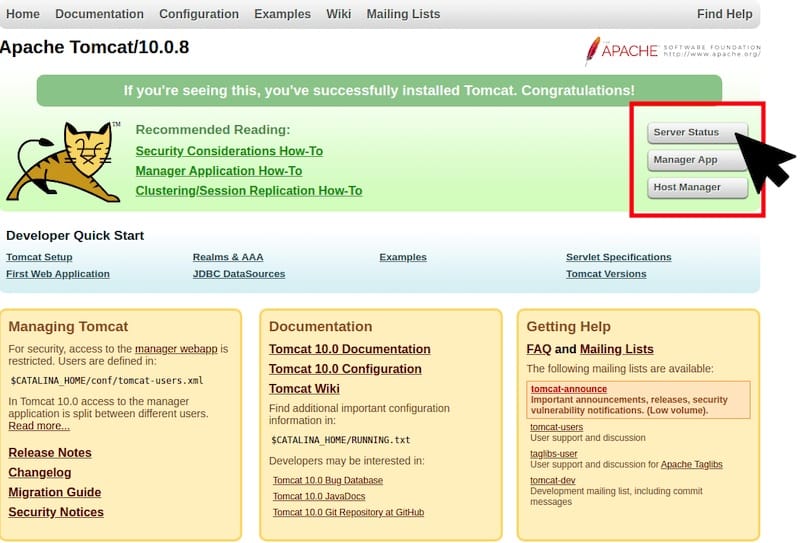
Step 11: Configure Tomcat Manager Access
The Tomcat Manager application provides a web-based interface for deploying applications, monitoring performance, and managing server resources.
Create Administrative Users
Edit the user configuration file:
sudo nano /opt/tomcat/conf/tomcat-users.xmlLocate the <tomcat-users> section near the end of the file. Add these lines just before the closing </tomcat-users> tag:
<role rolename="manager-gui"/>
<role rolename="admin-gui"/>
<user username="admin" password="StrongPassword123!" roles="manager-gui,admin-gui"/>
Replace StrongPassword123! with a secure password containing uppercase, lowercase, numbers, and special characters. The manager-gui role provides access to the Manager application, while admin-gui grants Host Manager access.
Remove Remote Access Restrictions
By default, Tomcat restricts Manager access to localhost only. To allow remote access, modify the context configuration. Edit the Manager application context:
sudo nano /opt/tomcat/webapps/manager/META-INF/context.xmlFind the Valve element and comment it out:
<!--
<Valve className="org.apache.catalina.valves.RemoteAddrValve"
       allow="127\.\d+\.\d+\.\d+|::1|0:0:0:0:0:0:0:1" />
-->
Repeat this process for the Host Manager:
sudo nano /opt/tomcat/webapps/host-manager/META-INF/context.xmlSecurity Warning: Removing these restrictions allows remote access to powerful management functions. In production environments, configure specific IP addresses in the allow attribute or use VPN access instead of fully disabling this protection.
Step 12: Restart Tomcat and Test Manager Access
Apply all configuration changes by restarting the service:
sudo systemctl restart tomcatWait approximately 15 seconds for Tomcat to fully restart, then access the Manager application:
http://localhost:8080/manager/htmlEnter the username and password you configured earlier. The Manager interface displays deployed applications, server status, memory usage, and deployment controls. You can deploy WAR files, start and stop applications, and view detailed diagnostics. Access the Host Manager at:
http://localhost:8080/host-manager/htmlTroubleshooting Common Issues
Tomcat Service Fails to Start
If systemctl status tomcat shows “failed” or “inactive (dead)”, investigate with these steps:
- Check Java is properly installed:
java -version - Review the last 50 lines of service logs:
sudo journalctl -u tomcat -n 50 --no-pager - Verify port 8080 is not already in use:
sudo netstat -tulpn | grep 8080 - Confirm file ownership and permissions:
ls -la /opt/tomcat/bin/startup.sh
The tomcat user must own all files and scripts must be executable. Incorrect permissions are the most common cause of startup failures.
Cannot Access Web Interface
If the browser cannot connect to Tomcat, run the following checks:
- Verify Tomcat is listening on port 8080:
sudo ss -lntp | grep 8080 - Check firewall rules are active:
sudo ufw status numbered - Test localhost access first, then remote access separately to isolate network issues
- Review
/opt/tomcat/logs/catalina.outfor startup errors
Manager Application Returns 403 Forbidden
Authentication errors typically stem from incorrect tomcat-users.xml configuration, missing role definitions, context.xml Valve restrictions, or cached browser credentials. Clear your browser cache and cookies, verify your credentials in tomcat-users.xml, and ensure you restarted Tomcat after all configuration changes.
Congratulations! You have successfully installed Apache Tomcat. Thanks for using this tutorial for installing the latest version of Apache Tomcat on the Linux Mint 22 system. For additional help or useful information, we recommend you check the official Apache website.
