How To Install Askbot on Debian 13

Building a thriving Q&A community requires the right foundation. Askbot, an open-source question-and-answer platform built with Python and Django, delivers exactly that—a robust forum software that mirrors the functionality of Stack Overflow while giving you complete control over your community’s data and features.
Debian 13 provides the perfect hosting environment for Askbot installations. Its legendary stability, extensive package repositories, and strong security track record make it ideal for production deployments. This comprehensive guide walks you through every step of installing Askbot on Debian 13, from initial system preparation to final configuration. Whether you’re launching an internal knowledge base or a public technical forum, you’ll have a fully functional Q&A platform running within an hour.
The installation process involves configuring PostgreSQL as the database backend, setting up Python virtual environments for dependency isolation, and deploying the application through uWSGI and Nginx for production-grade performance. Each step builds upon the previous one, ensuring a secure and optimized Askbot installation.
Understanding Askbot and Its Requirements
Askbot transforms community knowledge sharing through its sophisticated question-answer platform. Written entirely in Python using the Django framework, it incorporates voting mechanisms, reputation systems, badge awards, and user moderation tools that encourage quality contributions.
Organizations use Askbot for diverse purposes. Technical teams build internal knowledge repositories. Open-source projects create support forums. Educational institutions establish student help desks. The software’s flexibility accommodates these varied use cases while maintaining consistent performance.
Debian 13, codenamed “Trixie,” brings modern kernel support and updated packages to the legendary Debian stability. This combination ensures your Askbot installation receives security patches promptly while avoiding the instability that plagues bleeding-edge distributions.
Prerequisites and System Requirements
Hardware Requirements
Your server needs adequate resources to handle concurrent users smoothly. A minimum configuration includes 2 GB RAM, 25 GB storage, and a 1 GHz processor. These specifications work for small deployments with fewer than 50 concurrent users.
Production environments demand more robust hardware. Plan for 8 GB RAM, 50 GB SSD storage, and a dual-core processor running at 2 GHz or higher. These resources support hundreds of simultaneous users while maintaining responsive page loads.
Software Requirements
Start with a fresh Debian 13 installation. You’ll need either root access or a non-root user account with sudo privileges. An active internet connection is essential for downloading packages and dependencies throughout the installation process.
Domain configuration remains optional for testing environments. Production deployments benefit significantly from proper domain setup, enabling SSL certificates and professional branding.
Required Knowledge Level
Basic Linux command-line proficiency suffices for this tutorial. You should know how to navigate directories, edit text files using nano or vim, and connect to servers via SSH. Previous experience with Django or Python helps but isn’t mandatory—the instructions explain each step thoroughly.
Step 1 – Update System and Install Dependencies
Update Package Repository
Fresh installations require system updates before proceeding. Connect to your Debian 13 server via SSH and execute these commands:
sudo apt update
sudo apt upgrade -y
The first command refreshes package lists from Debian repositories. The second upgrades all installed packages to their latest versions. This process eliminates known security vulnerabilities and ensures compatibility with newly installed software.
Kernel updates sometimes require a system reboot. Check for the reboot recommendation in the upgrade output. If present, restart your server immediately:
sudo rebootInstall Python Development Tools
Askbot requires Python 3, pip package manager, and various development libraries. Install the complete Python development environment with this command:
sudo apt install python3 python3-pip python3-dev python3-venv build-essential -yEach component serves a specific purpose. Python3 provides the runtime environment. Pip manages Python packages. Python3-dev includes header files needed for compiling extensions. Python3-venv enables virtual environment creation. Build-essential supplies compilers and build tools.
Verify the installation by checking Python and pip versions:
python3 --version
pip3 --version
Install Additional System Dependencies
PostgreSQL database integration requires specific development libraries. Git enables version control. Install these essential packages:
sudo apt install libpq-dev python3-psycopg2 git curl wget -yThe libpq-dev package provides PostgreSQL client libraries. Python3-psycopg2 acts as the PostgreSQL adapter for Python applications. Git, curl, and wget facilitate file downloads and repository management.
Confirm successful installation by checking if the libraries are available:
dpkg -l | grep libpq-devStep 2 – Install and Configure PostgreSQL Database
Install PostgreSQL
PostgreSQL serves as Askbot’s database engine, storing questions, answers, user profiles, and voting data. Install PostgreSQL server and client packages:
sudo apt install postgresql postgresql-contrib -yDebian 13 typically includes PostgreSQL 17.x, the latest stable release. The postgresql-contrib package adds useful extensions and additional functionality.
Start the PostgreSQL service and enable it to launch automatically at boot:
sudo systemctl start postgresql
sudo systemctl enable postgresql
Verify the service runs correctly:
sudo systemctl status postgresqlA green “active (running)” status confirms successful operation.
Create Askbot Database and User
Database security follows the principle of least privilege. Create a dedicated database and user specifically for Askbot. Switch to the PostgreSQL system user:
sudo -i -u postgresAccess the PostgreSQL command prompt:
psqlCreate the Askbot database:
CREATE DATABASE askbotdb;Create a database user with a strong password (replace ‘your_strong_password’ with an actual secure password):
CREATE USER askbotuser WITH PASSWORD 'your_strong_password';Grant all privileges on the Askbot database to your new user:
GRANT ALL PRIVILEGES ON DATABASE askbotdb TO askbotuser;Exit the PostgreSQL prompt:
\q
exit
Configure PostgreSQL for Local Connections
The default PostgreSQL configuration uses peer authentication for local connections. Askbot requires password-based authentication. Edit the PostgreSQL client authentication file:
sudo nano /etc/postgresql/17/main/pg_hba.confLocate the line that reads:
local all all peerChange “peer” to “md5”:
local all all md5Save the file and restart PostgreSQL to apply changes:
sudo systemctl restart postgresqlTest the database connection using the askbotuser credentials:
psql -U askbotuser -d askbotdb -h localhostEnter the password when prompted. A successful connection confirms proper configuration.
Step 3 – Create Askbot System User and Virtual Environment
Create Dedicated Askbot User
Running applications under dedicated user accounts enhances security. Create an askbot system user with a home directory:
sudo adduser askbotFollow the prompts to set a password and provide optional user information. This account will own all Askbot files and run application processes.
Switch to the askbot user:
sudo su - askbotSet Up Python Virtual Environment
Virtual environments isolate Python dependencies, preventing conflicts between different applications. Create a virtual environment in the askbot user’s home directory:
python3 -m venv askbot_envThis command creates a new directory called “askbot_env” containing a complete Python environment. Activate the virtual environment:
source askbot_env/bin/activateYour command prompt changes to include “(askbot_env)”, indicating activation. Upgrade pip to the latest version within this isolated environment:
pip install --upgrade pipVirtual environments prevent system-wide Python modifications. You can delete and recreate them without affecting other applications or the base system.
Verify Virtual Environment
Confirm the virtual environment uses its own Python installation:
which python
which pip
Both commands should return paths within the askbot_env directory. This isolation ensures Askbot’s dependencies don’t interfere with system packages.
Step 4 – Install Askbot Application
Install Askbot via Pip
With the virtual environment active, install Askbot and its core dependencies using pip:
pip install askbotThis command downloads Askbot and automatically installs required Python packages. The process takes several minutes depending on your internet connection speed.
Install additional database connectivity packages:
pip install psycopg2-binaryThe psycopg2-binary package enables Askbot to communicate with PostgreSQL databases efficiently.
Initialize Askbot Project
Create a directory for your Askbot installation. This directory will contain configuration files, static assets, and media uploads:
mkdir ~/myaskbot
cd ~/myaskbot
Initialize the Askbot project structure using the askbot-setup command:
askbot-setupWhen prompted for the installation directory, press Enter to use the current directory. The setup script generates essential configuration files, including settings.py and manage.py.
Configure Askbot Settings
Edit the main settings file to configure database connections and security parameters:
nano ~/myaskbot/settings.pyLocate the DATABASES section and configure it for PostgreSQL:
DATABASES = {
    'default': {
        'ENGINE': 'django.db.backends.postgresql',
        'NAME': 'askbotdb',
        'USER': 'askbotuser',
        'PASSWORD': 'your_strong_password',
        'HOST': 'localhost',
        'PORT': '5432',
    }
}
Replace ‘your_strong_password’ with the actual password you created earlier.
Find the ALLOWED_HOSTS setting and add your server’s IP address or domain name:
ALLOWED_HOSTS = ['your_server_ip', 'yourdomain.com']Generate a unique SECRET_KEY for Django security. Never use the default key in production. You can generate one using Python:
python -c "from django.core.management.utils import get_random_secret_key; print(get_random_secret_key())"Copy the output and paste it into the SECRET_KEY setting in settings.py.
Set DEBUG to False for production deployments:
DEBUG = FalseSave and close the file.
Step 5 – Initialize Database and Create Superuser
Run Database Migrations
Django migrations create the database schema required by Askbot. Navigate to your project directory and run:
cd ~/myaskbot
python manage.py makemigrations
python manage.py migrate
The first command generates migration files for any model changes. The second applies these migrations to your PostgreSQL database, creating all necessary tables.
Collect Static Files
Static files include CSS stylesheets, JavaScript code, and images that make Askbot’s interface functional and attractive. Collect these files into a single directory:
python manage.py collectstaticType ‘yes’ when prompted to confirm. This command copies static files from Askbot and Django into the location specified in your settings.py file.
Create Administrative User
Every Askbot installation needs at least one superuser for administrative tasks. Create your admin account:
python manage.py createsuperuserProvide a username, email address, and strong password when prompted. This account grants access to Django’s admin interface and full Askbot moderation capabilities.
Document these credentials securely. You’ll need them to configure your Q&A platform after deployment.
Step 6 – Install and Configure uWSGI
Install uWSGI
UWSGI serves as the application server, handling requests and executing Python code. Install it within your virtual environment:
pip install uwsgiUWSGI acts as the bridge between Nginx (which handles HTTP requests) and your Django application.
Create uWSGI Configuration File
Exit the askbot user session and return to your sudo-enabled user:
exitCreate a directory for uWSGI site configurations:
sudo mkdir -p /etc/uwsgi/sitesCreate the Askbot configuration file:
sudo nano /etc/uwsgi/sites/askbot.iniAdd this configuration:
[uwsgi]
project = myaskbot
username = askbot
base = /home/%(username)

chdir = %(base)/%(project)
home = %(base)/askbot_env
module = django.core.wsgi:get_application()

master = true
processes = 5
threads = 2

uid = %(username)
socket = /run/uwsgi/%(project).sock
chown-socket = %(username):www-data
chmod-socket = 660
vacuum = true

env = DJANGO_SETTINGS_MODULE=settings
This configuration specifies the project location, virtual environment path, number of worker processes, and socket permissions. Save and close the file.
Create uWSGI Systemd Service
Systemd manages uWSGI as a system service, ensuring it starts automatically and restarts after failures. Create a service file:
sudo nano /etc/systemd/system/uwsgi.serviceAdd this content:
[Unit]
Description=uWSGI Emperor service
After=syslog.target

[Service]
ExecStart=/home/askbot/askbot_env/bin/uwsgi --emperor /etc/uwsgi/sites
Restart=always
KillSignal=SIGQUIT
Type=notify
NotifyAccess=all
User=askbot
Group=www-data

[Install]
WantedBy=multi-user.target
This configuration runs uWSGI in Emperor mode, allowing it to manage multiple applications. Save and close the file.
Reload the systemd daemon, start uWSGI, and enable it to start at boot:
sudo systemctl daemon-reload
sudo systemctl start uwsgi
sudo systemctl enable uwsgi
Check the service status:
sudo systemctl status uwsgiStep 7 – Install and Configure Nginx
Install Nginx Web Server
Nginx acts as a reverse proxy, handling HTTP requests and serving static files efficiently. Install Nginx:
sudo apt install nginx -yStart and enable the Nginx service:
sudo systemctl start nginx
sudo systemctl enable nginx
Create Nginx Virtual Host Configuration
Create a new Nginx server block for Askbot:
sudo nano /etc/nginx/sites-available/askbotAdd this configuration:
server {
    listen 80;
    server_name your_server_ip yourdomain.com;

    location = /favicon.ico { access_log off; log_not_found off; }

    location /static/ {
        alias /home/askbot/myaskbot/static/;
    }

    location /upfiles/ {
        alias /home/askbot/myaskbot/askbot/upfiles/;
    }

    location / {
        include uwsgi_params;
        uwsgi_pass unix:/run/uwsgi/myaskbot.sock;
    }
}
Replace “your_server_ip” and “yourdomain.com” with your actual server details. This configuration routes dynamic requests to uWSGI while serving static files directly.
Enable and Test Configuration
Create a symbolic link to enable the site:
sudo ln -s /etc/nginx/sites-available/askbot /etc/nginx/sites-enabled/Remove the default Nginx site to avoid conflicts:
sudo rm /etc/nginx/sites-enabled/defaultTest the Nginx configuration for syntax errors:
sudo nginx -tA successful test shows “syntax is ok” and “test is successful.” Reload Nginx to apply changes:
sudo systemctl reload nginxConfigure File Permissions
Nginx needs read access to static and media files. Set appropriate ownership and permissions:
sudo chown -R askbot:www-data /home/askbot/myaskbot/static
sudo chown -R askbot:www-data /home/askbot/myaskbot/askbot/upfiles
sudo chmod -R 755 /home/askbot/myaskbot/static
sudo chmod -R 755 /home/askbot/myaskbot/askbot/upfiles
These permissions allow Nginx to read files while preventing unauthorized modifications.
Step 8 – Configure Firewall and Access Askbot
Configure UFW Firewall
Enable the Uncomplicated Firewall (UFW) if it’s not already active:
sudo ufw enableAllow SSH connections to prevent lockout:
sudo ufw allow OpenSSHAllow HTTP traffic for web access:
sudo ufw allow 'Nginx Full'This rule permits both HTTP (port 80) and HTTPS (port 443) connections. Verify active firewall rules:
sudo ufw statusAccess Askbot Interface
Open your web browser and navigate to your server’s IP address or domain name:
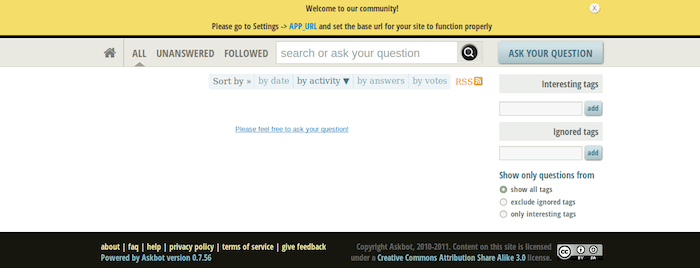
http://your_server_ipThe Askbot homepage loads, displaying the default Q&A interface. Access the Django admin panel by appending “/admin” to your URL:
http://your_server_ip/adminLog in using the superuser credentials you created earlier. The admin interface provides access to site configuration, user management, and content moderation tools.
Post-Installation Configuration
Initial Askbot Settings
Navigate to the Askbot admin interface and configure basic settings. Set your site name, description, and tagline to establish your brand identity. These details appear in page titles, emails, and social media shares.
Configure email notifications through SMTP settings. Email functionality enables password resets, new answer notifications, and activity digests. Common SMTP providers include Gmail, SendGrid, and AWS SES.
Adjust user registration options based on your community needs. Open registration works for public forums. Invitation-only registration suits private knowledge bases.
Security Hardening
Change the default admin URL to prevent automated attacks. Edit your urls.py file and modify the admin path from “/admin” to something less predictable like “/management”.
Install SSL/TLS certificates using Let’s Encrypt for free HTTPS encryption:
sudo apt install certbot python3-certbot-nginx -y
sudo certbot --nginx -d yourdomain.com
Follow the prompts to configure automatic certificate renewal.
Implement automated database backups with a daily cron job:
sudo crontab -eAdd this line to backup the database daily at 2 AM:
0 2 * * * pg_dump -U askbotuser askbotdb > /home/askbot/backups/askbot_$(date +\%Y\%m\%d).sqlPerformance Optimization
Enable caching to reduce database queries and improve response times. Redis provides an excellent caching backend for Django applications. Install Redis:
sudo apt install redis-server -yConfigure Askbot to use Redis by adding cache settings to settings.py. Database connection pooling through PgBouncer further enhances performance for high-traffic deployments.
Content Delivery Networks (CDNs) accelerate static asset delivery for geographically distributed users. CloudFlare offers free CDN services that integrate seamlessly with Nginx.
Troubleshooting Common Issues
Database Connection Errors
Connection failures typically stem from authentication problems or service issues. Verify PostgreSQL runs correctly:
sudo systemctl status postgresqlCheck database credentials in settings.py match those created during PostgreSQL configuration. Test database connectivity manually:
psql -U askbotuser -d askbotdb -h localhostReview pg_hba.conf authentication settings if connections fail despite correct credentials.
Static Files Not Loading
Missing styles or broken images indicate static file serving problems. Confirm collectstatic executed successfully:
cd ~/myaskbot
source ~/askbot_env/bin/activate
python manage.py collectstatic
Verify Nginx configuration points to the correct static file directory. Check file permissions allow Nginx read access. Browser developer consoles reveal specific missing files and their requested paths.
uWSGI Service Issues
UWSGI failures prevent the application from serving requests. Examine uWSGI logs for error messages:
sudo journalctl -u uwsgi -n 50Verify the virtual environment path in askbot.ini matches the actual location. Confirm the socket file exists with proper permissions:
ls -l /run/uwsgi/Test uWSGI manually outside of systemd to isolate configuration problems:
/home/askbot/askbot_env/bin/uwsgi --ini /etc/uwsgi/sites/askbot.iniPermission Denied Errors
File permission problems manifest as 403 Forbidden errors or upload failures. Review file ownership throughout the application directory:
ls -la /home/askbot/myaskbot/The askbot user should own application files. The www-data group needs read access for Nginx. Adjust permissions as needed:
sudo chown -R askbot:www-data /home/askbot/myaskbotMaintenance and Best Practices
Regular Updates
Keep Askbot current with security patches and feature improvements. Update within your virtual environment:
source ~/askbot_env/bin/activate
pip install --upgrade askbot
python manage.py migrate
Apply Debian security updates monthly:
sudo apt update && sudo apt upgrade -yUpdate Python dependencies to address vulnerabilities:
pip list --outdated
pip install --upgrade package_name
Backup Strategy
Comprehensive backups protect against data loss from hardware failures, security breaches, or human errors. Create database backups using pg_dump:
pg_dump -U askbotuser askbotdb > askbot_backup.sqlBack up file system components including media uploads, configuration files, and custom templates. Automate backups with cron jobs scheduled during low-traffic periods.
Test restore procedures regularly to verify backup integrity:
psql -U askbotuser askbotdb < askbot_backup.sqlStore backups off-site using cloud storage services or remote servers. Retain multiple backup versions following the 3-2-1 rule: three copies, two different media types, one off-site location.
Monitoring
Monitor log files for errors, security incidents, and performance anomalies. Key log locations include:
- Nginx access: /var/log/nginx/access.log
- Nginx errors: /var/log/nginx/error.log
- uWSGI logs: sudo journalctl -u uwsgi
- PostgreSQL logs: /var/log/postgresql/
Track resource utilization using tools like htop for real-time monitoring:
sudo apt install htop -y
htop
Set up email alerts for critical events like disk space shortages or service failures. Monitoring solutions like Prometheus and Grafana provide comprehensive metrics dashboards for production environments.
Congratulations! You have successfully installed Askbot. Thanks for using this tutorial for installing Askbot on Debian 13 “Trixie” system. For additional help or useful information, we recommend you check the official Askbot website.
