How To Install BalenaEtcher on Fedora 43

If you regularly create bootable USB drives on Linux, you already know the frustration of using dd incorrectly and overwriting the wrong device. BalenaEtcher removes that risk entirely with a clean three-step GUI workflow: select an image, select a target, and flash. This guide walks you through how to install BalenaEtcher on Fedora 43 using the official upstream RPM from GitHub, since BalenaEtcher is not available in Fedora’s default DNF repositories or on Flathub as of early 2026. You will also learn how to verify the download, launch the app, flash a bootable USB safely, troubleshoot common errors, keep it updated, and remove it cleanly when you no longer need it.
What Is BalenaEtcher and Why Use It on Fedora 43?
BalenaEtcher is a free, open-source application developed by Balena (formerly Resin.io) and published on GitHub under the balena-io organization. It is built on Electron, which means it runs identically on Linux, Windows, and macOS. Its core value on Linux is not raw flashing speed but reliability: it shows target device details clearly so you do not accidentally overwrite your internal drive, and it runs a post-write verification pass by default to confirm the flash completed without errors.
On Fedora 43 specifically, BalenaEtcher fills a real gap. Fedora Media Writer is excellent for creating Fedora installation media, but it is narrower in scope. If you are flashing a Ubuntu ISO, a Raspberry Pi image, or any other third-party OS image, BalenaEtcher handles those workflows without extra configuration.
The tool is also preferred by many developers and sysadmins over running raw dd commands because there is no need to manually specify if= and of= flags where one typo can destroy data. BalenaEtcher makes the target device obvious before you commit to the write.
Prerequisites
Before running a single command, confirm your environment matches the requirements below. Skipping this check is the most common reason installations fail halfway through.
- Operating System: Fedora 43 Workstation or a desktop spin (GNOME, KDE, Xfce, etc.)
- Architecture: x86_64 (64-bit Intel or AMD). BalenaEtcher does not currently publish an ARM RPM for Fedora.
- User Privileges: A non-root user account with
sudoaccess configured - Internet Connection: Required to query the GitHub API and download the RPM
- curl: Fedora Workstation includes it by default. On a minimal install, run
sudo dnf install curlfirst ifcurl: command not foundappears - Terminal Emulator: GNOME Terminal, Konsole, or any other terminal app
- Free Disk Space: At least 500 MB (the RPM is approximately 122 MB compressed and around 410 MB once installed)
Step 1: Update Fedora 43 Before Installing BalenaEtcher
Always refresh your system before installing a local RPM from an external source. This keeps DNF’s dependency metadata current and prevents version mismatch errors during install.
Run the following command in your terminal:
sudo dnf upgrade --refreshThe --refresh flag forces DNF to re-sync repository metadata even if the local cache is considered fresh. Without it, DNF can resolve dependencies against outdated package data and produce avoidable errors.
Confirm with y when prompted and wait for the upgrade to complete before moving to Step 2.
Step 2: Download the Latest BalenaEtcher RPM on Fedora 43
Since there is no balena-etcher package in Fedora’s repositories, the correct source is the official GitHub releases page. Rather than hardcoding a version URL that will go stale with every new release, the commands below query the GitHub API dynamically to pull the current latest version.
Keep the same terminal window open for all commands in Steps 2 through 5. The shell variables set below are referenced again in later steps.
RPM_URL=$(curl -fsSL https://api.github.com/repos/balena-io/etcher/releases/latest \
  | grep 'browser_download_url' | grep 'x86_64' | grep '\.rpm' \
  | head -n1 | cut -d '"' -f4)
RPM_FILE=${RPM_URL##*/}
VERSION=$(curl -fsSL https://api.github.com/repos/balena-io/etcher/releases/latest \
  | grep '"tag_name"' | head -n1 | cut -d '"' -f4 | sed 's/^v//')
curl -fLO --progress-bar "$RPM_URL"
curl -fLO --progress-bar "https://github.com/balena-io/etcher/releases/download/v${VERSION}/SHA256SUMS.Linux.x64.txt"
What each variable does:
RPM_URLqueries the GitHub API JSON response and extracts the direct download URL for the x86_64 RPM assetRPM_FILEstrips the URL down to just the filename (e.g.,balena-etcher-2.1.4-1.x86_64.rpm)VERSIONextracts the release tag number without the leadingv(e.g.,2.1.4), used to build the checksum file URL
The curl -fLO flags tell curl to follow GitHub’s redirect chain (-L), fail cleanly on HTTP errors instead of saving a broken response (-f), and save with the remote filename (-O). The --progress-bar flag shows a clean download progress indicator instead of verbose transfer stats.
After both downloads finish, confirm both files exist and are a reasonable size:
ls -lh "$RPM_FILE" SHA256SUMS.Linux.x64.txtExpected output:
-rw-r--r--. 1 user user 122M Mar 10 10:22 balena-etcher-2.1.4-1.x86_64.rpm
-rw-r--r--. 1 user user 294  Mar 10 10:22 SHA256SUMS.Linux.x64.txt
If either file is missing or shows 0 bytes, rerun the download block and check your internet connection before continuing.
Step 3: Verify the SHA256 Checksum
This step is not optional. Installing an RPM without verifying it first means you have no confirmation that the file arrived intact and unmodified.
Run the checksum verification command:
grep "$RPM_FILE$" SHA256SUMS.Linux.x64.txt | sha256sum -c -What this does: The grep command finds the checksum line that matches your RPM filename. It pipes that line to sha256sum -c -, which hashes the actual RPM bytes and compares them to the upstream-published hash.
Expected output:
balena-etcher-2.1.4-1.x86_64.rpm: OKIf the output says FAILED instead of OK, delete both downloaded files immediately and rerun the download block from Step 2. Do not install an RPM that fails checksum verification.
The DNF install in the next step will show a warning about skipped OpenPGP checks. That warning is expected for local RPM installs and is completely normal. The sha256sum OK result you just confirmed is the integrity check that replaces it in this workflow.
Step 4: Install BalenaEtcher with DNF on Fedora 43
With the checksum confirmed, install the RPM using DNF. The ./ prefix in the command is important: it tells DNF to use the local file in your current directory instead of searching Fedora’s repositories for a package named balena-etcher, which does not exist there.
sudo dnf install "./$RPM_FILE"Expected output during install:
Package          Arch     Version    Repository      Size
Installing:
balena-etcher    x86_64   2.1.4-1    @commandline    410 MiB

Warning: skipped OpenPGP checks for 1 package from repository: @commandline
Complete!
The @commandline source label and the OpenPGP warning are both expected. They appear because this RPM came from a local file rather than a configured Fedora repository with a stored GPG key. Since you already verified the SHA256 checksum in Step 3, this warning requires no action. Confirm with y when DNF prompts and wait for Complete! before continuing.
Step 5: Verify the BalenaEtcher Installation on Fedora 43
Before launching the app, confirm that Fedora registered the package correctly and that the binary is available on your PATH.
Run both verification commands:
dnf list installed balena-etcher
command -v balena-etcher
Expected output:
Installed packages
balena-etcher.x86_64   2.1.4-1   @commandline

/usr/bin/balena-etcher
If dnf list installed returns nothing, the install did not complete. Rerun Step 4 and check for any DNF error messages in the output.
If command -v balena-etcher returns nothing but the package shows as installed, close and reopen your terminal to reload the PATH, then run command -v balena-etcher again.
Step 6: Launch BalenaEtcher on Fedora 43
The RPM installs both a terminal launcher at /usr/bin/balena-etcher and a .desktop entry for GNOME Activities. Both methods work out of the box after a successful install.
Launch from the Terminal
If you already have a terminal open inside your desktop session, run:
balena-etcherThe BalenaEtcher GUI opens directly. This is the fastest method if you are already working in a terminal.
Launch from GNOME Activities
- Press the Super key or click Activities in the top-left corner
- Type
balenaEtcherin the search bar - Click the balenaEtcher result to open the application
Both launch methods open the same application. Use whichever fits your workflow.
How To Flash a Bootable USB with BalenaEtcher on Fedora 43
Installing BalenaEtcher is only half the job. Here is how to use it correctly so your bootable USB comes out right the first time.
Identify Your USB Drive First
Before you click anything in Etcher, run this command in a terminal to identify the correct target device:
lsblk -o NAME,SIZE,TYPE,MODEL,TRANLook for your USB stick where the TRAN column shows usb. Match the SIZE column to the physical capacity printed on your drive. If the size does not match what you expect, do not proceed until you confirm the right device. Flashing to the wrong target is not recoverable without a full reformat.
The Three-Step Flash Workflow
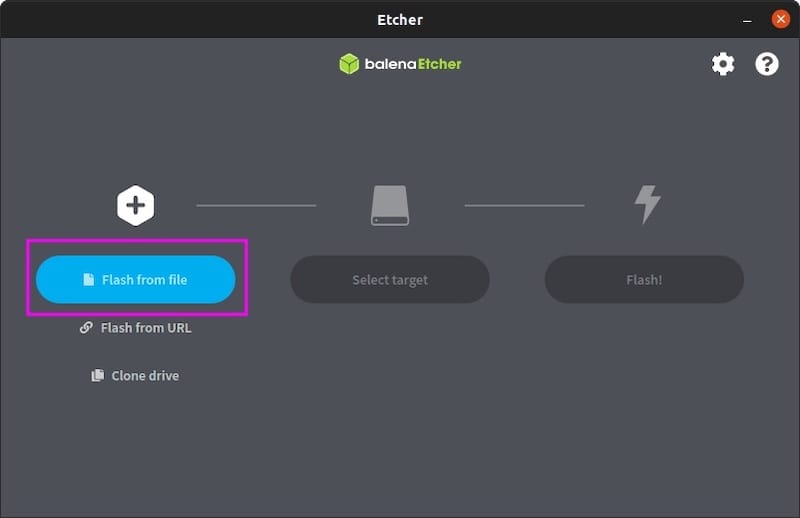
Once you are certain of your target device, follow these steps inside BalenaEtcher:
- Click Flash from file and select your
.isoor.imgfile - Click Select target and choose the USB drive you identified with
lsblk - Click Flash and wait for both the write and the post-write verification progress bars to complete
Do not remove the USB drive during the verification phase. BalenaEtcher reads the written data back off the drive to confirm it matches the original image. Removing early will fail the verification and leave you with untested media.
BalenaEtcher vs Fedora Media Writer
Both tools are available on Fedora desktop environments, but they serve different workflows:
| Task | BalenaEtcher | Fedora Media Writer |
|---|---|---|
| Flash a pre-downloaded ISO or IMG | Best fit | Limited |
| Download and flash Fedora editions in one step | No built-in downloader | Best fit |
| Flash Raspberry Pi or embedded OS images | Strong fit | Fedora-focused only |
| Use one tool across many Linux distributions | Strong fit | Narrower scope |
Use Fedora Media Writer when your only goal is creating Fedora installation media. Use BalenaEtcher when you already have an image file and need a reliable, verified flash tool for any operating system or embedded device image.
Troubleshooting BalenaEtcher on Fedora 43
Most problems with BalenaEtcher on Fedora 43 fall into a small set of categories. Work through these in order before assuming the RPM package itself is broken.
DNF Skipped OpenPGP Checks Warning
Error:
Warning: skipped OpenPGP checks for 1 package from repository: @commandlineCause: DNF shows this for every RPM installed from a local file rather than a configured repository.
Fix: This is not an error. It is expected behavior for the @commandline install source. Your SHA256 checksum verification in Step 3 replaced the GPG check. If sha256sum returned OK, the install is safe to proceed.
BalenaEtcher Does Not Show the USB Drive
Cause: Either Fedora has not detected the drive, or the app is not seeing it in the current session.
Fix: Run lsblk -o NAME,SIZE,TYPE,MODEL,TRAN in a terminal first. If the drive does not appear there at all, the problem is hardware-level. Try a different USB port or cable. If the drive shows in lsblk but not inside BalenaEtcher, close and reopen the app within your normal user desktop session.
BalenaEtcher Does Not Launch
Cause: On standard Fedora Workstation installs this is rare, but on stripped-down spins or custom window managers, a missing Polkit agent or missing XWayland component can prevent the app from opening.
Fix: Run balena-etcher directly in a terminal to read the error output. If an authorization prompt never appears when the app tries to request elevated access, install the Polkit agent for your desktop environment and log out and back in. If XWayland is missing, reinstall it:
sudo dnf install xorg-x11-server-XwaylandFlash Verification Fails
Cause: A corrupted ISO, a failing USB drive, or a bad port or cable.
Fix: Recheck the ISO checksum from the original publisher’s download page before re-flashing. If the hash matches, try a different USB drive. If the same drive fails repeatedly with a verified image, the drive itself is likely faulty.
BalenaEtcher Does Not Work with Windows ISOs
Cause: BalenaEtcher writes images byte-for-byte, but Windows installer media requires additional bootable-media handling that raw byte writing does not provide.
Fix: Use Ventoy or WoeUSB on Fedora when you need to create a Windows installer USB. BalenaEtcher is not the right tool for that specific task.
How To Update BalenaEtcher on Fedora 43
BalenaEtcher does not add a DNF repository to Fedora during install, so there is no automatic update channel. You have two options: a manual re-install or a reusable update script.
Manual Update
Repeat the same workflow from Steps 2 through 4:
- Rerun the GitHub API download commands to fetch the newest RPM and checksum file
- Verify the checksum with
sha256sum -c - - Install with
sudo dnf install "./$RPM_FILE". DNF will upgrade the existing package in place
Using the BalenaEtcher Update Script
For a Fedora 43 BalenaEtcher setup that you maintain regularly, save the following reusable script to /usr/local/bin/:
sudo tee /usr/local/bin/update-balenaetcher.sh > /dev/null << 'EOF'
#!/usr/bin/env bash
set -euo pipefail

API_URL="https://api.github.com/repos/balena-io/etcher/releases/latest"
LOG_FILE="$HOME/balena-etcher-update.log"
WORK_DIR=$(mktemp -d "${TMPDIR:-/tmp}/balena-etcher-update.XXXXXX")
trap 'rm -rf "$WORK_DIR"' EXIT

RELEASE_JSON=$(curl -fsSL "$API_URL")
LATEST_TAG=$(printf '%s\n' "$RELEASE_JSON" | grep -oE '"tag_name": "v[^"]+"' | head -n1 | cut -d '"' -f4)
RPM_URL=$(printf '%s\n' "$RELEASE_JSON" | grep -oE '"browser_download_url": "[^"]+x86_64[^"]*\.rpm"' | head -n1 | cut -d '"' -f4)
SUMS_URL=$(printf '%s\n' "$RELEASE_JSON" | grep -oE '"browser_download_url": "[^"]+SHA256SUMS\.Linux\.x64\.txt"' | head -n1 | cut -d '"' -f4)
LATEST_VERSION=${LATEST_TAG#v}

CURRENT_VERSION=$(rpm -q --queryformat '%{VERSION}\n' balena-etcher 2>/dev/null || echo "none")

echo "Installed: $CURRENT_VERSION | Latest: $LATEST_VERSION"

[ "$CURRENT_VERSION" = "$LATEST_VERSION" ] && { echo "Already up to date."; exit 0; }

cd "$WORK_DIR"
RPM_FILE=${RPM_URL##*/}
curl -fLO --progress-bar "$RPM_URL"
curl -fLO --progress-bar "$SUMS_URL"
grep "$RPM_FILE$" SHA256SUMS.Linux.x64.txt | sha256sum -c -
sudo dnf install -y "$WORK_DIR/$RPM_FILE"
printf '%s | %s -> %s\n' "$(date '+%Y-%m-%d %H:%M:%S')" "$CURRENT_VERSION" "$LATEST_VERSION" >> "$LOG_FILE"
echo "Update complete."
EOF
sudo chmod +x /usr/local/bin/update-balenaetcher.sh
Run it from any directory:
update-balenaetcher.shThe script checks the installed version, queries the GitHub API for the latest release, downloads and verifies the RPM only if a newer version exists, installs it with DNF, and logs the change to ~/balena-etcher-update.log.
Important: Do not schedule this script with cron. GitHub rate limits, network errors, and DNF confirmation prompts all need human attention. Run it manually when you want to check for updates.
How To Remove BalenaEtcher from Fedora 43
When you no longer need BalenaEtcher, remove it cleanly with DNF:
sudo dnf remove balena-etcherConfirm the package is gone:
dnf list installed balena-etcherThe output should read No matching packages to list.
Optionally, remove the user configuration and Crashpad data. Skip this step if you plan to reinstall later, since it permanently deletes your preferences:
rm -rf ~/.config/balenaEtcherCongratulations! You have successfully installed BalenaEtcher. Thanks for using this tutorial for installing the BalenaEtcher on Fedora 43 Linux system. For additional help or useful information, we recommend you check the official BalenaEtcher website.
