How To Install Bitwarden on Debian 13
Password security remains one of the most critical challenges in our digital lives. With data breaches occurring regularly and password requirements becoming increasingly complex, managing dozens or even hundreds of credentials securely has become nearly impossible without the right tools. Bitwarden stands out as a powerful, open-source password management solution that puts you in complete control of your sensitive data.
Self-hosting Bitwarden on Debian 13 offers unparalleled privacy and security benefits. Unlike cloud-hosted services, you maintain full ownership of your password vault, ensuring your credentials never touch third-party servers. Debian 13, known for its stability and security, provides an excellent foundation for running your password manager. This comprehensive guide walks you through every step of installing Bitwarden on Debian 13, from initial system preparation to post-installation configuration. Whether you’re a system administrator securing organizational credentials or an individual seeking maximum password security, this tutorial provides everything you need for a successful deployment.
What is Bitwarden?
Bitwarden is an open-source password management platform that securely stores your login credentials, credit card information, secure notes, and other sensitive data. Unlike proprietary alternatives, Bitwarden’s transparent codebase allows security experts to audit its encryption implementation, ensuring your data remains protected with industry-standard end-to-end encryption.
The platform offers exceptional flexibility. You can use Bitwarden’s cloud hosting service for convenience or deploy your own self-hosted instance for maximum control. Self-hosting eliminates concerns about third-party data access, service outages, or subscription costs. The password manager works seamlessly across Windows, macOS, Linux, iOS, and Android, with browser extensions for all major web browsers.
Choosing the self-hosted route gives you complete sovereignty over your password infrastructure. Your encryption keys never leave your server, your data remains physically under your control, and you avoid monthly subscription fees while gaining unlimited user support.
Prerequisites and System Requirements
Before beginning the installation process, ensure your environment meets these essential requirements.
Hardware Requirements
Your Debian 13 server needs at minimum 2GB of RAM, though 4GB is recommended for optimal performance. Allocate at least 20GB of available disk space to accommodate Bitwarden’s Docker containers, databases, and attachment storage. A stable internet connection is necessary during initial setup for downloading Docker images and Bitwarden components.
Software Requirements
You’ll need a fresh or existing Debian 13 server installation with root access or sudo privileges configured. While optional, having a domain name significantly improves usability and SSL certificate management. Basic command-line familiarity helps, though this guide explains each step thoroughly.
Before You Begin
Back up your server before making system changes. Ensure SSH access is properly configured if managing remotely. Have an email address ready for obtaining Bitwarden hosting credentials. Verify your firewall configuration allows incoming connections on ports 80 and 443 for web access.
Step 1: Update Your Debian 13 System
Starting with an updated system prevents compatibility issues and ensures security patches are current. System updates are fundamental best practice before installing new software.
Open your terminal and execute:
sudo apt update
sudo apt upgrade -y
The first command refreshes package repositories, checking for available updates. The second command installs those updates automatically with the -y flag confirming prompts. This process typically takes 2-5 minutes depending on how recently your system was updated. Reboot if kernel updates were installed to ensure changes take effect.
Step 2: Install Docker and Docker Compose
Bitwarden runs as containerized services using Docker, making installation and management significantly simpler. Docker isolates Bitwarden from your host system, improving security and portability.
Add Docker’s Official GPG Key
Security begins with verifying package authenticity. Install prerequisite packages and add Docker’s GPG key:
sudo apt install ca-certificates curl gnupg -y
sudo install -m 0755 -d /etc/apt/keyrings
curl -fsSL https://download.docker.com/linux/debian/gpg | sudo gpg --dearmor -o /etc/apt/keyrings/docker.gpg
sudo chmod a+r /etc/apt/keyrings/docker.gpg
These commands establish cryptographic verification, ensuring downloaded Docker packages haven’t been tampered with. The GPG key confirms you’re installing genuine Docker software from official repositories.
Add Docker Repository
Configure your system to use Docker’s official package repository:
echo "deb [arch=$(dpkg --print-architecture) signed-by=/etc/apt/keyrings/docker.gpg] https://download.docker.com/linux/debian $(. /etc/os-release && echo "$VERSION_CODENAME") stable" | sudo tee /etc/apt/sources.list.d/docker.list > /dev/null
sudo apt update
This adds Docker’s repository to your system’s package sources, allowing installation of the latest stable Docker releases.
Install Docker Packages
Now install Docker and its components:
sudo apt install docker-ce docker-ce-cli containerd.io docker-buildx-plugin docker-compose-plugin -yVerify successful installation:
docker --version
docker compose version
You should see version information for both Docker and Docker Compose. Current versions typically show Docker 24.x or newer.
Enable and Start Docker Service
Ensure Docker starts automatically on system boot and is running now:
sudo systemctl enable docker
sudo systemctl start docker
sudo systemctl status docker
The status command should show “active (running)” in green, confirming Docker is operational and ready for Bitwarden deployment.
Step 3: Create a Dedicated Bitwarden User
Running services as root violates security best practices. Creating a dedicated user limits potential damage if the service is compromised.
Create the bitwarden user:
sudo adduser bitwardenSet a strong password when prompted. Add this user to the Docker group, granting permission to manage containers:
sudo usermod -aG docker bitwardenVerify group membership:
groups bitwardenThe output should include “docker” among the listed groups. This configuration allows the bitwarden user to interact with Docker without requiring root privileges, following the principle of least privilege.
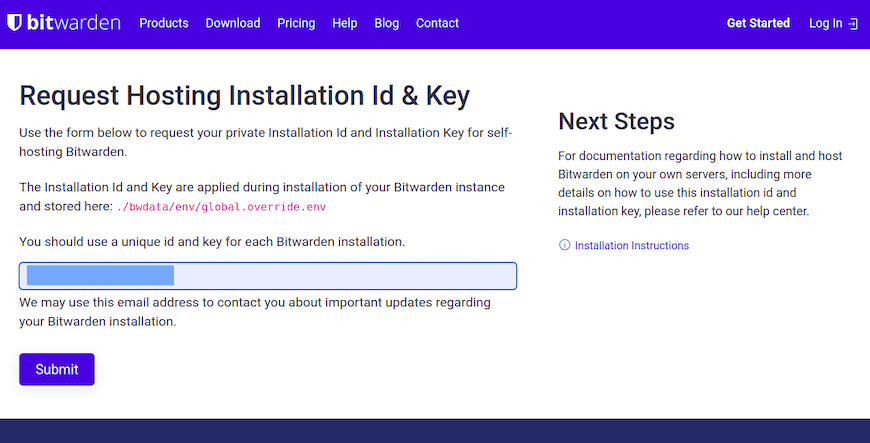
Step 4: Obtain Bitwarden Installation ID and Key
Self-hosting Bitwarden requires registration with Bitwarden’s hosting service to obtain unique installation credentials. These credentials don’t grant Bitwarden access to your data—they simply enable self-hosted installations.
Navigate to https://bitwarden.com/host/ in your web browser. Enter your email address and select your data region (United States or European Union). The choice determines which Bitwarden servers handle installation verification.
Click “Submit” and check your email. Bitwarden sends an installation ID and installation key within minutes. Copy these credentials and store them securely—you’ll need them during installation. These values are unique to your deployment and should be treated as sensitive information.
Step 5: Download and Run Bitwarden Installation Script
Bitwarden provides an official installation script that automates Docker container deployment.
Switch to Bitwarden User
Change to the bitwarden user account:
su - bitwardenThis ensures all Bitwarden files are owned by the correct user, maintaining proper permissions.
Download Installation Script
Install curl if not already present, then download the installation script:
curl -Lso bitwarden.sh "https://func.bitwarden.com/api/dl/?app=self-host&platform=linux" && chmod +x bitwarden.shThis command downloads the installation script from Bitwarden’s official distribution server and makes it executable. The script automates Docker container configuration, environment setup, and initial deployment.
Initiate Installation
Run the installation script:
./bitwarden.sh installThe script begins by downloading required Docker images. This process takes 5-10 minutes depending on your internet connection speed. You’ll see progress indicators as various components download, including the web vault, API server, identity service, and database containers.
Step 6: Configure Bitwarden During Installation
The installation script prompts for several configuration decisions. Answer each carefully.
Domain Configuration
Enter your domain name when prompted. If you’re testing locally, you can use your server’s IP address, but production deployments should always use a proper domain. Format examples:
- bitwarden.yourdomain.com (recommended)
- 192.168.1.100 (testing only)
Subdomains provide cleaner organization if you run multiple services on the same server.
SSL Certificate Options
The installer asks about SSL certificate configuration. If using Let’s Encrypt, select “yes” and the installer configures automatic certificate generation. Choose “no” if you’re using Cloudflare, a reverse proxy, or plan to configure SSL separately.
For most users, Let’s Encrypt provides free, automatic SSL certificates. However, if your domain uses Cloudflare proxying or you have an existing reverse proxy setup, handle SSL at that layer instead.
Database Configuration
Specify your database name or accept the default “vault”. Unless you have specific requirements, the default works perfectly. The installer creates a PostgreSQL database container automatically.
Enter Installation Credentials
Input the installation ID and installation key obtained earlier. Paste these values carefully—typos prevent successful installation. Select the same region (US/EU) chosen when requesting credentials.
Installation Completion
After configuration, the script generates necessary files in the ./bwdata directory. You’ll see a success message confirming installation completion. The ./bwdata/config.yml file contains your configuration and can be edited later if needed.
Step 7: Start Bitwarden Services
Launch Bitwarden’s Docker containers:
./bitwarden.sh startDocker Compose orchestrates multiple containers: the web vault, API server, identity provider, icons service, notifications hub, and PostgreSQL database. Startup takes 30-60 seconds as containers initialize and establish database connections.
Verify all containers are running:
docker psYou should see several containers with names like bitwarden-web, bitwarden-api, bitwarden-identity, and bitwarden-db, all showing “Up” status. The containers listen on ports 80 and 443 by default.
Step 8: Access and Initial Configuration
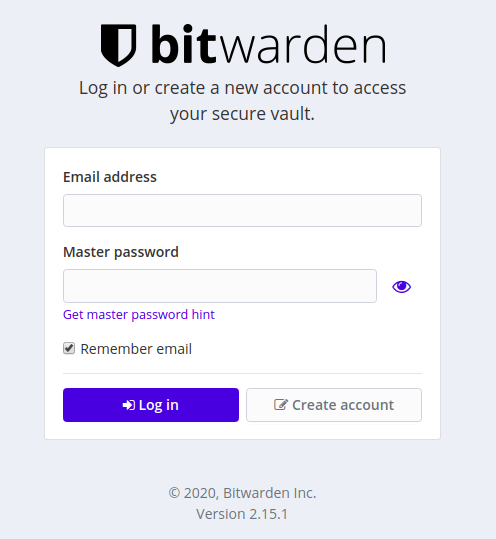
Open your web browser and navigate to your configured domain or IP address. You’ll see the Bitwarden web vault login page.
Click “Create Account” to establish your master account. Enter your email address and create an exceptionally strong master password. This password is the only key to your encrypted vault—Bitwarden cannot recover it if lost. Use a passphrase with at least 12 characters combining uppercase, lowercase, numbers, and symbols.
Complete email verification by clicking the link Bitwarden sends. Once verified, log in to your new vault. Immediately navigate to settings and enable two-factor authentication for an additional security layer. Options include authenticator apps (recommended), email codes, or hardware security keys.
Post-Installation Configuration
Production deployments require additional hardening.
Configure Firewall (UFW)
Install and configure the Uncomplicated Firewall:
sudo apt install ufw -y
sudo ufw allow 22/tcp
sudo ufw allow 80/tcp
sudo ufw allow 443/tcp
sudo ufw enable
Verify rules:
sudo ufw statusThis restricts incoming connections to SSH, HTTP, and HTTPS only, blocking unauthorized access attempts.
SSL/TLS Configuration
If you didn’t enable Let’s Encrypt during installation, configure SSL now. For reverse proxy setups, install Nginx:
sudo apt install nginx certbot python3-certbot-nginx -yGenerate a certificate:
sudo certbot --nginx -d bitwarden.yourdomain.comCertbot automatically configures Nginx and obtains a free SSL certificate, then sets up automatic renewal.
Backup Configuration
Regular backups are critical. Your Bitwarden data lives in the ./bwdata directory under the bitwarden user’s home directory.
Create a backup script:
#!/bin/bash
tar -czf /backup/bitwarden-$(date +%Y%m%d).tar.gz /home/bitwarden/bwdata
Schedule it with cron for daily execution. Store backups on separate storage or cloud services. Test restoration procedures periodically to ensure backups are viable.
Managing Your Bitwarden Instance
Understanding management commands ensures smooth operations.
Stop Bitwarden:
./bitwarden.sh stopRestart services:
./bitwarden.sh restartUpdate Bitwarden to the latest version:
./bitwarden.sh updateself
./bitwarden.sh update
Rebuild containers after configuration changes:
./bitwarden.sh rebuildView container logs for troubleshooting:
docker logs bitwarden-web
docker logs bitwarden-api
Regular updates patch security vulnerabilities and add features. Check for updates monthly at minimum.
Troubleshooting Common Issues
Problems occasionally arise. Here’s how to resolve them.
Installation Fails
Verify Docker is running:
sudo systemctl status dockerCheck available disk space:
df -hEnsure installation credentials are correct. Double-check for typos in your installation ID and key.
Cannot Access Web Interface
Confirm containers are running:
docker ps -aCheck firewall rules allow ports 80 and 443. Verify DNS settings point to your server’s IP address. Test with curl http://localhost on the server itself to isolate network versus application issues.
SSL Certificate Issues
Let’s Encrypt has rate limits. If you’ve attempted certificate generation multiple times, wait before retrying. Check domain DNS resolution with dig yourdomain.com. Ensure port 80 is accessible from the internet for HTTP validation.
Performance Issues
Insufficient RAM causes container restarts. Monitor with htop. Increase server resources if containers show frequent restarts. PostgreSQL performance improves with proper indexing—this happens automatically but can degrade with very large vaults.
Congratulations! You have successfully installed Bitwarden. Thanks for using this tutorial to install the latest version of Bitwarden open-source password manager on Debian 13 “Trixie” system. For additional help or useful information, we recommend you check the official Bitwarden website.
