How To Install Blender on Debian 13

Blender stands as the industry’s leading free and open-source 3D creation suite, powering everything from animated films to video game development. Whether you’re a professional 3D artist, animator, or hobbyist creator, getting Blender running smoothly on Debian 13 (Trixie) opens up a world of creative possibilities. This comprehensive guide walks you through four proven installation methods, ensuring you can start creating 3D content regardless of your technical expertise level.
Debian 13 offers multiple pathways to install Blender, each with distinct advantages. You can choose from the traditional APT package manager, download official tarballs directly from Blender.org, or leverage modern containerized solutions like Snap and Flatpak. The flexibility of Linux systems means you can select the installation method that best matches your workflow requirements and system preferences.
Understanding Your Blender Installation Options
Before diving into installation commands, understanding the available methods helps you make an informed decision. Each approach serves different user needs and technical requirements.
The APT repository method represents the most straightforward installation path, leveraging Debian’s built-in package management system. This approach automatically handles dependencies, integrates seamlessly with your system, and simplifies future updates through standard system maintenance. However, repository versions may lag behind the latest Blender releases due to Debian’s stability-focused update cycle.
Official tarball installations from Blender.org provide immediate access to cutting-edge features and the latest stable releases. This method grants complete control over which version runs on your system, allows multiple concurrent Blender installations, and requires no dependency on package managers. Professional users often prefer this approach when specific Blender versions are required for project compatibility.
Snap and Flatpak packages offer containerized environments with enhanced security through sandboxing. These universal package formats provide automatic updates, consistent behavior across different Linux distributions, and simplified installation procedures. The trade-off comes in larger package sizes and potentially slower first-launch times compared to native installations.
System Requirements and Prerequisites
Meeting Blender’s system requirements ensures optimal performance for your 3D creation work. Modern Blender versions demand adequate hardware resources to handle complex scenes, high-resolution textures, and intensive rendering operations.
Your system should include a 64-bit quad-core processor as the minimum CPU configuration, though eight cores or more significantly improve performance during rendering and simulation tasks. RAM requirements start at 8GB for basic modeling work, but 16GB or higher becomes essential when working with complex scenes, particle systems, or high-polygon models. Graphics cards must support OpenGL 4.3 or higher, with a minimum of 2GB VRAM for viewport rendering and GPU-accelerated operations.
Storage considerations include at least 500MB for the Blender installation itself, plus substantial additional space for project files, texture libraries, and render output. An updated Debian 13 system forms the foundation, requiring terminal access and sudo privileges for system-wide installations. Basic command-line familiarity helps troubleshoot potential issues, though the installation procedures remain accessible to users with limited Linux experience.
Method 1: Installing Blender via APT
The APT installation method delivers the most straightforward experience for Debian users. Debian 13 (Trixie) introduces APT 3.0 with improved dependency resolution and color-coded output that enhances readability during package operations.
Begin by updating your package list to ensure access to the latest repository information:
sudo apt updateThis command refreshes the local package index, downloading metadata about available software versions. The update process typically completes in seconds, depending on your internet connection and the number of configured repositories.
Install Blender with a single command:
sudo apt install blenderThe system automatically calculates dependencies and presents a list of packages to be installed. Confirm the installation by pressing ‘Y’ when prompted. APT 3.0’s enhanced dependency resolver handles complex package relationships more efficiently than previous versions, reducing potential conflicts.
Verify the installation succeeded by checking the installed version:
blender --versionLaunch Blender either through the command line by typing blender or by searching for “Blender” in your desktop environment’s application menu. The application integrates seamlessly with your system, appearing alongside other installed software in the standard application launcher.
Method 2: Installing from Official Tarball
Downloading the official tarball grants access to the absolute latest Blender releases, often weeks or months ahead of repository versions. This method appeals to professionals requiring specific features or users who maintain multiple Blender versions for different projects.
Navigate to the official Blender download page at blender.org/download. Select the Linux version appropriate for your system architecture, typically x86_64 for modern computers. The download package arrives as a compressed tarball with the .tar.xz extension, usually between 200-300MB in size.
Create a dedicated software directory to organize your Blender installation:
mkdir -p ~/softwareThis command creates a “software” folder in your home directory if it doesn’t already exist. Alternatively, system-wide installations can use /opt/blender for multi-user access.
Extract the downloaded tarball to your chosen location:
tar -xvf ~/Downloads/blender-*.tar.xz -C ~/software/The tar command’s flags perform specific functions: -x extracts files, -v displays verbose output showing extraction progress, and -f specifies the file to extract. The wildcard asterisk (*) matches any version number in the filename, eliminating the need to type the exact version.
Navigate to the extracted Blender directory:
cd ~/software/blender-*/Test the installation by launching Blender directly:
./blenderFor convenient system-wide access, create a symbolic link:
sudo ln -s ~/software/blender-*/blender /usr/local/bin/blenderThis symbolic link allows you to launch Blender from any terminal location by simply typing blender. The approach maintains clean system organization while providing easy command-line access.
Method 3: Installing Blender via Snap
Snap packages deliver automatic updates and sandboxed security, making them attractive for users who value convenience and system isolation. The Snap ecosystem ensures consistent Blender behavior across different Linux distributions.
Check whether Snapd is already installed on your Debian 13 system:
snap versionIf Snapd isn’t present, install it through APT:
sudo apt update
sudo apt install snapd
Enable the Snapd service to start automatically at boot:
sudo systemctl enable --now snapd.socketCreate a symbolic link for classic snap support:
sudo ln -s /var/lib/snapd/snap /snapInstall Blender using the Snap package manager:
sudo snap install blender --classicThe --classic flag grants Blender full system access, necessary for file operations and hardware acceleration. Without this flag, sandboxing restrictions might limit Blender’s functionality.
Verify the installation:
snap list blenderSnap packages update automatically in the background, ensuring you always run recent Blender versions without manual intervention. This automatic update behavior can be modified through Snap settings if you require version stability for specific projects.
Method 4: Installing Blender via Flatpak
Flatpak provides an alternative containerized installation method with strong community support and extensive application availability. The Flathub repository hosts thousands of applications, including regularly updated Blender packages.
Install Flatpak on your Debian 13 system:
sudo apt update
sudo apt install flatpak
Add the Flathub repository, which serves as the primary source for Flatpak applications:
flatpak remote-add --if-not-exists flathub https://flathub.org/repo/flathub.flatpakrepoA system restart is recommended after Flatpak installation to ensure proper desktop environment integration. Restarting enables application menu entries and file association handling.
Search for Blender in the Flathub repository:
flatpak search blenderInstall Blender through Flatpak:
flatpak install flathub org.blender.BlenderThe installation process prompts for confirmation regarding dependencies and permissions. Flatpak’s sandboxing system requires explicit permission grants for file system access and hardware usage.
Launch Blender using the Flatpak runtime:
flatpak run org.blender.Blender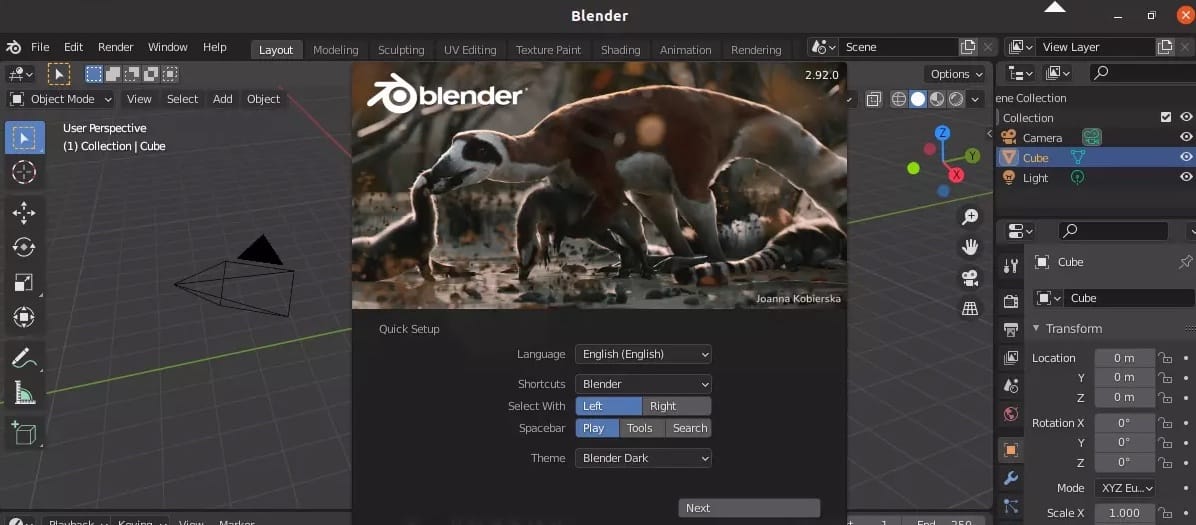
After the first launch, Blender appears in your application menu for easier access. Update Blender when new versions become available:
flatpak update org.blender.BlenderPost-Installation Configuration
Optimizing Blender after installation maximizes performance and enhances your workflow. Several configuration steps tailor Blender to your specific hardware and preferences.
Creating Desktop Shortcuts
For tarball installations, desktop entry files improve accessibility. Create a file named blender.desktop in ~/.local/share/applications/ with the following structure:
[Desktop Entry]
Name=Blender
Exec=/path/to/blender/blender
Icon=/path/to/blender/blender.svg
Type=Application
Categories=Graphics;3DGraphics;
Configuring GPU Rendering
GPU rendering dramatically accelerates render times compared to CPU-only rendering. Navigate to Edit > Preferences > System in Blender’s interface. Under Cycles Render Devices, select the appropriate GPU backend for your hardware:
- OptiX for NVIDIA RTX graphics cards (compute capability 5.0+), offering superior performance through dedicated ray-tracing cores
- CUDA for older NVIDIA GPUs (compute capability 3.0+), providing broad compatibility across NVIDIA’s product line
- HIP for AMD graphics cards, enabling GPU acceleration on AMD hardware
OptiX delivers 40-80% faster rendering compared to CUDA on RTX-series GPUs, leveraging specialized RT cores for hardware-accelerated ray tracing. Benchmarks consistently show OptiX completing renders in significantly less time, making it the preferred choice for RTX users.
Performance Optimization
Performance optimization involves adjusting memory allocation and cache settings. Configure auto-save intervals under Edit > Preferences > Save & Load to protect work without excessive disk writes. Adjust the undo steps limit based on available RAM, balancing editing flexibility against memory consumption.
Linux demonstrates substantial performance advantages over Windows for Blender workflows. Benchmarks reveal approximately 49% faster average performance across rendering, simulation, and viewport operations on Linux systems compared to Windows. These speed improvements stem from Linux’s optimized resource management and lower system overhead.
Verifying Your Installation
Confirming successful installation prevents frustration when beginning 3D projects. Several verification steps ensure Blender operates correctly on your Debian 13 system.
Check the installed Blender version through the command line:
blender --versionThis command displays version information, build date, and system architecture. Alternatively, launch Blender’s graphical interface and navigate to Help > About Blender for detailed build information.
Test basic functionality by creating simple 3D objects. The default startup scene includes a cube, camera, and light. Verify viewport navigation works smoothly by rotating the view with middle mouse button dragging. Create a sphere using Shift+A to open the Add menu, then selecting Mesh > UV Sphere.
Confirm rendering capabilities by pressing F12 for a quick render. The render completes using either CPU or GPU depending on your preference settings. GPU rendering should activate if you configured Cycles Render Devices correctly in preferences.
Troubleshooting Common Issues
Even straightforward installations occasionally encounter problems. Understanding common issues and their solutions accelerates the troubleshooting process.
Permission Denied Errors
Permission denied errors typically occur when executable permissions are missing from the Blender binary. Fix this issue with the chmod command:
chmod +x /path/to/blender/blenderThis command adds execute permissions, allowing the file to run as an application.
Missing Library Dependencies
Missing library dependencies affect tarball installations more frequently than package manager installations. Running Blender from the terminal reveals specific missing libraries in error messages. Install missing dependencies through APT based on the error output:
sudo apt install libnameOpenGL Version Incompatibility
OpenGL version incompatibility prevents Blender from launching on systems with outdated graphics drivers. Update your graphics drivers to the latest version compatible with Debian 13. For NVIDIA cards, proprietary drivers often provide better OpenGL support than open-source nouveau drivers.
GPU Rendering Not Available
GPU rendering unavailability despite proper configuration suggests driver issues or incorrect CUDA toolkit installation. NVIDIA GPU users should verify CUDA drivers are installed:
nvidia-smiThis command displays GPU information and driver version. CUDA requires compute capability 3.0 or higher, while OptiX demands compute capability 5.0 and driver version 470 or later.
Snap and Flatpak Slow Startup Times
Snap and Flatpak slow startup times are common during first launches as containers decompress and initialize. Subsequent launches typically proceed faster after initial setup completes. Sandboxed installations may experience slight performance overhead compared to native packages, though the difference is minimal for most workflows.
Managing and Updating Blender
Maintaining current Blender versions ensures access to bug fixes, security patches, and new features. Update procedures vary by installation method.
APT-Installed Blender
APT-installed Blender updates through standard system upgrade procedures:
sudo apt update
sudo apt upgrade blender
Regular system maintenance automatically includes Blender updates when new versions reach Debian repositories.
Tarball Installations
Tarball installations require manual updates. Download the latest version from blender.org, extract it to your software directory, and update symbolic links to point to the new version. This method allows maintaining multiple Blender versions simultaneously by keeping old directories intact:
sudo ln -sf ~/software/blender-NEW-VERSION/blender /usr/local/bin/blenderSnap Packages
Snap packages update automatically in the background without user intervention. Force immediate updates with:
sudo snap refresh blenderRevert to previous versions if updates cause issues:
sudo snap revert blenderFlatpak Installations
Flatpak installations update through the Flatpak command:
flatpak update org.blender.BlenderUninstalling Blender
Removing Blender properly prevents orphaned files and configuration remnants. Each installation method requires specific uninstall procedures.
Remove APT-Installed Blender
sudo apt remove blender
sudo apt autoremove
Complete removal including configuration files:
sudo apt purge blenderDelete Tarball Installations
Delete tarball installations by removing the extracted directory:
rm -rf ~/software/blender-*
sudo rm /usr/local/bin/blender
Remove any created desktop files from ~/.local/share/applications/.
Uninstall Snap Packages
sudo snap remove blenderRemove Flatpak Installations
flatpak uninstall org.blender.BlenderUser configuration files persist in ~/.config/blender/ regardless of installation method. Delete this directory for completely fresh installations.
Congratulations! You have successfully installed Blender. Thanks for using this tutorial to install the latest version of Blender’s free and open-source 3D creation suite on Debian 13 “Trixie” system. For additional help or useful information, we recommend you check the official Blender website.
