How To Install Blender on Fedora 43

You just upgraded to Fedora 43 and want to get Blender running without breaking your system or spending an afternoon hunting through forum posts. Blender is a free, open-source 3D creation suite that handles modeling, animation, rendering, video editing, and compositing all in one tool, and knowing how to install Blender on Fedora 43 correctly saves you from headaches around GPU support, package conflicts, and version mismatches.
This guide walks you through every viable installation method for Fedora 43 — DNF, Flatpak, Snap, and the official tarball from blender.org — with exact commands, real expected output, and a troubleshooting section drawn from active Fedora community reports.
Prerequisites
Before you run a single command, confirm these boxes are checked:
- OS: Fedora 43 Workstation, Silverblue, or Kinoite (64-bit)
- Kernel: Linux 6.x (Fedora 43 ships with kernel 6.17.x by default)
- User permissions: sudo access on your account
- Internet: Active connection to download packages
- Disk space: Minimum 2 GB free (4+ GB recommended for Flatpak runtime)
- glibc version: 2.28 or newer (Fedora 43 satisfies this natively)
- GPU (optional but recommended): NVIDIA GTX 400+, AMD RX 560+, or Intel Skylake+ for GPU rendering
To quickly verify your Fedora release and glibc version, run:
cat /etc/fedora-release
ldd --version
System Requirements for Blender on Fedora 43
Getting these specs right before installation avoids frustrating runtime crashes.
Minimum hardware:
| Component | Minimum | Recommended |
|---|---|---|
| CPU | 4 cores, SSE4.2 support | 8 cores |
| RAM | 8 GB | 32 GB |
| GPU | 2 GB VRAM, OpenGL 4.3 | 8 GB VRAM |
| Storage | HDD | SSD |
| glibc | 2.28+ | Latest |
For complex scenes with Cycles rendering, 32 GB of RAM and an NVIDIA RTX card with OptiX support will make a significant difference. An SSD dramatically reduces Blender’s asset load times and viewport cache writes.
Which Installation Method Is Right for You?
Fedora 43 supports four distinct ways to install Blender, and each one serves a different use case. Here is a quick decision table before you commit:
| Method | Best For | GPU Rendering | Updates |
|---|---|---|---|
| DNF (Fedora Repo) | Beginners, simplicity | Full (no OptiX) | dnf upgrade |
| Flatpak (Flathub) | Silverblue, Kinoite, sandboxed | Good | flatpak update |
| Snap (Snapcraft) | NVIDIA OptiX/CUDA users | Full (with setup) | Auto |
| Tarball (blender.org) | Developers, latest version | Full | Manual |
The Fedora DNF repository currently ships Blender 4.5.4 as the stable build and Blender 5.0.1 in the testing branch for Fedora 43. If you need the latest stable 5.x release immediately, the Snap or tarball method gives you faster access.
Step 1: Update Your Fedora 43 System
Always start with a full system update. This step ensures your package metadata is fresh, your kernel is current, and no dependency conflicts block the Blender installation.
sudo dnf update -yWhat this does: Syncs your local repository cache with Fedora’s servers and upgrades all installed packages to their latest versions.
Expected output:
Last metadata expiration check: 0:00:12 ago on Wed 18 Mar 2026.
Dependencies resolved.
...
Complete!
After the update finishes, reboot if a kernel update was included:
sudo rebootStep 2: Install Blender on Fedora 43 via DNF (Recommended for Most Users)
DNF (Dandified YUM) is Fedora’s native package manager. Installing Blender through DNF is the cleanest, simplest method and integrates fully with your system’s dependency tree.
Install the Package
sudo dnf install blender -yWhat this does: Pulls the Blender RPM package along with all required libraries from Fedora’s official repository and installs them system-wide.
Expected output:
Dependencies resolved.
=====================================
 Package         Arch    Version         Repository  Size
=====================================
Installing:
 blender         x86_64  1:4.5.4-1.fc43  updates    35 M

Transaction Summary
=====================================
Install  1 Package

Total download size: 35 M
Installed size: 132 M
...
Complete!
Verify the Installation
blender --versionYou should see output like:
Blender 4.5.4
build date: 2025-07-15
...
Launch Blender
blenderOr open it from your GNOME or KDE application grid by searching “Blender.”
Update Blender via DNF
sudo dnf upgrade blenderRemove Blender via DNF
sudo dnf remove blender -yNote on OptiX/CUDA: The Fedora DNF build of Blender compiles without proprietary NVIDIA libraries, which means OptiX and CUDA rendering will not appear in Blender’s Preferences. If you rely on NVIDIA GPU rendering, use the Snap method covered in Step 4.
Step 3: Install Blender via Flatpak (Best for Silverblue and Kinoite)
Flatpak is the containerized application format that Fedora actively promotes. It ships pre-installed on Fedora Workstation, Silverblue, and Kinoite, making this the correct method for users on immutable Fedora variants.
Enable the Flathub Repository
Flathub is configured as part of Fedora’s Third-Party Repositories. If it is not already enabled, add it manually:
flatpak remote-add --if-not-exists flathub https://dl.flathub.org/repo/flathub.flatpakrepoWhat this does: Registers the Flathub remote repository so Flatpak can pull applications from it. The --if-not-exists flag prevents errors if Flathub is already configured.
Install Blender from Flathub
flatpak install flathub org.blender.BlenderYou will see a confirmation prompt listing the Blender runtime and dependencies. Press y to confirm.
Expected output:
Looking for matches...
Required runtime for org.blender.Blender/x86_64/stable (runtime/org.freedesktop.Platform/x86_64/24.08) found in remote flathub
Do you want to install it? [Y/n]: y
...
Installing: org.blender.Blender/x86_64/stable from flathub
Launch Blender via Flatpak
flatpak run org.blender.Blender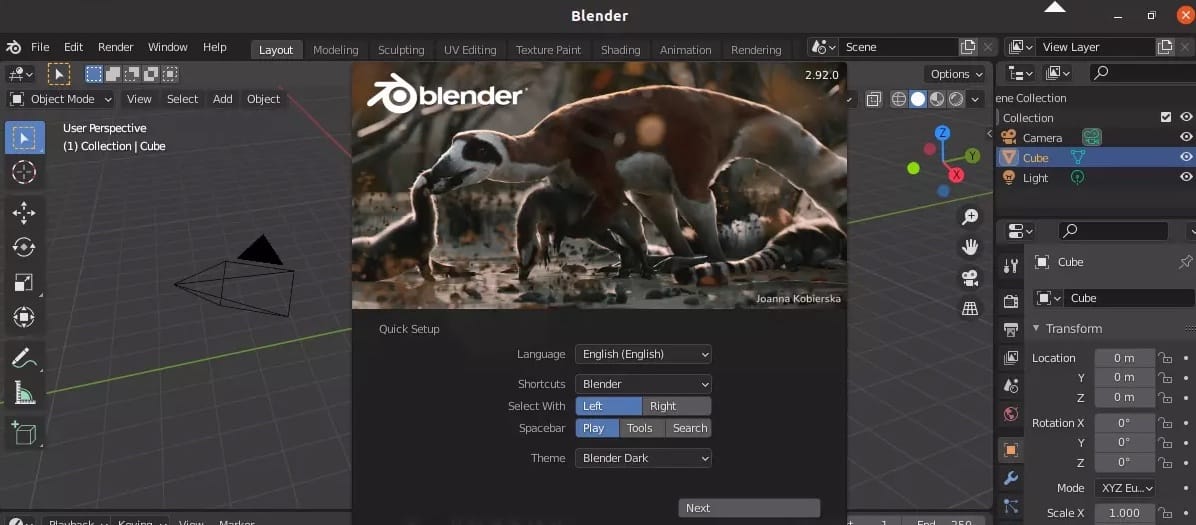
Update Blender via Flatpak
flatpak update org.blender.BlenderRemove Blender via Flatpak
flatpak uninstall org.blender.BlenderFlatpak trade-off: The Flatpak sandbox can block Python add-ons and scripts that need access to your home directory or external paths. Grant broader filesystem access with this override:
flatpak override org.blender.Blender --filesystem=homeStep 4: Install Blender via Snap (Best for NVIDIA OptiX and CUDA Users)
The Snap version of Blender, maintained by Snapcrafters, is the go-to choice for NVIDIA GPU users who need OptiX or CUDA rendering inside Blender. The DNF package lacks these proprietary compute libraries, but the Snap build includes full CUDA support.
Install Snapd on Fedora 43
Snap is not installed by default on Fedora. Add it first:
sudo dnf install snapd -yAfter installation, log out and back in to update Snap’s path environment. You can also reboot:
sudo rebootEnable Classic Snap Support
Blender requires classic confinement, which needs this symbolic link to work correctly:
sudo ln -s /var/lib/snapd/snap /snapInstall Blender via Snap (Stable)
sudo snap install blender --classicWhat --classic does: Grants Blender unrestricted access to the system, similar to a traditionally installed application. This is required for Blender to access CUDA libraries and GPU hardware.
Expected output:
blender 5.1.0 from Snapcrafters installed(Optional) Install the Latest Edge/Beta Build
sudo snap install blender --channel=latest/edge --classicUse this only if you want unreleased features. Edge builds can be unstable for production work.
Verify and Launch
blender --version
blender
Update and Remove via Snap
sudo snap refresh blender
sudo snap remove blender
Step 5: Install Blender from the Official Tarball (blender.org)
This method lets you run the exact binary that the Blender Foundation releases, without relying on any package manager. It also lets you run multiple Blender versions side by side, which is useful for testing add-on compatibility.
Download the Linux Tarball
Go to blender.org/download and grab the latest Linux .tar.xz link. Then download it from the terminal, replacing the version number accordingly:
wget https://download.blender.org/release/Blender5.0/blender-5.0.1-linux-x64.tar.xzCreate a Software Directory and Extract
mkdir -p ~/software
tar -xf blender-5.0.1-linux-x64.tar.xz -C ~/software/
What this does: Extracts the self-contained Blender binary and all its bundled libraries into ~/software/blender-5.0.1-linux-x64/. No system files are touched.
Run Blender Directly
cd ~/software/blender-5.0.1-linux-x64/
./blender
(Optional) Create a Desktop Launcher
To add Blender to your GNOME or KDE application launcher, create a .desktop file:
nano ~/.local/share/applications/blender.desktopPaste this content, adjusting the path to match your extracted folder:
[Desktop Entry]
Name=Blender
Exec=/home/YOUR_USERNAME/software/blender-5.0.1-linux-x64/blender %f
Icon=/home/YOUR_USERNAME/software/blender-5.0.1-linux-x64/blender.svg
Type=Application
Categories=Graphics;3DGraphics;
Save and close. Blender will appear in your application grid after the next login or after running:
update-desktop-database ~/.local/share/applicationsStep 6: Post-Installation — Verify GPU Rendering on Fedora 43
After completing the Blender on Fedora 43 setup, confirm that GPU rendering is working correctly. A misconfigured GPU means all your renders will default to CPU, which is significantly slower for complex scenes.
Check Cycles Render Devices
- Open Blender
- Go to Edit > Preferences > System
- Under Cycles Render Devices, check for CUDA, OptiX, HIP, or Metal entries
If nothing appears under Cycles devices and you have an NVIDIA GPU, you likely need the proprietary NVIDIA driver.
Install NVIDIA Drivers via RPM Fusion
Enable RPM Fusion repositories first:
sudo dnf install \
https://mirrors.rpmfusion.org/free/fedora/rpmfusion-free-release-$(rpm -E %fedora).noarch.rpm \
https://mirrors.rpmfusion.org/nonfree/fedora/rpmfusion-nonfree-release-$(rpm -E %fedora).noarch.rpm
Then install the NVIDIA driver:
sudo dnf install akmod-nvidia xorg-x11-drv-nvidia-cuda -yReboot after installation, then reopen Blender and check Preferences > System again.
Troubleshooting Common Issues When You Configure Blender on Fedora 43
These fixes come from real Fedora community threads and active bug reports.
Issue 1: Blender Crashes on Startup
This is a documented issue on Fedora 43, particularly with NVIDIA hybrid graphics (AMD CPU + NVIDIA GPU) on Wayland.
Fix 1 — Force Blender to use X11 instead of Wayland:
WAYLAND_DISPLAY="" blenderFix 2 — Check driver state:
dnf list --installed \*nvidia\*If drivers are missing or mismatched with the running kernel, reinstall:
sudo dnf reinstall akmod-nvidia -y
sudo reboot
Issue 2: OptiX or CUDA Not Showing in Blender Preferences
The DNF package of Blender does not include OptiX support. Switch to the Snap version, which ships with full CUDA/OptiX support:
sudo snap install blender --classicAlternatively, reinstall CUDA libraries:
sudo dnf install xorg-x11-drv-nvidia-cuda xorg-x11-drv-nvidia-cuda-libs -yIssue 3: Flatpak Blender Cannot Access Add-On Scripts
Flatpak’s sandbox blocks external Python paths by default. Grant home directory access:
flatpak override org.blender.Blender --filesystem=homeFor even broader access (use with caution):
flatpak override org.blender.Blender --filesystem=hostIssue 4: Snap Paths Not Updated After Install
If running blender returns command not found right after a Snap install, Snap’s PATH has not refreshed yet.
sudo systemctl restart snapd
source ~/.bashrc
Or simply log out and log back in.
Issue 5: “blender: command not found” After DNF Install
This occasionally happens when /usr/bin is not in the active shell PATH.
which blender
echo $PATH
source ~/.bashrc
If the binary exists at /usr/bin/blender but the command fails, open a new terminal session to reset the PATH.
Congratulations! You have successfully installed Blender. Thanks for using this tutorial for installing Blender 3D modeling on your Fedora 43 Linux system. For additional or useful information, we recommend you check the official Blender website.
