How To Install Bpytop on Fedora 42

Monitoring system resources is essential for maintaining optimal performance on Linux servers and workstations. Bpytop stands out as a powerful, Python-based resource monitoring tool that provides an intuitive interface for tracking CPU usage, memory consumption, network activity, and running processes in real-time. This comprehensive guide walks you through multiple installation methods for Bpytop on Fedora 42, along with configuration tips and troubleshooting solutions to help you maximize this versatile system monitor.
What is Bpytop?
Bpytop is a terminal-based resource monitoring application that displays system statistics through an elegant, color-coded interface. Developed as a Python rewrite of the popular Bashtop utility, it offers comprehensive monitoring capabilities while maintaining excellent performance and minimal resource consumption.
The tool excels at presenting complex system information in an accessible format. Users can track CPU utilization across multiple cores, monitor memory and swap usage with detailed graphs, observe network throughput on various interfaces, and manage running processes with ease. Unlike traditional command-line utilities like top or ps, Bpytop provides visual graphs using Unicode characters and supports mouse navigation alongside keyboard shortcuts.
Bpytop includes over 12 pre-installed color themes, allowing customization to match personal preferences or terminal configurations. The interface features a game-inspired menu system that makes configuration changes straightforward, even for users new to terminal-based monitoring tools. Process filtering, sorting options, and signal management capabilities provide administrators with powerful tools for system oversight and troubleshooting.
What sets Bpytop apart from alternatives is its balance between features and performance. The Python codebase ensures cross-platform compatibility across Linux, macOS, and FreeBSD systems, while the psutil library provides accurate, low-level system statistics. For Fedora 42 users, Bpytop represents an excellent choice for both server monitoring and desktop system observation.
System Requirements and Prerequisites
Before installing Bpytop on your Fedora 42 system, verify that your environment meets the necessary requirements. The installation process is straightforward, but certain dependencies must be satisfied for optimal functionality.
Bpytop requires Python 3.7 or later, which comes pre-installed on Fedora 42. The psutil Python module version 5.7.0 or higher is essential for gathering system statistics. Your terminal emulator must support 24-bit truecolor for the best visual experience, though Bpytop can automatically convert colors to a 256-color palette if needed.
Terminal requirements include UTF-8 locale support and Unicode rendering capabilities, particularly for Braille Patterns, Geometric Shapes, and Box Drawing characters. Most modern terminal emulators like GNOME Terminal, Konsole, and Tilix meet these requirements by default. Installing the Terminess Powerline font or similar Unicode-capable fonts ensures proper character rendering.
You’ll need root or sudo privileges to install Bpytop through system package managers. An active internet connection is required during installation to download packages and dependencies. Updating your system packages before installation helps prevent conflicts and ensures compatibility with the latest libraries.
Understanding Bpytop Installation Methods on Fedora 42
Fedora 42 users have multiple pathways to install Bpytop, each offering distinct advantages depending on your use case and system configuration. Understanding these methods helps you choose the most appropriate installation approach.
The DNF package manager method is the recommended approach for most Fedora users. This method installs Bpytop from the official Fedora repositories, ensuring seamless integration with your system’s package management. Version 1.0.68-10.fc42 is available in the Fedora 42 repository, providing a tested and stable release that receives automatic updates through your regular system update process.
Snap package installation offers containerized deployment with automatic updates managed by the Snap daemon. While this method provides convenience, it comes with sandboxing limitations that may restrict access to certain system information. The Snap version remains isolated from your system packages, which can be beneficial for avoiding dependency conflicts but may increase disk space usage.
Installing through PIP (Python Package Index) provides access to the latest upstream releases directly from the Python ecosystem. This method gives you more control over version selection and allows quick updates to new releases. However, it requires manual dependency management and doesn’t integrate with DNF’s automatic update mechanism.
Manual installation from the GitHub repository offers the most flexibility, allowing you to run development versions or apply custom patches. This approach requires more technical knowledge and manual update management but provides complete control over the installation process.
Method 1: Installing Bpytop Using DNF (Recommended)
The DNF package manager provides the most straightforward and reliable installation method for Bpytop on Fedora 42. This approach integrates seamlessly with your system’s package management infrastructure.
Step 1: Update System Packages
Begin by refreshing your package database and upgrading existing packages to their latest versions. Open your terminal and execute:
sudo dnf updateThis command synchronizes your local package index with the Fedora repository servers and installs any available updates. Keeping your system current prevents version conflicts and ensures compatibility with new software installations. The update process may take several minutes depending on the number of packages requiring updates and your internet connection speed.
Step 2: Install Bpytop from Fedora Repository
Once your system is updated, install Bpytop directly from the official Fedora repository:
sudo dnf install bpytopDNF automatically resolves and installs all required dependencies, including the psutil Python module and any necessary libraries. The package manager displays a list of packages to be installed and prompts for confirmation before proceeding. Press ‘y’ to confirm and continue with the installation.
The Fedora repository includes version 1.0.68-10.fc42, which has been tested for stability on Fedora 42 systems. This version receives security updates and bug fixes through your regular system update cycle, ensuring long-term reliability without manual intervention.
Step 3: Verify Installation
Confirm that Bpytop installed correctly by checking the installed version:
bpytop --versionThe command should display version information confirming successful installation. You can now launch Bpytop immediately by typing bpytop in your terminal. The application will start with default settings and begin monitoring your system resources.
Method 2: Installing Bpytop Using Snap
Snap packages provide universal Linux application distribution with automatic updates and sandboxed execution. While not the preferred method for Fedora systems, Snap installation offers certain advantages for users who prefer containerized applications.
Step 1: Install Snapd on Fedora 42
Fedora doesn’t include Snapd by default, so you must install the Snap daemon first:
sudo dnf install snapdAfter installation completes, enable the snapd systemd service to start automatically at boot:
sudo systemctl enable --now snapd.socketCreate the symbolic link required for classic snap support:
sudo ln -s /var/lib/snapd/snap /snapEither log out and back in or restart your system to ensure all snap paths are properly configured. This initialization allows the Snap daemon to function correctly.
Step 2: Install Bpytop Snap Package
With Snapd configured, install the Bpytop snap package:
sudo snap install bpytopThe Snap daemon downloads and installs Bpytop along with all its dependencies in an isolated environment. Snap automatically handles updates in the background, keeping your installation current without manual intervention.
Step 3: Verify Snap Installation
Verify the installation succeeded:
snap list | grep bpytopLaunch Bpytop by running bpytop in your terminal. Note that the Snap version stores configuration files in a different location than other installation methods, specifically in ~/snap/bpytop/current/.config/bpytop/. This isolation may affect theme or configuration file management.
Method 3: Installing Bpytop Using PIP
Python’s PIP package manager provides access to the latest Bpytop releases directly from the Python Package Index. This method suits users who want cutting-edge features or need to install Bpytop in user space without root privileges.
Step 1: Ensure Python3 and PIP are Installed
Verify your Python installation:
python3 --versionFedora 42 includes Python 3 by default. If PIP isn’t available, install it:
sudo dnf install python3-pipThis installs the Python package installer necessary for downloading packages from PyPI.
Step 2: Install Psutil Module
Install the psutil dependency that Bpytop requires for system monitoring:
pip3 install psutilThe psutil library provides cross-platform system and process utilities that Bpytop uses to gather CPU, memory, disk, and network statistics.
Step 3: Install Bpytop via PIP
Install or upgrade Bpytop using PIP:
pip3 install bpytop --upgradeThe --upgrade flag ensures you receive the latest version if Bpytop is already installed. PIP installs the package to your user directory by default, specifically in ~/.local/bin/.
Step 4: Configure PATH Environment Variable
If the bpytop command isn’t immediately available, add the local bin directory to your PATH. Edit your bash configuration file:
echo 'export PATH=$PATH:~/.local/bin' >> ~/.bashrcReload your bash configuration to apply changes:
source ~/.bashrcNow you can launch Bpytop from any terminal session. This PATH modification persists across reboots and applies to all new terminal sessions.
Method 4: Manual Installation from GitHub
Installing Bpytop directly from the GitHub repository gives you access to development versions and the most recent commits. This advanced installation method provides maximum flexibility for users who need specific features or want to contribute to development.
Step 1: Install Git and Dependencies
Install the necessary build tools and version control software:
sudo dnf install git python3-develThese packages enable you to clone the repository and compile any required components.
Step 2: Clone Bpytop Repository
Download the complete Bpytop source code from GitHub:
git clone https://github.com/aristocratos/bpytop.git
cd bpytop
This creates a local copy of the repository in your current directory and changes into the newly created folder.
Step 3: Build and Install from Source
Execute the installation script with elevated privileges:
sudo make installThe make install command copies program files to system directories, placing the executable in /usr/local/bin/ and resources in /usr/local/share/. This system-wide installation makes Bpytop available to all users.
Step 4: Verify Manual Installation
Check that the installation completed successfully:
bpytop --versionTo remove a manual installation later, navigate back to the cloned repository directory and run:
sudo make uninstallThis cleanly removes all installed files from system directories.
Launching and Using Bpytop
Starting Bpytop is simple once installation completes. The application provides numerous command-line options for customizing its behavior at launch.
Starting Bpytop
Launch the resource monitor by typing:
bpytopThe interface appears immediately, displaying CPU usage graphs, memory statistics, network activity, disk I/O, and a process list. The colorful, organized layout presents information clearly without overwhelming the user.
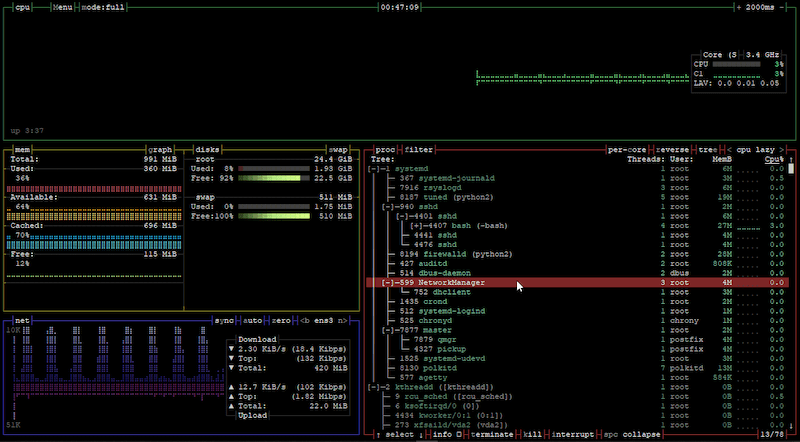
Bpytop supports several command-line arguments for specialized use cases. Launch in full mode with all monitoring boxes visible using bpytop -f. Start in minimal mode showing only processes with bpytop -p. Display only statistics without the process box using bpytop -s. Enable debug mode for troubleshooting with bpytop --debug.
Understanding the Interface
The Bpytop interface divides into distinct monitoring sections. The CPU panel at the top displays per-core utilization graphs using colorful bar charts and percentage indicators. Temperature sensors show thermal information when available, helping identify cooling issues.
Memory and swap monitoring occupies the left side, presenting both graphical representations and numerical statistics. Real-time graphs show usage trends over time, making it easy to spot memory leaks or unusual consumption patterns. The network section tracks upload and download speeds across selected interfaces, with adjustable graph scales to accommodate different bandwidth scenarios.
Disk I/O monitoring displays read and write speeds for mounted filesystems. The process list dominates the lower portion, showing detailed information about running processes including PID, user, CPU percentage, memory usage, and command line arguments.
Basic Navigation
Navigate the Bpytop interface using either keyboard shortcuts or mouse clicks. Arrow keys move through the process list, while the mouse wheel scrolls content in any panel. Click on processes to select them for management operations.
Press the ESC key to open the main menu, where you can access options, change themes, and configure display preferences. The ‘q’ key quits the application immediately. Press ‘h’ or F1 to display the help screen with complete keyboard shortcut documentation.
Essential Bpytop Features and Usage
Mastering Bpytop’s features transforms it from a simple monitor into a powerful system administration tool. The application includes numerous capabilities for process management, view customization, and data filtering.
Filtering Processes
Process filtering helps locate specific applications or services quickly. Press ‘f’ to activate the filter input box at the bottom of the screen. Type any part of a process name, command, or argument. Bpytop immediately filters the process list to show only matching entries.
Clear active filters by pressing ESC or by deleting all filter text. This feature proves invaluable when troubleshooting specific services or identifying resource-intensive applications among hundreds of running processes.
Changing View Modes
Bpytop offers three distinct view modes to optimize screen real estate. Press ‘m’ to cycle between modes. Full mode displays all monitoring boxes including CPU, memory, network, disk, and processes. Proc mode shows only the process list, maximizing space for detailed process information. Stat mode displays system statistics without the process box, ideal for monitoring overall system health.
Switch modes dynamically based on your current monitoring needs. Full mode suits general system observation, while proc mode excels during process troubleshooting sessions.
Process Management
Select any process using arrow keys or mouse clicks. Once highlighted, send signals to control process behavior. Press ‘t’ to send SIGTERM, requesting graceful shutdown. Send SIGKILL with ‘k’ to forcefully terminate unresponsive processes. Use ‘i’ to send SIGINT, simulating a Ctrl+C interrupt.
View detailed information about selected processes by pressing Enter or double-clicking. This expanded view shows command-line arguments, thread count, open files, and resource usage history.
Sorting Options
Change process sorting by pressing ‘s’ to open the sorting menu. Available options include CPU usage, memory consumption, PID number, program name, user, and thread count. Bpytop offers both “cpu lazy” and “cpu responsive” sorting methods. Responsive mode updates the top process immediately, while lazy mode smooths changes over time for easier viewing.
Press ‘r’ to reverse the current sorting order, useful for finding processes consuming the least resources or identifying oldest PIDs.
Menu Access
Access comprehensive configuration options through the main menu. Press ESC from the main view to open the menu system. Navigate using arrow keys and select options with Enter. The menu includes color theme selection, box visibility toggles, update interval adjustments, and display preferences.
The help menu provides complete keyboard shortcut documentation and feature explanations. Options menu contains all configuration parameters that can also be edited in the config file.
Customizing Bpytop Configuration
Bpytop stores user preferences in configuration files, allowing persistent customization across sessions. Understanding configuration options helps optimize the monitoring experience for your specific workflow.
Accessing Configuration
Configuration files reside in ~/.config/bpytop/. The main configuration file, bpytop.conf, generates automatically on first launch if it doesn’t exist. Edit this file directly with any text editor or modify settings through the in-application options menu.
Changes made through the menu save automatically to the configuration file. Manual edits require restarting Bpytop to take effect.
Changing Color Themes
Bpytop includes multiple built-in themes: Default, Default-nord, gruvbox, gruvbox_dark, gruvbox_light, monokai, solarized_dark, solarized_light, and others. Change themes by pressing ESC, selecting Options, and choosing your preferred theme from the color scheme list.
Custom themes can be created by copying existing theme files to ~/.config/bpytop/themes/ and modifying color values. Reference themes with a plus sign prefix in the configuration file when located in the user themes folder.
Set theme_background=False in the configuration to allow terminal transparency, letting your desktop background show through Bpytop’s interface.
Performance Settings
Adjust the update interval to balance responsiveness with CPU usage. The update_ms parameter controls milliseconds between refreshes, defaulting to 2000ms. Lower values provide more frequent updates but increase Bpytop’s CPU consumption. Higher values reduce overhead on resource-constrained systems.
Process update multiplier (proc_update_mult) determines how often the process list refreshes relative to the main update interval. Setting this to 2 or higher significantly decreases CPU usage by updating process information less frequently than system statistics.
Disable CPU frequency display (show_cpu_freq=False) if you experience performance issues, as frequency polling can cause slowdowns on certain systems with specific psutil versions.
Display Customization
Control which monitoring boxes appear using the shown_boxes parameter. Specify “cpu mem net proc” to show all boxes, or omit boxes you don’t need. For example, “cpu proc” displays only CPU statistics and the process list, hiding memory, network, and disk information.
Toggle truecolor mode with the truecolor setting. Disable this on terminals that don’t support 24-bit color to force 256-color conversion, improving compatibility with older terminal emulators.
Customize CPU graph behavior with cpu_graph_upper and cpu_graph_lower parameters, selecting which CPU statistics to display in each graph section. Options include total, user, system, nice, iowait, and others depending on your platform.
Other Configuration Options
Select specific network interfaces to monitor with the net_iface parameter. Choose from available interfaces or set to “auto” for automatic selection. Network graph scaling can be fixed or automatic, with fixed mode using specified bandwidth values and auto mode dynamically adjusting scales.
Disk filtering allows you to exclude or include specific mount points. Set disks_filter="exclude=/boot, /home/user" to hide those filesystems from the disk monitoring panel. Process tree view (proc_tree=True) displays processes hierarchically, showing parent-child relationships.
Troubleshooting Common Issues
While Bpytop generally operates reliably, certain configuration issues or system quirks may cause problems. These troubleshooting tips address the most common difficulties.
Terminal Display Issues
Character rendering problems typically stem from missing Unicode support or inadequate fonts. If box-drawing characters appear as question marks or squares, verify your terminal supports UTF-8 encoding. Check your locale settings with locale and ensure a UTF-8 locale is active.
Braille pattern display requires specific font support. Install Terminess Powerline font or similar Unicode-capable fonts to resolve graphing issues. Some terminal emulators struggle with certain Unicode blocks; try different terminals like GNOME Terminal, Konsole, or Alacritty to find one that renders properly.
Color display problems often result from insufficient color depth support. If colors appear wrong or washed out, your terminal may not support 24-bit truecolor. Launch Bpytop with bpytop --low-color to force 256-color mode, or set truecolor=False in the configuration file.
Performance Problems
Bpytop consuming excessive CPU usually indicates too-frequent updates or problematic system monitoring. Increase the update interval to 3000ms or higher to reduce overhead. Set process update multiplier to 3 or 4 to update the process list less frequently.
Disable CPU frequency monitoring if you experience lag spikes or freezing. Some systems with certain psutil versions exhibit slowdowns when polling CPU frequencies repeatedly. Set show_cpu_freq=False in your configuration.
Memory usage in Bpytop remains generally low, but displaying thousands of processes simultaneously can increase consumption. Filter processes or disable process tree view to reduce memory overhead on systems with many running tasks.
Bpytop Crashes or Freezes
Application crashes often generate error logs in ~/.config/bpytop/error.log. Examine this file for stack traces and error messages indicating the problem cause. Enable debug logging by launching with bpytop --debug or setting log_level=DEBUG in the configuration file.
Some Fedora versions experience compatibility issues with specific Python dependencies. Update all Python packages with pip3 install --upgrade psutil to ensure you’re running compatible library versions. If problems persist, uninstall and reinstall Bpytop using a different installation method.
Freezing during process selection or sorting indicates potential bugs. Try resetting your configuration by renaming ~/.config/bpytop/bpytop.conf to force regeneration of default settings.
Permission Issues
Running Bpytop as a non-root user limits access to certain process information. Some processes owned by root or other users may show incomplete data or hidden statistics. This behavior is normal and expected for security reasons.
If you require complete process information, run Bpytop with sudo: sudo bpytop. However, this creates configuration files in root’s home directory rather than your user directory. Consider copying your configuration to /root/.config/bpytop/ if you frequently monitor as root.
SSH and Remote Access
Using Bpytop over SSH connections requires proper terminal emulation support. Ensure your SSH client forwards terminal capabilities correctly. OpenSSH handles this well, but minimal SSH implementations like Dropbear may cause display issues.
Locale mismatches between local and remote systems create character encoding problems. Set your SSH connection to use UTF-8 encoding, and verify the remote system has UTF-8 locales installed. Export LANG=en_US.UTF-8 before launching Bpytop if necessary.
Updating and Uninstalling Bpytop
Keeping Bpytop current ensures access to bug fixes, performance improvements, and new features. The update process varies depending on your installation method.
Updating Bpytop
DNF installations receive updates through regular system updates. Run sudo dnf update to upgrade Bpytop along with other system packages. This automatic update mechanism ensures you always run the latest version available in Fedora repositories.
Update PIP installations manually:
pip3 install bpytop --upgradeThis command fetches and installs the newest version from PyPI. Check for updates periodically to stay current with upstream development.
Snap packages update automatically in the background. Force an immediate update with:
sudo snap refresh bpytopManual installations require pulling the latest code from GitHub and reinstalling:
cd bpytop
git pull
sudo make install
Uninstalling Bpytop
Remove DNF-installed Bpytop with:
sudo dnf remove bpytopThis cleanly uninstalls the package and removes dependencies no longer needed by other applications.
Uninstall PIP installations:
pip3 uninstall bpytopRemove Snap installations:
sudo snap remove bpytopFor manual installations, navigate to the cloned repository directory and execute:
sudo make uninstallDelete configuration files manually if desired, as uninstallation doesn’t remove user configuration:
rm -rf ~/.config/bpytopCongratulations! You have successfully installed Bpytop. Thanks for using this tutorial for installing the Bpytop system monitor tool on Fedora 42 Linux system. For additional help or useful information, we recommend you check the official Bpytop website.
