How To Install Brackets Code Editor on Debian 13

Brackets Code Editor remains a powerful tool for web developers who value simplicity and speed. Despite Adobe discontinuing official support in 2021, the community has kept this lightweight editor alive and relevant. If you’re running Debian 13 “Trixie” and need a straightforward code editor focused on front-end development, Brackets delivers exactly what you need without overwhelming complexity.
This guide walks you through four proven installation methods on Debian 13. You’ll learn the commands, understand potential issues, and walk away with a fully functional development environment. Whether you prefer package managers like Flatpak and Snap, traditional DEB files, or building from source, we’ve covered every angle.
Let’s get started.
What is Brackets Code Editor?
Brackets originated as an Adobe project designed specifically for web designers and front-end developers. Built using web technologies, it offers a unique approach to code editing with features tailored for HTML, CSS, and JavaScript work.
The editor shines with its live preview functionality. As you type code, changes appear instantly in your browser without manual refreshes. This real-time feedback accelerates development and helps catch visual issues immediately.
Inline editing sets Brackets apart from traditional code editors. Place your cursor on an HTML element, and you can edit the related CSS directly within your HTML file. No switching between tabs. No losing context. Quick Edit brings the relevant code to you.
Extensions expand Brackets’ capabilities significantly. The built-in Extension Manager provides access to hundreds of community-created tools. Add Git integration, beautify code formatting, enable Emmet shortcuts, or install JSHint for JavaScript validation. The ecosystem continues growing despite Adobe’s departure.
Preprocessor support includes LESS and SCSS out of the box. Visual tools help you select colors and timing functions without memorizing hex codes or cubic-bezier values.
Web developers working on small to medium projects find Brackets particularly suitable. It loads quickly, consumes minimal resources, and stays focused on front-end technologies rather than attempting to support every programming language under the sun.
Understanding Debian 13 Requirements
Debian 13 “Trixie” launched in August 2025 with significant improvements. The release includes APT 3.0 featuring the Solver3 dependency resolver, making package management more efficient. Kernel 6.12 brings better hardware support and performance enhancements.
Brackets runs comfortably on modest hardware. You need at least 2GB of RAM, though 4GB provides a smoother experience when working with multiple files. Allocate 500MB disk space for the editor and its dependencies. Any modern processor handles Brackets without strain.
Display resolution should reach at least 1024×768, but higher resolutions improve the development experience. The interface scales well on both standard and high-DPI screens.
Debian 13 ships with GNOME 48 or KDE Plasma 6.3 desktop environments. Brackets works seamlessly with both. The system now uses tmpfs by default on /tmp for faster temporary file operations. OpenSSL replaces GnuTLS in this release, affecting how secure connections function.
These specifications ensure Brackets performs optimally on your Debian 13 installation.
Prerequisites Before Installation
Preparation prevents problems. Start with a non-root user account that has sudo privileges. Never install software as root unless absolutely necessary.
Verify your internet connection works properly. All installation methods require downloading packages or dependencies.
Open your terminal application. GNOME users find Terminal in the applications menu. KDE users launch Konsole. The terminal provides access to the commands we’ll use throughout this guide.
Update your system packages first:
sudo apt update && sudo apt upgradeThis command refreshes package lists and upgrades installed software to the latest versions. If Debian installs kernel updates, reboot your system before proceeding.
Confirm you’re running Debian 13:
cat /etc/debian_versionThe output should show 13.x or “trixie/sid” for development versions. For detailed information:
lsb_release -aIf you plan to build Brackets from source, install essential development tools:
sudo apt install build-essential git curlThese packages provide compilers, version control, and download utilities necessary for compilation.
With prerequisites handled, you’re ready to install Brackets.
Method 1: Install Brackets Using Flatpak
Flatpak offers the smoothest installation experience for most users. This universal package format sandboxes applications, preventing conflicts with system libraries. Updates happen automatically, and you always get the latest version.
Step 1: Install Flatpak
Check whether Flatpak already exists on your system:
flatpak --versionIf you see a version number, skip to Step 2. Otherwise, install Flatpak:
sudo apt install flatpakDebian 13 includes Flatpak in its repositories, making installation straightforward. The package manager resolves dependencies automatically.
Step 2: Add Flathub Repository
Flathub hosts thousands of applications packaged as Flatpaks. Add this repository to access Brackets:
flatpak remote-add --if-not-exists flathub https://flathub.org/repo/flathub.flatpakrepoThe –if-not-exists flag prevents errors if Flathub was already configured. Verify the repository addition:
flatpak remotesYou should see “flathub” listed in the output.
Step 3: Reboot Your System
Restart Debian to ensure Flatpak integration completes:
sudo rebootAlternatively, log out and log back in. This step registers Flatpak applications with your desktop environment.
Step 4: Install Brackets
Now install Brackets from Flathub:
flatpak install flathub io.brackets.BracketsFlatpak displays the application size and asks for confirmation. Type ‘y’ and press Enter. The download typically ranges from 60-80MB depending on the version. Installation time varies with your internet speed.
Flatpak automatically handles all dependencies. You won’t encounter missing library errors.
Step 5: Launch Brackets
Start Brackets from the terminal:
flatpak run io.brackets.BracketsOr find “Brackets” in your application menu under Development or Programming. Click the icon to launch.
Troubleshooting Flatpak Installation
If installation fails with network errors, check your internet connection and DNS settings. Corporate firewalls sometimes block Flathub.
Permission issues usually stem from incorrect user setup. Ensure your account belongs to the necessary groups. Some systems require adding your user to the ‘flatpak’ group.
Flatpak installations run in sandboxed environments. If Brackets can’t access certain directories, use Flatseal (a Flatpak permission manager) to adjust filesystem access.
Method 2: Install Brackets Using Snap
Snap packages provide another universal installation option. Canonical develops Snapd, and many Linux distributions support it. Snaps update automatically in the background.
Step 1: Install Snapd
Check for existing Snapd installation:
snap versionIf the command fails, install Snapd:
sudo apt install snapdAfter Snapd installs, add the core snap:
sudo snap install coreStep 2: Enable Snapd Service
Ensure the Snapd service runs at startup:
sudo systemctl enable --now snapd.socketCreate a symbolic link for broader snap support:
sudo ln -s /var/lib/snapd/snap /snapStep 3: Install Brackets
Install Brackets using Snap:
sudo snap install brackets --classicThe –classic flag grants Brackets access to system resources outside the snap sandbox. Many development tools require classic confinement to function properly.
Download size approximates 70MB. Snap displays progress as it downloads and installs the package.
Step 4: Reboot (Recommended)
Restart your system for complete integration:
sudo rebootStep 5: Launch Brackets
Execute Brackets from the terminal:
bracketsOr launch it from your application menu. Snap installations integrate with the desktop environment automatically.
Managing Snap Updates
List installed snaps:
snap list bracketsSnaps update automatically by default. Force a manual update:
sudo snap refresh bracketsHold a snap at its current version:
sudo snap refresh --hold bracketsMethod 3: Install from DEB Package
DEB packages offer direct installation without additional package management layers. This method suits users who prefer traditional Debian package handling or need offline installation.
Step 1: Download DEB Package
Visit the Brackets GitHub releases page or download using wget:
wget https://github.com/adobe/brackets/releases/download/release-1.14.2/Brackets.Release.1.14.2.64-bit.debReplace the version number with the latest release if a newer version exists. The download goes to your current directory, usually your home folder.
Step 2: Navigate to Download Location
Move to the directory containing the DEB file:
cd ~/DownloadsVerify the file downloaded successfully:
ls -lh Brackets*.debStep 3: Install Dependencies
Brackets requires certain libraries. Install common dependencies:
sudo apt install libgconf-2-4 libnss3Debian 13 includes most necessary libraries, but pre-installing these prevents potential issues.
Step 4: Install DEB Package
Install using APT (recommended):
sudo apt install ./Brackets.Release.1.14.2.64-bit.debThis method automatically resolves and installs dependencies. Alternatively, use dpkg:
sudo dpkg -i Brackets.Release.1.14.2.64-bit.debAPT provides better dependency handling than dpkg alone.
Step 5: Fix Dependencies (If Needed)
If dependency errors appear, run:
sudo apt --fix-broken installThis command installs missing dependencies and completes the Brackets installation.
Step 6: Verify Installation
Confirm Brackets installed correctly:
dpkg -l | grep bracketsCheck the executable location:
which bracketsStep 7: Launch Application
Start Brackets from the terminal:
bracketsOr find it in your application launcher under Development.
Uninstalling DEB Installation
Remove Brackets while keeping configuration files:
sudo apt remove bracketsCompletely remove including configurations:
sudo apt purge bracketsClean up unused dependencies:
sudo apt autoremoveMethod 4: Build from Source
Building from source gives you the absolute latest code and allows customization. Developers contributing to Brackets or those wanting cutting-edge features choose this method.
Step 1: Install Build Dependencies
Install Node.js, npm, and build tools:
sudo apt install git nodejs npm build-essentialBrackets requires Node.js for its build system. Debian 13 includes compatible versions in its repositories.
Step 2: Clone Repository
Download the Brackets source code:
git clone https://github.com/brackets-cont/brackets.gitThis command creates a “brackets” directory containing the source. Navigate into it:
cd bracketsStep 3: Install Node Dependencies
Install required Node.js packages:
npm installThis process takes several minutes. NPM downloads numerous dependencies required for building Brackets. If errors occur, ensure Node.js and npm versions meet minimum requirements.
Step 4: Build the Application
Compile Brackets:
npm run buildBuilding takes 5-10 minutes depending on your system. The build process compiles code, optimizes assets, and packages the application.
Step 5: Run Brackets
Launch the built version:
npm startThis command runs Brackets from the source directory. For system-wide installation, follow packaging instructions in the repository documentation.
Keeping Source Updated
Update your source installation:
git pull origin master
npm install
npm run build
These commands fetch the latest code, update dependencies, and rebuild the application.
Post-Installation Configuration
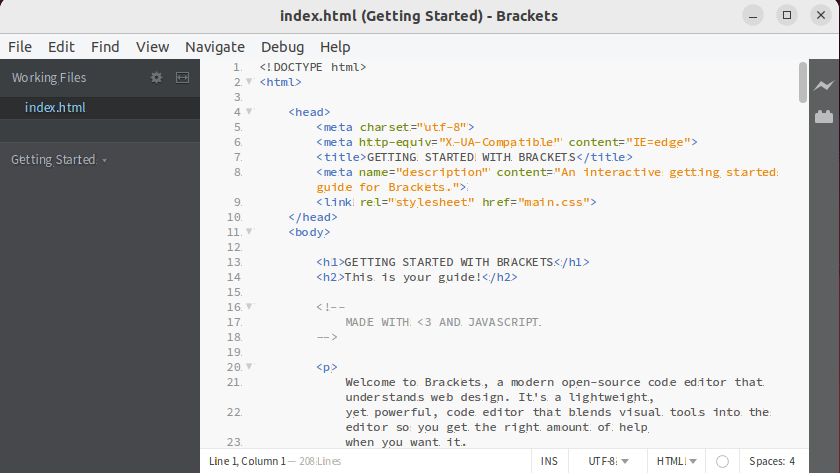
First launch presents Brackets’ welcome screen. Explore the getting started guide or dismiss it to begin coding.
Installing Extensions
Click File > Extension Manager or press Ctrl+Shift+X. Browse available extensions or search for specific ones. Popular choices include:
- Emmet for faster HTML/CSS writing
- Beautify for code formatting
- Autoprefixer for vendor prefixes
- JSHint for JavaScript error checking
- Brackets Git for version control
Click Install next to any extension to add it.
Configuring Live Preview
Live Preview connects Brackets to your browser. Click the lightning bolt icon or press Alt+F12 to launch. Brackets opens your HTML file in your default browser with live updates enabled.
Set your preferred browser in Debug > Open Preferences File. Add or modify the “livedev.multibrowser” setting.
Adjusting Editor Preferences
Open preferences with Debug > Open Preferences File. Customize:
- Font family and size
- Tab size and spaces vs tabs
- Line wrapping
- Auto-save settings
- Theme selection
Changes save automatically and apply immediately.
Setting File Associations
Right-click any HTML, CSS, or JavaScript file in your file manager. Choose “Open With” and select Brackets. Set it as the default application for these file types.
Verifying Successful Installation
Test Brackets functionality after installation. Create a new HTML file with File > New or Ctrl+N. Type basic HTML structure and verify syntax highlighting works.
Test Live Preview on your HTML file. Colors, fonts, and CSS rules should update in real-time as you edit.
Open an HTML file and use Quick Edit (Ctrl+E) on a class or ID. The inline CSS editor should appear. These features confirm proper installation.
Check the Extension Manager opens correctly. Browse available extensions to ensure repository connection works.
Common Installation Issues and Solutions
Dependency Errors
Missing library errors typically affect DEB installations. Fix with:
sudo apt --fix-broken installManually install problematic dependencies by name:
sudo apt install [package-name]Permission Issues
If Brackets won’t launch due to permission errors, check file ownership:
ls -l $(which brackets)Correct ownership if necessary using chown commands with sudo.
Launch Failures
Check error logs if Brackets crashes immediately:
cat ~/.config/Brackets/brackets.logGPU acceleration issues sometimes prevent launching. Disable GPU acceleration:
brackets --disable-gpuFlatpak Sandbox Limitations
Flatpak installations may struggle accessing files outside your home directory. Grant additional permissions using Flatseal or command-line overrides:
flatpak override --user --filesystem=/path/to/directory io.brackets.BracketsMemory Problems
Brackets consuming excessive memory often indicates problematic extensions. Disable extensions one-by-one to identify the culprit. Clear Brackets cache:
rm -rf ~/.cache/bracketsRestart Brackets after clearing cache.
Updating and Maintaining Brackets
Flatpak Updates
Update Brackets via Flatpak:
flatpak update io.brackets.BracketsUpdate all Flatpak applications:
flatpak updateSnap Updates
Snaps update automatically. Force immediate update:
sudo snap refresh bracketsDEB Package Updates
Download newer DEB packages from GitHub releases. Install using the same apt command, which upgrades the existing installation.
Source Build Updates
Navigate to your source directory and pull changes:
cd brackets
git pull origin master
npm install
npm run build
Uninstalling Brackets from Debian 13
Remove Flatpak Installation
flatpak uninstall io.brackets.BracketsRemove unused dependencies:
flatpak uninstall --unusedRemove Snap Installation
sudo snap remove bracketsRemove DEB Installation
sudo apt purge bracketsClean up:
sudo apt autoremoveRemove Source Build
Delete the source directory:
rm -rf ~/bracketsComplete Cleanup
Remove configuration and cache files:
rm -rf ~/.config/Brackets
rm -rf ~/.cache/brackets
Congratulations! You have successfully installed brackets. Thanks for using this tutorial for installing the latest version of the Brackets Code Editor on Debian 13 “Trixie” system. For additional help or useful information, we recommend you check the official Brackets website.
