How To Install Brasero on Rocky Linux 10

Rocky Linux 10 is a powerful, enterprise-grade Linux distribution — and if you need a reliable, open-source disc-burning tool to go with it, Brasero is one of the best choices available. Whether you want to burn data CDs, create audio discs, write ISO images, or copy DVDs, this guide walks you through every method to install Brasero on Rocky Linux 10, configure it correctly, and start using it right away.
What Is Brasero?
Brasero is a free and open-source CD/DVD burning application built specifically for the GNOME desktop environment. Developed originally by Philippe Rouquier and Luis Medinas, it is now maintained under the broader GNOME project umbrella and distributed under the GNU GPL v2 license.
What sets Brasero apart from other Linux disc-burners is its clean, minimalist interface and multi-backend support. It works with cdrtools, growisofs, and the optional libburn backend, which means it maintains broad hardware compatibility across a wide range of optical disc writers. The latest stable release is version 3.12.3, and it is available via Flathub under the app ID org.gnome.Brasero.
On Rocky Linux 10 — a distribution designed for enterprise workstations and servers — Brasero provides a straightforward, GUI-based solution for disc management tasks that would otherwise require multiple command-line utilities.
Key Features of Brasero
Before installing any software, it helps to understand what it actually does. Brasero is surprisingly feature-rich for a lightweight application.
Data CD/DVD Capabilities
- Burn data CD/DVD on the fly without staging files first
- Edit disc contents at any time — rename, move, or remove files inside directories
- Automatic filtering for broken symbolic links, hidden files, and files that violate the Joliet naming standard
- Full multisession support and Joliet extension compatibility
- Write disc images directly to the hard drive
- Verify and check disc file integrity after burning
Audio CD Capabilities
- Burn audio CDs on the fly using any GStreamer-handled format including OGG, FLAC, MP3, and WAV
- Automatically write CD-TEXT information retrieved via GStreamer
- Fully editable silence between tracks — insert a pause or split a track manually
- Search audio files inside dropped folders automatically
Disc Copy and Other Features
- Copy a CD or DVD directly to the hard drive or on the fly to another disc
- Copy encrypted video DVDs when
libdvdcssis present - Erase rewritable CDs and DVDs
- Burn ISO images and CUE files with a few clicks
- Built-in song, image, and video previewer
- Full drag-and-drop support from Nautilus and other file managers
- All disc I/O is performed asynchronously, so the application never freezes during long operations
Prerequisites
A successful installation starts with a properly prepared system. Make sure you have the following before proceeding:
- A running Rocky Linux 10 installation (minimal server or desktop with GNOME)
- A user account with sudo privileges — required for all DNF and Flatpak commands
- An active internet connection to download packages and repositories
- Optional but recommended: GNOME Desktop Environment for the full GUI experience
- An optical disc drive (physical or USB-attached) if you intend to burn actual discs
First, confirm your OS version to ensure you are on Rocky Linux 10:
cat /etc/rocky-releaseThen, update all existing packages to their latest versions before installing anything new:
sudo dnf update -yThis prevents dependency conflicts and ensures your system is in a clean, consistent state.
Method 1: Install Brasero via DNF (Recommended)
Using DNF — Rocky Linux’s default package manager — is the cleanest and most native way to install Brasero. This method integrates Brasero with the system package manager, making updates and removals straightforward.
Step 1 — Update Your System
Always begin with a full system update:
sudo dnf update -yDNF resolves dependencies automatically and pulls the latest available packages from configured repositories.
Step 2 — Enable the EPEL Repository
Brasero is not included in Rocky Linux 10’s default BaseOS or AppStream repositories. You need to enable EPEL (Extra Packages for Enterprise Linux), a Fedora-maintained repository that provides thousands of additional packages for enterprise Linux systems.
sudo dnf install epel-release -yRocky Linux 10 also benefits from enabling the CRB (CodeReady Builder) repository, since some EPEL packages depend on packages found there:
sudo dnf config-manager --set-enabled crbVerify that EPEL is active on your system:
sudo dnf repolistYou should see epel listed among the enabled repositories.
Step 3 — Install Brasero
With EPEL enabled, install Brasero using a single command:
sudo dnf install brasero -yDNF automatically calculates and installs all required dependencies — including GStreamer plugins, GNOME libraries, and backend burning tools. The -y flag automatically confirms all prompts, making this ideal for automated or scripted deployments.
Step 4 — Verify the Installation
Once installation completes, confirm Brasero is correctly installed:
brasero --versionAlternatively, query the RPM database directly:
rpm -q braseroA successful output displays the installed version number. If either command returns an error, revisit Steps 2 and 3.
Method 2: Install Brasero via Flatpak and Flathub
Flatpak provides a sandboxed, distribution-agnostic installation method. This approach is particularly useful when the EPEL package version is outdated, unavailable, or when you want to isolate the application from your system packages.
Step 1 — Check if Flatpak Is Already Installed
On Rocky Linux 10 systems installed with a GNOME-based software selection (Workstation or Server with GUI), Flatpak comes pre-installed. Check with:
flatpak --versionIf Flatpak is not installed, add it via DNF:
sudo dnf install flatpak -yStep 2 — Add the Flathub Repository
Flathub is the primary and most comprehensive source of Flatpak applications. Add it to your system with the following command:
sudo flatpak remote-add --if-not-exists flathub https://flathub.org/repo/flathub.flatpakrepoThe --if-not-exists flag prevents errors if the remote has already been added. After running this command, restart your system to ensure the new repository is fully recognized.
Step 3 — Install Brasero from Flathub
Use the official Flathub app ID to install Brasero:
sudo flatpak install flathub org.gnome.Brasero -yFlatpak handles all runtime dependencies internally and installs Brasero in an isolated environment without touching your system libraries.
Step 4 — Verify the Flatpak Installation
Confirm the installation was successful and check the installed version:
flatpak info org.gnome.Brasero | grep VersionYou should see output similar to Version: 3.12.3. To list all installed Flatpak applications:
flatpak listMethod 3: Install Brasero via YUM (Legacy Compatibility)
Rocky Linux 10 retains yum as a compatibility alias for DNF, so the following command works exactly as expected:
sudo yum install braseroUnder the hood, yum on Rocky Linux 10 is simply a symlink or wrapper that calls DNF. The behavior — dependency resolution, package installation, output formatting — is identical. This method exists primarily for:
- Legacy shell scripts written for older RHEL/CentOS systems
- Automated deployment pipelines that reference
yumin their configuration - Administrators migrating from CentOS 7 workflows
Before using this method, ensure EPEL is still enabled (see Method 1, Step 2), as Brasero still requires that repository regardless of which command front-end you use.
How to Launch Brasero on Rocky Linux 10
Once installed, launching Brasero takes just seconds.
From the Terminal
For a DNF-based installation:
braseroFor a Flatpak-based installation:
flatpak run org.gnome.BraseroFrom the GNOME Activities Menu
- Press the Super key (Windows key) or click Activities in the top-left corner
- Type Brasero in the search bar
- Click the Brasero application icon to launch it
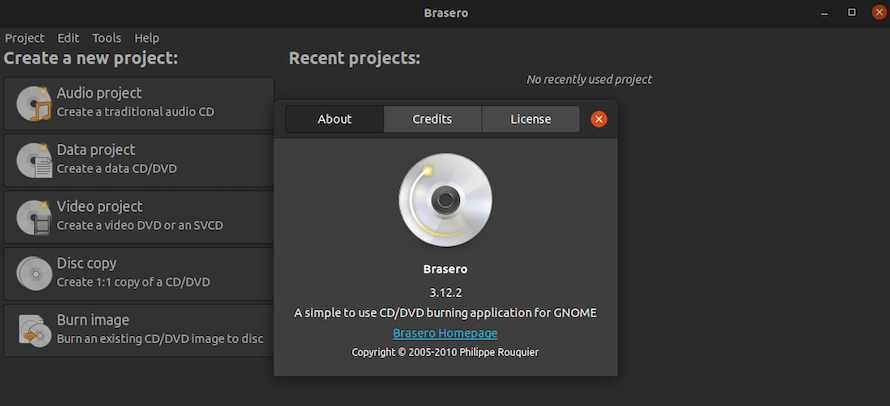
The application opens to a clean project-selection screen where you can immediately choose your disc-burning task.
How to Use Brasero: Basic Workflow
Getting started with Brasero is intuitive. The home screen presents four primary project types.
Burning a Data CD or DVD
- Click Data Project on the Brasero home screen
- Drag and drop files from your file manager into the project window, or use the + button to browse
- Monitor the capacity bar at the bottom — it shows how much space you are using on the disc
- Insert a blank CD or DVD into your drive
- Click Burn, select your drive and write speed, then click Burn again
Brasero applies automatic filtering during this step, silently removing hidden files and broken symlinks before writing.
Burning an Audio CD
- Click Audio Project
- Add your audio files — Brasero accepts MP3, FLAC, OGG, WAV, and any other format your GStreamer installation handles
- Drag tracks to reorder them
- Right-click any track to edit silences, split the track, or add a pause
- Click Burn to write the audio CD
Writing an ISO Image to Disc
- Click Burn Image
- Click the folder icon to browse to your
.isoor.cuefile - Select the target optical drive
- Click Burn
This is particularly useful on Rocky Linux for burning distribution ISO images or bootable recovery discs.
Copying a Disc
- Click Disc Copy
- Select the source drive (the disc you want to copy)
- Select the destination drive, or choose to copy to a hard drive image first
- Click Copy
For on-the-fly copying, both source and destination drives must be present. Brasero automatically handles single-session data DVDs and all standard CD formats.
Troubleshooting Common Issues
Even straightforward installations occasionally hit snags. Here are the most common problems and how to fix them.
brasero: command not found
This means either the package was not installed successfully, or the binary path is not in your $PATH. Re-run sudo dnf install brasero -y and confirm with rpm -q brasero.
Brasero Not Found in EPEL
On Rocky Linux 10, EPEL package availability can occasionally be inconsistent due to repository synchronization delays. Try refreshing metadata:
sudo dnf clean all && sudo dnf makecacheThen retry the installation. If the package is still missing, use the Flatpak method as an alternative.
No Optical Drive Detected
Verify that your drive is recognized by the kernel:
lsblkIf no optical drive appears, check that the appropriate kernel module is loaded and that the drive is properly connected. Install wodim as a supporting backend utility:
sudo dnf install wodim -yAudio Project Fails to Burn
Missing GStreamer plugins are the most common cause. Install the good and bad plugin sets:
sudo dnf install gstreamer1-plugins-good gstreamer1-plugins-bad-free -yFlatpak App Fails to Launch After Install
If flatpak run org.gnome.Brasero returns an error, the Flathub remote may not have been properly added. Re-run:
sudo flatpak remote-add --if-not-exists flathub https://flathub.org/repo/flathub.flatpakrepoThen restart the system and try again.
General Diagnostics
Always launch Brasero from the terminal first. Any runtime errors, missing backend warnings, or permission issues will print directly to stdout — far faster than hunting through log files. Check system logs for deeper diagnosis:
journalctl -xe | grep braseroHow to Update Brasero
Keeping Brasero updated ensures you receive the latest bug fixes and security patches.
For DNF installations, Brasero updates automatically whenever you run a full system update:
sudo dnf update -yTo update Brasero specifically:
sudo dnf update brasero -yFor Flatpak installations, update Brasero independently:
flatpak update org.gnome.BraseroOr update all installed Flatpak applications at once:
flatpak updateHow to Uninstall Brasero
If you no longer need Brasero, removing it is just as simple as installing it.
For DNF installations:
sudo dnf remove brasero -yClean up any orphaned dependencies left behind:
sudo dnf autoremove -yFor Flatpak installations:
flatpak uninstall org.gnome.Brasero -yNote that Flatpak uninstallation does not automatically remove user-specific application data. To fully clean up, delete the app’s data directory manually:
rm -rf ~/.var/app/org.gnome.BraseroCongratulations! You have successfully installed Brasero. Thanks for using this tutorial to install the latest version of Brasero on the Rocky Linux 10 system. For additional help or useful information, we recommend you check the official Brasero website.
