How To Install Budgie Desktop on Debian 13

Debian 13 (Trixie) offers remarkable flexibility when it comes to desktop environments, and Budgie Desktop stands out as an exceptional choice for users seeking elegance without sacrificing performance. Originally developed by the Solus project, this modern desktop environment combines a clean interface with powerful customization options that appeal to both newcomers and experienced Linux users alike.
Budgie Desktop delivers a familiar workflow reminiscent of traditional desktop layouts while maintaining contemporary design principles. The installation process on Debian 13 is straightforward, taking just minutes to complete even for those new to Linux system administration. This comprehensive guide walks you through every step of installing and configuring Budgie Desktop on your Debian 13 system, from initial setup to advanced customization options that transform your desktop into a personalized workspace.
Whether you’re migrating from Windows, exploring alternatives to GNOME or KDE, or simply want a lightweight yet feature-rich desktop environment, Budgie on Debian 13 provides the perfect balance. Let’s dive into the installation process and unlock the full potential of this remarkable desktop environment.
What is Budgie Desktop?
Understanding Budgie Desktop Environment
Budgie Desktop represents a modern approach to desktop computing, built with simplicity and elegance at its core. Developed initially for the Solus operating system, this GTK-based desktop environment has grown into a mature platform that serves thousands of users worldwide. The architecture leverages GTK technologies, ensuring excellent integration with GNOME applications while maintaining its distinct identity.
Unlike heavyweight alternatives such as KDE Plasma or resource-intensive GNOME Shell, Budgie strikes an optimal balance between functionality and system resource consumption. The desktop environment features its own window manager, known as Budgie WM, which handles window placement, decorations, and workspace management efficiently. Active development continues under community support, with regular updates introducing new features and improvements.
Key Features of Budgie Desktop
The Raven sidebar serves as Budgie’s signature feature, providing centralized access to notifications, calendar events, and quick settings. This elegant sidebar slides out from the screen edge, giving you instant control over system functions without cluttering your workspace. The Budgie panel system supports multiple panels with extensive customization options, allowing you to position interface elements exactly where you need them.
Desktop icon management through budgie-desktop-view gives you full control over your workspace organization. Plank dock integration provides quick application launching with smooth animations and icon zoom effects. The applet ecosystem extends functionality through modular components that you can add, remove, or rearrange according to your workflow preferences. Budgie’s customization capabilities rival more complex desktop environments while maintaining an approachable configuration interface.
System Requirements
Minimum Requirements for Debian 13 with Budgie
Before beginning the installation, verify that your system meets the basic hardware specifications. A 64-bit CPU running at 2 GHz provides adequate processing power for standard desktop tasks. RAM requirements start at 1 GB minimum, though 2 GB delivers noticeably smoother performance during multitasking scenarios.
Storage space demands are modest, with 20 GB sufficient for the operating system and Budgie Desktop installation. However, allocating 50 GB or more provides comfortable room for applications, documents, and multimedia files. Your display should support at least 1024×768 resolution, though higher resolutions showcase Budgie’s interface design more effectively. An active internet connection proves essential for downloading packages and system updates during installation.
Recommended Specifications
For optimal performance, consider upgrading to 4 GB of RAM if your system allows. This capacity enables comfortable multitasking with multiple applications and browser tabs open simultaneously. A dual-core processor or better ensures responsive interface interactions and snappy application launches. Solid-state drives dramatically improve boot times and application loading compared to traditional hard disk drives.
Systems equipped with dedicated graphics cards benefit from enhanced visual effects and smoother animations. These specifications aren’t mandatory but significantly enhance the overall desktop experience, particularly when running resource-intensive applications or multiple virtual desktops.
Prerequisites Before Installation
Preparing Your Debian 13 System
Confirm that Debian 13 (Trixie) is properly installed and functioning on your machine. You’ll need root privileges or sudo access to install system packages and modify configuration files. Test your internet connection reliability, as package downloads require stable network connectivity. Create backups of important data before making significant system changes, though desktop environment installations rarely affect user files.
Understanding Installation Options
Debian 13 provides two primary installation approaches for Budgie Desktop. The basic budgie-desktop package installs core components including the panel, Raven sidebar, and window manager with minimal additional software. This option gives you complete control over which applications and themes to install separately.
The budgie-desktop-environment metapackage, available specifically in Debian 13, delivers a complete desktop experience with pre-configured themes, applications, and utilities. This comprehensive package includes Nemo file manager, GNOME Terminal, Arc theme, Papirus icon set, and Bibata cursor theme. Package sizes range from 50-100 MB for basic installation to 150-200 MB for the full environment, excluding dependencies.
Step 1: Update Your Debian System
Why System Updates Matter
Updating your Debian system before installing desktop environments prevents potential dependency conflicts that can complicate installation. Package repositories continuously receive updates that improve stability, patch security vulnerabilities, and ensure compatibility between software components. Skipping this step might result in version mismatches or broken dependencies that require troubleshooting later.
Updating Package Lists and System
Open your terminal emulator and execute the following command with elevated privileges:
sudo apt update && sudo apt upgradeThe apt update command refreshes your local package index, downloading the latest information about available packages from Debian repositories. You’ll see lines of text indicating which repository lists are being processed. This process typically completes within seconds on modern internet connections.
Following the update, apt upgrade installs newer versions of packages currently installed on your system. The terminal displays a list of packages scheduled for upgrade, along with the total download size and disk space requirements. Respond with “Y” when prompted to proceed with the upgrade. This process might take several minutes depending on how many packages require updating and your internet connection speed.
Step 2: Install Budgie Desktop
Basic Installation Method (Recommended)
For users who prefer choosing their own applications and themes, the basic installation method offers maximum flexibility. Execute this command in your terminal:
sudo apt install budgie-desktopThis command triggers the installation of essential Budgie components including the panel system, Raven sidebar, window manager, and desktop icon support. Debian’s package manager automatically resolves dependencies, installing required libraries and support packages such as budgie-desktop-view for icon management and necessary introspection libraries.
The terminal displays a comprehensive list of packages to be installed, including their total size. Download sizes typically range from 50-100 MB depending on which dependencies are already present on your system. Installation proceeds after you confirm by pressing “Y” when prompted. The entire process usually completes within two to five minutes on typical broadband connections.
Full Environment Installation (Debian 13 Only)
Users wanting a complete, ready-to-use desktop experience should opt for the full environment package. This installation method is exclusive to Debian 13 and provides a curated selection of applications and visual enhancements:
sudo apt install budgie-desktop-environmentThis comprehensive package bundles numerous components that work harmoniously together. Nemo file manager provides intuitive file browsing with advanced features like batch renaming and custom actions. GNOME Terminal offers a powerful command-line interface with tabs, profiles, and extensive customization options.
The installation includes the elegant Arc theme for consistent window decorations, Papirus icon theme for crisp application icons, and Bibata cursor theme for modern pointer graphics. PipeWire audio configuration ensures reliable sound management across applications. Total download sizes reach 150-200 MB, requiring slightly more disk space but delivering a polished desktop experience immediately after installation.
Choose this method if you’re new to Linux desktop environments or prefer not spending time selecting individual components. The pre-configured setup allows you to start working productively without extensive customization.
Optional: Installing Additional Applets
Extend Budgie’s functionality by installing supplementary applets that enhance your workflow:
sudo apt install budgie-indicator-appletThis particular applet enables system tray icon support for applications that rely on traditional notification area functionality. Additional applets available in Debian repositories include weather widgets, system monitors, workspace switchers, and media player controls. Browse available applets using apt search budgie-applet to discover options that match your needs.
Step 3: Verify the Installation
Checking Installation Status
Confirm that Budgie Desktop installed correctly by querying the package manager:
apt-cache policy budgie-desktopThis command displays detailed information about the installed package, including version numbers and installation status. For Debian 13, expect version numbers in the 10.x.x series, reflecting the latest stable Budgie Desktop release. The output shows “Installed” followed by the specific version number if installation succeeded.
If the command returns “unable to locate package,” double-check your repository configuration and ensure your package lists are updated. Missing package errors typically indicate repository synchronization issues that running sudo apt update again usually resolves.
Confirming Required Components
Verify that the display manager installed properly, as Budgie requires a login manager to function. LightDM typically installs automatically as a dependency. Check for any warning messages in the terminal output that might indicate missing dependencies or configuration problems requiring attention.
Step 4: Configure Display Manager
Understanding Display Managers
LightDM serves as the graphical login manager that presents the login screen when your system boots. This component bridges the gap between system startup and your desktop session, authenticating users and launching the selected desktop environment. Proper display manager configuration ensures smooth transitions between system boot and your Budgie Desktop session.
Manual Configuration (If Needed)
Most installations configure LightDM automatically without user intervention. However, verify its status using:
systemctl status lightdmThe output should indicate that LightDM is “active (running)” and enabled to start automatically at boot. If the service appears inactive, enable and start it with:
sudo systemctl enable lightdm
sudo systemctl start lightdm
These commands ensure LightDM launches automatically during system startup, providing consistent access to your graphical login screen. Alternative display managers like GDM or SDDM also work with Budgie, though LightDM offers the best balance of simplicity and resource efficiency.
Step 5: Reboot and Login to Budgie
Restarting Your System
Restart your Debian system to activate the newly installed desktop environment:
sudo rebootThe reboot process terminates all running applications, saves system state, and reinitializes hardware components. This step is essential because display manager changes and desktop environment installations require a fresh system state to function properly. Your computer will take 30-60 seconds to complete the restart process.
Selecting Budgie at Login Screen
After your system restarts, the LightDM login screen appears displaying your username and password fields. Look for the session selector icon, typically represented by a gear or cog symbol positioned near the username field. Click this icon to reveal a dropdown menu listing all installed desktop environments.
Select “Budgie Desktop” from the available options. Enter your user credentials and press Enter or click the login button. LightDM remembers your desktop environment choice, automatically selecting Budgie for subsequent login sessions unless you manually choose a different environment.
First Login Experience
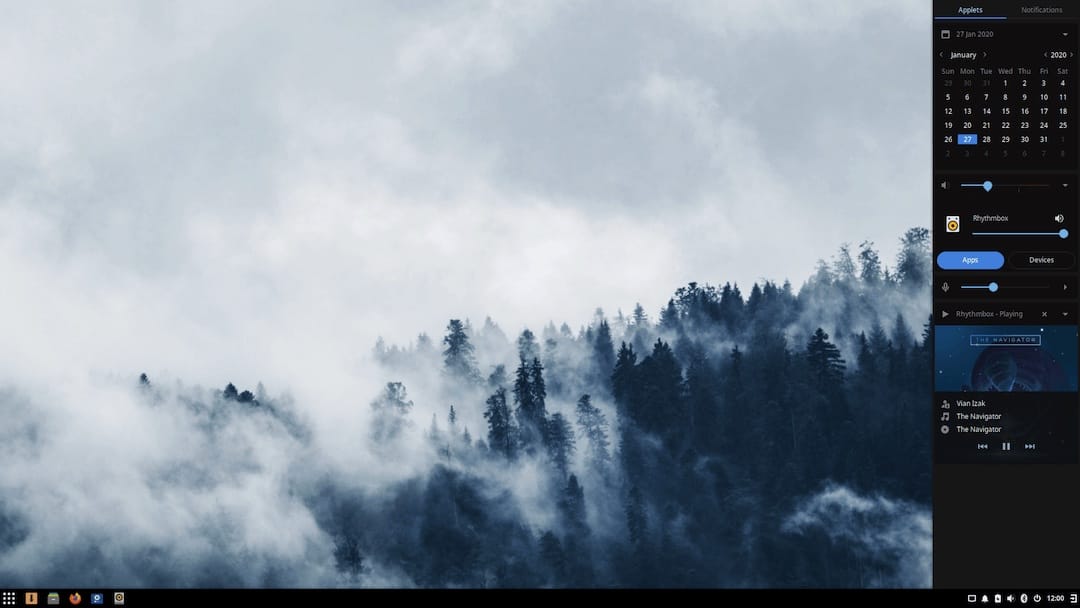
Your first Budgie Desktop session loads with default configuration settings showcasing the desktop’s clean aesthetic. The panel appears at the top of your screen by default, displaying the menu button, application shortcuts, system tray, and clock. The desktop background shows a default wallpaper, and your workspace appears uncluttered, ready for customization.
Right-click the desktop to access context menus for background changes and desktop settings. The Raven sidebar remains hidden until you click its icon in the panel or use the keyboard shortcut. This initial experience provides a clean slate for building your personalized desktop environment according to your preferences and workflow requirements.
Initial Configuration and Setup
Budgie Desktop Settings Overview
Access Budgie’s comprehensive settings panel through the main menu by searching for “Budgie Desktop Settings” or right-clicking the desktop and selecting settings. The configuration interface organizes options into logical categories including desktop layout, panel management, applets, window behavior, and autostart applications.
The desktop layout section controls fundamental workspace appearance and behavior. Panel configuration allows creating multiple panels with different positions, sizes, and purposes. Applets management provides centralized control over which panel widgets are active and their positions. Window management settings adjust how applications behave when opening, minimizing, or moving between workspaces.
Configuring the Panel
Panel customization begins by right-clicking the panel and selecting “Budgie Desktop Settings,” then navigating to the Panels section. Change panel position from the default top placement to bottom, left, or right edges according to your preference. Adjust panel height or width using the size slider, finding the perfect balance between screen space conservation and accessibility.
Enable transparency settings to create a modern, floating panel appearance. Shadow effects add subtle depth to the interface. The auto-hide feature automatically conceals the panel when not in use, maximizing screen real estate for applications. Configure auto-hide behavior including reveal triggers and animation speed to match your workflow style.
Add spacing between applets by adjusting applet padding in the panel settings. This creates visual separation between different functional areas, improving visual organization and making individual applets easier to target with your cursor.
Setting Up the Raven Sidebar
The Raven sidebar provides centralized access to notifications, calendar integration, and quick settings. Open Raven by clicking its icon in the panel or pressing the designated keyboard shortcut. Notifications appear in the upper section, displaying system alerts, application messages, and calendar reminders in chronological order.
Calendar integration shows the current date, upcoming events, and allows quick date navigation. Configure calendar settings to display week numbers, change the first day of the week, or integrate with calendar applications. Sound controls in Raven provide volume adjustment and audio device selection without opening separate settings dialogs.
Customize Raven’s appearance and behavior through Budgie Desktop Settings. Choose which widgets and controls appear in the sidebar, adjust sizing preferences, and configure notification handling rules for different application types.
Desktop Icons and Background
Enable desktop icons through Budgie Desktop Settings by navigating to the Desktop section and activating the desktop icons toggle. This feature relies on budgie-desktop-view, which should install automatically with the desktop environment. Desktop icons provide convenient access to frequently used files, folders, and applications directly from your workspace.
Change your wallpaper by right-clicking empty desktop space and selecting “Change Desktop Background”. Debian includes a selection of pre-installed wallpapers spanning various styles from abstract patterns to nature photography. Browse the collection and select images that match your aesthetic preferences.
Add custom wallpapers by clicking the “+” button in the background settings and navigating to your image files. Budgie supports standard image formats including JPEG, PNG, and BMP. For systems with multiple monitors, configure different wallpapers for each display or span a single image across all screens.
Customization Options
Changing Themes and Appearance
Transform Budgie’s visual appearance through comprehensive theming options accessible via Settings → Appearance. The GTK theme controls window decorations, buttons, menus, and application interfaces. If you installed the full desktop environment, Arc theme comes pre-configured, offering both light and dark variants with clean, modern styling.
Select icon themes to change how application icons, file type symbols, and system indicators appear throughout the interface. Papirus icon theme, included with the full environment installation, provides thousands of carefully designed icons with consistent styling. The theme supports multiple color variants, allowing you to match icon colors with your overall theme preference.
Cursor theme selection changes mouse pointer appearance across all cursor states including standard pointer, text selection, resize handles, and loading animations. Bibata cursor theme offers smooth, modern cursor designs with good visibility against various backgrounds.
Enable global dark theme using the dark theme toggle in appearance settings. This setting converts light interface elements to dark equivalents, reducing eye strain during extended use and improving visual comfort in low-light environments. Window animation settings control transition effects when opening, closing, minimizing, or maximizing applications. Disable animations on older hardware to improve performance.
Adding and Managing Applets
Expand panel functionality by adding applets that provide quick access to system information and controls. Open the applet menu by clicking the “+” icon in Budgie Desktop Settings under the Applets section. Available applets include system resource monitors showing CPU, memory, and network usage; weather widgets displaying current conditions and forecasts; workspace switchers for managing virtual desktops; and clock applets with extensive format customization.
System tray applets enable legacy application indicators, ensuring compatibility with programs expecting traditional notification area icons. Position applets along the panel by dragging them to desired locations. Organize related applets into logical groups for intuitive access patterns. Remove unwanted applets by selecting them in the settings interface and clicking the remove button.
Customizing the Dock (Plank)
Plank dock provides elegant application launching with smooth animations and modern aesthetics. Access Plank preferences by holding Ctrl and right-clicking the dock. The preferences dialog offers numerous customization options including theme selection, which changes the dock’s appearance from transparent to solid, with various color schemes and styling options.
Adjust dock position to any screen edge, moving it from the default bottom placement to left, right, or top according to your workspace layout preferences. Icon size sliders control how large application icons appear, balancing visibility with space efficiency. Icon zoom effects create dynamic magnification when hovering over dock items, providing visual feedback and easier targeting.
Add applications to the dock by dragging them from the menu or launching them and right-clicking their dock icon, then selecting “Keep in Dock.” Remove applications by dragging their icons away from the dock or using the right-click context menu. Docklets extend Plank functionality with widgets like CPU monitors, trash bins, and clipboard managers. Adjust dock hiding behavior to automatically conceal it when not needed, or keep it always visible for quick access.
Window Management Customization
Fine-tune window behavior using gsettings commands for advanced customization. Modify window button layout (minimize, maximize, close) positions and arrangement using terminal commands or settings tools. Configure keyboard shortcuts for window operations including snapping windows to screen edges, moving windows between workspaces, and toggling fullscreen mode.
Workspace management settings control virtual desktop behavior, allowing you to create multiple workspaces for organizing different tasks or projects. Enable or disable window snapping features that automatically arrange windows when dragging them to screen edges or corners. Configure tiling behavior to organize multiple windows efficiently on screen.
Setting Default Applications
Configuring System Defaults
Navigate to Settings → Default Applications to specify which programs handle different file types and protocols. Default web browser selection determines which browser opens when you click links in emails, documents, or other applications. Choose from installed browsers including Firefox, Chromium, or others you’ve installed.
Email client configuration sets which application handles mailto: links and email-related operations. File manager preferences determine which application opens when accessing files through system dialogs or desktop icons. Nemo comes pre-configured with the full environment installation, offering advanced features and good performance.
Terminal emulator selection affects which terminal application opens when launching command-line programs or using terminal shortcuts. GNOME Terminal, included with the full installation, provides excellent functionality with tabs, profiles, and extensive customization. Media player defaults control which applications handle audio and video files, while document viewer selections determine PDF and document handlers.
Troubleshooting Common Issues
Black Screen or Missing Wallpaper
Some users encounter black desktop backgrounds after initial Budgie installation. This issue typically stems from missing packages or configuration problems. Install the gnome-menus package to resolve menu-related wallpaper issues:
sudo apt install gnome-menus gnome-control-centerThese packages provide essential menu infrastructure and desktop configuration tools. After installation, set your background through GNOME Control Center or Budgie Desktop Settings. Avoid using XML-format backgrounds, as they sometimes cause display problems. Restart your session by logging out and back in to apply changes properly.
Empty Menu Problems
If your application menu appears empty or fails to display installed programs, ensure gnome-menus is installed using the command above. Rebuild the menu cache by running:
sudo update-desktop-databaseThis command refreshes desktop entry caches, ensuring all installed applications appear in your menu. Check for missing desktop file dependencies that might prevent menu population. Restart your Budgie session to regenerate menu contents with updated information.
Desktop Icons Not Appearing
When desktop icons fail to display despite enabling them, access Budgie Desktop Settings and verify the desktop icons toggle is activated in the Desktop section. Confirm budgie-desktop-view is installed:
sudo apt install budgie-desktop-viewReload the desktop by logging out and back in, or restart the budgie-panel process. If issues persist, check folder permissions for your Desktop directory, ensuring you have read and write access.
Configuration File Issues
Budgie stores configuration files in ~/.config/budgie/. Corrupted configuration files occasionally cause unexpected behavior or prevent settings from saving properly. Back up existing configurations before troubleshooting:
cp -r ~/.config/budgie ~/.config/budgie-backupRemove problematic configuration files to trigger regeneration with default settings. Some users employ Git for configuration management, tracking changes and enabling easy rollback. Log out completely and log back in to regenerate configuration files with default values.
Performance Issues
Systems experiencing sluggish performance should disable animations through appearance settings, reducing graphical overhead. Adjust compositor settings to balance visual effects with performance requirements. Monitor system resource usage using terminal tools like htop or system monitor applets to identify bottlenecks.
Problematic applets sometimes consume excessive resources. Remove recently added applets one at a time to identify culprits causing performance degradation. Ensure graphics drivers are properly installed and configured for optimal desktop rendering performance.
Comparing Installation Methods
Choosing between basic and full environment installations depends on your experience level and preferences. The basic budgie-desktop package provides core functionality with minimal additional software, requiring 50-100 MB download space. This approach suits experienced users who prefer selecting their own applications, themes, and utilities.
The full budgie-desktop-environment package delivers a complete desktop experience including Arc theme, Papirus icons, Bibata cursors, Nemo file manager, and GNOME Terminal. Download sizes reach 150-200 MB, consuming more disk space but providing immediate productivity. This comprehensive installation is exclusive to Debian 13, offering curated software selections that work harmoniously together.
Basic installation offers maximum flexibility for system customization and minimal bloat. Full environment installation provides immediate usability without configuration overhead, making it ideal for users new to Linux desktop environments or those wanting quick setup.
Performance and Benefits
Why Choose Budgie on Debian 13
Budgie Desktop delivers superior performance compared to resource-intensive GNOME Shell, consuming less RAM and CPU during typical desktop operations. The desktop environment provides better resource efficiency than feature-heavy KDE Plasma while offering more modern aesthetics than XFCE or MATE.
Users transitioning from Windows or macOS appreciate Budgie’s familiar workflow patterns, including taskbar-style panels and traditional application menus. Active development ensures regular updates introducing new features, performance improvements, and bug fixes. Strong community support provides assistance through forums, documentation, and user-contributed guides.
Budgie vs. Other Desktop Environments
Budgie occupies a unique position in the desktop environment ecosystem, lighter than GNOME but more polished than minimalist alternatives. The interface appears more contemporary than XFCE or MATE while maintaining better performance characteristics than Cinnamon. GTK integration surpasses Qt-based environments like KDE for applications using GTK libraries.
Unique features including the Raven sidebar, elegant applet system, and Plank dock integration differentiate Budgie from competing desktop environments. The development philosophy emphasizing simplicity without sacrificing functionality appeals to users seeking balanced desktop experiences.
Congratulations! You have successfully installed Budgie. Thanks for using this tutorial to install the latest version of the Budgie desktop environment on Debian 13 “Trixie” system. For additional help or useful information, we recommend you check the official budgie website.
