How To Install Budgie Desktop on Fedora 43

Fedora 43 ships with GNOME as its default desktop environment — and while GNOME is powerful, it is not for everyone. Some users want something lighter, more customizable, and visually distinct without sacrificing stability. Budgie Desktop is exactly that: a modern, elegant desktop environment that gives you a clean workflow without the bloat. In this guide, you will learn exactly how to install Budgie Desktop on Fedora 43, configure it from scratch, and switch between desktop environments with confidence — whether you are running a Fedora Workstation or a minimal Fedora Server install.
What Is Budgie Desktop and Why Run It on Fedora 43?
Budgie Desktop is an open-source desktop environment originally developed for the Solus Linux distribution. Today, it is maintained by the Buddies of Budgie project — an independent community of developers committed to keeping Budgie modern and cross-distro compatible.
Budgie is built on top of the GNOME stack. That means it uses familiar GTK applications, supports GNOME themes and extensions natively, and runs the Mutter window manager under the hood — giving it a stable and well-tested foundation.
What makes Budgie stand out is its Raven sidebar: a unified panel that combines notifications, calendar, media controls, and applets into a single slide-out interface accessible via the top-right clock. It is one of the most practical DE features in any Linux desktop, and it is genuinely enjoyable to use.
How Budgie Compares to Other Fedora Desktop Environments
| Feature | Budgie | GNOME | KDE Plasma | XFCE |
|---|---|---|---|---|
| RAM Usage (idle) | ~500 MB | ~800 MB | ~600 MB | ~350 MB |
| Window Manager | Mutter | Mutter | KWin | Xfwm4 |
| GTK Compatibility | ✅ Full | ✅ Full | ⚠️ Partial | ✅ Full |
| Raven Sidebar | ✅ Unique | ❌ | ❌ | ❌ |
| Beginner Friendly | ✅ | ✅ | ⚠️ | ✅ |
Budgie sits comfortably between the simplicity of XFCE and the polish of GNOME. For developers and sysadmins who want a distraction-free workspace that still looks professional on a client call — Budgie is a strong choice.
Fedora Budgie Spin vs. Manual Installation
Fedora officially ships a Fedora Budgie Spin — a pre-configured ISO where Budgie is the default desktop environment out of the box. There is also a Fedora Budgie Atomic edition for users who want an immutable, container-native desktop.
This guide is for users who already have Fedora 43 installed and want to add Budgie on top of their existing system. If you are doing a fresh install, downloading the Fedora Budgie Spin ISO is the easier route.
Prerequisites
Before running any commands, confirm the following checklist. Skipping this step is the number one cause of failed installations.
- OS: Fedora 43 (Workstation, Server, or Minimal) — this guide does not apply to Fedora Silverblue or other atomic variants
- User permissions: A user account with
sudoprivileges (or root access) - Internet connection: Required — the installation downloads approximately 995 MB of packages
- Disk space: At least 5 GB free on your root partition to accommodate all packages and their dependencies
- RAM: 2 GB minimum; 4 GB recommended for comfortable use
- Terminal access: All commands in this guide run in a standard Bash terminal
- Display manager: GDM (GNOME Display Manager) — installed by default on Fedora Workstation; server users may need to install it manually
✅ Pro tip: If you are on Fedora Server with no GUI, do not worry — this guide covers the startx method and graphical.target setup specifically for you.
Step 1: Update Your Fedora 43 System
The first thing to do before installing any new desktop environment is fully update your system. This prevents package dependency conflicts that can cause a broken or incomplete Budgie installation.
sudo dnf update -yThis command refreshes all repository metadata and upgrades every installed package to its latest available version. The -y flag automatically confirms all prompts — useful in scripts or remote SSH sessions.
After the update finishes, reboot your system if any kernel packages were upgraded:
sudo rebootWait for the system to come back online before continuing. This ensures your running kernel matches the latest installed kernel — which matters for GPU drivers and display server compatibility.
Step 2: Install Budgie Desktop on Fedora 43
Now for the main event. Since Fedora 41, the Budgie Desktop package is available directly in the official Fedora DNF repositories — no COPR or third-party repos required.
Install via DNF (Recommended for Fedora 41+)
sudo dnf install budgie-desktopThis single command pulls in everything Budgie needs: the core desktop, its panel system, Raven, the default application set, and all required GNOME stack dependencies.
Alternative: Install via Group (Works on All Fedora Versions)
If the above command fails or you are running an older Fedora version, use the group install method:
sudo dnf group install "Budgie Desktop"For Fedora Server / Minimal Install (Server World Method)
On a Fedora Server instance, use the full environment group for a more complete setup:
sudo dnf -y group install budgie-desktop-environmentWhat Gets Installed
DNF will display a summary before downloading. You will see something like this:
Installing Environment Groups:
  Budgie Desktop

Installing Groups:
  Administration Tools
  base-x
  Budgie
  Budgie Desktop Applications
  Core
  Desktop accessibility
  Dial-up Networking Support
  Fonts
  Guest Desktop Agents
  Hardware Support
  Input Methods
  Multimedia
  Common NetworkManager Submodules
  Printing Support
  Standard

Transaction Summary
======================================================================
Install  1165 Packages
Upgrade     7 Packages

Total download size: 995 M
Is this ok [y/N]:
Type y and press Enter to begin the download.
Here is what each major group provides:
- base-x — the X Window System display server (Budgie requires Xorg or XWayland)
- Budgie — the core desktop shell, panel, and Raven sidebar
- Budgie Desktop Applications — default apps like Files, Terminal, and Text Editor
- Fonts — essential font packages for rendering text across the desktop
- Hardware Support — drivers and firmware modules for common hardware
- Common NetworkManager Submodules — Wi-Fi, VPN, and Ethernet management
- Printing Support — CUPS integration for printers
The installation will take 5–20 minutes depending on your internet speed and hardware. Let it complete before moving to the next step.
Step 3: Enable Graphical Login (Server and Minimal Install Users Only)
If you installed Fedora without a graphical interface — common on servers and cloud instances — your system currently boots to a text console. You need to tell systemd to start the graphical display manager by default.
sudo systemctl set-default graphical.targetThis changes the systemd default target from multi-user.target (text mode) to graphical.target (GUI mode). Think of systemd targets like Windows run levels — this just tells Fedora to boot into a full desktop session.
Next, make sure GDM (the GNOME Display Manager) is installed and enabled:
sudo dnf install gdm -y
sudo systemctl enable gdm
Now reboot:
sudo rebootAfter the reboot, GDM will launch and present you with a login screen.
🖥️ Fedora Workstation users — your system already runs GDM with graphical.target active. You can skip this step entirely and go straight to Step 4.
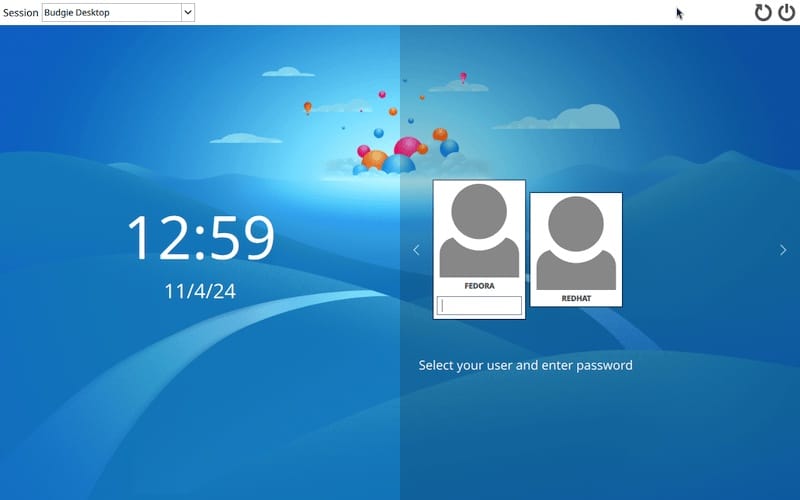
Step 4: Select Budgie Desktop at the Login Screen
Once your system restarts and the GDM login screen appears, follow these steps to launch a Budgie session:
- Click on your username on the login screen
- Look for the gear icon (⚙️) at the bottom-right corner of the screen (it appears after you click your username)
- Click the gear icon — a small dropdown menu appears listing all installed desktop environments
- Select “Budgie Desktop” from the list
- Enter your password and press Enter
Budgie Desktop will now load for the first time. On initial login, expect a brief pause as session files are initialized.
Launching Budgie from the Terminal (Server Users — startx Method)
If you are on a Fedora Server instance without GDM, you can launch Budgie directly from the terminal using startx:
echo "env GNOME_SHELL_SESSION_MODE=Budgie:GNOME /usr/bin/budgie-desktop" >> ~/.xinitrc
startx
The first command writes the Budgie session startup instruction into your ~/.xinitrc file — the configuration file that tells startx which desktop environment to launch. The second command starts the X display server and loads Budgie.
Step 5: Explore and Configure Budgie Desktop on Fedora 43
Welcome to Budgie. Here is a quick orientation so you can hit the ground running.
The Default Budgie Layout
When Budgie loads, you will see:
- Bottom panel — contains the application launcher, taskbar, system tray, and clock
- Raven sidebar — click the clock or press
Super + Nto open it - Clean desktop — no icons by default; this is intentional and keeps the workspace distraction-free
Opening Budgie Desktop Settings
Budgie Desktop Settings is separate from GNOME Settings. To open it:
budgie-desktop-settingsOr find it in the Applications menu under System Tools → Budgie Desktop Settings. From here you can configure:
- Panel position — move the panel to the top, bottom, left, or right
- Applets — add, remove, or rearrange panel items
- Built-in themes — switch between dark and light style variants
- Raven behavior — configure what widgets appear in the sidebar
Install GNOME Tweaks for Advanced Customization
Since Budgie runs on the GNOME stack, GNOME Tweaks works perfectly with it for deeper theme and font control:
sudo dnf install gnome-tweaks -yLaunch it from the Applications menu under Utilities → Tweaks. Use it to apply GTK themes, change system fonts, and manage startup applications.
Recommended Packages for a Better Budgie Experience
Install these optional packages to round out your Budgie Desktop on Fedora 43 setup:
sudo dnf install papirus-icon-theme nemo -y| Package | What It Does |
|---|---|
papirus-icon-theme |
Popular, well-maintained icon theme that looks great on Budgie |
nemo |
A more feature-rich file manager than Nautilus for Budgie users |
gnome-tweaks |
Advanced theming, fonts, and startup app control |
Step 6: Switch Between Budgie and GNOME on Fedora 43
One of the best things about Fedora is that you can run multiple desktop environments side by side and switch between them at any login.
Method 1 — Switch Per Session (GDM Gear Icon)
Use the GDM gear icon method described in Step 4. This changes your session only for the current login — your default session is not affected.
Method 2 — Set a Permanent Default with switchdesk
To configure Budgie Desktop on Fedora 43 as your permanent default desktop environment, install the switchdesk tool:
sudo dnf install switchdesk switchdesk-gui -yLaunch the Desktop Switching Tool from the Applications menu, select Budgie from the list, and confirm. Alternatively, use the CLI:
switchdesk budgieThis updates the session configuration for your user account so Budgie loads automatically on every login.
Method 3 — List Available Desktop Environments
Want to see what other DEs are installed and available? Run:
dnf environment list --available | grep desktopThis is useful if you have multiple desktop environments installed and want to verify that Budgie appears in the list before troubleshooting login issues.
⚠️ Before upgrading Fedora to the next release: If you have manually installed Budgie or other secondary desktop environments, consider removing them cleanly first to avoid upgrade dependency conflicts. Re-install them after the system upgrade completes.
Troubleshooting Common Issues
Even clean installations run into occasional snags. Here are the five most common issues encountered when setting up Budgie Desktop on Fedora 43 setup — and exactly how to fix them.
Issue 1: Budgie Session Does Not Appear at GDM Login
Symptom: After installation, the gear icon at the GDM login screen does not show Budgie as an option.
Fix: The .desktop session file may not be in place. Reinstall the package to restore it:
sudo dnf reinstall budgie-desktop -y
sudo systemctl restart gdm
Then log out and back in. Check /usr/share/xsessions/ to confirm the session file exists:
ls /usr/share/xsessions/You should see a file like budgie-desktop.desktop in that directory.
Issue 2: DNF Group Install Fails — Group Not Found
Symptom: Running sudo dnf group install "Budgie Desktop" returns Error: No such group.
Fix: On Fedora 43, use the direct package install instead:
sudo dnf install budgie-desktop -yThe group name format changed in Fedora 41+. Direct package install is the preferred method on Fedora 43.
Issue 3: Budgie Desktop Runs Slowly or Feels Laggy
Symptom: Animations are choppy, windows lag when moving, or the panel takes time to load.
Fix — Check for background GNOME processes:
ps aux | grep gnomeSome GNOME background services may run in parallel during a Budgie session. Kill unnecessary ones or disable them in GNOME Tweaks → Startup Applications.
Fix — Update GPU drivers:
sudo dnf update -yOn virtual machines, ensure 3D acceleration is enabled in your hypervisor settings. Budgie uses hardware-accelerated compositing by default.
Issue 4: Applications Fail to Launch in Budgie Session
Symptom: Clicking app icons does nothing, or apps crash immediately on launch.
Fix: Log out, then log back in to Budgie. If the issue persists, add the following to your ~/.profile:
export XDG_CURRENT_DESKTOP=Budgie:GNOME
export DESKTOP_SESSION=budgie-desktop
Then run:
source ~/.profileIssue 5: startx Fails on Fedora Server (No Display Found)
Symptom: Running startx returns Fatal server error: no screens found.
Fix: Ensure base-x and a graphics driver are installed:
sudo dnf install xorg-x11-server-Xorg mesa-dri-drivers -y
startx
If you are in a virtual machine, install the appropriate driver for your hypervisor (e.g., xf86-video-vmware for VMware, xf86-video-vboxvideo for VirtualBox).
Fedora Budgie Spin vs. Manual Install — Which Should You Choose?
There are three ways to run Budgie on Fedora, each suited to a different scenario:
| Method | Best For | Effort Level |
|---|---|---|
| Fedora Budgie Spin ISO | Fresh installs; zero-config Budgie | Low |
| Manual DNF install (this guide) | Existing Fedora 43 users adding Budgie | Medium |
| Fedora Budgie Atomic | Developers wanting immutable, container-native desktop | Medium–High |
The Fedora Budgie Spin gives you a polished, pre-tuned Budgie experience curated by the Fedora team. The manual install gives you full control and lets you run Budgie alongside GNOME. Fedora Budgie Atomic is for power users who want system integrity guarantees with rpm-ostree layering.
Congratulations! You have successfully installed Budgie. Thanks for using this tutorial for installing the Budgie Desktop environment on your Fedora 43 Linux system. For additional help or useful information, we recommend you check the official Budgie website.
