How To Install Cacti on Debian 13

Network monitoring has become crucial for maintaining optimal system performance and identifying potential issues before they escalate. Cacti stands out as one of the most reliable open-source network monitoring solutions available today. This comprehensive guide will walk you through installing Cacti on Debian 13, providing detailed instructions for setting up a robust monitoring infrastructure.
What is Cacti and Why Use It?
Cacti is a powerful web-based network monitoring and graphing tool that leverages RRDTool’s data storage capabilities to create detailed performance graphs. Originally designed for network administrators and system engineers, Cacti offers an intuitive interface that makes it suitable for everything from small LAN environments to enterprise networks with thousands of devices.
The platform excels in several key areas that set it apart from other monitoring solutions. Its web-based interface provides easy access from any location, while SNMP integration enables comprehensive device monitoring across diverse network infrastructures. Advanced graph templating allows for customized visualization of network data, and multi-user support with granular permissions makes it ideal for team environments.
Cacti’s architecture supports multiple data acquisition methods, including SNMP polling, script execution, and external data sources. The tool automatically generates graphs from collected data, stores historical information for trend analysis, and provides alerting capabilities for proactive network management. Unlike many commercial alternatives, Cacti offers enterprise-level functionality without licensing costs, making it an attractive choice for organizations of all sizes.
System Requirements and Prerequisites
Before beginning the installation process, ensure your Debian 13 system meets the necessary requirements for optimal Cacti performance. The minimum hardware specifications include 2GB of RAM, though 4GB or more is recommended for larger networks. A dual-core processor provides adequate performance for small to medium deployments, while multi-core systems handle larger environments more effectively.
Storage requirements depend on the number of monitored devices and data retention policies. Plan for at least 20GB of free disk space initially, with additional capacity based on your monitoring scope. Network connectivity is essential, with firewall configurations allowing HTTP/HTTPS traffic on ports 80 and 443, plus SNMP traffic on port 161.
Software prerequisites include a fresh Debian 13 installation with root or sudo access. The system should have internet connectivity for downloading packages and updates. Compatible PHP versions range from 7.4 to 8.2, while MariaDB 10.3 or higher provides the required database functionality. RRDTool version 1.3 or later ensures proper graph generation capabilities.
Step 1: Preparing the Debian 13 System
System preparation begins with updating all packages to their latest versions. Open a terminal session and execute these commands to refresh package repositories and upgrade existing software:
sudo apt update
sudo apt upgrade -y
Configure the system timezone to ensure accurate data collection and graph timestamps. Use the following command to set your timezone interactively:
sudo dpkg-reconfigure tzdataInstall essential utilities and development tools that support the installation process. These packages provide necessary compilation tools and system utilities:
sudo apt install -y curl wget vim git unzip software-properties-common build-essentialFor systems requiring non-free repositories, modify the sources.list file to include additional package sources. Edit the file using your preferred text editor:
sudo nano /etc/apt/sources.listAdd the contrib and non-free repositories to existing lines if needed, then update the package index again.
Step 2: Installing LAMP Stack Components
Installing Apache Web Server
Apache serves as the web server foundation for Cacti’s interface. Install Apache and essential modules using the following commands:
sudo apt install -y apache2 apache2-utilsStart and enable Apache to ensure it launches automatically at system boot:
sudo systemctl start apache2
sudo systemctl enable apache2
Verify Apache installation by checking its status and testing the default page:
sudo systemctl status apache2Configure Apache for optimal Cacti performance by enabling necessary modules:
sudo a2enmod rewrite ssl headers
sudo systemctl restart apache2
Installing MariaDB Database Server
MariaDB provides the database backend for storing Cacti’s configuration and historical data. Install MariaDB server and client components:
sudo apt install -y mariadb-server mariadb-clientSecure the MariaDB installation using the built-in security script:
sudo mysql_secure_installationFollow the prompts to set a root password, remove anonymous users, disable remote root login, and remove test databases. Start and enable MariaDB service:
sudo systemctl start mariadb
sudo systemctl enable mariadb
Optimize MariaDB performance by editing the configuration file:
sudo nano /etc/mysql/mariadb.conf.d/50-server.cnfAdd these performance optimization settings under the [mysqld] section:
max_heap_table_size = 128M
tmp_table_size = 128M
join_buffer_size = 64M
innodb_buffer_pool_size = 512M
innodb_doublewrite = OFF
innodb_lock_wait_timeout = 50
innodb_flush_log_at_trx_commit = 2
Installing PHP and Required Extensions
PHP serves as the application layer connecting Cacti’s web interface to the database. Install PHP along with necessary extensions:
sudo apt install -y php php-mysql php-snmp php-xml php-mbstring php-json php-gd php-gmp php-zip php-ldap php-mc php-intl php-common php-cliConfigure PHP settings for optimal Cacti compatibility. Edit the PHP configuration file:
sudo nano /etc/php/8.2/apache2/php.iniModify these critical settings:
memory_limit = 512M
max_execution_time = 60
date.timezone = America/New_York
Restart Apache to apply PHP configuration changes:
sudo systemctl restart apache2Step 3: Database Configuration for Cacti
Create a dedicated database and user account for Cacti with appropriate permissions. Log into MariaDB as root:
sudo mysql -u root -pExecute these SQL commands to set up the Cacti database:
CREATE DATABASE cacti DEFAULT CHARACTER SET utf8mb4 COLLATE utf8mb4_unicode_ci;
CREATE USER 'cactiuser'@'localhost' IDENTIFIED BY 'SafePassWord123!';
GRANT ALL PRIVILEGES ON cacti.* TO 'cactiuser'@'localhost';
GRANT SELECT ON mysql.time_zone_name TO 'cactiuser'@'localhost';
FLUSH PRIVILEGES;
EXIT;
Import MySQL timezone data to support proper time zone handling:
mysql_tzinfo_to_sql /usr/share/zoneinfo | sudo mysql -u root -p mysqlOptimize MariaDB specifically for Cacti by adding these settings to the configuration file:
sudo nano /etc/mysql/mariadb.conf.d/cacti.cnfAdd the following content:
[mysqld]
character-set-server = utf8mb4
collation-server = utf8mb4_unicode_ci
max_connections = 200
max_heap_table_size = 128M
max_allowed_packet = 128M
tmp_table_size = 128M
join_buffer_size = 64M
innodb_file_format = Barracuda
innodb_large_prefix = 1
innodb_buffer_pool_size = 512M
innodb_flush_log_at_timeout = 3
innodb_read_io_threads = 32
innodb_write_io_threads = 16
Restart MariaDB to apply the new configuration:
sudo systemctl restart mariadbStep 4: Installing SNMP and Monitoring Dependencies
Install SNMP packages and monitoring utilities required for network device communication:
sudo apt install -y snmp snmpd snmp-mibs-downloader php-snmp rrdtool librrds-perlInstall additional monitoring tools that enhance Cacti’s capabilities:
sudo apt install -y fping graphviz imagemagick mtr-tiny whois acl composerConfigure SNMPD for local system monitoring by editing its configuration file:
sudo nano /etc/snmp/snmpd.confAdd or modify these lines for basic SNMP functionality:
agentAddress udp:161,udp6:[::1]:161
rocommunity public localhost
syslocation "Server Room"
syscontact "admin@example.com"
Start and enable SNMP services:
sudo systemctl start snmpd
sudo systemctl enable snmpd
Verify SNMP functionality by testing local queries:
snmpwalk -v2c -c public localhost systemStep 5: Downloading and Installing Cacti
Download the latest Cacti release from the official website. Navigate to a temporary directory and fetch the archive:
cd /tmp
wget https://www.cacti.net/downloads/cacti-latest.tar.gz
Extract the downloaded archive and identify the version:
tar -zxvf cacti-latest.tar.gz
ls -la cacti-*
Move Cacti files to the web server document root:
sudo mv cacti-1* /var/www/html/cactiSet proper ownership and permissions for web server access:
sudo chown -R www-data:www-data /var/www/html/cacti
sudo chmod -R 755 /var/www/html/cacti
Create necessary directories with appropriate permissions:
sudo mkdir -p /var/www/html/cacti/log
sudo touch /var/www/html/cacti/log/cacti.log
sudo chown -R www-data:www-data /var/www/html/cacti/log
Import the Cacti database schema:
sudo mysql -u root -p cacti < /var/www/html/cacti/cacti.sqlStep 6: Configuring Cacti Settings
Edit the Cacti configuration file to establish database connectivity:
sudo nano /var/www/html/cacti/include/config.phpModify the database connection parameters:
$database_type = 'mysql';
$database_default = 'cacti';
$database_hostname = 'localhost';
$database_username = 'cactiuser';
$database_password = 'SafePassWord123!';
$database_port = '3306';
$database_retries = 5;
$database_ssl = false;
$url_path = '/cacti/';
Configure logging and debugging options for troubleshooting:
$config['log_verbosity'] = POLLER_VERBOSITY_LOW;
$config['log_destination'] = 1;
Set timezone preferences to match your system configuration:
date_default_timezone_set('America/New_York');Step 7: Installing and Configuring Cacti Spine (Optional but Recommended)
Cacti Spine provides superior performance compared to the default cmd.php poller, especially for larger deployments. Install development tools required for compilation:
sudo apt install -y build-essential libtool help2man libmariadb-dev libmariadb-dev-compat libsnmp-dev libssl-dev libnet-snmp-perl autotools-dev autoconf automakeDownload Cacti Spine source code:
cd /tmp
wget https://www.cacti.net/downloads/spine/cacti-spine-latest.tar.gz
tar -zxvf cacti-spine-latest.tar.gz
cd cacti-spine-*
Compile and install Spine:
./bootstrap
./configure
make
sudo make install
Set proper ownership and SUID permissions for ICMP functionality:
sudo chown root:root /usr/local/spine/bin/spine
sudo chmod +s /usr/local/spine/bin/spine
Configure Spine by editing its configuration file:
sudo nano /usr/local/spine/etc/spine.confAdd database connection details:
DB_Host localhost
DB_Database cacti
DB_User cactiuser
DB_Pass SafePassWord123!
DB_Port 3306
Step 8: Setting Up Automated Data Collection
Create a cron job for regular data polling every five minutes. Edit the crontab for the www-data user:
sudo crontab -u www-data -eAdd this line for automated polling:
*/5 * * * * /usr/bin/php /var/www/html/cacti/poller.php > /dev/null 2>&1Verify cron job creation and test manual execution:
sudo crontab -u www-data -l
sudo -u www-data /usr/bin/php /var/www/html/cacti/poller.php
Step 9: Web Installation Wizard Setup
Access the Cacti web interface using your server’s IP address or domain name:
http://your-server-ip/cactiLog in using the default credentials:
- Username: admin
- Password: admin
The system will prompt you to change the default password immediately. Choose a strong password with mixed characters, numbers, and special symbols.
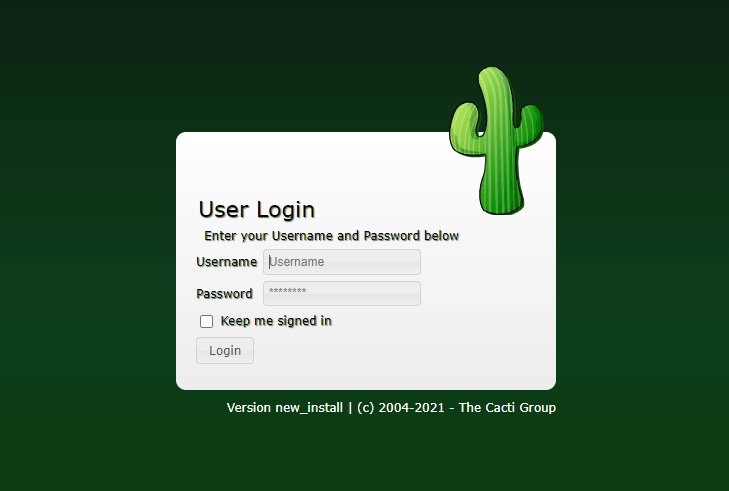
Accept the license agreement and click “Begin” to start the installation wizard. The installer will check system requirements and display any issues requiring attention.
Select “New Primary Server” for the installation type, then proceed through directory permission checks. The wizard verifies binary locations for essential tools like PHP, RRDTool, and SNMP utilities.
Configure polling settings, selecting Spine if installed, or cmd.php for the default poller. Choose appropriate templates for your monitoring needs, typically including “Local Linux Machine” and “Generic SNMP-enabled Host” templates.
Step 10: Post-Installation Configuration and Security
After completing the web installation, implement security best practices. Change the default admin password through the user management interface.
Configure user accounts with appropriate permissions based on monitoring responsibilities. Navigate to Configuration > Users to create additional accounts with specific access levels.
Enable HTTPS if required by configuring SSL certificates:
sudo a2enmod ssl
sudo a2ensite default-ssl
sudo systemctl restart apache2
Set up log rotation to manage disk space usage:
sudo nano /etc/logrotate.d/cactiAdd log rotation configuration:
/var/www/html/cacti/log/cacti.log {
    weekly
    rotate 4
    compress
    delaycompress
    missingok
    notifempty
    create 644 www-data www-data
}
Step 11: Adding Your First Network Device
Begin monitoring by adding the localhost as your first device. Navigate to Console > Management > Devices and click “Add” to create a new device entry.
Configure the device with these basic settings:
- Description: Localhost
- Hostname: localhost
- Host Template: Local Linux Machine
- SNMP Version: Version 2
- SNMP Community: public
Create graphs for the new device by selecting appropriate graph templates. Common starting points include CPU utilization, memory usage, and network interface statistics.
Test connectivity using the device management interface. Successful SNMP queries indicate proper configuration, while failures require troubleshooting community strings or network accessibility.
Troubleshooting Common Installation Issues
PHP extension problems often manifest as missing functionality warnings. Verify all required extensions are installed and enabled:
php -m | grep -E "(mysql|snmp|gd|xml)"Database connection failures typically result from incorrect credentials or insufficient privileges. Test connectivity manually:
mysql -u cactiuser -p cacti -e "SHOW TABLES;"File permission issues prevent proper log writing and graph generation. Ensure www-data owns all Cacti files:
sudo chown -R www-data:www-data /var/www/html/cacti
sudo find /var/www/html/cacti -type d -exec chmod 755 {} \;
sudo find /var/www/html/cacti -type f -exec chmod 644 {} \;
SNMP connectivity problems require verification of community strings and network accessibility. Test SNMP queries from the Cacti server:
snmpwalk -v2c -c public target-device systemPerformance Optimization and Best Practices
Optimize database performance for larger deployments by adjusting MariaDB settings based on available system resources. Monitor query performance and adjust buffer sizes accordingly.
Configure PHP memory limits and execution times based on polling requirements. Larger networks require increased memory allocation and longer execution timeouts.
Consider implementing Spine for improved polling performance, especially when monitoring more than 100 devices. Spine’s multithreaded architecture significantly reduces polling time compared to cmd.php.
Monitor system resource usage regularly to identify bottlenecks before they impact performance. Use tools like htop, iotop, and monitoring graphs to track CPU, memory, and disk utilization.
Security Considerations
Secure the web interface by implementing strong authentication mechanisms and restricting access to authorized networks only. Consider implementing two-factor authentication for enhanced security.
Configure database security by using strong passwords, limiting network access, and regularly updating MariaDB to address security vulnerabilities.
Maintain proper file system permissions to prevent unauthorized access to configuration files and sensitive data. Regularly audit file permissions and ownership.
Implement network security measures including firewall rules that restrict SNMP access to trusted sources only. Use SNMPv3 with encryption where possible for enhanced security.
Maintenance and Updates
Establish regular maintenance procedures including database optimization, log file cleanup, and performance monitoring. Schedule weekly database maintenance tasks during low-usage periods.
Keep Cacti updated by monitoring release announcements and applying updates promptly. Test updates in a development environment before applying to production systems.
Implement comprehensive backup procedures covering both database content and configuration files. Test backup restoration procedures regularly to ensure recovery capabilities.
Monitor system logs for errors, warnings, and performance issues. Address problems promptly to maintain optimal monitoring capabilities.
Congratulations! You have successfully installed Cacti. Thanks for using this tutorial for installing the latest version of Cacti monitoring on Debian 13 “Trixie” system. For additional help or useful information, we recommend check the official Cacti website.
