
Cacti is a powerful open-source network monitoring and graphing tool that provides comprehensive infrastructure visibility through intuitive graphs and dashboards. Built as a complete frontend to RRDTool, Cacti excels at collecting and visualizing time-series data from servers, switches, routers, and other network devices using SNMP protocols. System administrators and network engineers rely on Cacti for monitoring CPU utilization, bandwidth consumption, interface statistics, and custom metrics across diverse IT environments.
Installing Cacti on Fedora 43 offers a robust platform for centralized network monitoring with excellent package management and security features. This comprehensive guide walks you through every step of the installation process, from configuring prerequisites to accessing your first monitoring dashboard. You’ll learn how to set up the LAMP stack components, configure database connections, establish automated data collection, and troubleshoot common issues that may arise during deployment.
Whether you’re managing a small office network or enterprise infrastructure, this tutorial provides the foundational knowledge needed to successfully deploy Cacti on Fedora 43. By the end of this guide, you’ll have a fully functional monitoring system ready to track performance metrics and generate insightful graphs for capacity planning and trend analysis.
What is Cacti Monitoring Tool?
Cacti represents a comprehensive network monitoring solution that combines data collection, storage, and visualization capabilities into a single integrated platform. At its core, Cacti functions as a sophisticated frontend to RRDTool, leveraging round-robin databases for efficient time-series data storage and graph generation. The tool supports unlimited device monitoring through SNMP polling, enabling administrators to track virtually any metric that devices expose through standard or custom Management Information Bases (MIBs).
The platform’s architecture includes several key components that work together seamlessly. Data collectors gather information at regular intervals, storing results in RRD files optimized for long-term trending and performance analysis. A plugin framework extends core functionality, allowing integration with specialized monitoring needs such as application-specific metrics or custom data sources. The web-based interface provides intuitive navigation for creating graphs, managing devices, and organizing monitoring data into logical hierarchies.
Cacti shines in scenarios requiring detailed bandwidth analysis, capacity planning, and historical performance tracking. Organizations use it to monitor switches, firewalls, load balancers, application servers, and virtualization platforms. Its template system accelerates device onboarding, while the automated device discovery feature streamlines large-scale deployments. Compared to alert-focused tools like Nagios, Cacti specializes in visualization and trending, making it complementary to comprehensive monitoring strategies.
Prerequisites and System Requirements
Before beginning the Cacti installation on Fedora 43, ensure your server meets the minimum hardware specifications for optimal performance. A system with at least 2GB of RAM, dual-core CPU, and 20GB of available disk space provides adequate resources for monitoring small to medium-sized networks. Larger deployments requiring extensive data retention or monitoring hundreds of devices should allocate additional memory and storage accordingly.
Root or sudo privileges are essential for installing packages and modifying system configurations. Your Fedora 43 installation should have network connectivity and properly configured DNS resolution. The installation requires several software components working in harmony: Apache web server for hosting the interface, MariaDB or MySQL for database operations, PHP with multiple extensions for application logic, NET-SNMP for protocol support, and RRDTool for data storage.
Network accessibility considerations include opening port 80 for HTTP traffic, port 443 for HTTPS connections, and UDP port 161 for SNMP communications. Firewall rules must permit these services while maintaining security best practices. SELinux, Fedora’s mandatory access control system, requires specific contexts and booleans for Cacti components to function properly. Planning for these requirements upfront prevents troubleshooting headaches during later configuration stages.
Step 1: Update System and Install Development Tools
Begin by updating all installed packages to their latest versions. Open a terminal session and execute the following command:
sudo dnf update -yThis command downloads and applies available updates, ensuring your Fedora 43 system has the latest security patches and bug fixes. The update process may take several minutes depending on the number of packages requiring updates and your internet connection speed.
Next, install the Development Tools group, which provides compilers, libraries, and utilities needed for building software from source:
sudo dnf groupinstall "Development Tools" -yThese tools prove essential when compiling PHP extensions or building custom plugins for Cacti. The installation includes GCC, make, autoconf, and related development packages that many applications depend on during compilation processes.
After completing the updates, verify the system’s current state. If kernel updates were applied, reboot the server to ensure the new kernel loads properly:
sudo rebootStep 2: Install Apache Web Server
Apache serves as the web server platform hosting Cacti’s PHP-based interface. Install the httpd package using DNF:
sudo dnf install httpd -yOnce installation completes, start the Apache service:
sudo systemctl start httpdEnable Apache to start automatically during system boot:
sudo systemctl enable httpdVerify that Apache is running correctly by checking its status:
sudo systemctl status httpdThe output should display “active (running)” in green text, indicating successful operation.
Configure the firewall to permit HTTP and HTTPS traffic through the system’s packet filter:
sudo firewall-cmd --permanent --add-service=http
sudo firewall-cmd --permanent --add-service=https
sudo firewall-cmd --reload
Test Apache’s functionality by opening a web browser and navigating to your server’s IP address. You should see the default Fedora Apache test page, confirming proper installation and network accessibility.
Step 3: Install and Secure MariaDB Database
MariaDB provides the relational database backend for storing Cacti’s configuration, device information, and user data. Install the database server and client packages:
sudo dnf install mariadb-server mariadb -yStart the MariaDB service:
sudo systemctl start mariadbConfigure it to launch automatically at boot time:
sudo systemctl enable mariadbSecure your database installation by running the mysql_secure_installation script:
sudo mysql_secure_installationThis interactive script prompts for several security-related decisions. First, it asks whether to set a root password—choose yes and provide a strong password. Use a combination of uppercase letters, lowercase letters, numbers, and special characters for maximum security.
The script then asks about removing anonymous users—select yes to eliminate this security risk. Next, it prompts whether to disallow root login remotely—choose yes to restrict root access to localhost connections only. When asked about removing the test database, select yes to clean up unnecessary resources. Finally, reload the privilege tables by selecting yes to apply all changes immediately.
Verify MariaDB is functioning correctly:
sudo systemctl status mariadbStep 4: Create Cacti Database and User
With MariaDB running, create a dedicated database and user account for Cacti. Log into the MySQL command-line interface:
mysql -u root -pEnter the root password you configured during the secure installation process.
Create a new database named “cacti”:
CREATE DATABASE cacti;Create a dedicated user account with a strong password. Replace “your_strong_password” with an actual secure password:
CREATE USER 'cactiuser'@'localhost' IDENTIFIED BY 'your_strong_password';Grant the cactiuser account full privileges on the cacti database:
GRANT ALL PRIVILEGES ON cacti.* TO 'cactiuser'@'localhost';Flush the privilege tables to ensure changes take effect immediately:
FLUSH PRIVILEGES;Exit the MySQL interface:
EXIT;Document the database name, username, and password securely, as you’ll need these credentials when configuring Cacti’s database connection settings.
Step 5: Install PHP and Required Extensions
PHP serves as the programming language powering Cacti’s application logic and web interface. Install PHP along with all required extensions:
sudo dnf install php php-mysqlnd php-snmp php-xml php-gd php-process php-xmlrpc php-mbstring php-ldap -yEach extension provides specific functionality crucial for Cacti operations. The php-mysqlnd extension enables native MySQL database connectivity. The php-snmp module facilitates SNMP protocol communications with network devices. PHP-xml processes XML data structures used in templates and configurations. The php-gd library generates images and graphs from monitoring data. PHP-process enables process control functionality, while php-xmlrpc supports remote procedure calls.
Configure PHP settings by editing the php.ini file:
sudo nano /etc/php.iniLocate and modify these directives to optimize Cacti performance:
memory_limit = 512M
max_execution_time = 60
date.timezone = Asia/Jakarta
Adjust the timezone value to match your geographic location. Save the file and exit the editor.
Restart Apache to load the newly installed PHP modules:
sudo systemctl restart httpdVerify PHP is working correctly by creating a test file:
echo "<?php phpinfo(); ?>" | sudo tee /var/www/html/info.phpAccess http://your-server-ip/info.php in a browser to confirm PHP is processing scripts correctly. Remove this test file afterward for security:
sudo rm /var/www/html/info.phpStep 6: Install NET-SNMP and RRDTool
SNMP (Simple Network Management Protocol) enables Cacti to collect data from network devices and servers. Install the NET-SNMP packages:
sudo dnf install net-snmp net-snmp-utils net-snmp-libs -yRRDTool (Round Robin Database Tool) handles time-series data storage and graph rendering:
sudo dnf install rrdtool -yStart and enable the SNMP daemon for local system monitoring:
sudo systemctl start snmpd
sudo systemctl enable snmpd
Test SNMP functionality by querying localhost:
snmpwalk -v 2c -c public localhost systemThis command retrieves system information using SNMP version 2c with the community string “public”. You should see output displaying system details like hostname, uptime, and operating system information.
Step 7: Enable EPEL Repository and Install Cacti
The Extra Packages for Enterprise Linux (EPEL) repository contains the Cacti package for Fedora systems. Enable EPEL:
sudo dnf install epel-release -yUpdate the package cache:
sudo dnf makecacheInstall Cacti and its dependencies:
sudo dnf install cacti -yThe package manager automatically resolves and installs all required dependencies. Cacti files are typically installed in the /usr/share/cacti directory. The installation also creates configuration files in /etc/httpd/conf.d/ for Apache integration.
Verify the Cacti installation:
rpm -q cactiThis command displays the installed Cacti version number.
Step 8: Import Cacti Database Schema
Cacti requires database tables for storing configuration, device data, and monitoring information. Locate the SQL schema file included with the Cacti package:
ls /usr/share/doc/cacti/cacti.sqlImport the schema into the cacti database you created earlier:
mysql -u cactiuser -p cacti < /usr/share/doc/cacti/cacti.sqlEnter the cactiuser password when prompted. The import process creates dozens of tables required for Cacti operations, including structures for devices, graphs, templates, user accounts, and polling data.
Verify the import succeeded by checking the database:
mysql -u cactiuser -p -e "USE cacti; SHOW TABLES;"You should see a comprehensive list of tables with names like “host”, “graph_tree”, “data_template”, and many others.
Step 9: Configure Cacti Database Connection
Cacti needs database connection credentials to access the MariaDB backend. Edit the configuration file:
sudo nano /usr/share/cacti/include/config.phpLocate the database configuration section and update these variables with your actual credentials:
$database_type = 'mysql';
$database_default = 'cacti';
$database_hostname = 'localhost';
$database_username = 'cactiuser';
$database_password = 'your_strong_password';
$database_port = '3306';
$database_retries = 5;
$database_ssl = false;
$database_ssl_key = '';
$database_ssl_cert = '';
$database_ssl_ca = '';
Replace “your_strong_password” with the actual password you set for the cactiuser account. Save the file and exit the editor.
Protect the configuration file with restrictive permissions to prevent unauthorized access:
sudo chmod 640 /usr/share/cacti/include/config.php
sudo chown apache:apache /usr/share/cacti/include/config.php
Step 10: Configure Apache for Cacti
The Cacti package includes an Apache configuration file. Review its contents:
sudo nano /etc/httpd/conf.d/cacti.confThe configuration typically includes an Alias directive pointing /cacti to the installation directory and Directory settings controlling access permissions. By default, access may be restricted to localhost. Modify the “Require” directive to permit access from your network:
<Directory /usr/share/cacti/>
    Options Indexes FollowSymLinks
    AllowOverride None
    Require all granted
</Directory>
Cacti’s log and RRA (Round Robin Archives) directories need proper permissions for the Apache user. Create necessary directories if they don’t exist:
sudo mkdir -p /var/log/cacti
sudo chown -R apache:apache /var/log/cacti
Set SELinux contexts for Cacti directories:
sudo semanage fcontext -a -t httpd_sys_rw_content_t "/usr/share/cacti/rra(/.*)?"
sudo semanage fcontext -a -t httpd_sys_rw_content_t "/var/log/cacti(/.*)?"
sudo restorecon -Rv /usr/share/cacti/rra
sudo restorecon -Rv /var/log/cacti
Restart Apache to apply configuration changes:
sudo systemctl restart httpdStep 11: Configure Cacti Poller and Cron Job
Cacti’s poller script collects data from monitored devices at regular intervals. The polling mechanism executes PHP scripts that query devices via SNMP, store results in RRD files, and update the database with current status information.
Verify the poller script location:
ls -l /usr/share/cacti/poller.phpConfigure automated polling by creating a cron job. Edit the crontab for the apache user:
sudo crontab -e -u apacheAdd this line to execute the poller every 5 minutes:
*/5 * * * * php /usr/share/cacti/poller.php > /dev/null 2>&1Alternatively, some Cacti installations include a pre-configured cron file. Check for its presence:
ls /etc/cron.d/cactiIf this file exists, ensure it contains the appropriate poller schedule. The five-minute interval represents the standard polling frequency, matching Cacti’s default data collection expectations.
Step 12: Configure Firewall and SELinux for Cacti
Additional firewall and SELinux configurations ensure Cacti operates without security restrictions blocking legitimate functionality. Configure SELinux booleans to permit Apache network connections:
sudo setsebool -P httpd_can_network_connect 1
sudo setsebool -P httpd_unified 1
These settings allow Apache to initiate network connections for SNMP polling and permit access to various system resources.
If monitoring remote devices, open the SNMP port in the firewall:
sudo firewall-cmd --permanent --add-port=161/udp
sudo firewall-cmd --reload
Monitor SELinux audit logs if you encounter permission issues:
sudo ausearch -m avc -ts recentUse audit2allow to generate custom policies if needed:
sudo ausearch -m avc -ts recent | audit2allow -M cacti_custom
sudo semodule -i cacti_custom.pp
Step 13: Access Cacti Web Installation Wizard
Open your web browser and navigate to your Cacti installation:
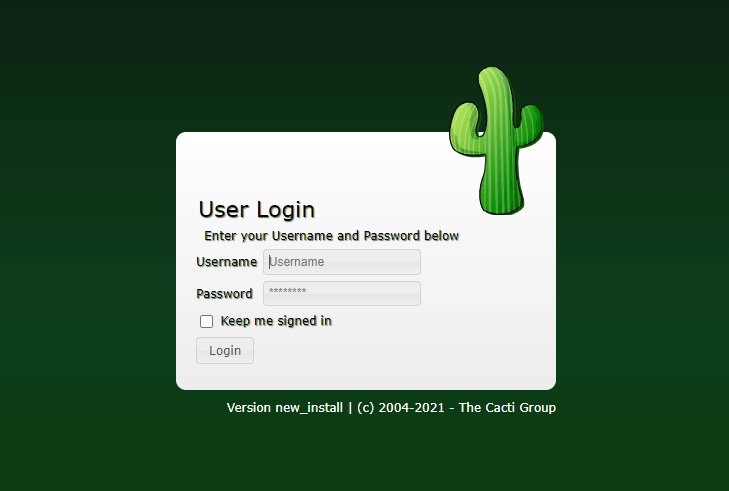
http://your-server-ip/cactiThe Cacti login screen appears, displaying fields for username and password. Enter the default credentials:
- Username:
admin - Password:
admin
Click the login button. Cacti immediately prompts you to change the default password for security reasons. Provide a strong password following complexity requirements—typically minimum length with mixed character types.
After setting a new password, you’ll encounter the End User License Agreement. Read through the terms and click “Accept” to proceed.
Step 14: Complete Cacti Installation Wizard
The installation wizard guides you through configuration verification and database initialization. The first screen confirms your installation type—select “New Primary Server” for a standalone installation.
The next screen validates system prerequisites, checking directory permissions, PHP extensions, and binary file locations. Review this carefully. All items should display green checkmarks indicating successful detection:
- PHP version compatibility
- Required PHP extensions (MySQL, SNMP, XML, GD, etc.)
- RRDTool binary location
- SNMP utilities availability
- Log directory writability
- RRA directory permissions
If any items show warnings or errors, return to previous steps to address the issues. Common problems include missing PHP extensions or incorrect directory permissions.
The database connection screen displays your MySQL/MariaDB settings. Verify the database name, hostname, username, and port match your earlier configuration. Click “Next” to test the connection.
Profile and template selection allows you to choose monitoring profiles optimizing data collection for your environment. The “Generic SNMP-enabled Host” template works well for most devices. Select additional templates relevant to your infrastructure, such as Cisco routers, Linux servers, or Windows hosts.
Server collation settings affect database character sorting and comparison. The default “utf8mb4_unicode_ci” setting provides broad compatibility with international characters.
Review the installation summary screen displaying all your selections. Click “Install” to begin the initialization process. Cacti creates necessary database entries, initializes templates, and prepares the monitoring environment.
A success message appears when installation completes. Click “Get Started” to access the Cacti console.
Step 15: Explore Cacti Dashboard and Initial Configuration
The Cacti console serves as your central management interface. The dashboard displays system statistics, poller performance, and recent activity. Familiarize yourself with the main navigation:
- Console: Administrative functions, device management, template editing
- Graphs: Visual display of collected monitoring data
- Reports: Scheduled report generation and distribution
Cacti automatically creates graphs for localhost monitoring. Click the “Graphs” tab to view default system graphs showing CPU usage, memory utilization, logged-in users, and running processes.
To add your first remote device, navigate to Console > Management > Devices > Add. Provide the device’s hostname or IP address, select an appropriate device template, configure SNMP version and community strings, and specify polling intervals. Click “Create” to add the device to your monitoring infrastructure.
Cacti begins collecting data during the next poller cycle. Graphs populate with information after several polling intervals accumulate sufficient data points. New graphs typically show meaningful trends after 15-20 minutes of data collection.
Explore the user management section to create additional accounts with restricted permissions. Role-based access control allows you to grant read-only access to junior staff while reserving administrative functions for senior team members.
Adding Devices and Creating Graphs
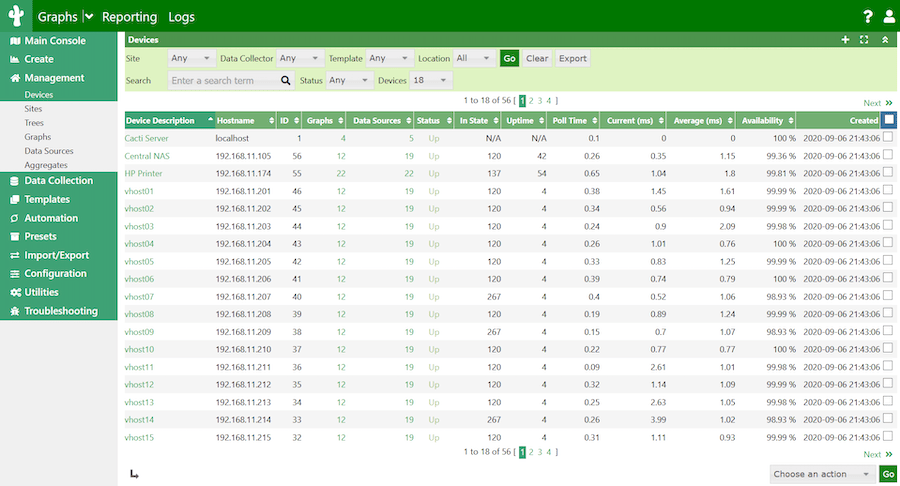
Device management represents Cacti’s core functionality. Navigate to Console > Management > Devices to access the device list. Click the plus icon to add new devices.
The device creation form requires several key pieces of information. The hostname field accepts either IP addresses or DNS names—ensure your Cacti server can resolve the hostname if using DNS. The description field helps identify devices in large deployments—use meaningful names including location, function, or business purpose.
Select an appropriate host template matching your device type. Templates define which data queries Cacti executes and which graphs to generate automatically. Common templates include:
- Generic SNMP-enabled Host: Universal template for basic monitoring
- Cisco Router: Optimized for Cisco networking equipment
- Net-SNMP Device: Linux/Unix servers running NET-SNMP
- Windows Server: Microsoft Windows systems with SNMP
Configure SNMP parameters based on your device’s configuration. SNMP version 2c remains widely used with community-based authentication. Enter the read-only community string configured on your target device—commonly “public” in lab environments, though production systems should use unique strings.
Associate data queries with devices to enable interface-level monitoring. Data queries discover interfaces, disk volumes, or other enumerated resources automatically. After creating the device, click “Create Graphs for this Host” to generate visualization templates.
Troubleshooting Common Issues
Database connection failures typically stem from incorrect credentials or permission issues. Verify the cactiuser account has necessary grants by logging into MySQL and running:
SHOW GRANTS FOR 'cactiuser'@'localhost';PHP extension warnings appear during installation if required modules are missing. Check loaded extensions:
php -m | grep -E 'snmp|mysql|xml|gd'Install any missing modules and restart Apache.
Permission denied errors on log or cache directories indicate incorrect ownership. Reset permissions:
sudo chown -R apache:apache /usr/share/cacti/rra
sudo chown -R apache:apache /var/log/cacti
sudo chmod -R 775 /usr/share/cacti/rra
Poller execution issues manifest as stale data or gaps in graphs. Check poller logs:
sudo tail -f /var/log/cacti/cacti.logVerify the cron job executes correctly:
sudo grep CRON /var/log/cron | grep cactiSNMP timeout problems require verifying network connectivity and firewall rules between Cacti and target devices. Test SNMP manually:
snmpwalk -v 2c -c community_string target_device_ip systemSELinux denials block legitimate operations without generating obvious errors. Check audit logs:
sudo ausearch -m avc -ts today | grep cactiGraph generation failures often relate to RRDTool paths or permissions. Verify RRDTool installation:
which rrdtool
rrdtool --version
Security Best Practices
Security hardening protects your monitoring infrastructure from unauthorized access and potential attacks. Beyond changing the default admin password, implement these practices:
Create individual user accounts for each administrator rather than sharing credentials. Navigate to Console > Configuration > Users to manage accounts. Assign appropriate permission levels—”general user” for viewers, “template editor” for graph designers, “template admin” for advanced users.
Enable HTTPS to encrypt web traffic between browsers and the Cacti server. Obtain SSL certificates from Let’s Encrypt or your certificate authority, then configure Apache with SSL support:
sudo dnf install mod_ssl -yConfigure Apache virtual hosts for SSL on port 443, specifying certificate locations and enabling strong cipher suites.
Implement network-level access restrictions limiting which IP addresses can reach the Cacti web interface. Modify /etc/httpd/conf.d/cacti.conf to include IP-based access controls:
<Directory /usr/share/cacti/>
    Require ip 10.0.0.0/8
    Require ip 192.168.1.0/24
</Directory>
Regular security updates maintain protection against discovered vulnerabilities. Configure automatic security updates:
sudo dnf install dnf-automatic -y
sudo systemctl enable --now dnf-automatic.timer
Review Cacti access logs periodically for suspicious activity:
sudo tail -f /var/log/httpd/access_log | grep cactiImplement database backup procedures ensuring you can restore monitoring configurations after hardware failures. Use mysqldump to create regular backups:
mysqldump -u root -p cacti > /backup/cacti-$(date +%Y%m%d).sqlCongratulations! You have successfully installed Cacti. Thanks for using this tutorial for installing Cacti monitoring tool on your Fedora 43 Linux system. For additional help or useful information, we recommend you check the official Cacti website.


