How To Install CiviCRM on AlmaLinux 10

CiviCRM is a free, open-source constituent relationship management platform built for nonprofits, civic organizations, and associations that need to manage donors, memberships, events, and email campaigns in one place. If your organization runs its infrastructure on Linux and wants a self-hosted CRM without monthly subscription costs, knowing how to install CiviCRM on AlmaLinux 10 is one of the most practical skills you can have. This guide walks you through every step on a fresh AlmaLinux 10 server, from updating the system to running the web installer and locking down the installation for production use.
By the end of this tutorial, you will have a fully working CiviCRM 6.12 Standalone deployment on AlmaLinux 10, secured with HTTPS, backed by MariaDB, and ready to serve your team.
Prerequisites
Before you start this AlmaLinux 10 setup, make sure you have the following in place.
Server and access requirements:
- A server or VPS running AlmaLinux 10 (10.0 or 10.1 stable)
- Minimum 2 GB RAM (4 GB recommended for production)
- At least 20 GB of available disk space
- Root or a sudo-enabled user with SSH access
- A registered domain name pointed to your server IP (optional for testing, required for production HTTPS)
Knowledge requirements:
- Basic comfort working in a Linux terminal
- Familiarity with commands like
dnf,systemctl, andnano
Software installed during this guide:
- Apache 2.4 (web server)
- MariaDB 10.11+ (database server)
- PHP 8.3 with all required extensions
- Composer (PHP dependency manager)
- CiviCRM 6.12 Standalone
Step 1: Update AlmaLinux 10 and Enable Required Repositories
The first thing you should always do on a fresh server is bring the system fully up to date. Outdated packages can cause dependency conflicts during installation and leave your server exposed to known vulnerabilities.
SSH into your server as root or a sudo user, then run:
sudo dnf update -y && sudo dnf upgrade -yThis command refreshes all package metadata and upgrades every installed package to the latest available version. The -y flag automatically confirms all prompts so you do not have to monitor the process.
Next, install the EPEL (Extra Packages for Enterprise Linux) repository. EPEL adds thousands of additional packages not available in the default AlmaLinux repos, and several PHP extensions CiviCRM needs come from there.
sudo dnf install epel-release -yNow confirm that the CRB (CodeReady Builder) repository is enabled. AlmaLinux 10 enables it by default, but it is worth verifying:
sudo dnf config-manager --set-enabled crbVerify that all repositories are active:
sudo dnf repolistYou should see appstream, baseos, epel, and crb listed in the output. If any are missing, re-run the enable commands above.
Step 2: Install and Configure the Apache Web Server
Apache is the web server that receives browser requests and passes them to CiviCRM. It is the most widely tested web server for CiviCRM deployments and works seamlessly with CiviCRM’s .htaccess-based URL routing.
Install Apache
sudo dnf install httpd -yEnable Apache to start automatically at boot, and start it immediately:
sudo systemctl enable --now httpdVerify that Apache is running:
sudo systemctl status httpdYou should see active (running) in green. If Apache is not running, check for errors with journalctl -xe.
Open Firewall Ports
AlmaLinux 10 ships with firewalld active by default. Open ports 80 (HTTP) and 443 (HTTPS) so browser traffic can reach Apache:
sudo firewall-cmd --permanent --zone=public --add-service=http
sudo firewall-cmd --permanent --zone=public --add-service=https
sudo firewall-cmd --reload
The --permanent flag makes the rules persist across reboots. Without it, the rules disappear the next time the server restarts.
Test by opening a browser and navigating to http://your-server-ip. You should see the default AlmaLinux Apache test page, which confirms Apache is working and accepting traffic.
Step 3: Install and Secure MariaDB
MariaDB is the database engine that stores all of CiviCRM’s data: contacts, contributions, events, memberships, and everything else. CiviCRM officially supports MariaDB as a certified MySQL replacement and works best with version 10.4 or higher.
Install MariaDB
sudo dnf install mariadb-server -yEnable and start the MariaDB service:
sudo systemctl enable --now mariadbVerify it is running:
sudo systemctl status mariadbSecure the MariaDB Installation
Run the included security script to lock down default settings:
sudo mysql_secure_installationWhen prompted, work through the questions as follows:
- Set root password? Yes — choose a strong password and save it securely
- Remove anonymous users? Yes
- Disallow remote root login? Yes
- Remove test database? Yes
- Reload privilege tables? Yes
These steps remove default configurations that are acceptable for development but dangerous in production.
Create the CiviCRM Database and User
Log into MariaDB as root:
sudo mysql -u root -pEnter the root password you just set, then run the following SQL commands:
CREATE DATABASE civicrm CHARACTER SET utf8mb4 COLLATE utf8mb4_unicode_ci;

CREATE USER 'civicrm_user'@'localhost' IDENTIFIED BY 'StrongPassword123!';

GRANT SELECT, INSERT, UPDATE, DELETE, CREATE, DROP, INDEX, ALTER,
  CREATE TEMPORARY TABLES, LOCK TABLES, TRIGGER, CREATE ROUTINE,
  ALTER ROUTINE, REFERENCES, CREATE VIEW, SHOW VIEW
  ON civicrm.* TO 'civicrm_user'@'localhost';

FLUSH PRIVILEGES;
EXIT;
The utf8mb4 character set supports the full Unicode standard, including emoji, and CiviCRM requires it for reliable multilingual data storage. The GRANT statement gives the database user every permission CiviCRM needs to function — no more and no less.
Disable ONLY_FULL_GROUP_BY SQL Mode
CiviCRM’s internal query patterns conflict with MariaDB’s default ONLY_FULL_GROUP_BY SQL mode. Leaving it enabled will cause errors in reports and contact lists. Create a custom MariaDB config file to override it:
sudo nano /etc/my.cnf.d/civicrm.cnfAdd the following content:
[mysqld]
sql_mode = "STRICT_TRANS_TABLES,ERROR_FOR_DIVISION_BY_ZERO,NO_AUTO_CREATE_USER,NO_ENGINE_SUBSTITUTION"
Save the file, then restart MariaDB:
sudo systemctl restart mariadbAlso load timezone data into MariaDB, which CiviCRM uses for all date-based operations:
sudo mysql_tzinfo_to_sql /usr/share/zoneinfo | sudo mysql -u root -p mysqlStep 4: Install PHP 8.3 and All Required Extensions
CiviCRM 6.12 supports PHP 8.2 and 8.3, with PHP 8.3 being the recommended choice. It is the current stable release and will receive security updates for the full supported life of AlmaLinux 10.
Install PHP and Extensions
AlmaLinux 10 includes PHP 8.3 in its default AppStream module. Install PHP along with every extension CiviCRM requires:
sudo dnf install php php-cli php-fpm php-mysqlnd php-bcmath php-curl \
  php-dom php-gd php-intl php-mbstring php-soap php-xml php-zip \
  php-json php-pdo php-fileinfo php-opcache -y
Verify the installed version:
php -vYou should see output similar to PHP 8.3.x (cli).
Configure PHP for CiviCRM
CiviCRM requires higher PHP resource limits than the defaults. Open the main PHP configuration file:
sudo nano /etc/php.iniFind and update the following directives:
memory_limit = 256M
max_execution_time = 240
max_input_time = 120
post_max_size = 50M
upload_max_filesize = 50M
The memory_limit setting is the most critical one. CiviCRM loads significant configuration data on every request, and values below 256M will cause the dashboard to fail or run very slowly. The max_execution_time = 240 allows long-running tasks like bulk email queues to finish without timing out.
If open_basedir is set in your php.ini, comment it out or remove it. This restriction blocks CiviCRM from reading its own configuration files.
Restart Apache and PHP-FPM to apply the changes:
sudo systemctl restart httpd php-fpmVerify PHP Extensions
Create a quick test file to confirm all extensions loaded correctly:
echo "<?php phpinfo(); ?>" | sudo tee /var/www/html/phpinfo.phpVisit http://your-server-ip/phpinfo.php in a browser and search for these extensions: bcmath, curl, dom, gd, intl, mbstring, soap, zip. All should appear as enabled.
Delete this file immediately after checking. Leaving phpinfo.php publicly accessible exposes sensitive server configuration data:
sudo rm /var/www/html/phpinfo.phpStep 5: Install Composer
Composer is the PHP dependency manager that CiviCRM Standalone uses to pull in its core libraries and autoloader. Without it, you cannot complete the Standalone installation.
Download and install Composer globally so it is available system-wide:
php -r "copy('https://getcomposer.org/installer', 'composer-setup.php');"
php composer-setup.php
sudo mv composer.phar /usr/local/bin/composer
sudo chmod +x /usr/local/bin/composer
php -r "unlink('composer-setup.php');"
Verify the installation:
composer --versionYou should see output like Composer version 2.x.x. If a version number appears, Composer is installed correctly and ready to use.
Step 6: Download CiviCRM Standalone
Navigate to the web root directory:
cd /var/www/htmlUse Composer to initialize a new CiviCRM Standalone project. This command pulls CiviCRM 6.12 core and all its dependencies automatically:
sudo composer create-project civicrm/civicrm-standalone civicrm --no-interactionThis command runs for a few minutes as it resolves and downloads all dependencies. When it finishes, you will have a civicrm/ directory inside /var/www/html/.
Set the correct file ownership so Apache can read and write to the project files:
sudo chown -R apache:apache /var/www/html/civicrm
sudo chmod -R 755 /var/www/html/civicrm
On RHEL-based systems like AlmaLinux, the Apache process runs as the apache user, not www-data as it does on Debian or Ubuntu. Using the wrong user here is one of the most common reasons CiviCRM returns a 403 error or cannot write cache files.
Step 7: Configure the Apache Virtual Host for CiviCRM
A dedicated Virtual Host block tells Apache exactly where CiviCRM’s files live and how to handle incoming requests. Create a new configuration file:
sudo nano /etc/httpd/conf.d/civicrm.confPaste in the following configuration, replacing yourdomain.com with your actual domain or server IP:
<VirtualHost *:80>
    ServerName yourdomain.com
    DocumentRoot /var/www/html/civicrm/web

    <Directory /var/www/html/civicrm/web>
        AllowOverride All
        Require all granted
        Options -Indexes
    </Directory>

    ErrorLog /var/log/httpd/civicrm_error.log
    CustomLog /var/log/httpd/civicrm_access.log combined
</VirtualHost>
The AllowOverride All directive is critical. Without it, Apache ignores CiviCRM’s .htaccess file, which breaks URL routing and causes every page except the homepage to return a 404 error. The Options -Indexes line prevents directory listing, which would otherwise expose your project file structure to anyone who navigates to a subdirectory.
Test the Apache configuration for syntax errors before reloading:
sudo apachectl configtestYou should see Syntax OK. Reload Apache to apply the new virtual host:
sudo systemctl reload httpdConfigure SELinux for Apache
AlmaLinux 10 ships with SELinux in enforcing mode by default. This requires explicit permission grants for each operation. Run these commands so Apache can connect to the network and serve CiviCRM content correctly:
sudo setsebool -P httpd_can_network_connect 1
sudo setsebool -P httpd_unified 1
sudo restorecon -Rv /var/www/html/civicrm
Skipping this step is the second most common reason CiviCRM fails silently on RHEL-based systems. The restorecon command resets SELinux file contexts on the entire project directory so Apache can read every file it needs.
Step 8: Run the CiviCRM Web Installer to Complete Your CiviCRM on AlmaLinux 10 Setup
With all server components in place, you can now run the CiviCRM installer.
Access the Installer
Open a web browser and navigate to:
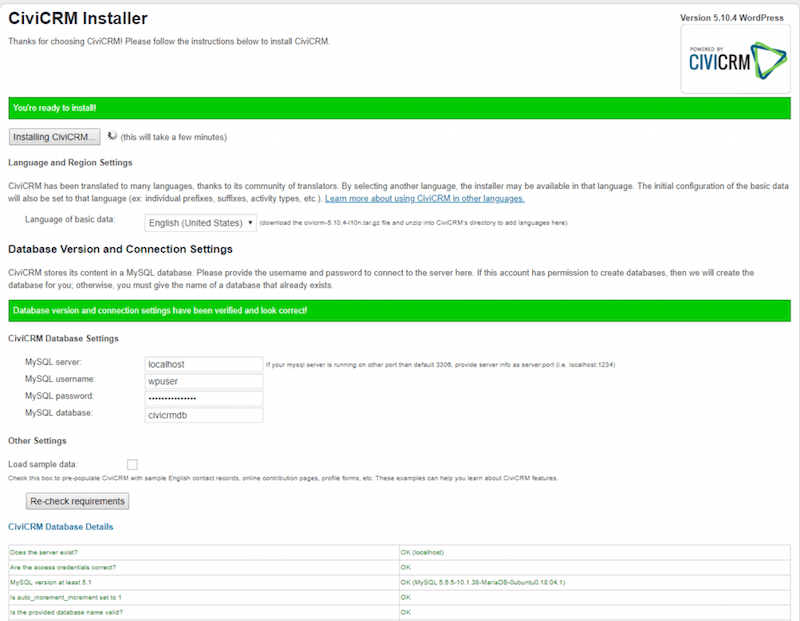
http://yourdomain.com/civicrmThe CiviCRM installer will launch automatically. It runs a pre-flight requirements check and displays any unmet requirements in a clear list. If you followed every step above, you should see a green requirements summary with no blockers.
Complete the Installer Form
Fill in the required fields:
- Database name:
civicrm - Database user:
civicrm_user - Database password: the password you set in Step 3
- Database host:
localhost - Base URL:
http://yourdomain.com - Admin username, password, and email: choose secure credentials — this account controls all of CiviCRM
You can also select a language other than English US. The installer will download the appropriate translation files automatically.
Click Install CiviCRM to begin. The installer creates the full database schema, populates default data, and generates the civicrm.settings.php configuration file.
Confirm the Installation
After a successful install, you will see a confirmation page. Click Continue to CiviCRM Dashboard and log in with the admin credentials you just created. You are now inside a fully working CiviCRM installation.
Step 9: Alternative CLI Installation Using cv
If you are working on a headless server or building an automated deployment pipeline, you can install CiviCRM entirely from the command line using the cv tool.
Install the cv binary:
sudo curl -LsS https://download.civicrm.org/cv/cv.phar -o /usr/local/bin/cv
sudo chmod +x /usr/local/bin/cv
Run the installer with all required parameters in a single command:
cd /var/www/html/civicrm
cv core:install -v \
  --cms-base-url=http://yourdomain.com \
  --db=mysql://civicrm_user:StrongPassword123!@localhost:3306/civicrm \
  -m extras.adminUser=admin \
  -m extras.adminPass=YourAdminPass \
  -m extras.adminEmail=admin@yourdomain.com
This command verifies the environment, builds the database schema, and writes civicrm.settings.php — everything the web installer does, without a browser. It is the preferred method for container-based setups and CI/CD pipelines.
Step 10: Post-Installation Setup and Configuration
Review the Configuration Checklist
Log in to the CiviCRM dashboard and navigate to Administer > Administration Console > Configuration Checklist. This checklist walks you through every setting to review before going live: site name, from email address, payment processors, and user permissions.
Set Up a Cron Job
CiviCRM relies on a cron job to run scheduled tasks: sending queued emails, processing membership renewals, and deactivating expired records. Without cron, none of these processes ever run.
Add a cron job for the Apache user:
sudo crontab -u apache -eAdd this line:
*/15 * * * * /usr/local/bin/cv --cwd=/var/www/html/civicrm api job.executeThis runs CiviCRM’s scheduled job processor every 15 minutes. Adjust the frequency based on your organization’s email volume and workflow needs.
Configure Users and Permissions
Navigate to Administer > Users and Permissions to set up roles and access levels for your team. At minimum, configure who can view and edit contacts, who can access contribution records, and who holds full administrator access.
Step 11: Harden and Secure Your CiviCRM Installation
Enable HTTPS with Let’s Encrypt
Running CiviCRM over plain HTTP means login credentials and donor data travel in cleartext across the network. Install Certbot and get a free TLS certificate from Let’s Encrypt:
sudo dnf install certbot python3-certbot-apache -y
sudo certbot --apache -d yourdomain.com
Certbot modifies your virtual host configuration automatically to redirect HTTP traffic to HTTPS and installs the signed certificate. A systemd timer for automatic renewal is also set up during this process, so your certificate will never expire silently.
Harden File Permissions
The private/ directory contains your civicrm.settings.php file and application logs. It must never be reachable by browsers. In CiviCRM Standalone, this directory lives outside the web root by design, so as long as your DocumentRoot points to the web/ subdirectory, you are protected.
Tighten file and directory permissions across the entire project:
sudo find /var/www/html/civicrm -type d -exec chmod 755 {} \;
sudo find /var/www/html/civicrm -type f -exec chmod 644 {} \;
sudo chown -R apache:apache /var/www/html/civicrm
Troubleshooting Common Issues
Even with a careful setup, things can go wrong. Here are the five most common problems you will encounter when you configure CiviCRM on AlmaLinux 10, along with their direct fixes.
- 1. White screen or blank page after installation
This is almost always a PHP memory issue. Open/etc/php.iniand increasememory_limitto512M. Restart Apache and PHP-FPM, then reload the page. - 2. Apache 403 Forbidden on the CiviCRM URL
Two causes are equally likely: wrong file ownership or SELinux blocking access. First, re-runsudo chown -R apache:apache /var/www/html/civicrm. If the 403 persists, runsudo restorecon -Rv /var/www/html/civicrmand confirmsetsebool -P httpd_unified 1was executed. - 3. Database connection error during installation
Open/var/www/html/civicrm/private/civicrm.settings.phpand verify that thedbcredentials match what you created in Step 3. Also confirm MariaDB is running withsudo systemctl status mariadb. - 4. CiviCRM pages return 404 errors (except the homepage)
This meansmod_rewriteis not active or.htaccessis being ignored. ConfirmAllowOverride Allis in your virtual host’s<Directory>block. Verify the module is loaded by runninghttpd -M | grep rewrite. - 5. PHP version mismatch between CLI and web server
Runphp --inito confirm whichphp.inifile is active. On AlmaLinux 10, make sure both the CLI and the Apache PHP module come from the same dnf module stream.
Congratulations! You have successfully installed CiviCRM. Thanks for using this tutorial for installing CiviCRM constituent relationship management (CRM) on AlmaLinux OS 10. For additional help or useful information, we recommend you check the official CiviCRM website.
