
In this tutorial, we will show you how to install CloudPanel on Ubuntu 22.04 LTS. For those of you who didn’t know, CloudPanel is an open-source, PHP-based host control software built for the cloud that helps to manage hosted services, including email, domain, FTP, and many more.
This article assumes you have at least basic knowledge of Linux, know how to use the shell, and most importantly, you host your site on your own VPS. The installation is quite simple and assumes you are running in the root account, if not you may need to add ‘sudo‘ to the commands to get root privileges. I will show you the step-by-step installation of the CloudPanel free hosting control panel on Ubuntu 22.04 (Jammy Jellyfish). You can follow the same instructions for Ubuntu 22.04 and any other Debian-based distribution like Linux Mint, Elementary OS, Pop!_OS, and more as well.
Prerequisites
- A server running one of the following operating systems: Ubuntu 22.04, 20.04, and any other Debian-based distribution like Linux Mint.
- It’s recommended that you use a fresh OS install to prevent any potential issues.
- SSH access to the server (or just open Terminal if you’re on a desktop).
- A
non-root sudo useror access to theroot user. We recommend acting as anon-root sudo user, however, as you can harm your system if you’re not careful when acting as the root.
Install CloudPanel on Ubuntu 22.04 LTS Jammy Jellyfish
Step 1. First, make sure that all your system packages are up-to-date by running the following apt commands in the terminal.
sudo apt update
sudo apt upgrade
sudo apt install wget apt-transport-https gnupg2 software-properties-common
Step 2. Installing CloudPanel on Ubuntu 22.04.
By default, the CloudPanel is not available on Ubuntu 22.04 base repository. Now run the following command below to download the latest version of CloudPanel to your Ubuntu system using curl command:
curl -sSL https://installer.cloudpanel.io/ce/v2/install.sh | sudo DB_ENGINE=MARIADB_10.9 bash
Step 3. Configure Firewall.
Now we set up an Uncomplicated Firewall (UFW) with CloudPanel to allow public access on default web ports 8443:
sudo ufw allow OpenSSH
sudo ufw allow 8443/tcp
sudo ufw enable
Step 4. Accessing CloudPanel Web Interface.
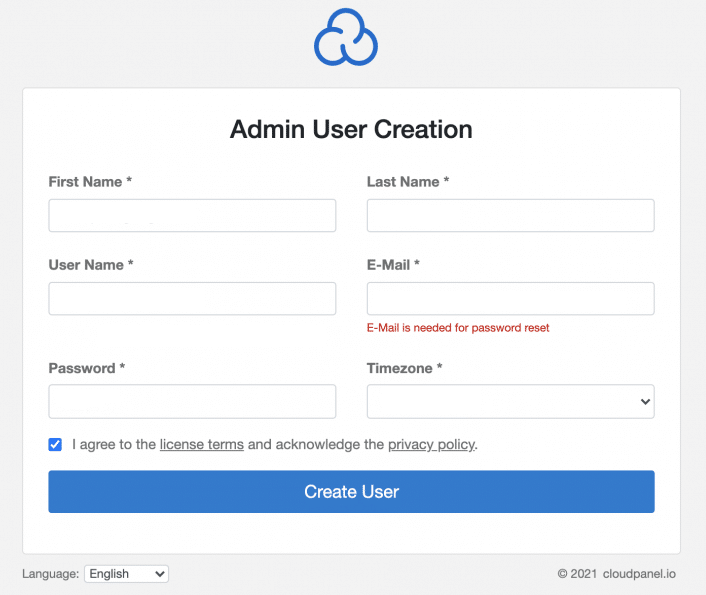
Once successfully installed, open your web browser and access the CloudPanel installation wizard using the URL https://your-IP-address:8443. Ignore the self-signed certificate warning and click on Advanced and Proceed to continue to CloudPanel. You will be redirected to the following page:
Congratulations! You have successfully installed CloudPanel. Thanks for using this tutorial for installing CloudPanel hosting control panel on Ubuntu 22.04 LTS Jammy Jellyfish system. For additional help or useful information, we recommend you check the official CloudPanel website.


