
In this tutorial, we will show you how to install Cockpit on Fedora 35. For those of you who didn’t know, The cockpit is a web console that makes it easy to administer your Linux servers via a web browser. It allows users to easily manage and control the server services remotely using a browser such as Systemd journal, checks the load, starts and stops services. It has a very beautiful user interface along with its lightweight application.
This article assumes you have at least basic knowledge of Linux, know how to use the shell, and most importantly, you host your site on your own VPS. The installation is quite simple and assumes you are running in the root account, if not you may need to add ‘sudo‘ to the commands to get root privileges. I will show you the step-by-step installation of the Cockpit on a Fedora 35.
Prerequisites
- A server running one of the following operating systems: Fedora 35 or Fedora 34.
- It’s recommended that you use a fresh OS install to prevent any potential issues.
- SSH access to the server (or just open Terminal if you’re on a desktop).
- A
non-root sudo useror access to theroot user. We recommend acting as anon-root sudo user, however, as you can harm your system if you’re not careful when acting as the root.
Install Cockpit on Fedora 35
Step 1. Before proceeding, update your Fedora operating system to make sure all existing packages are up to date. Use this command to update the server packages:
sudo dnf upgrade
sudo dnf update
sudo dnf install dnf-plugins-core
Step 2. Installing Cockpit on Fedora 35.
By default, Cockpit is available on Fedora 35 base repository. Now we install the latest version of Cockpit using the following command below:
sudo dnf install cockpit
After installation is complete we need to start the Cockpit server to start operating. We do that with the following command below:
sudo systemctl start cockpit
sudo systemctl enable cockpit
sudo systemctl status cockpit
Step 3. Configure Firewall.
If you are running a firewall on the system, you need to open the Cockpit port in the firewall:
sudo firewall-cmd --add-service=cockpit
sudo firewall-cmd --add-service=cockpit --permanent
sudo firewall-cmd --reload
Step 4. Accessing Cockpit Web Interface.
Once successfully installed, open your web browser and type the URL https://your-ip-address:9090 to access the Cockpit web UI. If you are seeing an SSL error, then click on the Advanced button and Continue unsafe. Next, log into the Cockpit using the superuser credentials. You should see the following screen:
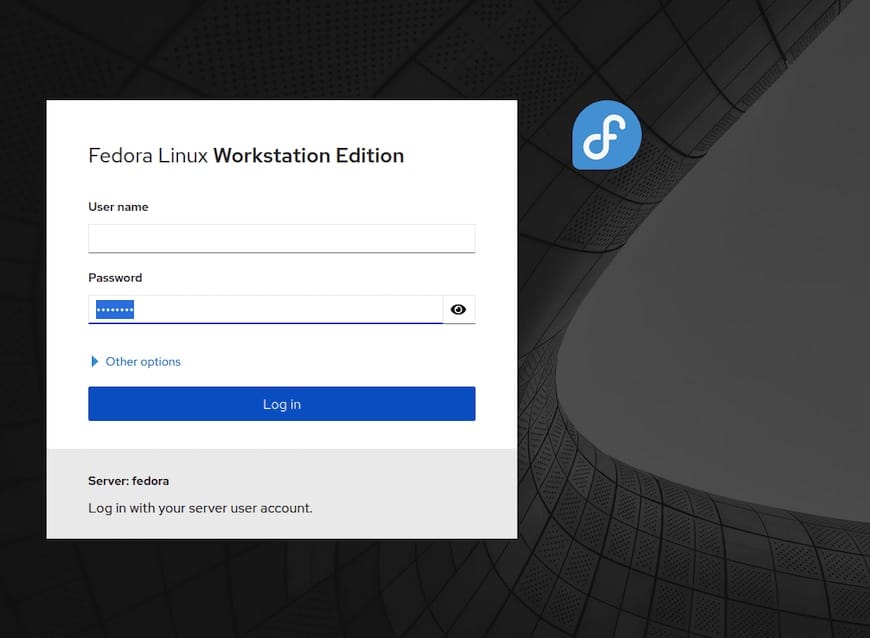
Congratulations! You have successfully installed Cockpit. Thanks for using this tutorial for installing the Cockpit on your Fedora 35 system. For additional help or useful information, we recommend you check the official Cockpit website.




