
CockroachDB has emerged as a game-changing distributed SQL database that combines the familiarity of PostgreSQL with the resilience and scalability needed for modern applications. Built to survive disasters and scale horizontally without breaking a sweat, this open-source database system offers automatic replication, consistent transactions, and fault tolerance that traditional databases struggle to match. Whether you’re a developer building a new application, a database administrator managing critical infrastructure, or a DevOps engineer seeking reliable data storage solutions, understanding how to properly install and configure CockroachDB on Debian 13 opens doors to powerful distributed computing capabilities.
This comprehensive guide walks through every step of installing CockroachDB on Debian 13, from system preparation to security hardening. Debian 13 (codenamed Trixie) provides a stable Linux environment that pairs perfectly with CockroachDB’s architecture. By the end of this tutorial, you’ll have a fully functional CockroachDB installation ready for development, testing, or production workloads.
What is CockroachDB?
CockroachDB represents a fundamental rethinking of how distributed databases should work. Unlike traditional relational databases that run on a single server, CockroachDB distributes data across multiple nodes while maintaining strong consistency guarantees. The database was designed from the ground up to handle node failures gracefully, automatically rebalancing data when servers go offline and ensuring your applications stay running even during infrastructure failures.
The architecture leverages a sophisticated consensus protocol that keeps data synchronized across nodes without sacrificing performance. This approach means applications can write to any node in the cluster, and the system automatically handles replication behind the scenes. PostgreSQL compatibility ensures developers can use familiar SQL syntax and existing PostgreSQL tools with minimal adjustments.
CockroachDB shines in scenarios requiring high availability, geo-distribution, and horizontal scalability. Financial applications, e-commerce platforms, and SaaS products benefit tremendously from its resilience. The open-source Core edition provides robust features for most use cases, while the Enterprise version adds advanced capabilities for large-scale deployments.
Prerequisites and System Requirements
Hardware Requirements
Before diving into installation, verify your system meets CockroachDB’s resource requirements. For development and testing purposes, a minimum of 2 CPU cores and 4 GB of RAM will suffice. However, production environments demand more substantial resources—plan for at least 4 vCPUs and 8-16 GB of RAM to handle real-world workloads effectively.
Storage considerations matter significantly for database performance. Allocate sufficient disk space for both data storage and transaction logs, with SSD storage strongly recommended for production systems. Network bandwidth becomes crucial when running distributed clusters, as nodes constantly communicate to maintain consistency.
Software Requirements
Your Debian 13 system needs several foundational components before CockroachDB installation begins. Root access or sudo privileges are non-negotiable, as the installation process requires system-level modifications. An active internet connection enables downloading necessary packages and dependencies.
Essential utilities include curl, tar, and wget for downloading and extracting the CockroachDB binary. If managing a remote server, SSH access provides the secure connection needed for command-line administration. Basic familiarity with Linux terminal commands helps tremendously, though this guide explains each step in detail.
Preparing Your Debian 13 System
System Update and Upgrade
Starting with a fully updated system prevents compatibility issues and security vulnerabilities. Open your terminal and execute the system update command:
sudo apt update && sudo apt upgrade -yThis command refreshes package repositories and upgrades all installed software to their latest versions. The -y flag automatically confirms updates, streamlining the process. Allow several minutes for completion, depending on how many packages require updating. If prompted about configuration files during upgrades, review changes carefully before accepting.
Installing Required Dependencies
CockroachDB relies on several system utilities that may not come pre-installed on minimal Debian installations. Install these essential packages with a single command:
sudo apt install curl tar wget ca-certificates apt-transport-https -yThe curl and wget tools handle file downloads, while tar extracts compressed archives. Certificate authorities (ca-certificates) enable secure HTTPS connections, and apt-transport-https allows the package manager to fetch packages over encrypted connections. Verify successful installation by checking each tool’s version number.
Creating a Dedicated System User
Security best practices dictate running database services under dedicated user accounts rather than root. Create a specialized user for CockroachDB:
sudo adduser --home /opt/cockroachdb --system --group cockroachThis command creates a system user named “cockroach” with a home directory at /opt/cockroachdb. System accounts lack login shells by default, preventing direct user login while allowing service execution. Later steps will assign proper ownership of database files to this user, isolating CockroachDB from other system processes and limiting potential security breaches.
Downloading CockroachDB
Finding the Latest Version
Navigate to the official CockroachDB downloads page to identify the most recent stable release. Version numbers follow semantic versioning conventions, with major, minor, and patch numbers indicating feature sets and bug fixes. For production systems, always choose stable releases over beta or testing versions.
Debian 13 compatibility remains strong across recent CockroachDB versions, though checking release notes for any platform-specific considerations proves worthwhile. The download page provides binaries compiled specifically for Linux on x86-64 architecture, ensuring optimal performance.
Downloading the Binary
Use wget to retrieve the CockroachDB binary directly from the command line:
wget -qO- https://binaries.cockroachdb.com/cockroach-latest.linux-amd64.tgzReplace “latest” with a specific version number if you need a particular release. The download file typically ranges from 60-80 MB compressed. Monitor download progress and confirm the file appears in your current directory with ls -lh. Checking the file size against the official listing verifies a complete download without corruption.
Installing CockroachDB on Debian 13
Extracting the Archive
The downloaded file arrives as a compressed tar archive requiring extraction. Execute the following command:
tar -xzf cockroach-v*.linux-amd64.tgzThe -x flag extracts files, -z handles gzip compression, and -f specifies the file name. The asterisk wildcard matches any version number, making this command work regardless of which version you downloaded. Extraction creates a directory containing the cockroach binary and associated files. Navigate into this directory to access the executable.
Moving Binary to System Path
For system-wide accessibility, copy the cockroach binary to a directory in your PATH:
sudo cp -i cockroach-v*/cockroach /usr/local/bin/The /usr/local/bin/ directory traditionally houses locally-installed executables not managed by the system package manager. This location takes precedence over /usr/bin/ in most PATH configurations, preventing conflicts with distribution-provided packages. Set executable permissions explicitly:
sudo chmod 755 /usr/local/bin/cockroachThis permission setting allows all users to execute the binary while restricting modification to root.
Installing Library Files
CockroachDB depends on specific shared libraries for geospatial functionality. Copy these libraries to the system library directory:
sudo mkdir -p /usr/local/lib/cockroach
sudo cp -i cockroach-v*/lib/libgeos.so /usr/local/lib/cockroach/
sudo cp -i cockroach-v*/lib/libgeos_c.so /usr/local/lib/cockroach/
These libraries enable PostGIS-compatible geographic data handling within CockroachDB. Setting proper permissions ensures the database can access them:
sudo chmod 644 /usr/local/lib/cockroach/libgeos*Verifying Installation
Confirm successful installation by checking the CockroachDB version:
cockroach versionThis command should display version information, build details, and platform specifications. If you encounter “command not found” errors, verify the binary exists in /usr/local/bin/ and that this directory appears in your PATH variable. Run echo $PATH to inspect your current PATH configuration.
Initializing CockroachDB
Single-Node Setup (Development/Testing)
For development environments or testing scenarios, a single-node configuration provides the quickest path to a working database. First, create a dedicated data directory:
sudo mkdir -p /var/lib/cockroach
sudo chown cockroach:cockroach /var/lib/cockroach
Launch CockroachDB in single-node mode with this command:
cockroach start-single-node --insecure --store=/var/lib/cockroach --listen-addr=localhost:26257 --http-addr=localhost:8080 --backgroundBreaking down these flags: --insecure skips SSL/TLS certificate requirements (suitable only for development), --store specifies the data directory location, --listen-addr sets the SQL connection port, and --http-addr configures the web admin interface. The --background flag runs the process as a daemon, freeing your terminal for other commands.
Multi-Node Cluster Setup (Production)
Production deployments benefit from multi-node clusters providing redundancy and load distribution. Plan your cluster topology carefully, considering geographic distribution and failure domains. Each node requires its own server or virtual machine with network connectivity to other cluster members.
On the first node, start CockroachDB with join addresses listing all initial cluster members:
cockroach start --certs-dir=certs --store=/var/lib/cockroach --listen-addr=<node1-address>:26257 --http-addr=<node1-address>:8080 --join=<node1-address>:26257,<node2-address>:26257,<node3-address>:26257 --backgroundRepeat this process on subsequent nodes, adjusting the listen address for each server. After starting all nodes, initialize the cluster from any node:
cockroach init --certs-dir=certs --host=<node1-address>:26257This initialization activates the cluster, allowing nodes to communicate and begin replicating data.
Securing Your CockroachDB Installation
Generating SSL/TLS Certificates
Production deployments must never run in insecure mode. Create a certificate directory structure:
sudo mkdir /var/lib/cockroach-certs
cd /var/lib/cockroach-certs
Generate the certificate authority certificate:
cockroach cert create-ca --certs-dir=. --ca-key=ca.keyCreate node certificates for each server in your cluster:
cockroach cert create-node localhost $(hostname) <node-ip-address> --certs-dir=. --ca-key=ca.keyGenerate client certificates for database users:
cockroach cert create-client root --certs-dir=. --ca-key=ca.keyProtect these certificates with restrictive permissions:
sudo chmod 600 ca.key
sudo chmod 644 *.crt
Certificate files form the foundation of encrypted communication between nodes and clients. Never share the ca.key file or transmit it over unsecured channels.
Starting CockroachDB in Secure Mode
With certificates prepared, launch CockroachDB using secure mode:
cockroach start --certs-dir=/var/lib/cockroach-certs --store=/var/lib/cockroach --listen-addr=0.0.0.0:26257 --http-addr=0.0.0.0:8080 --backgroundThe --certs-dir flag replaces the --insecure option, enabling TLS encryption for all connections. Clients must present valid certificates to connect, preventing unauthorized access.
Creating Database Users and Passwords
Connect to your secured cluster:
cockroach sql --certs-dir=/var/lib/cockroach-certs --host=localhost:26257Create administrative users with strong, unique passwords:
CREATE USER admin WITH PASSWORD 'your-strong-password-here';
GRANT admin TO admin;
Implement role-based access control by creating users with specific privileges. Avoid using the root user for routine operations, reserving it for administrative tasks only.
Configuring CockroachDB as a System Service
Creating Systemd Service File
Transform CockroachDB into a managed system service using systemd. Create a service file:
sudo nano /etc/systemd/system/cockroachdb.serviceAdd this configuration:
[Unit]
Description=CockroachDB Distributed SQL Database
After=network.target

[Service]
Type=notify
User=cockroach
Group=cockroach
ExecStart=/usr/local/bin/cockroach start --certs-dir=/var/lib/cockroach-certs --store=/var/lib/cockroach --listen-addr=0.0.0.0:26257 --http-addr=0.0.0.0:8080
Restart=always
RestartSec=10

[Install]
WantedBy=multi-user.target
This configuration ensures CockroachDB starts automatically during system boot, runs under the dedicated cockroach user, and restarts automatically if the process crashes.
Enabling and Starting the Service
Activate the service configuration:
sudo systemctl daemon-reload
sudo systemctl enable cockroachdb
sudo systemctl start cockroachdb
Verify the service runs correctly:
sudo systemctl status cockroachdbA green “active (running)” status confirms successful startup. Check logs for any error messages if the service fails to start properly.
Accessing CockroachDB
Command-Line SQL Access
Connect to your database using the built-in SQL client:
cockroach sql --certs-dir=/var/lib/cockroach-certs --host=localhost:26257For insecure development instances, omit the certs directory and add --insecure:
cockroach sql --insecure --host=localhost:26257Test connectivity by running basic SQL commands:
SHOW DATABASES;
SELECT version();
Exit the SQL shell by typing \q or pressing Ctrl+D.
Web Admin Console Access
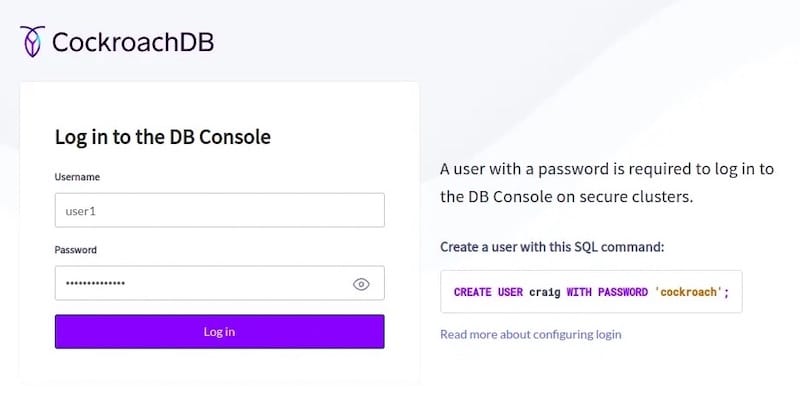
CockroachDB includes a powerful web-based administration interface. Open your browser and navigate to:
https://localhost:8080For insecure installations, use http:// instead. Log in using credentials created earlier. The dashboard displays cluster health metrics, active queries, node status, and performance graphs. This interface provides invaluable visibility into your database operations without requiring SQL knowledge.
Basic CockroachDB Operations
Database Creation and Management
Create a new database to store your application data:
CREATE DATABASE myapp;
USE myapp;
List existing databases:
SHOW DATABASES;Remove databases carefully, as this operation deletes all contained data:
DROP DATABASE myapp CASCADE;Table Operations
Create tables using standard SQL syntax:
CREATE TABLE users (
    id UUID PRIMARY KEY DEFAULT gen_random_uuid(),
    username STRING NOT NULL,
    email STRING UNIQUE NOT NULL,
    created_at TIMESTAMP DEFAULT now()
);
Insert sample data:
INSERT INTO users (username, email) VALUES ('john_doe', 'john@example.com');Query data:
SELECT * FROM users WHERE username = 'john_doe';CockroachDB’s PostgreSQL compatibility means most PostgreSQL queries work identically, easing migration from existing PostgreSQL deployments.
Performance Optimization and Monitoring
Monitoring Cluster Health
Track critical metrics to maintain optimal performance. The web admin console displays query throughput, latency percentiles, and resource utilization. Monitor live node count to detect failures immediately. Set up automated alerts for anomalies like high query latency, low disk space, or node unavailability.
Key performance indicators include queries per second, transaction commit latency, and replication lag. Regular monitoring prevents small issues from escalating into major problems.
Performance Best Practices
Optimize query performance through proper indexing strategies. Create indexes on frequently queried columns and foreign keys. Configure cache size appropriately using the --cache flag to balance memory usage against query speed. Set maximum SQL memory allocation with --max-sql-memory to prevent individual queries from consuming excessive resources.
Schedule regular maintenance tasks including statistics updates and range rebalancing. Consider geographic placement of data for latency-sensitive applications.
Troubleshooting Common Issues
Installation Problems
If the cockroach binary isn’t found, verify it exists in your PATH. Check file permissions ensure the binary has executable flags set. Architecture mismatches occur when downloading ARM binaries for x86 systems—always match your CPU architecture.
Connection Issues
Port conflicts arise when another service occupies ports 26257 or 8080. Change CockroachDB ports using --listen-addr and --http-addr flags. Firewall rules may block connections—configure iptables or ufw to allow traffic on required ports. Certificate errors indicate misconfigured TLS certificates; regenerate certificates following proper procedures.
Cluster Formation Issues
Nodes failing to join clusters usually stem from incorrect join addresses. Verify network connectivity between nodes using ping or telnet. Ensure all nodes use identical join lists. Initialization failures suggest one node started without join parameters—stop all nodes and restart with proper configuration.
Congratulations! You have successfully installed CockroachDB. Thanks for using this tutorial to install the latest version of CockroachDB on Debian 13 “Trixie” system. For additional help or useful information, we recommend you check the official CockroachDB website.
