
CockroachDB stands as one of the most innovative distributed SQL databases available today, offering unparalleled fault tolerance and horizontal scalability for modern applications. Built from the ground up to handle mission-critical workloads, this open-source database combines the familiarity of PostgreSQL with the resilience of distributed systems architecture. For developers and system administrators working with Fedora 43, installing CockroachDB opens doors to building applications that can scale seamlessly across multiple nodes and geographic regions while maintaining strong consistency guarantees.
This comprehensive guide walks you through every step of installing CockroachDB on Fedora 43. You’ll learn how to prepare your system, download and configure the database, set up systemd services for automated management, and implement security best practices. Whether you’re deploying a single-node development environment or laying the foundation for a production cluster, this tutorial provides the detailed instructions you need to succeed.
Understanding CockroachDB
What is CockroachDB?
CockroachDB is a distributed SQL database designed to survive anything, from hardware failures to data center outages. Unlike traditional relational databases that rely on primary-replica architectures, CockroachDB distributes data across multiple nodes using a sophisticated consensus algorithm. This architecture ensures that your applications continue running even when individual nodes fail, making it ideal for high-availability scenarios.
The database maintains PostgreSQL wire protocol compatibility, which means you can use familiar tools and libraries. This compatibility reduces the learning curve significantly, allowing developers to leverage their existing SQL knowledge while gaining the benefits of distributed database technology.
Key Features
CockroachDB delivers horizontal scalability that lets you add nodes to your cluster without downtime. The system automatically rebalances data across available nodes, ensuring optimal performance and resource utilization. Each piece of data is replicated multiple times across different nodes, providing built-in survivability that protects against data loss.
The database guarantees ACID compliance across all operations, maintaining data integrity even during network partitions or node failures. Strong consistency ensures that all reads return the most recently written data, eliminating the complexity of eventual consistency models that plague many distributed systems.
Use Cases
Production environments requiring continuous availability benefit immensely from CockroachDB’s fault-tolerant architecture. Financial applications, e-commerce platforms, and SaaS products that cannot afford downtime rely on this database for their critical operations. Multi-region deployments become straightforward, with automatic data distribution and locality controls that minimize latency for global user bases.
Prerequisites and System Requirements
Hardware Requirements
Before installing CockroachDB, ensure your Fedora 43 system meets the minimum hardware specifications. You’ll need at least 2 CPU cores and 4 GB of RAM per node for basic functionality. Production deployments should aim higher, with 4-8 CPU cores and 16-32 GB of RAM for optimal performance. Storage requirements vary based on your dataset size, but plan for fast SSDs to ensure low-latency operations.
Software Requirements
Your Fedora 43 installation must include several essential components. The system requires glibc, libncurses, and tzdata packages for CockroachDB to function properly. You’ll need root or sudo privileges to install software and configure system services. Network connectivity is crucial, as nodes communicate constantly to maintain cluster consensus and replicate data.
Pre-Installation Checklist
Update your Fedora 43 system to the latest packages before proceeding. Check that your firewall configuration allows for custom rules, as you’ll need to open specific ports for cluster communication. If SELinux is enabled—and it should be for security reasons—prepare to configure appropriate policies. Consider creating a dedicated user account for running the CockroachDB service, following the principle of least privilege.
Preparing Your Fedora 43 System
System Updates
Start by refreshing your package repositories and updating installed software:
sudo dnf update -y
sudo dnf upgrade -y
This ensures your system has the latest security patches and library versions. Reboot if kernel updates were installed to activate the new kernel.
Installing Required Dependencies
Install the necessary system libraries that CockroachDB depends on:
sudo dnf install -y wget tar gzip ncurses-libs tzdataThese packages provide essential functionality for downloading, extracting, and running the database software. Verify the installation completed successfully by checking the package status.
Creating CockroachDB User
Create a dedicated system user for running CockroachDB services:
sudo useradd -r -m -d /var/lib/cockroach -s /bin/bash cockroachThis command creates a system account with a home directory at /var/lib/cockroach. Using a dedicated user enhances security by limiting the service’s privileges and isolating it from other system processes.
Configuring Firewall Rules
Open the required ports in Fedora’s firewall for CockroachDB communication:
sudo firewall-cmd --permanent --add-port=26257/tcp
sudo firewall-cmd --permanent --add-port=8080/tcp
sudo firewall-cmd --reload
Port 26257 handles inter-node communication and client connections, while port 8080 serves the Admin UI. These rules ensure your cluster can communicate properly.
Downloading and Installing CockroachDB
Downloading the Binary
Navigate to the CockroachDB releases page to find the latest stable version. Download the appropriate binary for your system architecture:
cd /tmp
wget https://binaries.cockroachdb.com/cockroach-latest.linux-amd64.tgz
For ARM-based systems, replace amd64 with arm64 in the URL. The download includes the cockroach binary and supporting libraries needed for full functionality.
Extracting and Installing the Binary
Extract the downloaded archive and install the binary system-wide:
tar -xzvf cockroach-latest.linux-amd64.tgz
cd cockroach-*
sudo cp -i cockroach /usr/local/bin/
sudo chmod 755 /usr/local/bin/cockroach
This places the cockroach executable in a standard location that’s accessible from anywhere in the system. The permissions ensure all users can execute the binary while only root can modify it.
Installing Support Libraries
CockroachDB requires additional libraries for spatial query functionality. Install them properly:
sudo mkdir -p /usr/local/lib/cockroach
sudo cp -i lib/libgeos.so /usr/local/lib/cockroach/
sudo cp -i lib/libgeos_c.so /usr/local/lib/cockroach/
These libraries enable geospatial features within the database. Even if you don’t plan to use spatial queries immediately, installing them prevents potential issues later.
Verification
Confirm the installation succeeded by checking the version:
cockroach versionYou should see output displaying the CockroachDB version and build information. Test the spatial libraries by running a demo:
cockroach demo --geo-partitioned-replicasThis command verifies that all components are functioning correctly. Exit the demo with \q when finished.
Configuring CockroachDB
Creating Data Directory
Establish the directory structure for CockroachDB data storage:
sudo mkdir -p /var/lib/cockroach
sudo chown cockroach:cockroach /var/lib/cockroach
sudo chmod 700 /var/lib/cockroach
The restrictive permissions protect your database files from unauthorized access. This directory will store all database data, including tables, indexes, and metadata.
Security Configuration
CockroachDB supports both secure and insecure deployment modes. Secure mode requires TLS certificates for all connections, providing encryption and authentication. Insecure mode, suitable only for testing environments, disables these protections. For any system exposed to networks beyond localhost, always use secure mode.
Generating SSL/TLS Certificates
Create a certificate directory and generate the necessary certificates for secure deployment:
sudo mkdir -p /var/lib/cockroach/certs
sudo chown cockroach:cockroach /var/lib/cockroach/certs
cd /var/lib/cockroach
Generate the CA certificate:
sudo -u cockroach cockroach cert create-ca \
  --certs-dir=/var/lib/cockroach/certs \
  --ca-key=/var/lib/cockroach/ca.key
Create the node certificate:
sudo -u cockroach cockroach cert create-node \
  localhost \
  $(hostname) \
  $(hostname -f) \
  --certs-dir=/var/lib/cockroach/certs \
  --ca-key=/var/lib/cockroach/ca.key
Generate the client certificate for the root user:
sudo -u cockroach cockroach cert create-client root \
  --certs-dir=/var/lib/cockroach/certs \
  --ca-key=/var/lib/cockroach/ca.key
Protect the CA key with strict permissions:
sudo chmod 600 /var/lib/cockroach/ca.keyNode Configuration Parameters
Understanding key configuration flags helps optimize your deployment. The --store flag specifies where CockroachDB stores data. Cache and memory settings control how much RAM the database uses. The --advertise-addr flag tells other nodes how to reach this one, while --join specifies existing cluster members to connect with.
Setting Up CockroachDB as a Systemd Service
Creating the Service File
Create a systemd unit file for automated service management:
sudo nano /etc/systemd/system/cockroachdb.serviceService Configuration Details
Add the following configuration for a secure single-node setup:
[Unit]
Description=CockroachDB Distributed SQL Database
Documentation=https://www.cockroachlabs.com
After=network.target

[Service]
Type=notify
User=cockroach
WorkingDirectory=/var/lib/cockroach
ExecStart=/usr/local/bin/cockroach start \
  --certs-dir=/var/lib/cockroach/certs \
  --store=/var/lib/cockroach \
  --listen-addr=localhost:26257 \
  --http-addr=localhost:8080 \
  --cache=25% \
  --max-sql-memory=25%
TimeoutStopSec=300
Restart=always
RestartSec=10
StandardOutput=journal
StandardError=journal

[Install]
WantedBy=multi-user.target
The Type=notify setting allows CockroachDB to signal when it’s fully started. Resource limits (--cache and --max-sql-memory) prevent the database from consuming excessive memory. The restart policy ensures the service recovers automatically from failures.
For testing purposes only, you can create an insecure configuration:
ExecStart=/usr/local/bin/cockroach start \
  --insecure \
  --store=/var/lib/cockroach \
  --listen-addr=localhost:26257 \
  --http-addr=localhost:8080
Never use insecure mode in production environments.
Systemd Service Management
Reload the systemd daemon to recognize the new service:
sudo systemctl daemon-reloadStart the CockroachDB service:
sudo systemctl start cockroachdbEnable automatic startup on boot:
sudo systemctl enable cockroachdbCheck the service status:
sudo systemctl status cockroachdbView detailed logs using journalctl:
sudo journalctl -u cockroachdb -fStarting and Initializing CockroachDB
Single-Node Startup
After starting the service, the node enters a waiting state. It needs explicit initialization before accepting connections. The systemd service manages the process in the background, ensuring it restarts if issues occur.
Initializing the Cluster
Initialize your single-node cluster:
cockroach init --certs-dir=/var/lib/cockroach/certs --host=localhost:26257For insecure mode, use:
cockroach init --insecure --host=localhost:26257Successful initialization returns a message confirming cluster readiness. The database is now operational and ready to accept connections.
Accessing the SQL Shell
Connect to your cluster using the SQL shell:
cockroach sql --certs-dir=/var/lib/cockroach/certs --host=localhost:26257You’ll see the CockroachDB SQL prompt, indicating a successful connection. Try a simple query to verify functionality:
SELECT version();Creating Admin User
While connected to the SQL shell, set a password for the root user:
ALTER USER root WITH PASSWORD 'your_secure_password';Create additional users with appropriate privileges as needed:
CREATE USER appuser WITH PASSWORD 'app_password';
GRANT ALL ON DATABASE defaultdb TO appuser;
Accessing the CockroachDB Admin Console
Admin UI Overview
CockroachDB provides a powerful web-based Admin UI for monitoring and management. Access it by navigating to http://localhost:8080 in your web browser. The interface displays real-time metrics about cluster health, performance, and resource utilization.
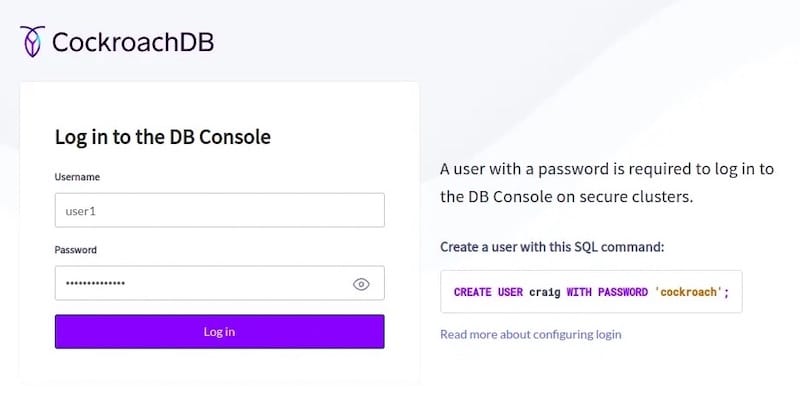
Logging into the Console
Enter your root username and the password you created earlier. The dashboard loads, presenting an overview of your cluster’s current state. You’ll see metrics like queries per second, storage usage, and node status.
Key Console Features
The Admin UI offers comprehensive monitoring capabilities. View detailed metrics about query performance, including slow queries that might need optimization. The database and table browser lets you explore your schema without connecting via SQL. Performance graphs help identify trends and potential bottlenecks before they impact applications.
Verifying the Installation
Running Test Queries
Create a test database to verify full functionality:
CREATE DATABASE testdb;
USE testdb;
CREATE TABLE users (id UUID PRIMARY KEY DEFAULT gen_random_uuid(), name STRING, email STRING);
INSERT INTO users (name, email) VALUES ('Alice Johnson', 'alice@example.com');
SELECT * FROM users;
These operations confirm that data storage and retrieval work correctly. Test spatial functionality if you installed the geospatial libraries:
CREATE TABLE locations (id INT PRIMARY KEY, point GEOMETRY);
INSERT INTO locations VALUES (1, 'POINT(0 0)');
Checking Cluster Health
Use the node status command to inspect cluster health:
cockroach node status --certs-dir=/var/lib/cockroach/certs --host=localhost:26257This displays information about each node, including uptime, storage usage, and replica counts. All metrics should show healthy values.
Performance Validation
Run basic performance tests to establish a baseline. Execute several INSERT operations and measure response times. Monitor resource utilization using system tools like top or htop. The Admin UI provides additional insights into query performance and system load.
Common Troubleshooting Issues
Installation Issues
If the cockroach command isn’t found, verify that /usr/local/bin is in your PATH. Library loading errors typically indicate missing geospatial libraries. Reinstall the support libraries following the earlier instructions. Permission denied errors often result from incorrect ownership on the data directory. Fix this with appropriate chown commands.
Service Startup Problems
Port conflicts occur when another service uses ports 26257 or 8080. Identify the conflicting process with sudo lsof -i :26257 and either stop it or configure CockroachDB to use different ports. Certificate validation errors require checking certificate paths and permissions. Ensure all certificate files are readable by the cockroach user.
Data directory conflicts happen when remnants from previous installations remain. Remove the old data directory completely before reinitializing. SELinux may block CockroachDB operations even with correct file permissions. Check for denials in /var/log/audit/audit.log and create appropriate policies.
Connection Issues
Connection failures often stem from firewall rules blocking necessary ports. Verify firewall configuration using sudo firewall-cmd --list-all. TLS certificate problems prevent secure connections. Regenerate certificates if they’re corrupted or expired. Network configuration errors require checking that the advertise address matches the actual network interface.
Solutions and Fixes
Remove problematic data directories safely:
sudo systemctl stop cockroachdb
sudo rm -rf /var/lib/cockroach/cockroach-data
sudo systemctl start cockroachdb
Adjust SELinux policies for CockroachDB:
sudo semanage fcontext -a -t bin_t "/usr/local/bin/cockroach"
sudo restorecon -v /usr/local/bin/cockroach
For persistent SELinux issues, temporarily set it to permissive mode for testing:
sudo setenforce 0Remember to re-enable enforcing mode after resolving issues.
Post-Installation Best Practices
Security Hardening
Rotate certificates periodically to maintain security. Implement strong password policies for all database users, requiring complex passwords that resist brute-force attacks. Restrict network access to only necessary IP addresses using firewall rules. Keep SELinux in enforcing mode to benefit from its security protections.
Backup Configuration
Establish automated backup procedures immediately after installation. CockroachDB supports full and incremental backups to various storage backends. Test restoration procedures regularly to ensure backups are viable. Store backups in separate physical locations from your primary data.
Monitoring and Maintenance
Implement regular health checks to catch issues early. Configure log rotation to prevent logs from consuming excessive disk space. Monitor performance metrics continuously, establishing baselines for normal operation. Plan for updates and upgrades by testing new versions in non-production environments first.
Optimization Tips
Tune cache settings based on your workload characteristics and available memory. Adjust memory allocation to balance between SQL operations and storage caching. Optimize storage by using fast SSDs and ensuring adequate free space for compaction operations. Monitor query performance and add indexes where appropriate to improve response times.
Congratulations! You have successfully installed CockroachDB. Thanks for using this tutorial for installing CockroachDB on your Fedora 43 Linux system. For additional help or useful information, we recommend you check the official CockroachDB website.

