Darktable stands as one of the most powerful open-source photography workflow applications available for Linux users today. This professional-grade RAW image processor and digital photography management tool provides photographers with sophisticated editing capabilities without the hefty price tag of commercial alternatives. Whether you’re a professional photographer managing thousands of RAW files or an enthusiast looking to take your photo editing to the next level, installing Darktable on Debian 13 (Trixie) opens up a world of non-destructive editing possibilities. This comprehensive guide walks you through multiple installation methods, configuration steps, and troubleshooting solutions to get Darktable running smoothly on your Debian 13 system.
What is Darktable?
Darktable is a free and open-source photography application that functions as both a virtual lighttable and a darkroom for digital photographers. Unlike basic image editors, Darktable specializes in managing digital negatives and processing RAW camera files from over 400 camera models. The application provides a complete workflow solution from importing and organizing photos to advanced color grading and exporting final images.
Developed by a passionate community of photographers and programmers, Darktable has evolved into a professional-grade tool that rivals commercial software like Adobe Lightroom. It supports various image formats including JPEG, PNG, TIFF, and especially RAW formats from virtually every camera manufacturer. The non-destructive editing approach means your original files remain untouched while all adjustments are stored separately, allowing unlimited experimentation without risk.
Key Features of Darktable
Darktable’s feature set makes it an exceptional choice for serious photographers. The non-destructive editing workflow ensures every adjustment you make can be reversed or modified at any time, giving you complete creative freedom without compromising original image data. Advanced color management tools include Filmic RGB for dynamic range compression, Color Zones for selective color adjustments, and Color Balance RGB for precise tonal control.
The application excels with its sophisticated masking system that includes both parametric masks based on color, luminosity, or other criteria, and drawn masks for precise local adjustments. GPU acceleration through OpenCL support dramatically improves processing speed, especially when working with high-resolution images or applying multiple effects. Tethered shooting capabilities allow direct camera connection for immediate image transfer and review during photo sessions.
Darktable’s database-driven organization system manages your entire photo library with tags, ratings, color labels, and comprehensive metadata editing. The Lighttable view provides powerful sorting and filtering tools, while the Darkroom view delivers an extensive collection of processing modules. Superior sharpening algorithms, including the Contrast Equalizer and modern Sharpen module, provide exceptional detail enhancement without artifacts.
System Requirements for Darktable on Debian 13
Before installation, verify your system meets the minimum requirements for optimal Darktable performance. Your processor should be a 64-bit x86_64 CPU, as 32-bit systems are no longer supported. A minimum of 2GB RAM will run Darktable, but 4GB or more is strongly recommended for comfortable editing, especially with large RAW files.
Disk space requirements include at least 20GB for a minimal Debian installation, though 50GB or more is recommended for desktop use with adequate space for your photo library. Graphics card considerations become important if you want to leverage GPU acceleration. Modern NVIDIA, AMD, or Intel GPUs with OpenCL support significantly enhance processing performance.
Software prerequisites are straightforward: a functioning Debian 13 (Trixie) installation with an active internet connection and terminal access with sudo privileges. Basic familiarity with command-line operations helps, though this guide provides explicit commands for every step. If you plan to use GPU acceleration, ensure appropriate graphics drivers are installed for your hardware.
Prerequisites Before Installation
Preparing your Debian 13 system properly ensures a smooth installation experience. Open a terminal and update your system to the latest package versions. This step prevents potential conflicts and ensures all dependencies are current. Check available disk space using the df -h command to confirm sufficient room for the application.
Verify you have sudo privileges by attempting to run sudo -v. This command will prompt for your password and indicate whether you possess the necessary permissions. Understanding the different installation methods available helps you choose the approach that best fits your needs. The APT repository method provides stability and simplicity, while alternative repositories offer newer versions, and Flatpak delivers sandboxed installation.
Creating a backup of important system configuration files provides a safety net, though Darktable installation is generally low-risk. For beginners, familiarizing yourself with basic terminal commands like cd, ls, and how to copy-paste in the terminal saves time during the process.
Method 1: Install Darktable via Debian Default Repository
Update Debian System
The first installation method leverages Debian’s official package repository, offering stability and automatic dependency resolution. Begin by ensuring your system packages are current, which minimizes compatibility issues and security vulnerabilities.
Open your terminal application and execute the following command:
sudo apt update && sudo apt upgradeThis combined command refreshes the package database and upgrades all installed packages to their latest versions. The && operator ensures the upgrade only proceeds if the update completes successfully. You’ll be prompted to enter your password, and the system may ask for confirmation before proceeding with upgrades. Wait for the process to complete, which may take several minutes depending on your internet connection and the number of packages requiring updates.
Install Darktable Using APT
With your system updated, installing Darktable becomes straightforward through the APT package manager. APT handles all dependencies automatically, downloading and configuring everything needed for Darktable to function properly.
Execute this command in your terminal:
sudo apt install darktableThe system displays the package size and asks for confirmation before proceeding. Type Y and press Enter to continue. APT downloads Darktable and its dependencies, then installs everything automatically. This process typically takes a few minutes depending on your connection speed.
The primary advantage of this method is its simplicity and rock-solid stability. Debian’s official repositories undergo extensive testing, ensuring packages work reliably. Updates arrive through your normal system update process, maintaining consistency across your system. The limitation is that Debian’s conservative approach means you might not receive the absolute latest Darktable version immediately after release, though stability often outweighs having cutting-edge features.
Method 2: Install Latest Darktable from OpenSUSE Repository
Add OpenSUSE Graphics Repository
For photographers who want the latest Darktable features and improvements, the OpenSUSE graphics repository provides more recent versions than Debian’s official repository. This method requires adding a third-party repository to your system’s sources list.
Execute this command to add the OpenSUSE graphics repository:
echo 'deb http://download.opensuse.org/repositories/graphics:/darktable:/master/Debian_13/ /' | sudo tee /etc/apt/sources.list.d/graphics:darktable:master.listThis command creates a new repository configuration file in the /etc/apt/sources.list.d/ directory. The tee command writes the repository URL to the file while displaying the output to your terminal. This approach keeps third-party repositories separate from your main sources list, making management easier.
Import GPG Key
Security is paramount when adding third-party repositories. GPG keys verify that packages come from legitimate sources and haven’t been tampered with during download. Import the OpenSUSE graphics repository key with this command:
curl -fsSL https://download.opensuse.org/repositories/graphics:darktable:master/Debian_13/Release.key | gpg --dearmor | sudo tee /etc/apt/trusted.gpg.d/graphics_darktable_master.gpg > /dev/nullThis command downloads the repository’s release key, converts it to the proper format using gpg --dearmor, and saves it to your system’s trusted keys directory. The -fsSL flags tell curl to fail silently on server errors, show no progress meter, and follow redirects. Trust implications exist when adding third-party repositories, so only add repositories from reputable sources.
Update and Install
With the repository added and authenticated, refresh your package database and install Darktable:
sudo apt updateThis command incorporates the new repository into your package index. Now install Darktable:
sudo apt install darktableThe system retrieves the latest version from the OpenSUSE repository. This method provides access to cutting-edge features and the newest module updates, making it ideal for users who want to stay on the bleeding edge of Darktable development.
Method 3: Install Darktable via Flatpak
Enable Flatpak on Debian 13
Flatpak represents a modern approach to Linux software distribution, offering distribution-independent packages that work across different Linux systems. Benefits include application sandboxing for enhanced security, automatic dependency handling, and often more recent versions than traditional repositories.
If Flatpak isn’t already installed on your Debian 13 system, install it first:
sudo apt install flatpakNext, add the Flathub repository, which hosts thousands of applications including Darktable:
sudo flatpak remote-add --if-not-exists flathub https://flathub.org/repo/flathub.flatpakrepoThe --if-not-exists flag prevents errors if Flathub is already configured. Flathub serves as the primary distribution point for Flatpak applications, maintained by a community of developers and packagers.
Install Darktable from Flathub
With Flatpak configured and Flathub enabled, install Darktable with this command:
flatpak install flathub org.darktable.Darktable -yThe -y flag automatically confirms the installation without prompting, streamlining the process. Flatpak downloads Darktable along with its runtime environment, which includes all necessary libraries and dependencies. This download might be larger than traditional package installations because it includes the complete runtime environment.
Flatpak’s sandboxed environment provides enhanced security by isolating applications from the rest of your system. This isolation can occasionally limit integration with system features, though Darktable’s Flatpak package is well-configured with appropriate permissions. Choose Flatpak when you want the latest version with a focus on security, or when traditional package installation presents dependency conflicts.
Verifying Installation
After completing installation through any method, verify Darktable installed correctly and check which version is present on your system. Open a terminal and execute:
darktable --versionThis command displays detailed version information including the Darktable version number, build date, and enabled features. The output indicates whether OpenCL support, Lua scripting, and other optional features are compiled into your installation. Successful output confirms Darktable is properly installed and accessible from the command line.
For a quick functionality test, launch Darktable briefly to ensure it opens without errors. The initial launch creates configuration directories and performs first-time setup tasks.
Launching Darktable
Launch from Command Line Interface
Command-line launching provides quick access and displays any error messages directly in the terminal, which aids troubleshooting. For installations via APT or repository methods, simply type:
darktablePress Enter, and the application launches. For Flatpak installations, use the full Flatpak command:
flatpak run org.darktable.DarktableCLI launching proves most useful for debugging, as any errors or warnings appear in the terminal window. Advanced users can also pass command-line arguments to modify Darktable’s behavior at startup.
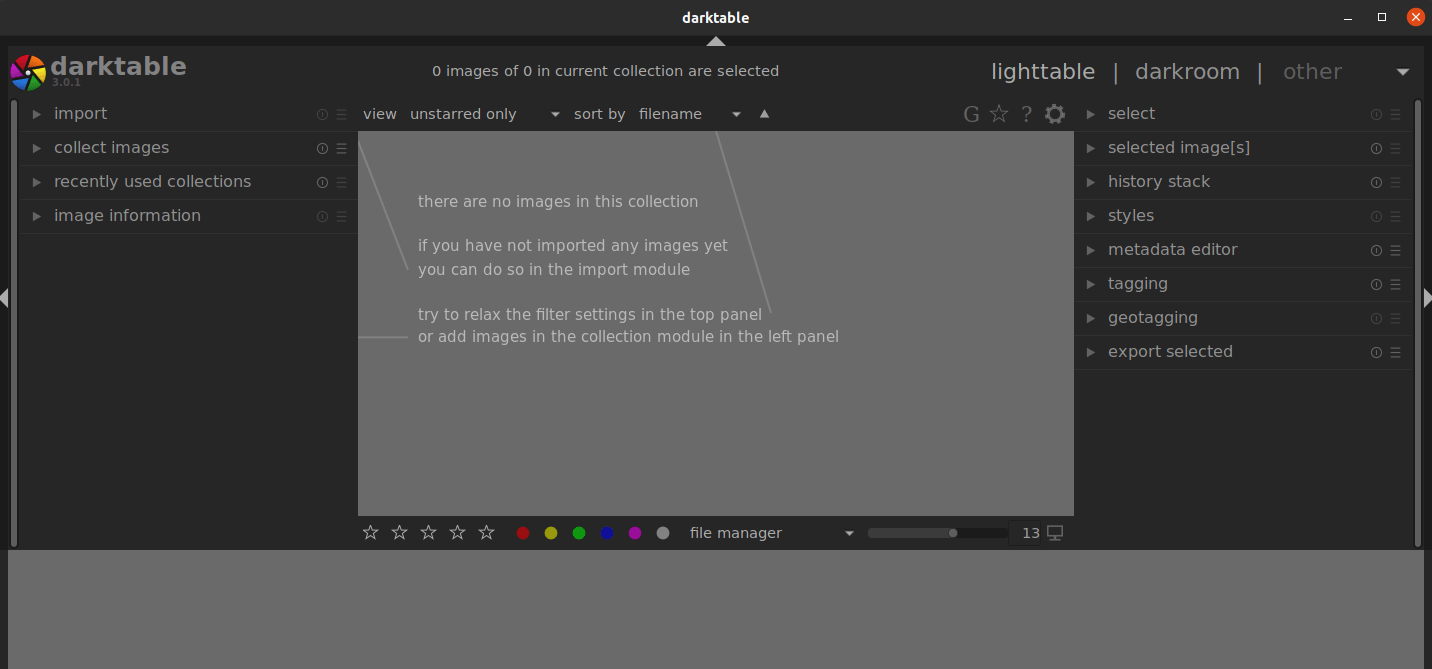
Launch from Graphical User Interface
Most users prefer launching applications through the desktop environment’s application menu. Click your system’s application menu, typically located in the bottom-left corner of your screen. In the search field, type “Darktable” and the application icon appears in the search results.
Click the Darktable icon to launch the application. For frequent use, consider adding Darktable to your favorites or pinning it to your taskbar. Right-click the icon in your application menu and select the appropriate option to add it to favorites. Creating a desktop shortcut provides another quick access method, though implementation varies by desktop environment.
Initial Configuration and Setup
The first time you launch Darktable, the application performs initial setup procedures including creating its database and configuration directories. The interface presents two primary views: the Lighttable for managing your photo collection and the Darkroom for editing individual images.
The Lighttable view displays your photo library in a grid or filmstrip format with powerful filtering and sorting capabilities. Use it to import images, apply ratings and tags, and organize your photography workflow. The Darkroom view provides the complete editing environment with dozens of processing modules arranged in logical groups.
Navigate to Edit > Preferences to access Darktable’s extensive configuration options. The memory allocation settings under the Performance tab significantly impact editing responsiveness. If your system has sufficient RAM, increase the resource level. GPU acceleration settings also appear here if your system has compatible graphics hardware and drivers.
Configure color management settings to match your display and printing workflow. Import your first photos through File > Import or by dragging images into the Lighttable window. Darktable creates a database entry for each image without copying files unless you specifically choose to.
Updating Darktable
Update APT Installation
Regular updates ensure you receive bug fixes, security patches, and new features. For APT-installed versions, Darktable updates arrive through the standard Debian update process.
Run these commands periodically:
sudo apt update && sudo apt upgradeThis checks for and installs all available package updates, including Darktable. The update frequency depends on which repository you used for installation. Debian’s official repository updates less frequently but with thorough testing, while the OpenSUSE repository provides more frequent updates with newer features.
Update Flatpak Installation
Flatpak applications update independently from system packages. Update Darktable and all other Flatpak applications with:
flatpak updateThis command checks Flathub for updates to all installed Flatpak applications and their runtimes. To update only Darktable, specify the application:
flatpak update org.darktable.DarktableSchedule regular updates, perhaps weekly or monthly, to stay current with improvements and fixes. Flatpak typically offers more frequent updates than traditional repositories.
Troubleshooting Common Installation Issues
Despite straightforward installation procedures, occasional issues arise. Dependency conflicts sometimes occur, particularly when mixing packages from different sources. The error messages usually indicate which package versions conflict. Remove conflicting packages or use the aptitude package manager, which often suggests better resolution strategies.
Repository authentication errors typically indicate GPG key issues. Verify you correctly imported the repository key using the exact command provided. Remove and re-add the repository key if authentication continues failing. Flatpak runtime issues occasionally prevent application launch. Update Flatpak runtimes explicitly with flatpak update to resolve these problems.
Permission denied errors when launching Darktable suggest incorrect file permissions or user group membership issues. Check that your user account has appropriate permissions for the Darktable executable and configuration directories. Insufficient disk space prevents installation completion. Free up space or choose a different installation location if possible.
GPU and OpenCL detection issues prevent hardware acceleration. Ensure proper graphics drivers are installed for your hardware. NVIDIA users need the proprietary nvidia-driver package, while AMD users require mesa-opencl-icd. Verify OpenCL functionality with the clinfo command after installing the opencl-icd-libopencl1 package.
If Darktable won’t start, check the terminal output for error messages when launching from the command line. Configuration file corruption occasionally occurs. Rename the ~/.config/darktable directory to reset all settings to defaults, though this loses your preferences and edits history.
Log files located in ~/.cache/darktable/ provide detailed debugging information. Community support resources include the Darktable forum at discuss.pixls.us, the GitHub issues page, and various photography communities where experienced users offer assistance.
Optimizing Darktable Performance
Performance optimization dramatically improves editing responsiveness and export speed. Enable GPU acceleration by navigating to Preferences > Processing > OpenCL support and activating the option if your hardware supports it. Test OpenCL functionality using the built-in benchmark tools.
Memory allocation settings under Preferences > Performance determine how much system RAM Darktable uses for caching and processing. Set the resource level to match your available memory. Systems with 16GB+ RAM benefit from setting this to “large” or “unrestricted”. The system interface memory setting controls the thumbnail cache size.
CPU versus GPU processing varies by module and hardware. Modern GPUs dramatically accelerate many operations, particularly those involving large amounts of pixel-level processing. Monitor the OpenCL indicator in the bottom panel to see which modules use GPU acceleration during editing.
Database optimization improves Lighttable responsiveness, especially with large photo libraries. Darktable automatically optimizes its database, but manual optimization through the database maintenance settings helps if you notice slowdowns. Cache management settings control disk space usage for temporary files and thumbnails.
Recommended settings for smooth operation include disabling modules you don’t use, limiting the number of modules in the processing pipeline, and working with smart previews when editing remotely stored images. Performance tuning varies by hardware configuration, so experiment to find optimal settings for your system.
Uninstalling Darktable
Remove APT Installation
If you need to remove Darktable installed via APT, use this command:
sudo apt remove darktableThis removes the application while preserving configuration files. To completely purge all files including settings:
sudo apt purge darktableThe purge command deletes configuration files from /etc/ but leaves user data in your home directory untouched.
Remove Flatpak Installation
Uninstall the Flatpak version with:
flatpak uninstall org.darktable.DarktableTo delete all user data and preferences simultaneously:
flatpak uninstall --delete-data org.darktable.DarktableRemove unused Flatpak runtimes to free disk space:
flatpak uninstall --unusedThis command identifies and removes runtimes no longer required by any installed applications.
Clean Up Repositories
If you added the OpenSUSE repository and no longer need it, remove the repository file:
sudo rm /etc/apt/sources.list.d/graphics:darktable:master.listAlso remove the associated GPG key:
sudo rm /etc/apt/trusted.gpg.d/graphics_darktable_master.gpgRun sudo apt update after removing repositories to update your package database.
Congratulations! You have successfully installed Darktable. Thanks for using this tutorial for installing Darktable professional photo editing on Debian 13 “Trixie” system. For additional help or useful information, we recommend you check the official Darktable website.

