How To Install Darktable on Fedora 43
Darktable stands as one of the most powerful open-source photography workflow applications available for Linux users today. This professional-grade RAW image developer offers photographers a complete digital darkroom experience with non-destructive editing capabilities, GPU acceleration, and advanced color management tools. Installing Darktable on Fedora 43 gives you access to version 5.2.1, which brings enhanced performance and feature improvements to your photography workflow.
This comprehensive guide walks you through multiple installation methods, from the straightforward DNF package manager approach to alternative solutions using Flatpak, Snap, and the OpenSUSE Build Service repository. Whether you’re a professional photographer seeking advanced RAW processing capabilities or an enthusiast looking to elevate your photo editing workflow, you’ll find detailed instructions tailored to your needs.
Understanding Darktable and Its Capabilities
What Makes Darktable Special
Darktable functions as a virtual lighttable and darkroom designed specifically for photographers working with digital negatives. Unlike basic image editors, it provides a complete photography workflow solution from import to export. The application processes images using 4×32-bit floating point precision, ensuring maximum quality throughout your editing process.
The software excels at managing large photo libraries while maintaining a non-destructive editing workflow. Every adjustment you make gets stored separately from your original files, allowing unlimited experimentation without risk. This approach mirrors traditional darkroom techniques adapted for the digital age.
Key Features That Matter
Darktable supports an extensive range of image formats including JPEG, CR2, NEF, HDR, PFM, and RAF files. The application leverages GPU acceleration through OpenCL support, dramatically speeding up RAW processing tasks on compatible hardware. Professional color management with ICC profile support covers sRGB, Adobe RGB, XYZ, and linear RGB color spaces.
Advanced filtering and database query capabilities help photographers organize thousands of images efficiently. The software also includes tethered shooting support for direct camera-to-computer workflows and offers a multi-language interface for global accessibility.
System Requirements for Optimal Performance
Minimum Specifications
Your Fedora 43 system needs at least a dual-core 2 GHz 64-bit processor to run the operating system smoothly. RAM requirements start at 2 GB, though this represents an absolute minimum. Storage space demands include 15 GB for the base system. Display resolution should reach at least 800×600 pixels.
Recommended Configuration
For comfortable RAW processing, aim for a 2 GHz quad-core processor or better. Increase RAM to 4 GB or higher to handle larger image files and complex editing operations. Allocate 40 GB or more of free storage space for the system, applications, and your growing photo library. A display resolution of 1024×768 or higher provides better workspace visibility.
Graphics cards with 1GB or more of dedicated memory deliver optimal performance when using OpenCL acceleration. This hardware acceleration significantly reduces processing times for batch operations and complex adjustments.
Preparing Your Fedora 43 System
System Update Process
Before installing any new software, updating your Fedora 43 system ensures compatibility and security. Open a terminal and execute the following command:
sudo dnf update && sudo dnf upgradeThis command refreshes package metadata and upgrades installed packages to their latest versions. The process may take several minutes depending on your internet connection and pending updates. DNF, Fedora’s package manager, handles dependency resolution automatically.
Verifying System Information
Check your Fedora version to confirm you’re running release 43:
cat /etc/fedora-releaseThe output should display “Fedora release 43” along with additional version information. This verification step prevents compatibility issues that might arise from version mismatches.
Monitor available disk space using the df -h command. Ensure you have sufficient free space for both the application and your future photo library.
Method 1: Installing Darktable Using DNF
Why Choose DNF Installation
DNF represents Fedora’s native package management system, offering tight integration with your operating system. Packages installed through DNF receive automatic dependency resolution and integrate seamlessly with system libraries. Updates typically consume less bandwidth since DNF downloads only changed components rather than entire packages.
The official Fedora repository includes Darktable version 5.2.1 specifically built for Fedora 43. This version has been tested for compatibility and stability on your distribution.
Step-by-Step DNF Installation
Refresh Package Metadata
Start by updating your package cache to ensure you’re installing the latest available version:
sudo dnf check-updateThis command queries all configured repositories for package updates without actually installing anything.
Install Darktable Package
Execute the installation command:
sudo dnf install darktableDNF displays a list of packages it plans to install, including Darktable and any required dependencies. Review the list and type ‘y’ when prompted to confirm. The download and installation process begins automatically, typically completing within a few minutes depending on your connection speed.
Verify Successful Installation
Confirm Darktable installed correctly by checking its version:
darktable --versionThe output should show version 5.2.1-3.fc43, confirming the Fedora 43 package. Alternatively, use which darktable to display the installation path, typically /usr/bin/darktable.
Launching the Application
Access Darktable through your applications menu by searching for “Darktable” in the application launcher. Alternatively, launch it directly from the terminal by typing darktable.
The first launch creates configuration directories and initializes the database. This initial setup takes a few extra seconds as Darktable prepares its workspace environment.
Method 2: Installing Darktable Using Flatpak
Understanding Flatpak Benefits
Flatpak provides a distribution-independent packaging format that runs applications in containerized environments. This sandboxing approach enhances security by limiting application access to system resources. Flatpak packages often deliver upstream versions directly from developers, potentially offering newer releases than distribution repositories.
Complete Flatpak Installation Process
Install Flatpak Framework
Most Fedora 43 installations include Flatpak by default. If missing, install it using:
sudo dnf install flatpakAdd Flathub Repository
Flathub serves as the primary repository for Flatpak applications. Add it to your system:
flatpak remote-add --if-not-exists flathub https://flathub.org/repo/flathub.flatpakrepoThe --if-not-exists flag prevents errors if you’ve already added Flathub previously.
Install Darktable via Flatpak
Download and install Darktable from Flathub:
flatpak install flathub org.darktable.DarktableFlatpak may prompt you to install required runtime libraries if they’re not already present. These shared libraries support multiple Flatpak applications, optimizing disk space usage over time.
Launch Flatpak Version
Run Darktable using the Flatpak runtime:
flatpak run org.darktable.DarktableThe application appears in your system menu after installation, allowing GUI launches without terminal commands.
Confirm Installation
List installed Flatpak applications to verify:
flatpak list | grep darktableThis command filters your Flatpak applications, displaying Darktable if installation succeeded.
Method 3: Installing Darktable Using Snap
Snap Package Overview
Snap packages offer another universal packaging format with automatic update capabilities. Canonical develops and maintains the Snap ecosystem, which works across numerous Linux distributions.
Snap Installation Steps
Enable Snap Support
Install the Snap daemon on Fedora 43:
sudo dnf install snapdCreate Symbolic Link
Enable classic snap support by creating a symbolic link:
sudo ln -s /var/lib/snapd/snap /snapLog out and back in, or restart your system to ensure the path updates take effect.
Install Darktable Snap
Execute the snap installation command:
sudo snap install darktableThe Snap store downloads the complete package, which may be larger than other installation methods due to bundled dependencies.
Verify and Launch
Check your installed snaps:
snap list | grep darktableLaunch Darktable by typing darktable in your terminal or finding it in your applications menu.
Method 4: Advanced Installation from OBS Repository
OpenSUSE Build Service Explained
The OpenSUSE Build Service (OBS) hosts community-maintained packages for various distributions. This repository sometimes provides newer versions or specialized builds not available in official Fedora repositories.
Installing from OBS
Add OBS Repository
Configure your system to use the graphics:darktable OBS repository:
sudo dnf config-manager --add-repo https://download.opensuse.org/repositories/graphics:/darktable/Fedora_43/graphics:darktable.repoNote that if a Fedora 43-specific repository isn’t available, you may need to use the Fedora 41 or 42 repository with caution.
Install from OBS
After adding the repository, install Darktable:
sudo dnf install darktableDNF automatically imports the repository GPG key during first use. Review the key fingerprint and accept it if it matches the official OBS key.
Verify Source
Confirm the installation source:
rpm -qi darktableThis command displays detailed package information including the source repository.
Post-Installation Configuration
Initial Setup and Workspace
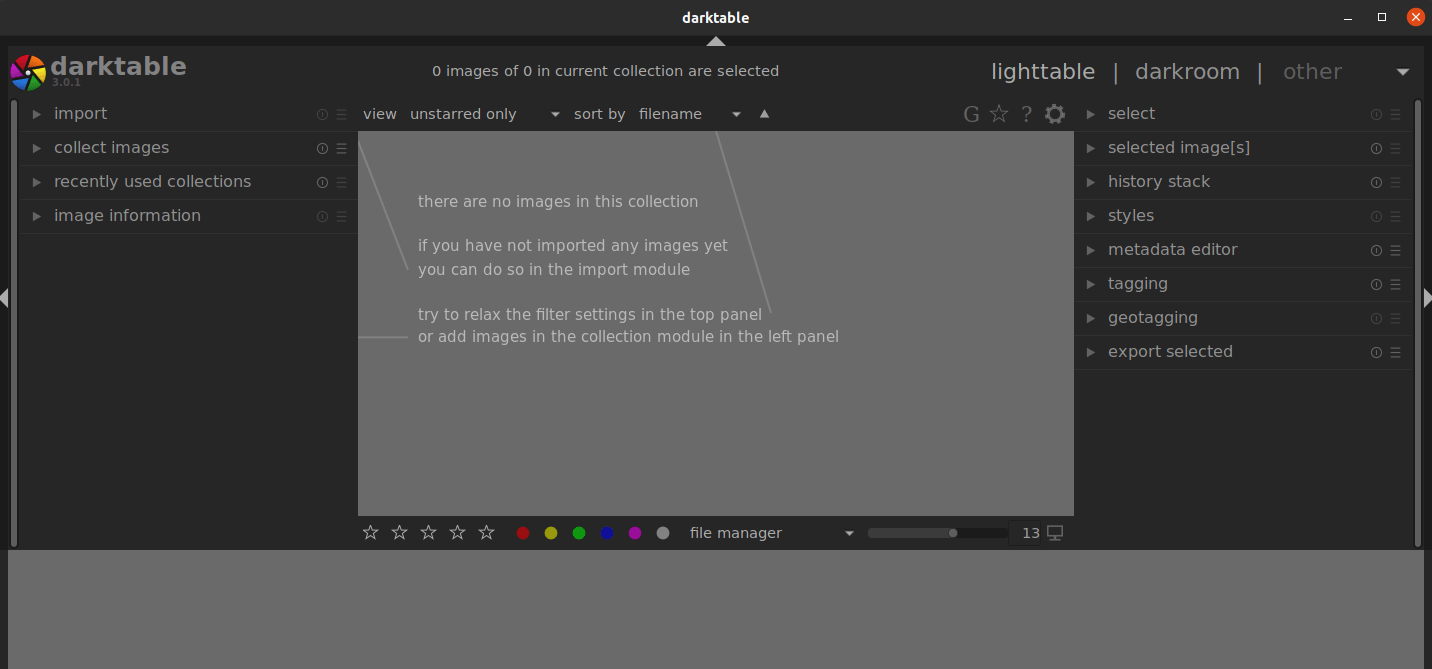
When you first launch Darktable, it creates a database to manage your photo library and preferences. The interface presents two primary modules: the lighttable for organizing images and the darkroom for editing. Take time to familiarize yourself with the layout before importing photos.
Enabling GPU Acceleration with OpenCL
OpenCL support dramatically accelerates RAW processing and complex operations. Check whether your system supports OpenCL by running:
darktable -d openclThe debug output reveals available OpenCL devices and their capabilities. Look for messages indicating successful OpenCL initialization.
Installing OpenCL Support
For AMD graphics cards, install Mesa OpenCL support:
sudo dnf install mesa-libOpenCLNVIDIA users need the proprietary driver package with OpenCL support. Intel GPU users typically have OpenCL support included with their graphics drivers.
Activating OpenCL
Navigate to Settings > Processing within Darktable and enable “activate OpenCL support”. The application displays available GPU devices and their memory. Systems with 1GB or more of GPU memory deliver optimal performance.
Color Management Setup
Professional photography demands accurate color representation. Configure display profiles by navigating to Settings > Color Management. Import ICC profiles for your monitor to ensure accurate color preview during editing.
Organizing Import and Export Directories
Establish default directories for importing photos and exporting finished work. Access these settings through Preferences > Storage. Creating a logical directory structure now saves time managing large photo collections later.
Verifying Your Installation
Basic Functionality Testing
Launch Darktable and import a few test images to verify core functionality. Navigate to the lighttable module and use the import button to add photos from your file system. Successful import confirms proper file system access and database operation.
OpenCL Verification
Beyond the command-line check, verify OpenCL activation by opening the darkroom module and checking the settings panel. An active OpenCL device appears in the processing preferences with its available memory displayed.
Apply an adjustment to a RAW file and observe processing speed. Compare performance with OpenCL enabled versus disabled to appreciate the acceleration benefits.
Version Confirmation Commands
Different installation methods require different verification approaches:
# For DNF installation
rpm -qa | grep darktable

# For Flatpak installation
flatpak list | grep darktable

# For Snap installation
snap list | grep darktable
Each command filters installed packages, displaying Darktable version information specific to that package manager.
Troubleshooting Common Issues
Application Launch Problems
If Darktable fails to start, check system logs for error messages:
journalctl -xe | grep darktablePermission issues occasionally prevent application launches. Verify that your user account has proper access to the installation directory and configuration folders.
OpenCL Not Working
Missing OpenCL libraries represent the most common GPU acceleration problem. AMD GPU users should verify mesa-libOpenCL installation. NVIDIA users must ensure proprietary drivers are properly installed and configured.
Test OpenCL availability independently using clinfo:
sudo dnf install clinfo
clinfo
This utility displays detailed OpenCL platform and device information. If clinfo shows no devices, your GPU drivers need attention.
As a workaround, disable OpenCL entirely if it causes crashes:
darktable --disable-openclDatabase and Configuration Issues
Database corruption occasionally occurs, particularly after unexpected shutdowns. Darktable stores its database in ~/.config/darktable/library.db. Back up this file regularly, especially before major version updates.
Reset configuration by renaming the entire ~/.config/darktable/ directory. Darktable creates fresh configuration files on next launch, though you’ll lose custom settings.
Performance Optimization
Insufficient RAM causes performance degradation with large RAW files. Monitor memory usage using system tools and close unnecessary applications when processing photos. Adjust cache settings in Darktable preferences to optimize for your available RAM.
Flatpak and Snap Sandbox Issues
Containerized applications sometimes struggle with file system access. Grant additional permissions to Flatpak applications using Flatseal, a graphical permission manager. Snap applications use similar permission systems accessible through snap connect commands.
Keeping Darktable Updated
DNF Update Process
Update Darktable alongside other system packages:
sudo dnf update darktableAlternatively, update your entire system to include Darktable:
sudo dnf upgradeDNF downloads only changed package components, minimizing bandwidth usage.
Flatpak Update Commands
Refresh Flatpak applications:
flatpak update org.darktable.DarktableUpdate all Flatpak applications simultaneously:
flatpak updateFlathub typically receives updates shortly after upstream releases.
Snap Automatic Updates
Snap packages update automatically by default. Manually refresh snaps using:
sudo snap refresh darktableCheck for available updates without installing:
snap refresh --listPre-Update Precautions
Back up your Darktable database before major version updates. Database format changes occasionally require migration, and having a backup ensures you can rollback if problems arise. Copy the entire ~/.config/darktable/ directory to a safe location.
Uninstalling Darktable
Removing DNF Installation
Remove Darktable and its dependencies:
sudo dnf remove darktableClean up orphaned dependencies:
sudo dnf autoremoveRemoving Flatpak Installation
Uninstall the Flatpak package:
flatpak uninstall org.darktable.DarktableRemove unused runtime libraries:
flatpak uninstall --unusedRemoving Snap Installation
Delete the Snap package:
sudo snap remove darktableSnap automatically removes associated data during uninstallation.
Configuration File Cleanup
All installation methods leave configuration files in ~/.config/darktable/ and cache data in ~/.cache/darktable/. These directories persist after uninstallation, preserving your settings for potential reinstallation. Delete them manually if desired:
rm -rf ~/.config/darktable
rm -rf ~/.cache/darktable
Back up the database file before deletion if you might want to recover your photo library organization later.
Congratulations! You have successfully installed Darktable. Thanks for using this tutorial for installing Darktable professional photo editing on the Fedora 43 Linux system. For additional help or useful information, we recommend you check the official Darktable website.
