How To Install DeaDBeeF on Debian 13

Are you searching for a lightweight music player that won’t bog down your Debian 13 system? DeaDBeeF might be exactly what you need. This powerful yet minimal audio player delivers exceptional performance without sacrificing features, making it perfect for Debian users who value efficiency and customization. Whether you’re running Debian on older hardware or simply prefer a streamlined experience, DeaDBeeF offers extensive format support, plugin functionality, and a clean interface that adapts to your workflow.
This comprehensive guide walks you through three different installation methods for DeaDBeeF on Debian 13 (Trixie), from the simple DEB package approach to advanced source compilation. You’ll learn how to configure audio settings, troubleshoot common issues, and optimize your music player for the best listening experience.
What is DeaDBeeF?
DeaDBeeF stands for “Dead Beef” and represents one of the most efficient open-source audio players available for Linux systems. Unlike resource-heavy alternatives, this modular music player focuses on doing one thing exceptionally well: playing your music collection with minimal system overhead.
The player supports over 50 audio formats right out of the box. From common formats like MP3 and FLAC to specialized codecs including APE, TTA, WavPack, Musepack, AAC, ALAC, WMA, and DTS, DeaDBeeF handles them all seamlessly. This extensive format compatibility eliminates the need for multiple media players cluttering your system.
What truly sets DeaDBeeF apart is its plugin architecture. The modular design allows you to extend functionality exactly as needed. Want scrobbling support for Last.fm? There’s a plugin. Need an 18-band equalizer with ReplayGain support? Built right in. The customizable GTK+ interface adapts to both GTK2 and GTK3 environments, ensuring visual consistency regardless of your desktop environment.
Gapless playback ensures your albums flow naturally without interruptions between tracks. The player also excels at playlist management, supporting standard formats like M3U and PLS. Keyboard shortcuts provide quick navigation, while the system tray integration keeps everything accessible without consuming taskbar space.
For Debian 13 users specifically, DeaDBeeF represents an ideal match. Debian’s philosophy emphasizes stability and efficiency, values that DeaDBeeF embodies completely. The active development community ensures regular updates and security patches, while the cross-platform nature (supporting Linux, BSD, and macOS) demonstrates mature, well-tested code.
System Requirements
Before diving into installation, verify your system meets the necessary specifications. Debian 13 requires at minimum 2 GB of RAM and 20 GB of disk space. However, for optimal performance with DeaDBeeF and a typical desktop environment, 4 GB of RAM and 50+ GB of storage are recommended.
Your processor must support x86_64 (64-bit) architecture. Most systems manufactured after 2007 meet this requirement, but check if you’re working with older hardware. DeaDBeeF itself needs only approximately 100 MB of additional disk space, making it one of the lightest music players available.
You’ll also need an active internet connection for downloading packages and sudo privileges to install software. DeaDBeeF works with all major Debian desktop environments including GNOME, KDE Plasma, XFCE, MATE, and Cinnamon.
Pre-Installation Preparation
Proper preparation prevents installation headaches. Start by updating your package lists and upgrading existing software to ensure clean dependency resolution.
Open your terminal and execute:
sudo apt update
sudo apt upgrade -y
The update command refreshes repository information, while upgrade installs the latest versions of currently installed packages. This process might take several minutes depending on how recently you’ve updated.
Next, install essential dependencies. DeaDBeeF requires certain libraries for graphical display and audio output. Install them with:
sudo apt install build-essential libgtk-3-dev libasound2-dev libpulse-devThese packages provide GTK for the interface, ALSA for direct audio hardware access, and PulseAudio for modern audio server integration.
If you’ve previously installed DeaDBeeF from unofficial sources or older versions, remove them first to avoid conflicts. Check for existing installations:
dpkg -l | grep deadbeefIf anything appears, remove it:
sudo apt remove deadbeefThis cleanup step prevents version conflicts and ensures a fresh installation.
Installation Method 1: Using Pre-built DEB Package (Recommended)
The easiest and most reliable installation method uses the official DEB package provided by DeaDBeeF developers. This approach works perfectly for most users and requires minimal technical knowledge.
Download the Official DEB Package
Navigate to the official DeaDBeeF download page at deadbeef.sourceforge.io/download.html using your web browser. Look for the section labeled “DeaDBeeF 1.10.0 universal deb package amd64” or the latest version available. Click the download link.
Your browser typically saves files to the Downloads folder in your home directory. The file will be named something like deadbeef-static_1.10.0-1_amd64.deb. The “static” designation means all dependencies are bundled, simplifying installation.
Install Using DPKG Command
Open your terminal and navigate to the Downloads directory:
cd ~/DownloadsInstall the package using dpkg:
sudo dpkg -i deadbeef-static_1.10.0-1_amd64.debReplace the version number if you downloaded a different release. Enter your password when prompted.
The installation process displays progress information. Watch for any error messages, though the static package typically installs without issues.
Fix Dependency Issues
If dpkg reports missing dependencies, don’t panic. Fix them automatically:
sudo apt install -fThis command instructs apt to locate and install missing dependencies, then complete the interrupted installation. The “-f” flag means “fix broken.”
Verify Installation Location
DeaDBeeF installs to /opt/deadbeef when using the static package. The /opt directory is standard for self-contained applications that don’t integrate with system package management. The installer automatically adds the binary to your system PATH, allowing you to launch DeaDBeeF from anywhere.
Installation Method 2: Using GDebi Package Installer (GUI Method)
Prefer graphical interfaces? GDebi provides a user-friendly alternative to command-line installation.
First, ensure GDebi is installed:
sudo apt install gdebiOpen your file manager and navigate to your Downloads folder. Locate the DeaDBeeF .deb file you downloaded. Right-click the file and select “Open With GDebi Package Installer” from the context menu.
GDebi launches and displays detailed package information including version, size, and dependencies. Review this information to confirm you’re installing the correct package. Click the “Install Package” button at the bottom of the window.
GDebi prompts for authentication. Enter your password to proceed. The tool automatically resolves dependencies, downloading and installing required libraries before installing DeaDBeeF. This automatic dependency handling makes GDebi particularly beginner-friendly.
A progress bar indicates installation status. Once complete, GDebi confirms successful installation. You can now close the window and launch DeaDBeeF from your application menu.
Installation Method 3: Building from Source (Advanced)
Advanced users wanting the latest development features or custom modifications should compile from source. This method requires more technical knowledge but offers maximum flexibility.
Clone the Git Repository
Install Git if it’s not already present:
sudo apt install gitClone the DeaDBeeF repository:
git clone https://github.com/DeaDBeeF-Player/deadbeef.git
cd deadbeef
Initialize submodules to download additional required components:
git submodule update --initThis command fetches dependencies managed as Git submodules.
Install Build Dependencies
Compiling requires numerous development libraries. Install the comprehensive dependency set:
sudo apt install build-essential autoconf automake autopoint libtool clang yasm intltool pkg-config libjansson-devThese tools provide the compiler, build system, and essential libraries.
For extended format support, install FFmpeg development libraries:
sudo apt install libavformat-dev libavcodec-dev libavutil-devFFmpeg enables additional codec support beyond the built-in decoders.
Configure and Compile
Bootstrap the build system:
./autogen.shThis script generates the configure script needed for compilation.
Configure the build using Clang:
CC=clang CXX=clang++ ./configureThe configure script checks for dependencies and prepares the Makefile. Review the output to ensure all desired features are enabled.
Compile the source code:
makeCompilation takes 5-15 minutes depending on your processor speed. Multiple CPU cores parallelize the process automatically.
Install to your system:
sudo make installThis copies binaries to /usr/local/bin and libraries to appropriate system directories.
Source compilation makes sense when you need bleeding-edge features, plan to modify the code, or want to understand the build process deeply. For most users, the DEB package suffices.
Post-Installation Configuration
With DeaDBeeF installed, configure it for optimal performance and usability.
Launch DeaDBeeF
Find DeaDBeeF in your application menu under the Sound & Video or Multimedia category. Alternatively, launch from terminal:
deadbeefThe player opens with an empty playlist. The clean interface emphasizes functionality over flash.
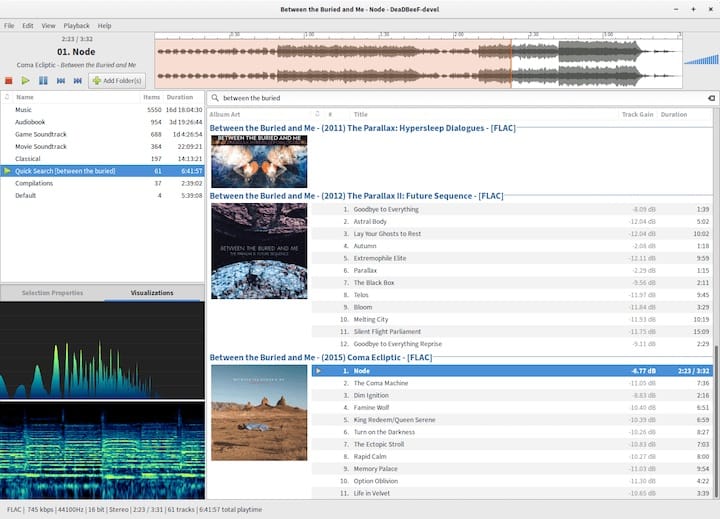
Configure Audio Output
Navigate to Edit → Preferences → Sound in the menu bar. The Sound settings control audio routing.
Select your output plugin from the dropdown menu. Options include ALSA (direct hardware access), PulseAudio (modern audio server), and PipeWire (newest audio infrastructure). For Debian 13, PulseAudio or PipeWire typically provide the best results.
Choose your audio device from the device list. If you have multiple sound cards or USB audio interfaces, select the appropriate one.
Adjust the buffer size if you experience crackling or latency issues. Larger buffers reduce crackling but increase latency. Start with the default and adjust only if necessary.
Click Apply, then play a test track to verify audio output.
Set Up Music Library
Add your music collection by clicking File → Add Folder. Navigate to your music directory (commonly ~/Music) and select it. DeaDBeeF scans the folder and adds all supported audio files to the playlist.
For better library management, consider organizing files by artist and album. DeaDBeeF reads metadata tags to display track information properly.
The player supports multiple playlists. Create new playlists using File → New Playlist. Switch between playlists using tabs at the top of the window.
Interface Customization
DeaDBeeF’s flexibility extends to visual customization. Access Edit → Preferences → GUI/Misc to switch between GTK2 and GTK3 interface plugins. GTK3 provides better integration with modern desktop environments, while GTK2 uses fewer resources.
Customize playlist columns by right-clicking the column headers. Add or remove columns like Album, Year, Genre, or Bitrate based on your preferences.
Configure keyboard shortcuts in Edit → Preferences → Hotkeys. Assign global shortcuts to control playback even when DeaDBeeF isn’t focused.
Enable system tray integration in the GUI preferences to minimize DeaDBeeF to your notification area rather than the taskbar.
Installing and Managing Plugins
DeaDBeeF’s plugin architecture unlocks extensive functionality beyond the core player.
Browse available plugins on the official website or GitHub repository. Popular options include audio converters for transcoding, spectrum analyzers for visual feedback, additional codec support, and lyrics fetchers.
To install plugins manually, download the .so file (shared object library). Copy it to ~/.local/lib/deadbeef/:
mkdir -p ~/.local/lib/deadbeef
cp downloaded-plugin.so ~/.local/lib/deadbeef/
Restart DeaDBeeF to load the new plugin. Navigate to Edit → Preferences → Plugins to see all installed plugins. Enable or disable plugins using checkboxes.
Some plugins add new preferences sections. Explore the Preferences window after installing plugins to configure their settings.
Exercise caution with third-party plugins. Stick to official repositories or well-reviewed sources to maintain system security and stability.
Troubleshooting Common Issues
Even straightforward installations encounter occasional hiccups. Here’s how to resolve the most common problems.
Audio Playback Problems
No sound output? First, verify DeaDBeeF isn’t muted. Check the volume slider in the player interface. Next, confirm your audio output settings in Preferences → Sound. Try different output plugins (ALSA, PulseAudio, PipeWire) to identify compatibility issues.
Test audio with other applications to rule out system-wide problems. If other players work, the issue lies within DeaDBeeF’s configuration.
Crackling or distorted audio typically indicates buffer size problems. Increase the buffer size in audio preferences. Values between 4096 and 8192 usually eliminate crackling on most systems.
If specific formats won’t play, install corresponding codec plugins or FFmpeg libraries. DeaDBeeF’s format support depends on available decoders.
Installation Errors
Dependency errors during dpkg installation resolve with:
sudo apt install -fArchitecture mismatch errors occur when installing 32-bit packages on 64-bit systems or vice versa. Verify you downloaded the amd64 package for Debian 13.
“Permission denied” errors indicate insufficient privileges. Ensure you’re using sudo for installation commands.
Performance Issues
High CPU usage often results from resource-intensive plugins like spectrum analyzers or visualization tools. Disable unnecessary plugins in Preferences → Plugins.
Slow library scanning affects large music collections. DeaDBeeF performs this task in the background, so simply wait for completion. Future scans use cached data and complete much faster.
GUI lag on older hardware? Switch from GTK3 to GTK2 interface plugin for improved performance.
Plugin Issues
Plugins not appearing? Verify correct installation directory (~/.local/lib/deadbeef/). Check file permissions ensure the plugin file is readable.
Plugin crashes indicate compatibility issues. Update to the latest plugin versions. Remove problematic plugins if crashes persist.
Updating DeaDBeeF
Keep your music player current for security patches and new features.
Check your current version:
deadbeef --versionVisit the official download page periodically to check for updates. The developers announce new releases on the website and GitHub.
For DEB package installations, download the latest package and install it. The new version overwrites the old installation:
sudo dpkg -i deadbeef-static_NEW-VERSION_amd64.debFor source installations, pull the latest changes:
cd deadbeef
git pull
./autogen.sh
CC=clang CXX=clang++ ./configure
make
sudo make install
Before major updates, back up your configuration directory:
cp -r ~/.config/deadbeef ~/.config/deadbeef.backupThis precaution preserves your settings if something goes wrong.
Uninstalling DeaDBeeF
Need to remove DeaDBeeF? The process varies by installation method.
For DEB installations:
sudo apt remove deadbeefFor static builds installed to /opt:
sudo rm -rf /opt/deadbeefRemove configuration files:
rm -rf ~/.config/deadbeefRemove plugin directory:
rm -rf ~/.local/lib/deadbeefClean up residual dependencies:
sudo apt autoremoveVerify complete removal:
which deadbeefThis command should return nothing if DeaDBeeF was successfully removed.
Congratulations! You have successfully installed DeaDBeeF. Thanks for using this tutorial for installing the DeaDBeeF audio player on Debian 13 “Trixie” system. For additional help or useful information, we recommend you check the official DeaDBeeF website.
