How To Install DigiKam on Fedora 43

DigiKam stands as one of the most powerful open-source photo management applications available for Linux users today. Built on the robust KDE framework, this professional-grade software offers photographers, content creators, and digital imaging enthusiasts a comprehensive solution for organizing, editing, and managing extensive photo libraries. Fedora 43 users can leverage digiKam’s advanced RAW processing capabilities, sophisticated metadata handling, and seamless camera integration to streamline their entire photography workflow. This guide walks you through multiple installation methods, configuration steps, and optimization strategies to get digiKam running smoothly on your Fedora 43 system.
Understanding DigiKam Features and Use Cases
DigiKam delivers far more than basic photo viewing and organization. The application excels at importing images directly from digital cameras and memory cards, managing libraries containing thousands of photos, and processing RAW files from virtually every camera manufacturer. Its integrated image editor provides non-destructive editing workflows, while batch processing tools enable you to apply corrections to multiple images simultaneously.
Fedora users benefit from digiKam’s deep integration with KDE technologies, though the software runs equally well on GNOME, Xfce, and other desktop environments. The application supports advanced metadata operations including EXIF, IPTC, and XMP standards, making it invaluable for professional photographers who need to maintain detailed image information. Face recognition, geolocation tagging, and sophisticated search capabilities help you find specific photos within massive collections in seconds.
Content creators managing large RAW workflows particularly appreciate digiKam’s versatility. Compared to alternatives like Shotwell or Darktable, digiKam offers a middle ground—more comprehensive than simple gallery apps while maintaining better library management features than pure RAW processors. This balance makes it ideal for hobby photographers, Linux enthusiasts documenting their projects, and professionals seeking a complete photo management solution without proprietary software.
System Requirements and Compatibility on Fedora 43
Running digiKam smoothly on Fedora 43 requires moderate hardware resources. A modern dual-core processor handles basic operations adequately, though quad-core or better CPUs significantly improve performance when processing RAW files or generating thumbnails for large libraries. Plan for at least 4GB of RAM for comfortable operation, with 8GB or more recommended if you work with high-resolution images or maintain collections exceeding 10,000 photos.
Storage considerations matter greatly with photo management software. DigiKam’s database files remain relatively small, but your photo library will consume substantial disk space. Solid-state drives dramatically improve application responsiveness, particularly during initial thumbnail generation and database queries. Consider dedicating at least 100GB of storage for moderate photography workflows, with expandability for future growth.
Fedora 43 packages digiKam primarily for x86_64 architecture, with the latest stable 8.x series available through official repositories. The application works seamlessly across desktop environments, though KDE Plasma users enjoy the most native integration. Both Wayland and X11 sessions support digiKam, though some users report better stability with X11 when using certain camera import features or older graphics drivers. Modern Mesa graphics drivers on Fedora 43 generally provide excellent performance for digiKam’s image rendering and editing functions.
Pre-Installation Preparation on Fedora 43
Proper preparation prevents common installation headaches. Start by ensuring your Fedora 43 system runs the latest packages. Open a terminal and execute a full system update:
sudo dnf upgrade --refreshThis command refreshes repository metadata and upgrades all installed packages. Reboot your system after major kernel or graphics driver updates to ensure stability. A clean, updated system minimizes dependency conflicts during digiKam installation.
Before installing photo management software, establish a solid backup strategy for existing image collections. External hard drives, network-attached storage, or cloud backup services protect irreplaceable photos from hardware failures or accidental deletions. Document where your current photos reside, noting any existing organization schemes you want to preserve in digiKam.
Verify that Fedora’s standard repositories are enabled. Most Fedora 43 installations include the base Fedora and updates repositories by default. Check your configuration with:
dnf repolistIf you plan to work with additional multimedia formats or codecs later, consider enabling RPM Fusion repositories, though digiKam’s core functionality doesn’t require them. DNF’s sophisticated dependency resolver automatically pulls required libraries and frameworks when installing digiKam from official sources.
Method 1 – Install DigiKam via DNF (Official Fedora Repository)
Why DNF Is the Recommended Method
Installing digiKam through DNF offers compelling advantages for most Fedora 43 users. The distribution-provided package receives regular maintenance from Fedora’s package maintainers, ensuring compatibility with your system’s Qt libraries, KDE frameworks, and other dependencies. Security updates and bug fixes arrive automatically through your normal system update routine, eliminating the need to monitor upstream releases separately.
Fedora’s packaging team tests digiKam thoroughly against other system components before releasing updates. This quality assurance process catches potential conflicts early, providing a stable experience out of the box. The DNF method also respects system-wide library versions, preventing the duplicate dependencies that alternative packaging formats sometimes require. For long-term reliability and seamless system integration, DNF remains the gold standard on Fedora.
Step-by-Step DNF Installation
Begin by searching Fedora’s repositories to confirm digiKam availability and view package details:
dnf search digikamThis query returns the main digiKam package along with related components like documentation, plugins, or language files. Examine package information before installing:
dnf info digikamThe output displays the available version, package size, dependencies, and a brief description. Fedora 43 typically provides digiKam 8.x series builds. Install the application with:
sudo dnf install digikamDNF displays a transaction summary listing all packages it will install, including required dependencies. Review the list to understand what components the system needs. Total download size rarely exceeds 150MB, though dependency resolution may install additional KDE libraries if you’re running a non-KDE desktop environment. Confirm the installation when prompted.
The installation process typically completes within a few minutes depending on your internet connection and system performance. DNF automatically handles GPG key verification and package integrity checks. Optional language packs or additional plugins appear as separate packages in search results—install them based on your needs using the same DNF install command with the specific package names.
Verifying the Installation and Launching DigiKam
Confirm successful installation by querying DNF for package information:
rpm -q digikamThis command returns the installed version number, confirming the package exists on your system. Launch digiKam from your application menu by navigating to the Graphics or Photography category, depending on your desktop environment’s organization scheme. Alternatively, start the application from the terminal:
digikam &The ampersand runs digiKam in the background, freeing your terminal for other commands. On first launch, digiKam presents a welcome wizard guiding you through initial configuration. This setup assistant helps you establish database locations and select your photo collection directories. If the application window opens without errors and displays the configuration wizard, your installation succeeded.
Method 2 – Install DigiKam via Snap or Flatpak
When Alternative Package Formats Make Sense
Snap and Flatpak offer distinct advantages in specific scenarios. These containerized formats package applications with their exact required library versions, enabling newer digiKam releases than Fedora’s conservative stable repositories might provide. Sandboxed environments isolate applications from system files, potentially improving security. Version management becomes straightforward—you can easily roll back to previous releases if an update introduces problems.
Trade-offs accompany these benefits. Snap and Flatpak packages consume more disk space by bundling dependencies that already exist on your system through DNF packages. Initial startup times may increase slightly as the runtime environment initializes. Desktop integration occasionally requires extra configuration for theme consistency or file picker behavior. For users wanting cutting-edge features or testing development builds, these alternative formats provide valuable flexibility despite minor inconveniences.
Installing DigiKam Using Snap on Fedora 43
Fedora doesn’t include Snap support by default. Enable snapd first:
sudo dnf install snapdAfter installation, enable and start the snapd systemd service:
sudo systemctl enable --now snapd.socketCreate the classic snap support symlink to ensure compatibility with packages requiring traditional filesystem access:
sudo ln -s /var/lib/snapd/snap /snapLog out and back in, or reboot your system to ensure all paths are properly initialized. Install digiKam from the Snap Store:
sudo snap install digikamSnap downloads and installs the latest stable release from the store. Monitor progress as the package downloads—sizes typically range from 200-300MB. Launch the Snap version using:
snap run digikamOr simply search for digiKam in your application menu as usual. Verify installation status with:
snap list | grep digikamSnap channels (stable, candidate, beta, edge) allow you to track different release streams if you want to test newer versions or access development builds. Switch channels using snap refresh commands with the appropriate channel flag.
Installing DigiKam Using Flatpak
Fedora 43 ships with Flatpak support enabled, simplifying the process considerably. Check if digiKam is available through Flathub, the primary Flatpak repository:
flatpak search digikamIf listed, install with:
flatpak install flathub org.kde.digikamConfirm the installation when prompted, and Flatpak handles downloading the application and required KDE runtime components. Launch via:
flatpak run org.kde.digikamFlatpak runtimes efficiently share common libraries across multiple applications, making subsequent KDE app installations smaller. The sandboxed environment requires explicit permissions for accessing directories outside your home folder—grant filesystem access if needed using Flatseal or flatpak override commands. Desktop themes and fonts generally integrate well through Flatpak’s portal system on Fedora 43.
Method 3 – Running DigiKam via AppImage
Why Use the AppImage Build
AppImage represents the most portable installation approach. This self-contained format bundles the application and all dependencies into a single executable file that runs without installation. You can store AppImages on USB drives, share them across machines, or test different digiKam versions alongside distribution packages without conflicts. No root privileges are necessary—simply download, mark as executable, and run.
This portability proves valuable when working across multiple systems, evaluating development snapshots, or maintaining a pristine base system. AppImages don’t receive automatic updates through system package managers, giving you explicit control over version management. For Fedora 43 users wanting to experiment with the latest upstream features while keeping a stable DNF-installed version for production work, AppImage provides an ideal testing environment.
Downloading and Preparing the AppImage
Visit digiKam’s official download page to locate the latest AppImage build. The project typically offers both Qt5 and Qt6 variants—choose based on your preferences or desktop environment compatibility. Download the appropriate file using your web browser or wget:
wget https://download.kde.org/stable/digikam/[version]/digiKam-[version]-x86-64.appimageReplace [version] with the current release number. Verify file integrity if checksums are provided on the download page. Make the AppImage executable:
chmod +x digiKam-*.appimageOrganize AppImages by creating a dedicated directory in your home folder:
mkdir -p ~/Applications
mv digiKam-*.appimage ~/Applications/
This structure keeps portable applications separate from system-managed software, simplifying maintenance.
Launching and Integrating the AppImage
Run digiKam directly from the terminal:
~/Applications/digiKam-*.appimageThe application starts as if installed traditionally. First-run behavior mirrors other installation methods—the welcome wizard appears, prompting for configuration choices. AppImages on Fedora 43 generally work smoothly with both Wayland and X11 sessions.
For better desktop integration, create a manual .desktop file or use AppImage integration tools like AppImageLauncher. These utilities automatically handle menu entries, icons, and file associations, making AppImage applications behave like native software. Copy the AppImage’s icon and create a desktop entry in ~/.local/share/applications/ for seamless application menu integration.
First-Run Configuration and Library Setup
Initial Database and Storage Choices
DigiKam’s welcome wizard presents critical decisions affecting long-term usability. The database backend stores metadata, tags, ratings, and album structures. SQLite provides the simplest option for single-user workstations—digiKam creates database files in your chosen location without requiring separate database server software. SQLite performs excellently for collections up to 100,000 images on modern hardware.
Advanced users managing libraries across multiple computers or collaborating with others might prefer MySQL or MariaDB backends. These require installing and configuring a database server, adding complexity but enabling concurrent access and potentially better performance with enormous collections. For typical Fedora 43 photography workflows, SQLite’s simplicity and reliability make it the recommended choice.
Select storage locations thoughtfully. Place databases on fast local storage like SSDs for optimal query performance. Point photo collections to directories with sufficient space—whether local hard drives, external USB storage, or network shares. DigiKam doesn’t move or copy your photos during setup unless you explicitly request it; the application simply indexes existing files wherever they reside. Maintain consistent mount points for external drives to prevent broken references if device paths change.
Importing Photos and Organizing Collections
DigiKam excels at importing images from various sources. Connect your digital camera or insert a memory card—Fedora 43 typically auto-detects devices and mounts them under /run/media/username/. DigiKam’s import dialog displays available devices, allowing you to preview images before copying them to your library. Configure automatic file renaming, date-based subfolder creation, and metadata preservation during import.
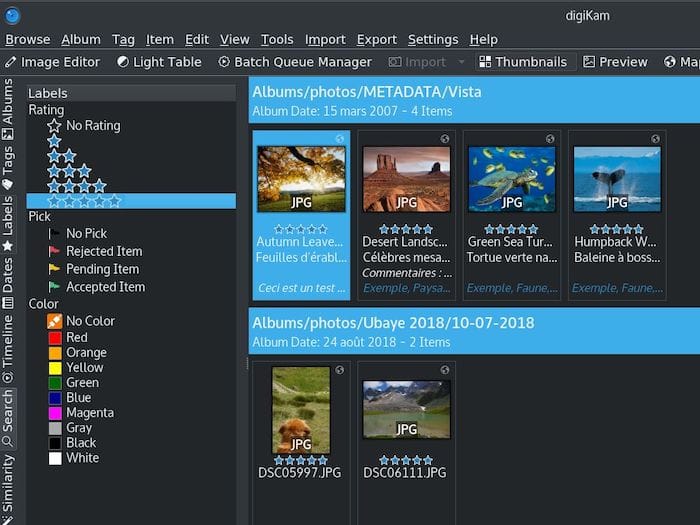
Importing existing photo folders requires simply pointing digiKam to those directories through the album management interface. The application scans recursively, generating thumbnails and reading metadata without modifying original files. Establish a logical folder hierarchy early—organize by date, event, or project as suits your workflow. DigiKam’s powerful tagging system supplements folder organization, enabling multiple classification schemes through keywords, ratings, and color labels.
Basic Interface Tour for New Users
DigiKam’s main window divides into several key areas. The left sidebar displays albums, tags, and search tools. The central pane shows thumbnails or image previews depending on view mode. The right sidebar presents metadata panels showing EXIF information, assigned tags, and image properties. Toolbar buttons provide quick access to common operations like importing, editing, and batch processing. Spend a few minutes exploring menu options and customizing the interface layout to match your preferences—digiKam supports extensive workspace customization.
Post-Installation Optimization and Best Practices
Performance Tweaks on Fedora 43
Optimize digiKam’s performance through several configuration adjustments. Access settings through the Configure digiKam menu option. Under Performance settings, adjust the number of threads for thumbnail generation—match this to your CPU core count for best results. Enable face detection and recognition features selectively; they consume substantial processing power during initial library scans but prove invaluable for finding photos later.
Database optimization periodically defragments SQLite files, improving query speed. Schedule this maintenance during idle periods for large libraries. Store thumbnails on the same fast storage as your database rather than alongside photos on potentially slower archive drives. This separation prevents thumbnail regeneration delays when accessing images.
Keep your Fedora 43 system’s graphics drivers current for optimal image rendering performance. Open-source Mesa drivers receive frequent updates improving OpenGL support and overall stability. Check for available driver updates through:
sudo dnf upgrade mesa*Modern AMD and Intel integrated graphics handle digiKam exceptionally well. NVIDIA users should ensure proprietary drivers are properly configured for best performance with large RAW files and complex editing operations.
Backup and Data Protection Strategies
Protect your investment in photo organization by establishing robust backup routines. DigiKam stores critical information in two locations: your photo files themselves and the database files containing tags, ratings, and album structures. Back up both regularly to preserve your work completely.
Use rsync for efficient incremental backups to external drives:
rsync -av --progress ~/Pictures/ /media/backup/Pictures/Include digiKam’s database directory in backups—typically located in ~/.local/share/digikam/. Consider automated backup solutions like GNOME’s Déjà Dup or timeshift for system-wide protection. Cloud backup services provide off-site redundancy, crucial for irreplaceable photos. Test restoration procedures periodically to verify backup integrity before you need them urgently.
Troubleshooting Common DigiKam Issues on Fedora 43
Installation and Dependency Problems
Failed installations typically result from repository inconsistencies or interrupted transactions. If DNF reports dependency conflicts, update your entire system first:
sudo dnf distro-syncThis command synchronizes installed packages with repository versions, resolving version mismatches. Check DNF’s history if installations fail midway:
sudo dnf historyReview recent transactions and use dnf history undo to revert problematic changes. Clear DNF’s cache and rebuild metadata if persistent issues occur:
sudo dnf clean all
sudo dnf makecache
Running multiple installation methods simultaneously causes confusion. Choose one primary approach—preferably DNF—and remove alternative versions to prevent conflicts. Mixing system packages with Snaps or Flatpaks occasionally creates duplicate menu entries or version confusion.
Runtime Errors, Crashes, and Wayland Issues
Occasional startup failures or crashes often relate to graphics driver or display server issues. If digiKam crashes immediately on launch under Wayland, test with an X11 session. Log out, select an X11 session option at the login screen, and retry launching digiKam. Many graphical applications exhibit improved stability on X11 with certain hardware configurations.
Enable debug output for detailed error information:
digikam --debugReview terminal output for specific error messages pointing to problematic components. Fedora’s system journal captures additional diagnostic information:
journalctl --user -xe | grep digikamSearch Fedora discussion forums and digiKam bug trackers with specific error messages to find solutions others have discovered. Database corruption occasionally causes startup failures—digiKam includes tools to check and repair database integrity accessible through command-line options or the Help menu.
Where to Get Support and Updates
The digiKam community maintains extensive documentation and user forums at the project website. Fedora-specific issues are best addressed through Fedora Discussion forums where experienced community members troubleshoot distribution-related problems. File bug reports against Fedora’s digiKam package through Red Hat Bugzilla when encountering clear defects.
Keep digiKam updated through your chosen installation method. DNF installations receive updates via:
sudo dnf upgrade digikamSnap installations update automatically by default, though you can trigger manual updates with:
sudo snap refresh digikamFlatpak updates arrive through:
flatpak update org.kde.digikamAppImage users must manually download new versions from the project website. Subscribe to release announcements to stay informed about feature additions and security fixes.
Congratulations! You have successfully installed DigiKam. Thanks for using this tutorial for installing the DigiKam image viewer on your Fedora 43 Linux system. For additional or useful information, we recommend you check the official DigiKam website.
