How To Install DirectAdmin on Debian 13
Managing a web server without a control panel means handling every config file by hand. That gets slow fast. DirectAdmin is a lightweight, fast, and reliable hosting control panel that simplifies managing websites, email, DNS, and databases from a clean browser interface. This guide walks you through how to install DirectAdmin on Debian 13 from scratch, on a clean VPS, covering every step from server preparation to your first secure login.
Whether you run a personal VPS, a small hosting business, or a client server, this Linux server tutorial gives you the exact commands and context you need. No guesswork, no skipped steps.
What is DirectAdmin and Why Use It on Debian 13?
DirectAdmin is a web-based hosting control panel developed by JBMC Software. It has been available since 2003 and runs on Linux servers under a proprietary license. Compared to cPanel, it is faster, lighter, and significantly more affordable, making it a popular choice for VPS owners and hosting resellers.
DirectAdmin manages the full hosting stack from one interface:
- Websites and virtual hosts
- MySQL databases and phpMyAdmin
- Email accounts, spam filters, and autoresponders
- FTP accounts and file management
- DNS zone management and subdomains
- SSL certificates and HTTPS enforcement
Debian 13 is a solid base for DirectAdmin. It is stable, well-documented, and follows clean package management conventions that pair well with DirectAdmin’s automated installer. Community discussions confirm Debian 13 is supported, and DirectAdmin’s official setup script handles dependency resolution automatically.
Prerequisites Before You Begin
Before you run a single command, confirm your environment meets every item on this list. Most failed DirectAdmin installations trace back to skipping this stage.
Server requirements:
- A fresh installation of Debian 13 (no prior web stack installed)
- Root access or a user with full sudo privileges
- Minimum 2 GB RAM (4 GB or more is strongly recommended)
- At least 4 GB swap space (2x RAM, capped at 16 GB)
- Minimum 2 GB free disk space after OS installation
- At least one static IPv4 address
- A fully qualified domain name (FQDN) such as
server.yourdomain.com - SSH access working and confirmed
Software and account requirements:
- A valid DirectAdmin license (purchased from directadmin.com)
curlorwgetavailable on the server- No preinstalled Apache, Nginx, PHP, MySQL, Exim, or other control panels
A practical warning: If you are reusing an existing server that had another panel or a LAMP stack installed, do not proceed. The official DirectAdmin installer expects a clean environment. Installing over a used server is the single most common cause of broken setups.
Step 1: Update Your Debian 13 System
Start with a fully updated system. This reduces dependency conflicts and ensures the installer pulls compatible packages from current repositories.
Update system packages
apt update && apt upgrade -yThis command refreshes the local package index and upgrades all installed packages to their latest versions. Run this as root or prefix with sudo if you are not in a root shell.
Reboot if required
[ -f /var/run/reboot-required ] && rebootDebian creates /var/run/reboot-required automatically when a kernel update or critical library change needs a restart to take effect. This one-liner checks for that file and reboots only if necessary.
Step 2: Set a Proper Hostname
DirectAdmin uses the server hostname during setup to configure services. An incorrect or missing FQDN causes DNS, mail, and SSL issues later. Set it now before the installer runs.
Set the hostname
hostnamectl set-hostname server.yourdomain.comReplace server.yourdomain.com with your actual FQDN. This change takes effect immediately.
Verify the hostname
hostname -fExpected output:
server.yourdomain.comUpdate /etc/hosts
nano /etc/hostsAdd or confirm this line exists (replace with your actual IP and hostname):
203.0.113.10 server.yourdomain.com serverThis ensures the server resolves its own hostname locally, which the DirectAdmin installer checks during setup.
Step 3: Prepare and Activate Your DirectAdmin License
DirectAdmin is not free software. You need a valid, active license before running the installer. Attempting to install without one causes the setup script to fail early with a license validation error.
How to get your license
- Go to
directadmin.comand create a client account - Purchase a license that matches your use case (standard, reseller, or WHMCS)
- Log in to the client area and confirm your license key is active
- Copy your license key and keep it in a secure note
What the license key looks like in the install command
You will pass the license key directly to the installer script. The format looks like this:
bash <(curl -LSs https://download.directadmin.com/setup.sh) 'YOUR_LICENSE_KEY_HERE'Do not run this command yet. Confirm the license is active in your client area first. A common mistake is running the installer immediately after purchase before the license has fully activated on DirectAdmin’s servers. Wait a few minutes after purchase if you are not sure.
Step 4: Install Required Dependencies
The official DirectAdmin installer handles most of its own dependencies automatically. However, installing the core build tools and libraries first reduces the chance of mid-install failures on a minimal Debian 13 system.
Install build tools and required packages
apt -y install curl gcc g++ make flex bison openssl libssl-dev \
perl perl-base perl-modules libperl-dev libwww-perl libaio1 \
libaio-dev zlib1g zlib1g-dev libcap-dev cron bzip2 zip \
automake autoconf libtool cmake pkg-config libdb-dev \
libsasl2-dev libncurses5 libncurses5-dev libsystemd-dev \
bind9 dnsutils quota patch logrotate rsyslog libc6-dev \
libexpat1-dev libcrypt-openssl-rsa-perl libnuma-dev libnuma1
This installs the C/C++ compiler toolchain, Perl and its modules, OpenSSL libraries, DNS tools, quota management, and several runtime libraries that DirectAdmin’s service stack depends on.
Note: This step can take several minutes depending on your server’s CPU and internet speed. Let it finish completely before proceeding.
Step 5: Download and Run the DirectAdmin Installer
This is the core installation step. The official setup script downloads DirectAdmin, installs all remaining dependencies, compiles required components, configures services, and generates your admin credentials.
Switch to a true root shell
The DirectAdmin installer must run as root, not as a sudo-prefixed command. If you are logged in as a non-root user, switch now:
sudo -iThis gives you a proper root environment with the correct PATH and environment variables. Running the installer with just sudo in front is not the same and can cause the script to fail silently.
Run the installer with your license key
bash <(curl -LSs https://download.directadmin.com/setup.sh || curl -LSs https://download-alt.directadmin.com/setup.sh) 'YOUR_LICENSE_KEY_HERE'Replace YOUR_LICENSE_KEY_HERE with your actual license key from the DirectAdmin client area.
The script uses a fallback mirror (download-alt.directadmin.com) if the primary download server is unreachable. This is built into the command and runs automatically.
What to expect during installation
The installer will:
- Verify your license key against DirectAdmin’s license server
- Detect your OS (Debian 13) and configure accordingly
- Download and compile required service components
- Configure the web server, mail server, and database stack
- Generate admin credentials and write them to
/usr/local/directadmin/scripts/setup.txt - Start the DirectAdmin service
This process can take anywhere from 10 to 40 minutes depending on your VPS specs. Do not close the terminal or interrupt the script.
When the installer completes, you will see output similar to this:
DirectAdmin setup complete.
Admin Username: admin
Admin Password: [generated password]
Login URL: http://203.0.113.10:2222
Copy these credentials immediately. You will need them in the next step.
Step 6: Enable and Start the DirectAdmin Service
After the installer finishes, enable the DirectAdmin service so it starts automatically on reboot, then confirm it is running.
Enable and start the service
systemctl enable directadmin
systemctl start directadmin
Check service status
systemctl status directadminExpected output includes:
directadmin.service - DirectAdmin
   Loaded: loaded (/lib/systemd/system/directadmin.service; enabled)
   Active: active (running)
If the status shows active (running), DirectAdmin is live and listening on port 2222.
Step 7: Configure Firewall Access to Port 2222
DirectAdmin listens on port 2222 by default. If your server runs a firewall, you need to open this port before you can reach the panel from a browser.
Install and enable UFW
apt install ufw -y
ufw enable
Allow port 2222
ufw allow 2222/tcpExpected output:
Rules updated
Rules updated (v6)
Allow standard web traffic as well
While you are here, open ports for HTTP and HTTPS too:
ufw allow 80/tcp
ufw allow 443/tcp
ufw allow 21/tcp
ufw allow 25/tcp
ufw allow 110/tcp
ufw allow 143/tcp
Confirm rules are active
ufw statusIf you are on a cloud provider such as AWS, DigitalOcean, or Hetzner, also check the cloud-level security group or network firewall rules. Port 2222 must be open at both the OS firewall level and the cloud firewall level.
Step 8: Access the DirectAdmin Panel and First Login
Open a browser on your local machine and navigate to:
http://your-server-ip:2222Replace your-server-ip with your actual server IP address.
Login credentials
Use the admin username and password shown at the end of the installer output. If you missed them, retrieve them from the setup file:
cat /usr/local/directadmin/scripts/setup.txtThis file contains the admin username, password, and login URL generated during installation.
Reset the admin password if needed
passwd adminEnter a new secure password when prompted. Use a password manager to store it.
Step 9: Secure Your DirectAdmin Installation
A fresh DirectAdmin install on a public IP is reachable from anywhere. Harden it before you do anything else.
Enable SSL for the panel
Run the built-in SSL setup script to enable HTTPS on port 2222:
/usr/local/directadmin/scripts/setupssl.shOnce SSL is active, access the panel over HTTPS:
https://your-server-ip:2222Change default credentials
Log in to the admin panel and change the admin password immediately from the Admin Tools section. Do not keep the generated installer password in production.
Restrict panel access with UFW
If only specific IPs need admin access, restrict port 2222 further:
ufw delete allow 2222/tcp
ufw allow from YOUR.ADMIN.IP.ADDRESS to any port 2222
This limits DirectAdmin panel access to your IP only, which significantly reduces exposure to brute-force attacks.
Keep the system updated
apt update && apt upgrade -yRun this regularly or configure unattended upgrades. An outdated server is a vulnerable one.
Step 10: Complete Post-Install Setup
Now that the panel is running and secured, do these tasks before pointing any domain at the server.
Verify core services are running
ps ax | grep directadminsystemctl status exim4
systemctl status named
systemctl status proftpdAll core services should show as active. If any are stopped, check logs in /var/log/directadmin/.
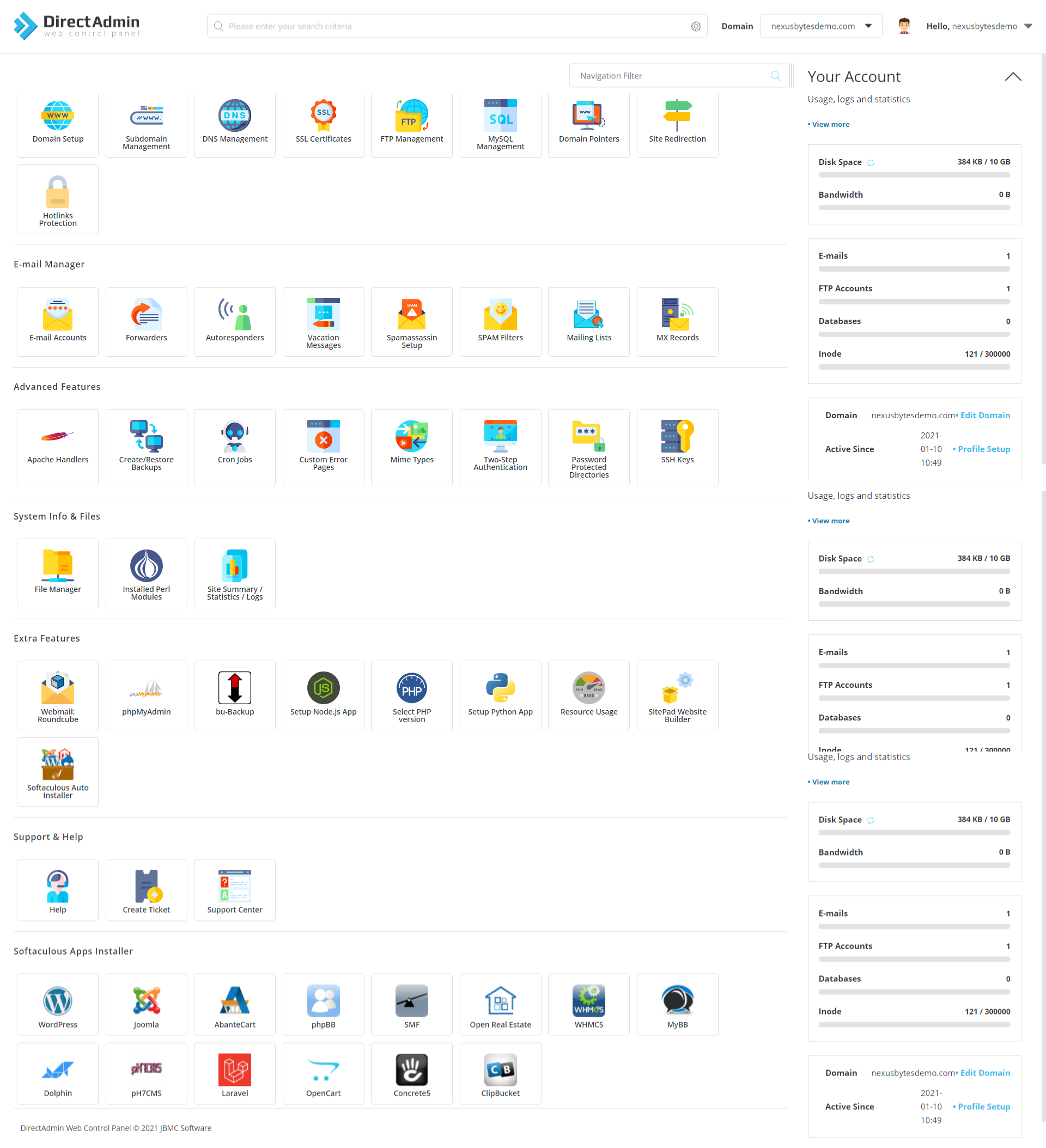
Add your first domain
- Log in to the admin panel at
https://your-server-ip:2222 - Go to Admin Level then Account Manager then Create Reseller or Create User
- Set up a user account, then go to User Level and click Domain Setup
- Add your domain name and click Create
Next configuration steps
After the first domain is added, the typical next steps are:
- Configure nameservers (ns1 and ns2) in the DNS Management section
- Set up email accounts and configure SPF, DKIM, and DMARC records
- Install an SSL certificate for the hosted domain using SSL Certificates under the user panel
- Set up a MySQL database and connect it to your application
- Configure automated backups under Admin Tools then Admin Backup/Transfer
Troubleshooting Common DirectAdmin Installation Issues
Even with a clean setup, problems can surface. Here are the five most common issues and how to fix them.
1. License key rejected or installer exits early
Symptom: The installer prints a license error and stops within the first few minutes.
Fix: Log in to your DirectAdmin client area and confirm the license is marked as active. Check that the license key is copied exactly, with no extra spaces. If you just purchased the license, wait 5 minutes and try again. The license must validate against DirectAdmin’s servers before setup proceeds.
2. Port 2222 not reachable from the browser
Symptom: The browser times out when navigating to http://your-server-ip:2222.
Fix: Run ufw status and confirm port 2222 is listed as allowed. Then confirm DirectAdmin is listening with ss -tlnp | grep 2222. If you are on a cloud platform, also check the cloud-level security group. Both layers must allow port 2222.
3. Installer ran without root and failed mid-way
Symptom: The script started but stopped with permission errors or incomplete service configuration.
Fix: Run sudo -i to get a true root shell, then re-run the installer. Prefixing the install command with sudo is not sufficient for the DirectAdmin setup script. Always use a real root shell.
4. Hostname-related errors during or after setup
Symptom: DirectAdmin mail or DNS services behave unexpectedly, or the installer printed a hostname warning.
Fix: Run hostname -f and confirm it returns a valid FQDN. If it returns only a short hostname or localhost, set the hostname again with hostnamectl set-hostname server.yourdomain.com and update /etc/hosts before restarting DirectAdmin.
5. Installation on a reused or non-clean server
Symptom: The installer conflicts with preinstalled Apache, MySQL, PHP, or another control panel.
Fix: There is no clean fix for this other than starting over with a fresh Debian 13 image. DirectAdmin’s installer is designed for clean systems. Trying to work around an existing stack leads to broken configs and unpredictable behavior. Redeploy the VPS and follow this guide from step one.
Congratulations! You have successfully installed DirectAdmin. Thanks for using this tutorial for installing the DirectAdmin control panel on Debian 13 “Trixie” Linux. For additional help or useful information, we recommend you check the official DirectAdmin website.
