How To Install Discord on Debian 13

Discord is one of the most widely used communication platforms in the Linux and developer community, but it does not ship with Debian 13 out of the box. If you want to set up Discord on Debian 13 “Trixie” for your team, open-source project, or gaming group, you need to install it manually using one of three supported package formats. This guide walks you through every method to install Discord on Debian 13 so you can get the client running with full audio, video, and messaging support on your system.
Whether you are a developer coordinating a project, a sysadmin managing a homelab community, or a new Debian user figuring out your desktop setup, this guide gives you clean, tested commands with explanations so you understand exactly what each step does.
By the end of this tutorial, you will have Discord installed and verified on Debian 13, plus a clear understanding of how to update, troubleshoot, and remove it when needed.
What Is Discord and Why Use It on Debian 13?
Discord is a free, cross-platform communication app that supports real-time voice calls, video conferencing, text chat, file sharing, screen sharing, and community servers. Originally built for gamers, it has grown into a standard tool for developer teams, open-source contributors, and online communities worldwide.
Debian 13 “Trixie” is the latest stable release of the Debian Linux distribution, known for its rock-solid stability, long support cycle, and clean base system. It is a natural choice for developers and sysadmins who need a reliable desktop or workstation.
Discord does not appear in Debian’s official APT repositories, so installing it requires pulling the package from an external source. You have three supported paths:
- Official .deb package downloaded directly from Discord’s website
- Snap package from Canonical’s Snapcraft Store
- Flatpak package from Flathub
Each method has different trade-offs around update handling, system integration, and sandboxing, which are covered in detail below.
Prerequisites
Before you run a single command, confirm your system meets these requirements:
- Operating system: Debian 13 “Trixie” (64-bit / amd64 architecture)
- System architecture: Run
uname -min a terminal. The output must returnx86_64. Discord does not offer native packages for ARM or 32-bit systems. - User permissions: You need
sudoaccess to install system packages - Internet connection: Required for all three installation methods
- Disk space: At least 200 MB of free space
- Updated package index: Run the following before starting any method:
sudo apt update && sudo apt upgradeThis command refreshes your package lists and upgrades any outdated packages. Skipping this step can cause dependency conflicts during installation.
Choosing the Right Installation Method for Your Debian 13 Setup
Before diving into commands, pick the method that fits your workflow. Here is a direct comparison:
| Method | Package Source | Auto-Updates | Sandboxed | Best For |
|---|---|---|---|---|
| .deb Package | Discord Official Site | No (manual) | No | Native system integration |
| Snap | Snapcraft Store | Yes | Yes | Hands-off updates |
| Flatpak | Flathub | Yes | Yes | GNOME users, granular permissions |
The .deb method integrates Discord directly into your system like any standard Debian package. The Snap and Flatpak methods run Discord inside a sandbox, isolated from your system libraries, which adds a security layer at the cost of some system-level integration.
For most Debian 13 desktop users, the .deb package is the fastest and simplest path. If you prefer automatic background updates without thinking about it, go with Snap or Flatpak.
Step 1: Install Discord on Debian 13 via .deb Package
This is the most direct method. You download the official binary from Discord’s API endpoint and install it with APT.
Step 1.1: Confirm wget Is Available
The wget utility handles the download. Check that it is installed:
sudo apt install wget -yThis command installs wget if it is not already present. The -y flag approves the installation without prompting.
Step 1.2: Download the Discord .deb File
Pull the latest Discord .deb package directly from the official Discord API:
wget "https://discord.com/api/download?platform=linux&format=deb" -O discord.debwget fetches the file from the URL and the -O discord.deb flag saves it locally under the name discord.deb. Without the -O flag, the saved filename would be an unreadable URL string.
You should see download progress in the terminal, ending with something like:
discord.deb 100%[===================>] 102.36M 5.21MB/s in 19sStep 1.3: Install the Package with APT
Install the downloaded .deb file:
sudo apt install ./discord.deb -yUsing apt install instead of dpkg -i is deliberate. APT automatically resolves and downloads any missing dependencies, while dpkg would fail if a dependency is absent. The ./ prefix tells APT to treat the argument as a local file path, not a repository package name.
Step 1.4: Verify the Installation
Confirm Discord installed correctly:
apt list --installed discordExpected output:
discord/now 0.0.123 amd64 [installed,local]The [installed,local] label confirms Discord was installed from a local file, not an APT repository.
Step 1.5: Launch Discord
From the terminal:
discordFrom the GUI: Open Activities, click Show Applications, and search for “Discord” in the app grid.
Step 1.6: Update Discord (.deb Method)
The .deb package does not register an APT repository. Discord does not update automatically through apt upgrade. When Discord detects a new version, it shows an in-app notification. At that point, re-run the wget and apt install commands from Steps 1.2 and 1.3 to upgrade.
Step 2: Install Discord on Debian 13 via Snap
The Snap method gives you automatic background updates and a sandboxed environment. The trade-off is that Snapd is not included in the default Debian 13 installation, so you set it up first.
Step 2.1: Install Snapd
Install the Snap daemon:
sudo apt install snapd -yEnable the Snapd socket so the service starts on boot:
sudo systemctl enable --now snapd.socketInstall the core Snap runtime, which provides the base environment all Snap apps depend on:
sudo snap install coreAfter this step, either log out and back in or reboot your system. The Snap environment needs a fresh session to initialize PATH variables correctly.
Step 2.2: Install Discord via Snap
With Snapd ready, install Discord from the Snap Store:
sudo snap install discordThis command pulls the latest stable Discord build from Snapcraft and installs it inside a sandboxed container. Future updates happen automatically in the background without any action on your part.
Step 2.3: Verify the Snap Installation
snap list discordExpected output:
Name     Version  Rev  Tracking       Publisher  Notes
discord  0.0.123  185  latest/stable  discord    -
Step 2.4: Launch Discord (Snap Method)
From the terminal:
snap run discordFrom the GUI: Discord appears in your application menu the same way as any installed app.
Step 2.5: Update Discord (Snap Method)
Snap handles updates automatically. To manually trigger an update check:
sudo snap refresh discordStep 3: Install Discord on Debian 13 via Flatpak and Flathub
Flatpak is an excellent choice for GNOME-based Debian 13 desktops. It integrates with GNOME Software and gives you granular control over app permissions. Unlike Snap, Flatpak is available in Debian’s default APT repositories and does not require a separate daemon setup.
Step 3.1: Install Flatpak
sudo apt install flatpak -yOptionally, install the GNOME Software plugin so Discord appears in the GNOME Software app store:
sudo apt install gnome-software-plugin-flatpak -yStep 3.2: Add the Flathub Repository
Register Flathub as a Flatpak remote source:
sudo flatpak remote-add --if-not-exists flathub https://flathub.org/repo/flathub.flatpakrepoThe --if-not-exists flag prevents an error if Flathub is already registered. This command gives your Flatpak installation access to thousands of apps, including Discord.
Step 3.3: Install Discord via Flatpak
sudo flatpak install flathub com.discordapp.Discord -yFlatpak downloads and installs Discord inside a sandboxed runtime environment. The app runs isolated from core system libraries, which limits the blast radius of any potential security issue.
Step 3.4: Verify the Flatpak Installation
flatpak list --app | grep DiscordExpected output:
Discord com.discordapp.Discord 0.0.123 stable flathubStep 3.5: Launch Discord (Flatpak Method)
From the terminal:
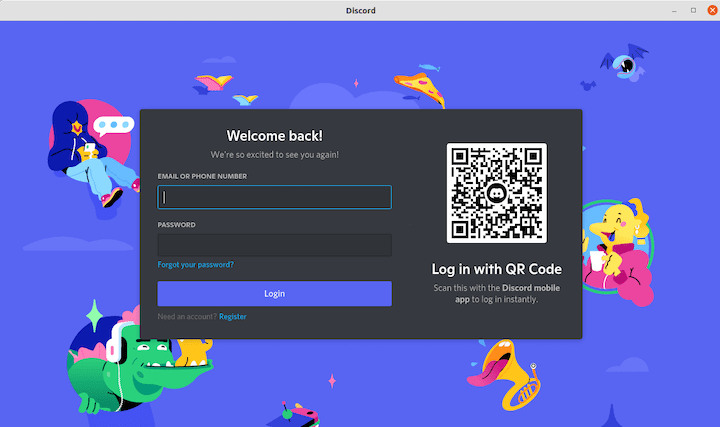
flatpak run com.discordapp.DiscordFrom the GUI: Discord shows up in Activities and the application grid after installation. If it does not appear immediately, log out and back in to refresh the desktop environment’s app index.
Step 3.6: Update Discord (Flatpak Method)
Update all installed Flatpak apps, including Discord:
sudo flatpak updateHow to Uninstall Discord on Debian 13
If you need to remove Discord from your system, use the command set that matches your installation method.
For .deb installations:
sudo apt remove discord
sudo apt autoremove
The autoremove command cleans up orphaned dependency packages. Remove leftover user data with:
rm -rf ~/.config/discordFor Snap installations:
sudo snap remove --purge discordThe --purge flag deletes all sandboxed user data stored by the Snap package.
For Flatpak installations:
sudo flatpak uninstall --delete-data com.discordapp.Discord -yThe --delete-data flag wipes Discord’s sandboxed application data directory alongside the app itself.
Troubleshooting Common Discord Issues on Debian 13
Even with clean installs, a few issues come up regularly. Here are the most common ones and how to fix them.
Error 1: Broken or Missing Dependencies (.deb)
Symptom: The apt install ./discord.deb command fails with an “unmet dependencies” error.
Fix: Run APT’s built-in dependency repair:
sudo apt --fix-broken installThis command identifies and installs any dependency packages that the Discord .deb required but were absent from your system.
Error 2: snap Command Not Found After Installing Snapd
Symptom: Running any snap command returns command not found even after installing snapd.
Fix: The Snap environment requires a full session restart to register PATH entries. Log out and log back in, or reboot:
sudo rebootAfter restarting, try the Snap command again.
Error 3: Discord Runs But Has No Sound
Symptom: Discord launches and connects, but there is no audio on incoming or outgoing voice calls.
Fix: First, confirm your audio backend is running. Debian 13 uses PipeWire by default:
systemctl --user status pipewireIf PipeWire is inactive, start it:
systemctl --user start pipewireFor Flatpak installs, explicitly grant Discord access to the audio socket:
flatpak override --user --socket=pulseaudio com.discordapp.DiscordFor Snap installs, connect the audio plug manually:
snap connect discord:audio-playbackError 4: Discord Fails to Launch on Flatpak After Fresh Install
Symptom: Running flatpak run com.discordapp.Discord produces a runtime error about a missing base.
Fix: The Flatpak runtime may not have downloaded completely. Force a full update:
sudo flatpak update --appstream && sudo flatpak updateThen retry launching Discord.
Error 5: Hardware Acceleration Causes Visual Glitches
Symptom: Discord shows black regions, flickering, or corrupted UI elements during use.
Fix: Disable hardware acceleration inside Discord. Open Discord, go to Settings, navigate to Advanced, and toggle off Hardware Acceleration. Restart Discord afterward. This is a known issue on some Intel and AMD GPU configurations under Linux.
Congratulations! You have successfully installed Discord. Thanks for using this tutorial for installing the latest version of Discord on Debian 13 “Trixie” system. For additional help or useful information, we recommend you check the official Discord website.
