How To Install Dozzle on Debian 13

Managing Docker container logs can quickly become overwhelming, especially when running multiple containers simultaneously. Dozzle offers an elegant solution as a lightweight, real-time log viewer that requires no database and runs entirely within your Docker environment. This powerful web-based interface transforms how you monitor and troubleshoot containerized applications on Debian 13.
Unlike traditional logging solutions that demand complex configurations and significant system resources, Dozzle provides instant access to your container logs through an intuitive dashboard. Whether you’re managing a small personal server or coordinating multiple Docker hosts, this guide walks you through every step of installing and configuring Dozzle on Debian 13 Trixie. You’ll learn multiple installation methods, security best practices, and troubleshooting techniques to ensure smooth operation.
What is Dozzle?
Dozzle is a minimalist real-time log viewer specifically designed for Docker containers. The application operates with remarkable efficiency, consuming minimal system resources while delivering comprehensive logging capabilities. Its web-based interface eliminates the need to SSH into your server or execute command-line queries every time you need to check container status.
The tool excels through its simplicity. No database installation is required. No persistent storage configuration needed. Dozzle streams logs directly from Docker’s socket, presenting them in a clean, searchable format. The split-screen functionality allows simultaneous monitoring of multiple containers, making it invaluable for troubleshooting interconnected services. Advanced regex search capabilities let you filter through thousands of log entries instantly, pinpointing specific events or errors.
Modern DevOps workflows demand efficient monitoring tools. Dozzle supports both light and dark themes for comfortable extended viewing sessions. The interface updates in real-time, ensuring you never miss critical events. For teams managing distributed systems, Dozzle’s remote agent feature enables monitoring across multiple Docker hosts from a single dashboard.
Prerequisites and System Requirements
Before installing Dozzle on Debian 13, ensure your system meets specific technical requirements. Your server needs a 64-bit architecture—x86_64, arm64, armhf, or ppc64le are all supported. Memory allocation matters significantly for Docker operations; aim for at least 2GB of RAM, though 4GB provides better performance for multiple containers.
Disk space requirements depend on your container workload, but allocate a minimum of 10-25GB of free space to accommodate Docker images and container data. Debian 13 typically ships with compatible kernel versions, but verify you’re running kernel 4.19 or higher for optimal Docker compatibility.
User privileges play a crucial role in installation success. You’ll need sudo or root access to install Docker Engine and configure system services. While advanced Linux expertise isn’t mandatory, familiarity with basic command-line operations helps tremendously. Commands in this guide assume you’re comfortable navigating terminal environments and editing configuration files.
A stable internet connection is essential during setup. You’ll download Docker packages, container images, and repository keys. Finally, understand that Dozzle functions as a Docker container itself—Docker Engine must be installed before proceeding with Dozzle deployment.
Installing Docker on Debian 13
Updating System Packages
Fresh package indexes prevent installation conflicts and ensure you receive the latest security patches. Open your terminal and execute the system update command:
sudo apt update && sudo apt upgrade -yThis command refreshes your package repositories and upgrades existing packages. The process may take several minutes depending on available updates. System updates create a stable foundation for Docker installation.
Installing Required Dependencies
Docker installation requires specific packages that handle secure communications and repository management. Install the necessary dependencies with this command:
sudo apt install -y ca-certificates curl gnupg lsb-releaseEach package serves a distinct purpose. Certificate authorities (ca-certificates) validate secure connections. Curl downloads files from remote servers. GNU Privacy Guard (gnupg) manages encryption keys. The lsb-release package provides distribution-specific information that Docker’s installation scripts utilize.
Adding Docker’s Official GPG Key
Security begins with verifying package authenticity. Docker signs its packages with a GPG key that confirms you’re downloading official, unmodified software. Create the keyrings directory and add Docker’s GPG key:
sudo install -m 0755 -d /etc/apt/keyrings
curl -fsSL https://download.docker.com/linux/debian/gpg | sudo gpg --dearmor -o /etc/apt/keyrings/docker.gpg
sudo chmod a+r /etc/apt/keyrings/docker.gpg
These commands establish a secure chain of trust. The GPG key verification prevents package tampering and malicious software injection. Never skip this step, as it’s fundamental to maintaining system security.
Setting Up Docker Repository
Docker provides official repositories that deliver the latest stable releases. Add Docker’s repository to your system sources:
echo "deb [arch=$(dpkg --print-architecture) signed-by=/etc/apt/keyrings/docker.gpg] https://download.docker.com/linux/debian $(lsb_release -cs) stable" | sudo tee /etc/apt/sources.list.d/docker.list > /dev/nullThis command constructs a repository entry specific to your system architecture and Debian version. The repository configuration ensures you receive updates through Debian’s standard package management system. Verify the repository was added correctly by checking the sources list file.
Update your package index again to include Docker packages:
sudo apt updateInstalling Docker Engine
With repositories configured, install Docker Engine and its companion tools:
sudo apt install -y docker-ce docker-ce-cli containerd.io docker-buildx-plugin docker-compose-pluginThis comprehensive installation includes several components. Docker CE (Community Edition) is the core container runtime. The Docker CLI provides command-line interface tools. Containerd manages container lifecycle operations. Docker Buildx enables advanced image building. Docker Compose plugin handles multi-container applications.
The installation process downloads and configures all necessary components. Package managers handle dependencies automatically, ensuring complete functionality.
Verifying Docker Installation
Confirmation tests prevent frustration later. Check Docker’s service status immediately after installation:
sudo systemctl status dockerA properly installed Docker service shows “active (running)” in green text. If the service isn’t active, start it manually:
sudo systemctl start dockerConfigure Docker to launch automatically at system boot:
sudo systemctl enable dockerRun Docker’s classic hello-world test container to verify complete functionality:
sudo docker run hello-worldThis command downloads a minimal test image and executes it. Success produces a congratulatory message explaining Docker’s operational workflow. The test confirms Docker can pull images from repositories, create containers, execute processes, and handle cleanup operations.
If you encounter permission errors, add your user account to the docker group:
sudo usermod -aG docker $USERLog out and back in for group changes to take effect. This step eliminates the need for sudo with every Docker command.
Installing Dozzle Using Docker CLI
Basic Installation Method
The Docker command-line interface offers the quickest path to running Dozzle. Execute this single command to deploy Dozzle instantly:
docker run -d --name=dozzle --restart=always -p 8080:8080 -v /var/run/docker.sock:/var/run/docker.sock amir20/dozzle:latestUnderstanding each parameter enhances your control over the deployment. The -d flag runs the container in detached mode, operating in the background. The --name=dozzle parameter assigns a memorable identifier. The --restart=always policy ensures Dozzle restarts automatically after system reboots or crashes.
Port mapping -p 8080:8080 makes Dozzle’s web interface accessible on port 8080. The volume mount -v /var/run/docker.sock:/var/run/docker.sock grants Dozzle access to Docker’s API socket, enabling log retrieval from all containers. The image amir20/dozzle:latest specifies the official Dozzle image from Docker Hub.
For systems with complex networking, use host network mode:
docker run -d --name=dozzle --restart=always --network=host -v /var/run/docker.sock:/var/run/docker.sock amir20/dozzle:latestHost networking eliminates port mapping complexity but reduces container isolation.
Installation with Custom Port
Port conflicts arise when multiple services compete for the same port number. Customize Dozzle’s external port while maintaining internal port 8080:
docker run -d --name=dozzle --restart=always -p 8888:8080 -v /var/run/docker.sock:/var/run/docker.sock amir20/dozzle:latestThis configuration makes Dozzle accessible at port 8888 instead of 8080. Choose any available port above 1024 to avoid privileged port restrictions. Remember your custom port when configuring firewalls and accessing the web interface.
Installation with Authentication
Production environments demand access control. Add basic authentication through environment variables:
docker run -d --name=dozzle --restart=always -p 8080:8080 -e DOZZLE_USERNAME=admin -e DOZZLE_PASSWORD=secure_password -v /var/run/docker.sock:/var/run/docker.sock amir20/dozzle:latestReplace admin and secure_password with your chosen credentials. This basic authentication prevents unauthorized access to your container logs. For enhanced security, implement the advanced authentication methods described later in this guide.
Installing Dozzle Using Docker Compose (Recommended)
Creating Project Directory
Organization simplifies management. Establish a dedicated directory for Dozzle configuration files:
mkdir -p ~/dozzle && cd ~/dozzleThis structure keeps Dozzle configurations isolated from other projects. Organized directories facilitate backups and version control.
Creating docker-compose.yml File
Docker Compose manages complex container configurations through declarative YAML files. Create your compose file:
nano docker-compose.ymlInsert this configuration:
version: '3.8'

services:
  dozzle:
    container_name: dozzle
    image: amir20/dozzle:latest
    volumes:
      - /var/run/docker.sock:/var/run/docker.sock:ro
    ports:
      - 8080:8080
    restart: unless-stopped
    environment:
      DOZZLE_LEVEL: info
      DOZZLE_TAILSIZE: 300
Save the file and exit your text editor.
Docker Compose Configuration Explained
Each section of the compose file serves specific purposes. The version: '3.8' declaration specifies the Docker Compose file format version, ensuring compatibility with modern Docker installations.
Under services, you define the dozzle container. The container_name provides a consistent identifier across restarts. Specifying image: amir20/dozzle:latest ensures you always run the most recent stable release.
The volumes section mounts Docker’s socket with read-only (:ro) permissions, enhancing security by preventing Dozzle from modifying Docker configurations. Port mapping under ports exposes Dozzle’s web interface.
The restart: unless-stopped policy automatically restarts the container after failures but respects manual stops. Environment variables customize Dozzle’s behavior—DOZZLE_LEVEL controls log verbosity, while DOZZLE_TAILSIZE defines how many initial log lines to display.
Deploying with Docker Compose
Launch Dozzle using Docker Compose:
docker-compose up -dThe -d flag runs containers in detached mode. Docker Compose pulls the image if not already cached, creates the container, and starts services.
Verify deployment success:
docker-compose psThis command lists running services managed by the compose file. Check Dozzle’s logs to confirm proper startup:
docker-compose logs -f dozzleThe -f flag follows logs in real-time. Exit log viewing with Ctrl+C.
Configuring Authentication (Security Best Practices)
Simple Authentication Setup
Exposing log viewers without authentication creates security vulnerabilities. Implement Dozzle’s simple authentication provider:
Modify your docker-compose.yml to include authentication settings:
services:
  dozzle:
    container_name: dozzle
    image: amir20/dozzle:latest
    volumes:
      - /var/run/docker.sock:/var/run/docker.sock:ro
      - ./data:/data
    ports:
      - 8080:8080
    restart: unless-stopped
    environment:
      DOZZLE_AUTH_PROVIDER: simple
      DOZZLE_AUTH_HEADER_USER: Remote-User
      DOZZLE_AUTH_TTL: "24h"
Create the users configuration file:
mkdir -p data
nano data/users.yml
Generating Secure Password Hashes
Storing plaintext passwords invites security breaches. Dozzle supports bcrypt hashed passwords. Generate a hash using Docker:
docker run --rm amir20/dozzle bcrypt "your_secure_password"This command outputs a bcrypt hash. Copy the hash for your users.yml file:
users:
  admin:
    name: "Administrator"
    password: "$2a$10$X7KZQgS..."
    email: "admin@example.com"
  viewer:
    name: "Read Only User"
    password: "$2a$10$Y8LMRhT..."
    email: "viewer@example.com"
    filter: "label=department:frontend"
Alternative hashing using SHA-256 (less secure but simpler):
echo -n 'your_password' | sha256sumUse bcrypt whenever possible for superior security.
Implementing User Roles and Filters
Filters restrict which containers users can view. The filter field accepts Docker label syntax:
users:
  devteam:
    name: "Development Team"
    password: "$2a$10$..."
    filter: "label=environment:development"
This configuration limits the devteam user to containers labeled with environment:development. Multiple filters combine with commas. The TTL (Time To Live) setting determines authentication session duration—24 hours balances security and convenience.
Accessing Dozzle Web Interface
With Dozzle running, access the web interface through your browser. Determine your server’s IP address:
hostname -IAlternatively, use:
ip addr showNavigate to http://your-server-ip:8080 in your web browser. Replace your-server-ip with the actual IP address. Local installations accept http://localhost:8080.
If you configured authentication, enter your username and password at the login prompt. The Dozzle dashboard displays all running containers in a sidebar. Container logs appear in the main viewing area as soon as you select a container.
The interface updates automatically, streaming new log entries in real-time. No page refreshes required. Navigation remains intuitive—click containers to switch between log streams. The clean design minimizes distractions, focusing attention on log content.
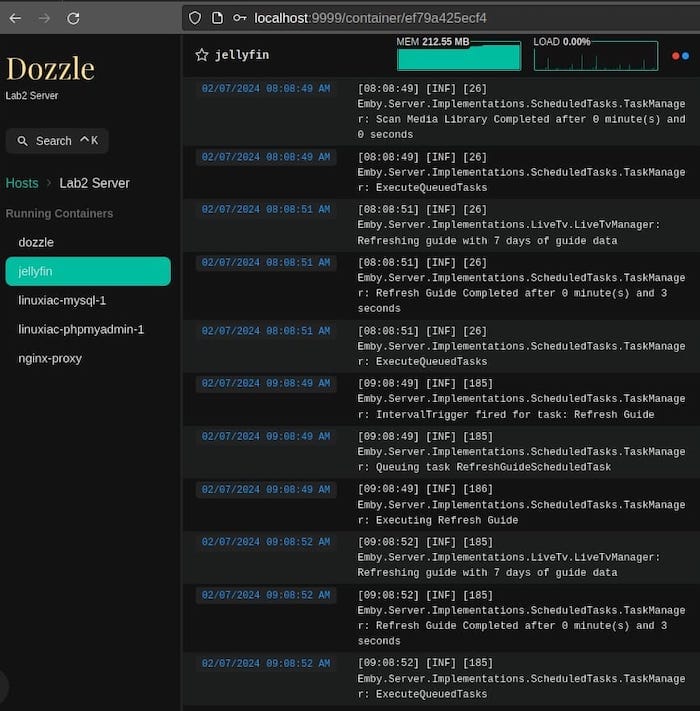
Essential Dozzle Features and Usage
Dozzle transforms log management through thoughtful features. View multiple container logs simultaneously using split-screen mode. Click the split-screen icon and select additional containers. This capability proves invaluable when troubleshooting interactions between microservices.
The search functionality accepts regex patterns, enabling sophisticated log filtering. Search for error patterns, trace IDs, or specific timestamps. Results highlight instantly within the log stream. Download logs for offline analysis or record-keeping by clicking the download button.
Adjust log refresh rates based on your monitoring needs. High-frequency updates catch rapid-fire events. Lower refresh rates reduce resource consumption during routine monitoring. Toggle between light and dark themes using the interface settings—dark mode reduces eye strain during extended monitoring sessions.
Real-time streaming capabilities eliminate the delay between events and visibility. Unlike traditional log aggregation tools that batch and process entries, Dozzle displays logs milliseconds after containers generate them. This immediacy accelerates incident response and debugging workflows.
Advanced Configuration Options
Multi-Host Monitoring
Enterprise environments often distribute containers across multiple Docker hosts. Dozzle supports remote agent configurations for centralized monitoring:
Deploy Dozzle agents on remote hosts:
services:
  dozzle-agent:
    image: amir20/dozzle:latest
    volumes:
      - /var/run/docker.sock:/var/run/docker.sock:ro
    environment:
      DOZZLE_REMOTE_AGENT: "true"
    networks:
      - monitoring
Configure the main Dozzle instance to connect with agents. This architecture scales monitoring across distributed infrastructure.
Docker Swarm Deployment
Swarm mode orchestration requires specific configurations:
docker service create --name dozzle --publish 8080:8080 --constraint node.role==manager --mount type=bind,src=/var/run/docker.sock,dst=/var/run/docker.sock -e DOZZLE_MODE=swarm amir20/dozzle:latestSetting DOZZLE_MODE=swarm enables Swarm-aware monitoring. Deploy on manager nodes for full cluster visibility.
Reverse Proxy Integration
Production deployments benefit from reverse proxy integration. Configure Nginx or Traefik to handle SSL termination and authentication. Header-based authentication delegates user management to proxy layers:
environment:
  DOZZLE_AUTH_PROVIDER: forward
  DOZZLE_AUTH_HEADER_USER: X-Forwarded-User
This configuration trusts authentication headers from reverse proxies. Ensure proper proxy security to prevent header spoofing.
Custom Data Directory
Persistent configurations require custom data directories:
volumes:
  - /var/run/docker.sock:/var/run/docker.sock:ro
  - ./dozzle-data:/data
Store users.yml and other configuration files in this directory. Data persists across container recreations.
Updating Dozzle
Software updates deliver bug fixes, security patches, and new features. Update Dozzle regularly to maintain optimal performance.
For Docker CLI installations, pull the latest image:
docker pull amir20/dozzle:latestStop and remove the existing container:
docker stop dozzle
docker remove dozzle
Recreate the container using your original run command with updated parameters if needed.
Docker Compose simplifies updates:
cd ~/dozzle
docker-compose pull
docker-compose up -d
These commands download the latest image and recreate containers with zero downtime. Compose detects configuration changes and applies them automatically.
Verify the update succeeded:
docker logs dozzleCheck for version information in the startup logs. Test the web interface to confirm functionality.
Troubleshooting Common Issues
Permission Denied Errors
Docker socket permission errors prevent Dozzle from accessing container logs. Add your user to the docker group:
sudo usermod -aG docker $USERLog out completely and log back in. Verify group membership:
groupsThe output should include “docker”. Restart the Dozzle container after resolving permissions.
Container Not Starting
Failed container starts usually indicate configuration problems. Examine Dozzle’s logs:
docker logs dozzlePort conflicts appear as “address already in use” errors. Identify processes using port 8080:
sudo lsof -i :8080Change Dozzle’s port mapping to resolve conflicts. Verify Docker socket exists at the expected path:
ls -la /var/run/docker.sockCannot Access Web Interface
Firewall rules commonly block web interface access. Debian 13 uses UFW for firewall management. Allow port 8080:
sudo ufw allow 8080/tcp
sudo ufw reload
Verify the Dozzle container is running:
docker ps | grep dozzleTest network connectivity from your browser’s machine:
telnet server-ip 8080Successful connections indicate network paths are clear. Failed connections suggest routing or firewall issues.
No Containers Visible
When Dozzle displays no containers, verify the Docker socket mount. Inspect the running container:
docker inspect dozzleCheck the Mounts section confirms /var/run/docker.sock mapping. File permission issues prevent socket access:
ls -la /var/run/docker.sockThe socket should show srw-rw---- permissions with docker group ownership. Filter configurations might hide containers. Review users.yml filter settings if using authentication.
Security Considerations
Log viewers expose sensitive operational information. Implement comprehensive security measures to protect your infrastructure. Authentication should never be optional in production environments. Use strong, unique passwords for each Dozzle user account.
Bind Dozzle to localhost when accessed through SSH tunnels:
ports:
  - 127.0.0.1:8080:8080
This configuration prevents external access, requiring SSH tunneling for remote access. Deploy reverse proxies with SSL/TLS certificates for encrypted communications. Self-signed certificates suffice for internal networks, but public-facing instances demand properly signed certificates.
Regular updates address security vulnerabilities. Subscribe to Dozzle’s GitHub releases to receive update notifications. Monitor Docker security advisories for container runtime vulnerabilities.
Docker socket access grants significant privileges. Mount the socket read-only whenever possible. User permission management restricts which containers each user can view. Implement filters based on container labels to enforce least-privilege access.
Configure firewall rules that explicitly allow only necessary ports. UFW simplifies rule management on Debian systems. Log all authentication attempts for security auditing. Industry standards like CIS Docker Benchmark provide comprehensive security guidance.
Performance Optimization Tips
Dozzle’s lightweight design requires minimal resources, but optimization enhances large-scale deployments. Resource allocation affects multiple containers competing for CPU and memory. Limit Dozzle’s resources using Docker constraints:
deploy:
  resources:
    limits:
      cpus: '0.5'
      memory: 256M
These limits prevent resource monopolization while maintaining responsiveness. Dozzle doesn’t store logs—it streams directly from Docker. This architecture eliminates storage concerns but means historical logs depend on Docker’s logging drivers.
Filter containers to reduce overhead in environments with hundreds of containers. Display only relevant services:
environment:
  DOZZLE_FILTER: "label=monitor:true"
Only containers with the monitor:true label appear in Dozzle. Network performance rarely bottlenecks Dozzle, but high-volume logging benefits from local Docker socket access rather than remote API calls.
Monitor Dozzle’s resource usage:
docker stats dozzleThis command displays real-time CPU, memory, and network metrics. Scale Dozzle using remote agents when monitoring distributed systems—distributed monitoring prevents single-point bottlenecks.
Congratulations! You have successfully installed Dozzle. Thanks for using this tutorial for installing Dozzle container monitoring and logging on your Debian 13 “Trixie” Linux system. For additional help or useful information, we recommend you check the official Dozzle website.
