How To Install Dozzle on Linux Mint 22

Managing Docker containers can quickly become overwhelming when you’re juggling multiple applications. Checking logs through command-line interfaces works, but it’s tedious and time-consuming. Dozzle offers an elegant solution—a lightweight, real-time log viewer that runs in your browser and makes Docker container monitoring effortless.
This comprehensive guide walks you through installing Dozzle on Linux Mint 22 step by step. You’ll learn two installation methods, configure authentication for security, and discover how to troubleshoot common issues. By the end, you’ll have a fully functional Docker log monitoring system that streamlines your container management workflow.
What is Dozzle?
Dozzle is an open-source, real-time log viewer specifically designed for Docker containers. Developed by Amir20, this lightweight tool provides a clean web interface for monitoring container logs without typing endless docker logs commands in your terminal.
The application consumes minimal resources—roughly 20MB of memory—while delivering powerful features. It supports intelligent fuzzy search, regex pattern matching, and multi-container split-screen viewing. You can monitor live stats like CPU and memory usage, connect to remote Docker hosts, and even download logs for offline analysis.
Unlike heavyweight monitoring solutions, Dozzle focuses exclusively on log viewing. It excels at its singular purpose, making it perfect for developers, system administrators, and DevOps professionals who need quick access to container logs.
Prerequisites
Before installing Dozzle, ensure your system meets these requirements:
System Requirements:
- Linux Mint 22 (Wilma) with latest updates installed
- 64-bit processor and kernel
- At least 4 GB RAM (8 GB recommended for production environments)
- Sudo or root access privileges
- Active internet connection for downloading packages
Required Knowledge:
You should be comfortable with basic terminal operations and navigating the Linux command line. Familiarity with Docker concepts helps but isn’t mandatory—this guide explains everything you need to know.
Pre-installation Checklist:
Verify that port 8080 is available on your system, or prepare to use an alternative port. Check that your user account has sudo privileges and that your firewall configuration is accessible if you plan to access Dozzle remotely.
Step 1: Update Your Linux Mint 22 System
Start with a clean slate. Updating your system ensures you have the latest security patches and prevents compatibility issues during installation.
Open your terminal and run:
sudo apt updateThis command refreshes your package repository lists. Next, upgrade installed packages:
sudo apt upgrade -yThe -y flag automatically confirms the upgrade process. If kernel updates are installed, reboot your system:
sudo rebootAfter rebooting, you’re ready to install Docker.
Step 2: Install Docker Engine on Linux Mint 22
Dozzle runs as a Docker container, so you need Docker Engine installed first. Linux Mint 22 is based on Ubuntu Noble, which means we’ll use Ubuntu’s Docker repository for compatibility.
Install Required Dependencies
Several packages facilitate secure package management and repository authentication. Install them with this command:
sudo apt install apt-transport-https ca-certificates curl gnupg lsb-release -yEach package serves a specific purpose:
apt-transport-httpsenables package downloads over HTTPSca-certificatesprovides SSL certificate validationcurldownloads files from the internetgnupghandles encryption and key managementlsb-releaseidentifies your Linux distribution
Add Docker’s Official GPG Key
GPG keys verify that packages come from legitimate sources, protecting against malicious software. Create a directory for keyrings:
sudo mkdir -p /etc/apt/keyringsDownload and install Docker’s GPG key:
curl -fsSL https://download.docker.com/linux/ubuntu/gpg | sudo gpg --dearmor -o /etc/apt/keyrings/docker.gpgThis command downloads Docker’s GPG key and converts it to a format apt can read. The process runs silently with the -fsSL flags ensuring a clean, secure download.
Add the Docker Repository
Configure your system to download Docker packages from the official repository:
echo "deb [arch=$(dpkg --print-architecture) signed-by=/etc/apt/keyrings/docker.gpg] https://download.docker.com/linux/ubuntu noble stable" | sudo tee /etc/apt/sources.list.d/docker.list > /dev/nullThis command automatically detects your system architecture and adds the appropriate repository. Linux Mint 22 uses the “noble” codename from its Ubuntu base.
Install Docker Packages
Refresh your package index to include the new Docker repository:
sudo apt updateInstall Docker Engine and related components:
sudo apt install docker-ce docker-ce-cli containerd.io docker-buildx-plugin docker-compose-plugin -yThis installs the Docker daemon, command-line interface, container runtime, and useful plugins for building and orchestrating containers.
Verify Docker Installation
Confirm Docker installed correctly:
sudo docker versionYou should see version information for both the client and server. Check the Docker service status:
sudo systemctl status dockerLook for “active (running)” in green text. If the service isn’t running, start it with sudo systemctl start docker.
Step 3: Configure Docker
These optional but highly recommended configurations improve your Docker experience.
Add Your User to the Docker Group
Running Docker commands with sudo every time gets tedious. Add your user to the docker group:
sudo usermod -aG docker $USERLog out and log back in for the changes to take effect. Alternatively, activate the new group membership immediately:
newgrp dockerTest it by running a Docker command without sudo:
docker psIf this executes without errors, you’ve successfully configured user permissions.
Enable Docker at System Boot
Ensure Docker starts automatically when your system boots:
sudo systemctl enable dockerVerify the configuration:
sudo systemctl is-enabled dockerThe output should display “enabled.”
Step 4: Install Dozzle Using Docker Run Command
Now comes the exciting part—installing Dozzle itself. The Docker run method is quick and straightforward, perfect if you’re only deploying Dozzle.
Basic Installation
Execute this single command to install and start Dozzle:
docker run -d --name dozzle --restart=always \
  -v /var/run/docker.sock:/var/run/docker.sock \
  -p 8080:8080 \
  amir20/dozzle:latest
Let’s break down each component:
-druns the container in detached mode (background)--name dozzleassigns a friendly name to the container--restart=alwaysautomatically restarts the container if it crashes or after system reboots-v /var/run/docker.sock:/var/run/docker.sockmounts the Docker socket, allowing Dozzle to communicate with Docker-p 8080:8080maps port 8080 on your host to port 8080 in the containeramir20/dozzle:latestspecifies the Docker image to use
Using a Custom Port
If port 8080 is already in use, specify a different port. For example, to use port 8888:
docker run -d --name dozzle --restart=always \
  -v /var/run/docker.sock:/var/run/docker.sock \
  -p 8888:8080 \
  amir20/dozzle:latest
The port mapping format is host_port:container_port. The container always uses 8080 internally; you’re changing the external port.
Verify Installation
Check that Dozzle is running:
docker psLook for a container named “dozzle” in the output. For more specific information:
docker ps -f name=dozzleView the container’s logs to ensure it started correctly:
docker logs dozzleYou should see startup messages indicating Dozzle is listening on port 8080.
Step 5: Install Dozzle Using Docker Compose
Docker Compose offers a cleaner, more maintainable approach, especially when managing multiple containers. This method uses a configuration file instead of long command-line arguments.
Create a Docker Compose File
Create a dedicated directory for Dozzle:
mkdir -p ~/dozzle && cd ~/dozzleCreate the configuration file:
nano docker-compose.ymlPaste this content into the file:
version: '3.8'
services:
  dozzle:
    container_name: dozzle
    image: amir20/dozzle:latest
    volumes:
      - /var/run/docker.sock:/var/run/docker.sock
    ports:
      - 8080:8080
    restart: unless-stopped
Save the file by pressing Ctrl+O, then Enter, and exit with Ctrl+X.
Deploy with Docker Compose
Start Dozzle using Docker Compose:
docker compose up -dThe -d flag runs containers in the background. Verify the deployment:
docker compose psDocker Compose makes updating, restarting, and managing Dozzle significantly easier. You can modify the configuration file and redeploy with a single command.
Step 6: Access the Dozzle Web Interface
Open your favorite web browser. If you’re on the same machine where you installed Dozzle, navigate to:
http://localhost:8080For remote access from another computer on your network, use your server’s IP address:
http://YOUR_SERVER_IP:8080Find your server’s IP address with:
hostname -IOr:
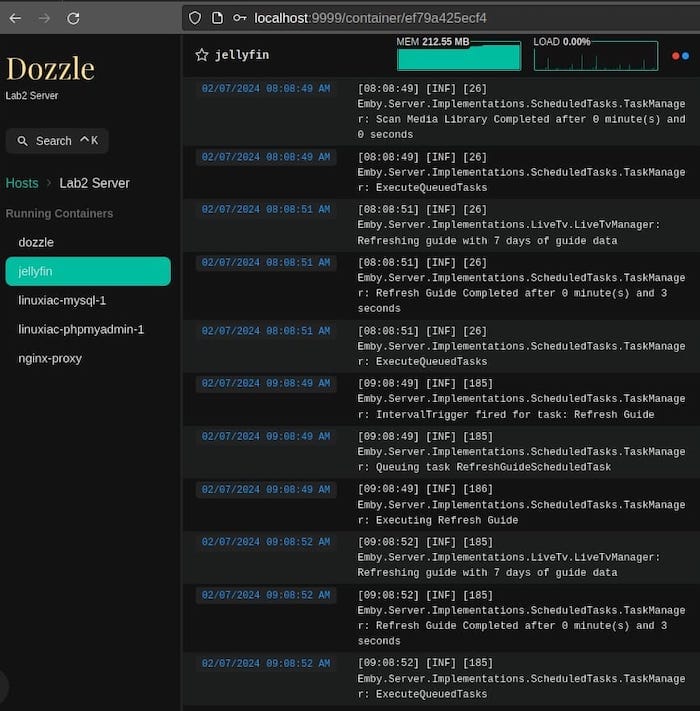
ip addr showThe Dozzle interface loads immediately. You’ll see a clean dashboard with your running containers listed in the left sidebar. Click any container to view its logs in real-time. The main panel displays log entries as they occur, while the search bar at the top enables quick filtering.
Step 7: Configure Authentication
Out of the box, Dozzle has no authentication. Anyone who can access the URL can view your container logs. For security, especially if Dozzle is accessible over the network, enable authentication.
Simple Username and Password Authentication
Stop and remove the existing Dozzle container:
docker stop dozzle
docker rm dozzle
Redeploy with authentication credentials:
docker run -d --name dozzle --restart=always \
  -v /var/run/docker.sock:/var/run/docker.sock \
  -p 8080:8080 \
  -e DOZZLE_USERNAME=admin \
  -e DOZZLE_PASSWORD=YourSecurePassword123 \
  amir20/dozzle:latest
Replace YourSecurePassword123 with a strong password. The -e flags set environment variables that Dozzle reads for authentication.
File-Based Multi-User Authentication
For multiple users, create a users file. First, generate a SHA-256 hash of your password:
echo -n 'your_password' | sha256sumCopy the hash (the first long string of characters). Create a data directory:
sudo mkdir -p /var/lib/dozzleCreate the users configuration file:
sudo nano /var/lib/dozzle/users.ymlAdd user definitions:
users:
  admin:
    password: <your_sha256_hash>
    name: Admin User
    email: admin@example.com
  viewer:
    password: <another_sha256_hash>
    name: View Only User
    email: viewer@example.com
Replace <your_sha256_hash> with the actual hash you generated. Save the file. Stop the current container and start Dozzle with the authentication provider:
docker stop dozzle
docker rm dozzle
docker run -d --name dozzle --restart=always \
  -v /var/run/docker.sock:/var/run/docker.sock \
  -v /var/lib/dozzle:/data \
  -p 8080:8080 \
  -e DOZZLE_AUTH_PROVIDER=simple \
  amir20/dozzle:latest
Access Dozzle through your browser. You’ll now see a login screen.
Advanced Configuration Options
Dozzle supports numerous environment variables for customization:
DOZZLE_LEVEL: Set logging verbosity (info, debug, trace)DOZZLE_TAILSIZE: Define how many log lines to display initially (default: 300)DOZZLE_FILTER: Filter which containers appear (by name or label)DOZZLE_ENABLE_ACTIONS: Allow starting/stopping containers from the interfaceDOZZLE_NO_ANALYTICS: Disable anonymous usage analytics
Add these as -e flags in your docker run command or as environment variables in your docker-compose.yml file under the environment: section.
Using Dozzle: Core Features
Viewing Container Logs
Click any container name in the left sidebar. Logs stream in real-time in the main viewing area. Dozzle automatically scrolls to show the newest entries. Pause auto-scrolling by clicking the pause button or simply scrolling up.
Search and Filter Functionality
Use the search bar to find specific log entries. Dozzle supports fuzzy search, so you don’t need exact matches. It also recognizes regex patterns for advanced searches. Type /error|warning/ to find lines containing either “error” or “warning.”
Multi-Container Monitoring
Hold Ctrl (or Cmd on Mac) and click multiple container names to view logs side-by-side. This split-screen view helps correlate events across containers. Drag the divider to adjust panel sizes.
Troubleshooting Common Issues
Cannot Access Web Interface
If the Dozzle interface doesn’t load, check these potential issues:
First, verify the container is running:
docker ps -f name=dozzleIf it’s not listed, check all containers including stopped ones:
docker ps -a -f name=dozzleExamine logs for error messages:
docker logs dozzleEnsure port 8080 isn’t already in use:
sudo lsof -i :8080If another application uses port 8080, either stop that application or deploy Dozzle on a different port.
Check your firewall settings:
sudo ufw statusAllow the port through the firewall:
sudo ufw allow 8080/tcpPermission Denied Errors
These typically occur when the Docker socket isn’t accessible. Verify your user is in the docker group:
groups $USERYou should see “docker” in the list. Check socket permissions:
ls -l /var/run/docker.sockThe socket should be readable by the docker group. Restart the Docker service if problems persist:
sudo systemctl restart dockerContainer Not Showing Logs
Ensure the Docker socket is properly mounted in the container:
docker inspect dozzle | grep docker.sockYou should see the volume mount listed. Verify the container you’re trying to monitor actually produces logs:
docker logs <container_name>If logs appear in the terminal but not in Dozzle, restart the Dozzle container:
docker restart dozzleUpdating Dozzle
Keep Dozzle updated for new features and security patches. Pull the latest image:
docker pull amir20/dozzle:latestStop and remove the current container:
docker stop dozzle
docker rm dozzle
Rerun your original docker run command or, if using Docker Compose:
cd ~/dozzle
docker compose pull
docker compose up -d
Docker Compose automatically recreates the container with the new image.
Congratulations! You have successfully installed Dozzle. Thanks for using this tutorial for installing Dozzle container monitoring and logging on your Linux Mint 22 system. For additional help or useful information, we recommend you check the official Dozzle website.
