How To Install Dozzle on Manjaro

Running Docker containers without a proper log viewer is like driving with no dashboard. You can keep the car moving, but you won’t know when something’s about to break. That’s the exact problem Dozzle solves. If you’re managing containers on Manjaro and still relying on docker logs commands in the terminal every time something goes wrong, this guide will change your workflow.
What Is Dozzle?
Dozzle is a lightweight, open-source, real-time log viewer for Docker containers. It runs as its own container and gives you a clean, browser-based interface where you can watch logs stream live from all your running containers. No databases, no extra agents for basic use, no bloated dashboards you’ll barely touch.
The project is sponsored by Docker OSS and built using a Go backend with a Vue 3 frontend. That combination keeps it fast and resource-efficient. It uses SSE (Server-Sent Events) and WebSockets for log streaming, which means you get truly real-time updates without hammering your system with polling requests.
Beyond basic log viewing, Dozzle supports Docker Swarm, Kubernetes, and multi-host monitoring through a distributed agent architecture using gRPC. It automatically detects JSON-formatted logs and color-codes them for readability. You can search logs using regex, split the screen to view multiple containers side by side, and even attach to a running container shell directly through the web UI. As of version 8.9.0 released in December 2024, it also supports user-specific scope filters, letting you control which containers each user can see.
Prerequisites
Before you install Dozzle, make sure your Manjaro system has the following ready:
- Docker installed and running — Dozzle runs as a Docker container, so Docker is non-negotiable
- sudo access — You’ll need it for several commands in this guide
- A terminal emulator — Konsole, GNOME Terminal, or whatever you prefer
- An internet connection — To pull the Dozzle image from Docker Hub or GitHub Container Registry
Step 1: Install Docker on Manjaro
Manjaro uses pacman as its package manager. Installing Docker is straightforward. Open your terminal and run:
sudo pacman -SyuThis updates your package database and upgrades installed packages. Always do this before adding new software on Manjaro. Then install Docker:
sudo pacman -S dockerOnce installation finishes, enable and start the Docker service using systemd:
sudo systemctl enable docker
sudo systemctl start docker
Now verify that Docker is running:
sudo systemctl status dockerYou should see a green “active (running)” status. If you don’t want to type sudo before every Docker command, add your user to the docker group:
sudo usermod -aG docker $USERLog out and log back in for the group change to take effect. After that, verify by running:
docker --versionYou’ll see something like Docker version 25.x.x confirming the installation is good.
Step 2: Install Docker Compose (Optional but Recommended)
You can run Dozzle with a single docker run command, but using Docker Compose makes the configuration easier to manage, especially if you plan to add more containers to your stack later. On Manjaro, install Docker Compose with:
sudo pacman -S docker-composeVerify the install:
docker-compose --versionIf you’re running a newer version of Docker (version 20.10+), Docker Compose v2 may already be bundled as a plugin. You can check with docker compose version (no hyphen). Either version works for this guide.
Step 3: Install Dozzle Using Docker CLI
The quickest way to get Dozzle running is a single Docker command. This method requires zero configuration files. Just run:
docker run -d \
  -v /var/run/docker.sock:/var/run/docker.sock \
  -p 8080:8080 \
  --name dozzle \
  amir20/dozzle:latest
Here’s what each flag does:
-d— Runs the container in detached mode (background)-v /var/run/docker.sock:/var/run/docker.sock— Mounts the Docker socket so Dozzle can read logs from other containers-p 8080:8080— Maps port 8080 on your host to port 8080 inside the container--name dozzle— Gives the container a readable nameamir20/dozzle:latest— Pulls the latest Dozzle image from Docker Hub
If Docker Hub is blocked on your network, use the GitHub Container Registry alternative instead:
docker run -d \
  -v /var/run/docker.sock:/var/run/docker.sock \
  -p 8080:8080 \
  --name dozzle \
  ghcr.io/amir20/dozzle:latest
Once the command completes, open your browser and go to http://localhost:8080. You’ll see the Dozzle web interface with all your running containers listed in the sidebar.
Step 4: Install Dozzle Using Docker Compose
If you prefer a cleaner, file-based setup, create a directory for your Dozzle configuration:
mkdir -p ~/docker/dozzle
cd ~/docker/dozzle
Create a docker-compose.yml file:
nano docker-compose.ymlPaste in the following configuration:
services:
  dozzle:
    image: amir20/dozzle:latest
    volumes:
      - /var/run/docker.sock:/var/run/docker.sock
    ports:
      - 8080:8080
    environment:
      # Uncomment to enable container actions
      # - DOZZLE_ENABLE_ACTIONS=true
      # Uncomment to allow shell access
      # - DOZZLE_ENABLE_SHELL=true
      # Uncomment to enable authentication
      # - DOZZLE_AUTH_PROVIDER=simple
Save and exit with Ctrl+X, then Y, then Enter. Now bring the container up:
docker-compose up -dVerify it’s running with:
docker psLook for a container named dozzle with a status of “Up.” Then open http://localhost:8080 in your browser.
Step 5: Use a Custom Port (Optional)
Port conflicts happen, especially if you’re running multiple services on the same machine. Nginx, Apache, or other web apps commonly occupy port 8080. If you hit a conflict, pick a free port. A common alternative is 9999:
docker run -d \
  -v /var/run/docker.sock:/var/run/docker.sock \
  -p 9999:8080 \
  --name dozzle \
  amir20/dozzle:latest
Access Dozzle at http://localhost:9999. The internal port (8080) never changes; only the external one does.
Step 6: Verify Dozzle Is Working
Open your browser and navigate to http://localhost:8080. You should see the Dozzle dashboard with all your running Docker containers listed in the left sidebar. Click on any container name to stream its logs in real time.
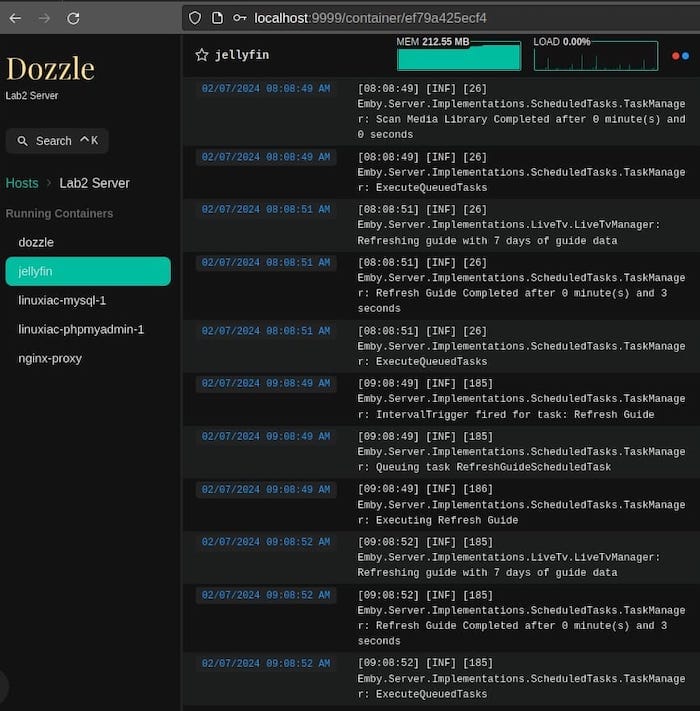
To confirm via the terminal, run:
docker logs dozzleYou should see output similar to:
time="2026-03-02T06:00:00Z" level=info msg="Dozzle version X.X.X"
time="2026-03-02T06:00:00Z" level=info msg="Listening on :8080"
If the container fails to start, check for port conflicts with:
sudo ss -tulpn | grep 8080Step 7: Configure Authentication
By default, Dozzle has no authentication. Anyone who can reach port 8080 can view all your container logs. For a local workstation this might be fine, but for a server accessible on a network, you’ll want to lock it down.
Enable the simple authentication provider by adding the environment variable to your Docker Compose file:
environment:
  - DOZZLE_AUTH_PROVIDER=simple
Then create a users.yml file in the same directory:
users:
  admin:
    name: Admin
    password: $2y$10$yourbcrypthashedpasswordhere
    filter:
  guest:
    name: Guest
    password: $2y$10$guestpasswordhashhere
    filter: "label=com.example.app"
Generate bcrypt password hashes using:
docker run --rm amir20/dozzle:latest generate --name "Admin" --password yourpassword --email admin@example.comMount the file into the container by updating your compose file:
volumes:
  - /var/run/docker.sock:/var/run/docker.sock
  - ./users.yml:/data/users.yml
Restart the container with:
docker-compose down && docker-compose up -dNow when you open Dozzle in the browser, you’ll be prompted for credentials.
Step 8: Enable Container Actions (Optional)
With container actions enabled, you can stop, start, and restart containers directly from the web UI. This is disabled by default for security. To enable it, add this to your environment block:
environment:
  - DOZZLE_ENABLE_ACTIONS=true
You can also enable shell access, which lets you attach to a running container’s terminal through the browser:
environment:
  - DOZZLE_ENABLE_SHELL=true
Be careful with both of these options on shared or networked systems. Pairing them with authentication is strongly recommended.
Step 9: Set Dozzle to Auto-Start on Boot
Add a restart policy to your Docker Compose file so Dozzle starts automatically every time your Manjaro machine boots:
services:
  dozzle:
    image: amir20/dozzle:latest
    restart: unless-stopped
    volumes:
      - /var/run/docker.sock:/var/run/docker.sock
    ports:
      - 8080:8080
The unless-stopped policy means the container restarts automatically after a reboot or crash, but won’t restart if you manually stop it. Apply the change:
docker-compose down
docker-compose up -d
Now Dozzle survives reboots without any extra configuration on your end.
Updating Dozzle
Dozzle gets updated frequently. The project upgraded to Go 1.25 in a recent release for improved performance and more efficient JSON serialization inside containers. Staying current means you get bug fixes, performance improvements, and new features.
To update Dozzle using Docker Compose:
docker-compose pull
docker-compose up -d --force-recreate
If you used the plain docker run method:
docker stop dozzle
docker rm dozzle
docker pull amir20/dozzle:latest
docker run -d \
  -v /var/run/docker.sock:/var/run/docker.sock \
  -p 8080:8080 \
  --name dozzle \
  amir20/dozzle:latest
Troubleshooting Common Issues
- Container won’t start: Run
docker logs dozzleto see the exact error. The most common cause is a port conflict. Check withsudo ss -tulpn | grep 8080. - No containers showing in the UI: This usually means the Docker socket isn’t mounted correctly. Verify with
docker inspect dozzleand look for theMountssection. - Permission denied on Docker socket: On Manjaro, you may get a permissions error if your user isn’t in the
dockergroup. Runsudo usermod -aG docker $USER, then log out and back in. - Browser shows connection refused: Make sure the container is actually running with
docker ps. Also check your firewall withsudo ufw statusif ufw is active. - Logs not streaming in real time: This is sometimes a browser caching issue. Try a hard refresh with
Ctrl+Shift+Ror open an incognito window.
Why Dozzle Over docker logs
The standard docker logs command works, but it’s tedious at scale. You have to specify the container name, manage separate terminal windows for each container, and there’s no visual search or regex filtering built in. Dozzle replaces all of that with a single browser tab.
Version 8.10.0, released in January 2025, added the ability to merge logs from all containers on a host into a single view, along with a dropdown to jump directly to containers by name. That feature alone saves significant time when you’re monitoring more than five containers simultaneously.
For anyone managing a homelab, a development environment, or a lightweight production stack on Manjaro, Dozzle gives you visibility without overhead. The entire image weighs in at a fraction of what heavier monitoring solutions like Grafana+Loki require, and you’re up and running with a single command rather than hours of configuration.
Congratulations! You have successfully installed Dozzle. Thanks for using this tutorial for installing Dozzle container monitoring and logging on your Manjaro Linux system. For additional help or useful information, we recommend you check the official Dozzle website.
