How To Install Drupal on Debian 13

If you’re running a Debian 13 server and want to deploy a powerful, enterprise-grade CMS, Drupal is one of the best choices available. Whether you’re building a government portal, a developer-driven web application, or a content-heavy platform, knowing how to install Drupal on Debian 13 gives you a solid, production-ready foundation that scales with your needs.
In this guide, you’ll walk through every step required to get Drupal up and running on Debian 13 — from installing the LAMP stack to completing the browser-based setup wizard. By the end, you’ll have a fully functional Drupal site secured with SSL and optimized for real-world use.
This tutorial is written from a sysadmin’s perspective — practical, direct, and based on current installation data and Drupal’s official documentation.
What Is Drupal and Why Deploy It on Debian 13?
Drupal is a free, open-source content management system (CMS) written in PHP. It powers some of the world’s most demanding websites — including government portals, university platforms, and large-scale media sites — thanks to its modular architecture, strong security model, and multilingual support.
Debian 13, codenamed Trixie, is the latest stable release from the Debian project. It ships with a modern kernel, updated package repositories including PHP 8.3+, and a reputation for reliability that makes it a preferred OS for production Linux servers. Together, Drupal on Debian 13 setup creates a robust, secure, and maintainable hosting environment.
Key reasons developers and sysadmins choose this stack:
- Enterprise-grade security — Drupal has a dedicated security team and strong access control system
- Scalability — handles everything from small blogs to high-traffic government sites
- Extensibility — thousands of contributed modules available on Drupal.org
- Debian stability — long support cycle with minimal unexpected breakage in production
Prerequisites
Before you begin this Drupal on Debian 13 setup, make sure you have the following in place:
- Operating System: Debian 13 (Trixie) — fresh install or recently upgraded server
- Access: Root or a
sudo-enabled non-root user - Domain name pointed to your server’s public IP (needed for SSL later)
- Minimum server specs: 1 vCPU, 1 GB RAM, 20 GB disk space
- Network: Stable internet connection for downloading packages
- Basic skills: Comfort with the Linux terminal and SSH
Verify your OS version before proceeding:
lsb_release -aExpected output:
Distributor ID: Debian
Description:    Debian GNU/Linux 13 (trixie)
System Requirements for Drupal on Debian 13
Drupal 11 — the current major version — requires specific software versions to run properly.
| Component | Minimum Version |
|---|---|
| PHP | 8.3+ |
| Web Server | Apache 2.4+ or Nginx |
| Database | MariaDB 10.6+, MySQL 8.0+, or PostgreSQL 14+ |
| Composer | 2.x |
| RAM | 256 MB minimum (512 MB+ recommended) |
Drupal 11 requires PHP 8.3 as its minimum — and Debian 13 ships with PHP 8.3 in its default repositories, making this a clean match.
Step 1: Update and Upgrade Debian 13 Packages
Start every server provisioning task by refreshing the package index and applying all available updates. This prevents dependency conflicts and ensures you’re installing the most current, secure versions of each package.
sudo apt update && sudo apt upgrade -yapt update— refreshes the local list of available packages from Debian’s repositoriesapt upgrade -y— upgrades all installed packages to their newest versions without prompting
If the upgrade touches the kernel, reboot before continuing:
sudo rebootAfter the server comes back up, confirm the system is clean and ready:
uname -rStep 2: Install Apache Web Server
Apache is the most widely used web server on Linux and has excellent native support for Drupal’s .htaccess-based URL rewriting.
Install Apache
sudo apt install apache2 -yEnable and Start Apache
sudo systemctl enable apache2
sudo systemctl start apache2
Verify Apache Is Running
sudo systemctl status apache2You should see active (running) in the output.
Allow Apache Through the Firewall
sudo ufw allow 'Apache Full'
sudo ufw enable
sudo ufw status
Apache Full opens both port 80 (HTTP) and port 443 (HTTPS), which you’ll need for SSL later.
Enable mod_rewrite
Drupal relies on mod_rewrite for clean, SEO-friendly URLs. Enable it now:
sudo a2enmod rewrite
sudo systemctl restart apache2
Step 3: Install PHP 8.3 and Required Extensions
Drupal 11 requires PHP 8.3 and a set of specific PHP extensions for features like image processing, XML parsing, and database connectivity.
Install PHP and Extensions
sudo apt install php php-cli php-fpm php-json php-common php-mysql \
php-zip php-gd php-mbstring php-curl php-xml php-pear php-bcmath \
libapache2-mod-php -y
Here’s what each key extension does:
php-gd— handles image resizing and processing for uploaded mediaphp-mbstring— required for multibyte/multilingual string handling in Drupal’s internationalization systemphp-xml— enables XML parsing, used by Drupal’s configuration management and feed modulesphp-mysql— provides PHP connectivity to MariaDB/MySQL databasesphp-curl— needed by Composer for downloading packages over HTTPS
Verify PHP Version
php -vExpected output:
PHP 8.3.x (cli) (built: ...)Restart Apache to Load PHP
sudo systemctl restart apache2Step 4: Install and Secure MariaDB
MariaDB is the recommended database for Drupal on Debian. It is fully compatible with MySQL syntax, actively maintained, and performs well under Drupal’s query patterns.
Install MariaDB
sudo apt install mariadb-server mariadb-client -yEnable and Start MariaDB
sudo systemctl enable mariadb
sudo systemctl start mariadb
Secure the MariaDB Installation
Run the security hardening script that ships with MariaDB:
sudo mysql_secure_installationAnswer the prompts as follows to lock down the database server:
- Enter current password for root: Press
Enter(empty by default) - Set root password? →
Y, then enter a strong password - Remove anonymous users? →
Y - Disallow root login remotely? →
Y - Remove test database? →
Y - Reload privilege tables? →
Y
Verify MariaDB Status
sudo systemctl status mariadbStep 5: Create the Drupal Database and User
Drupal needs its own dedicated database and a dedicated MariaDB user with full privileges on that database. Never use the root MariaDB user for application-level database access — it’s a serious security risk.
Log Into MariaDB
sudo mysql -u root -pRun the Database Setup Commands
CREATE DATABASE drupaldb DEFAULT CHARACTER SET utf8mb4 COLLATE utf8mb4_unicode_ci;
CREATE USER 'drupaluser'@'localhost' IDENTIFIED BY 'StrongPassword!';
GRANT ALL ON drupaldb.* TO 'drupaluser'@'localhost' WITH GRANT OPTION;
FLUSH PRIVILEGES;
EXIT;
Breaking down each command:
CREATE DATABASE drupaldb ...— creates the database usingutf8mb4encoding, which supports full Unicode including emojis and special charactersCREATE USER 'drupaluser'@'localhost'— creates a user that can only connect from the local machineGRANT ALL ON drupaldb.*— gives the user full control over only the Drupal database, not the entire serverFLUSH PRIVILEGES— forces MariaDB to reload the grant tables immediately
Replace StrongPassword! with a real, unique password before running these commands.
Step 6: Install Composer
Composer is PHP’s dependency manager and the officially recommended method for downloading and managing Drupal core, contributed modules, and third-party libraries.
Download and Install Composer
curl -sS https://getcomposer.org/installer | php
sudo mv composer.phar /usr/local/bin/composer
sudo chmod +x /usr/local/bin/composer
Verify Composer
composer --versionExpected output:
Composer version 2.x.xUsing Composer instead of a manual tarball download gives you critical advantages: automatic dependency resolution, security patch notifications, and easy module management via composer require and composer update.
Step 7: Download Drupal Using Composer
With Composer installed, pull down the full Drupal project using the officially recommended project template. This template includes Drupal core and the correct directory structure for production deployments.
Navigate to the Web Root and Create the Project
cd /var/www/html
sudo composer create-project drupal/recommended-project drupal
This command downloads Drupal core and all its PHP dependencies into /var/www/html/drupal/. Expect this to take 2–5 minutes depending on your connection speed.
Set Correct File Ownership and Permissions
Apache runs as the www-data user. Assign ownership so it can read and write Drupal’s files:
sudo chown -R www-data:www-data /var/www/html/drupal
sudo chmod -R 755 /var/www/html/drupal
Prepare the Settings File
Drupal needs a writable settings.php file during installation:
sudo mkdir -p /var/www/html/drupal/web/sites/default/files
sudo cp /var/www/html/drupal/web/sites/default/default.settings.php \
     /var/www/html/drupal/web/sites/default/settings.php
sudo chmod 666 /var/www/html/drupal/web/sites/default/settings.php
The 666 permission temporarily allows the installer to write database credentials into settings.php. You will lock this file down after installation completes.
Step 8: Configure Apache Virtual Host for Drupal
You need to tell Apache where Drupal lives and how to serve it. A virtual host configuration file handles this.
Create the Virtual Host File
sudo nano /etc/apache2/sites-available/drupal.confPaste in the following configuration, replacing yourdomain.com with your actual domain:
<VirtualHost *:80>
    ServerName yourdomain.com
    ServerAlias www.yourdomain.com
    DocumentRoot /var/www/html/drupal/web

    <Directory /var/www/html/drupal/web>
        AllowOverride All
        Require all granted
    </Directory>

    ErrorLog ${APACHE_LOG_DIR}/drupal_error.log
    CustomLog ${APACHE_LOG_DIR}/drupal_access.log combined
</VirtualHost>
AllowOverride All is critical — it tells Apache to respect Drupal’s .htaccess rules, which control clean URL routing and caching behavior.
Enable the Site and Reload Apache
sudo a2ensite drupal.conf
sudo a2dissite 000-default.conf
sudo systemctl reload apache2
Disabling the 000-default.conf site ensures Apache doesn’t serve a blank page instead of your Drupal installation.
Step 9: Optimize PHP Settings for Drupal
Drupal is a memory-intensive application, especially with multiple modules active. Tuning a few PHP settings now prevents common “memory exhausted” errors later.
Edit the PHP Configuration File
sudo nano /etc/php/8.3/apache2/php.iniUpdate these values:
memory_limit = 256M
upload_max_filesize = 32M
post_max_size = 32M
max_execution_time = 300
date.timezone = "Asia/Jakarta"
Set date.timezone to match your actual server timezone. A mismatch causes confusing timestamp errors in Drupal logs.
Restart Apache to Apply Changes
sudo systemctl restart apache2Step 10: Run the Drupal Web Installation Wizard
You’ve completed all the server-side configuration. Now open a browser and navigate to http://yourdomain.com to run the Drupal installer.
Installation Screens Walkthrough
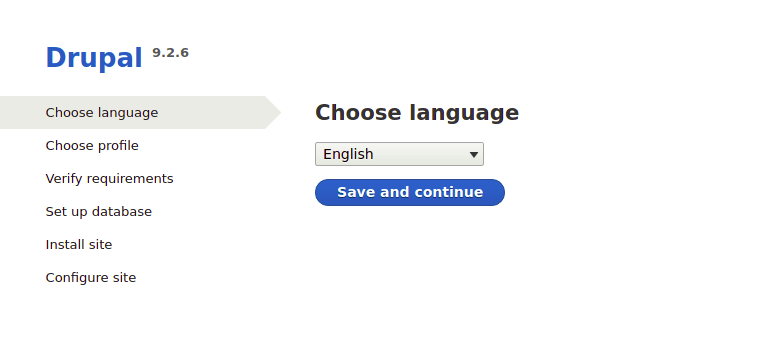
Screen 1 — Choose Language
Select your preferred language (e.g., English) and click Save and continue.
Screen 2 — Choose Installation Profile
Select Standard for a fully configured site with default modules pre-enabled. Choose Minimal only if you’re an experienced Drupal developer building a custom application from scratch.
Screen 3 — Database Configuration
Fill in the database credentials you created earlier:
- Database type: MySQL / MariaDB
- Database name:
drupaldb - Username:
drupaluser - Password: (your password)
- Host:
localhost
Click Save and continue.
Screen 4 — Installation Progress
Drupal installs all core modules and writes initial configuration. This takes approximately 2–5 minutes.
Screen 5 — Configure Site
Fill in your site name, site email, admin username and password, server timezone, and update notification preference. Click Save and continue. You’ll be redirected to the Drupal admin dashboard — your site is live.
Step 11: Secure Drupal with a Free SSL Certificate
Running Drupal over plain HTTP exposes user credentials and session tokens. HTTPS is non-negotiable for any production site — and it’s free with Let’s Encrypt.
Install Certbot
sudo apt install certbot python3-certbot-apache -yObtain and Install the Certificate
sudo certbot --apache -d yourdomain.com -d www.yourdomain.comCertbot automatically modifies your Apache virtual host to redirect HTTP to HTTPS and installs the certificate.
Enable Auto-Renewal
Let’s Encrypt certificates expire every 90 days. Enable the Certbot renewal timer to handle this automatically:
sudo systemctl enable certbot.timer
sudo certbot renew --dry-run
The --dry-run flag simulates a renewal without changing anything — confirming that automatic renewal will work when the time comes.
Lock Down settings.php
After SSL is configured and Drupal is running, remove the write permission from settings.php:
sudo chmod 444 /var/www/html/drupal/web/sites/default/settings.phpThis prevents malicious scripts and accidental overwrites from modifying your database credentials.
Post-Installation Best Practices
Now that Drupal is running, apply these hardening and performance steps to keep your installation healthy:
- Install Drush — the Drupal command-line interface for managing modules, running updates, and clearing caches:
composer require drush/drush - Enable Drupal caching — go to Admin → Configuration → Performance and enable page caching plus CSS/JS aggregation to dramatically improve page load times
- Set up cron — Drupal requires cron to run background tasks like indexing and module cleanup:
crontab -eAdd:
*/30 * * * * wget -q -O /dev/null http://yourdomain.com/cron/YOUR_CRON_KEY - Keep Drupal updated — run
composer update drupal/core-*regularly to pull in security patches - Schedule backups — use
mysqldumpfor database backups andtarfor file backups:mysqldump -u drupaluser -p drupaldb > drupaldb_backup.sql
Troubleshooting Common Drupal Installation Errors
Even with careful setup, you may hit a few common issues. Here’s how to diagnose and fix them quickly.
1. 403 Forbidden Error
This usually means Apache can’t read the Drupal directory. Check ownership and AllowOverride:
sudo chown -R www-data:www-data /var/www/html/drupalConfirm AllowOverride All is in your virtual host config, then run sudo systemctl reload apache2.
2. 500 Internal Server Error
Almost always caused by .htaccess issues or a missing mod_rewrite. Verify:
sudo a2enmod rewrite
sudo systemctl restart apache2
3. Database Connection Error During Install
Double-check the credentials you entered in the web installer match exactly what you created in MariaDB. Also confirm MariaDB is running:
sudo systemctl status mariadb4. PHP Memory Exhausted Error
Drupal exceeded the PHP memory limit. Increase it in php.ini:
sudo nano /etc/php/8.3/apache2/php.ini
# Set: memory_limit = 256M
sudo systemctl restart apache2
5. Composer Timeout During Download
On slow servers or limited connections, Composer may time out. Increase the process timeout globally:
composer config --global process-timeout 2000Then re-run the create-project command.
Congratulations! You have successfully installed Drupal. Thanks for using this tutorial for installing the latest version of Drupal CMS on Debian 13 “Trixie” system. For additional help or useful information, we recommend you check the official Drupal website.
