How To Install Drupal on Rocky Linux 10

If you need a robust, enterprise-grade CMS for your Linux server, Drupal is one of the best choices available. In this guide, you’ll learn exactly how to install Drupal on Rocky Linux 10 — from setting up the full LAMP stack to completing the browser-based web installer — with every command explained so you know not just what to run, but why you’re running it.
Whether you’re a developer spinning up a project site or a sysadmin provisioning a production environment, this Linux server tutorial gives you a clean, repeatable path to a fully working Drupal installation. By the end, you’ll have a live Drupal 11 site backed by Apache, MariaDB, and PHP 8.3+ running on one of today’s most stable enterprise Linux platforms.
What Is Drupal and Why Run It on Rocky Linux 10?
Drupal is a free, open-source Content Management System written in PHP that uses MariaDB or MySQL as its database backend. It powers everything from personal blogs to government portals and Fortune 500 company websites, offering unmatched flexibility through thousands of contributed modules and themes.
Rocky Linux 10 is a community-driven, 1:1 binary-compatible rebuild of Red Hat Enterprise Linux (RHEL) 10. It targets production server environments where stability, long-term support, and security hardening matter most. Pairing Drupal with Rocky Linux 10 gives you an enterprise-ready stack that’s built to last — ideal for developers and sysadmins who can’t afford unexpected downtime.
Together, they form a reliable, scalable foundation for any web project that needs more than a basic WordPress install can deliver.
Prerequisites
Before you begin the Drupal on Rocky Linux 10 setup, confirm the following:
- Rocky Linux 10 installed on your server or VPS
- Root or sudo-privileged user access
- LAMP Stack (Apache, MariaDB, PHP 8.3+) — we’ll install this in Step 1 and Step 2
- A domain name pointed to your server IP, or just the server’s IP address for testing
- Open firewall ports: HTTP (80) and HTTPS (443)
- Minimum hardware: 1 GB RAM, 20 GB disk space (512 MB RAM minimum)
- An active internet connection on the server
Sysadmin tip: Run everything as root or prefix each command with sudo. Mixing privilege levels mid-tutorial is a common source of permission errors.
Step 1: Update Your System
Always start a fresh server setup with a full system update. This patches existing packages, resolves dependency conflicts, and ensures you’re installing software against the latest available package metadata.
dnf update -yThe -y flag auto-confirms all prompts so the update runs without interruption. Wait for it to complete before moving on — this step often catches security patches that could affect your stack’s behavior.
Once done, optionally reboot to apply any kernel updates:
rebootStep 2: Install the LAMP Stack
The LAMP stack — Linux, Apache, MariaDB, PHP — is the foundation Drupal runs on. We’ll install each component individually so you understand exactly what each piece contributes.
Install Apache Web Server
Apache (httpd) is the web server that receives browser requests and serves your Drupal files. Install it, start the service, and enable it to launch automatically at every boot:
dnf install httpd -y
systemctl start httpd
systemctl enable httpd
Verify Apache is running:
systemctl status httpdExpected output:
● httpd.service - The Apache HTTP Server
   Active: active (running) since ...
Install MariaDB Database Server
MariaDB stores all Drupal content: pages, users, configuration, and module data. Install the server package, start it, enable it, and then run the security script:
dnf install mariadb-server -y
systemctl start mariadb
systemctl enable mariadb
mysql_secure_installation
The mysql_secure_installation script walks you through:
- Setting a root password
- Removing anonymous user accounts
- Disabling remote root login
- Removing the test database
Answer Y to all prompts. These steps lock down your database server against the most common attack vectors.
Install PHP 8.3 and Required Extensions
Drupal 11 requires PHP 8.1 or higher; PHP 8.3 is the recommended version for performance and compatibility. Rocky Linux 10 ships with a recent PHP version, but you’ll also need several extensions Drupal depends on:
dnf install php php-curl php-mbstring php-gd php-xml php-pear php-fpm php-mysqlnd php-pdo php-opcache php-json php-zip php-soap -yHere’s what the key extensions do:
- php-mysqlnd — native driver for MariaDB/MySQL connectivity
- php-gd — image processing (required for image styles in Drupal)
- php-mbstring — multibyte string handling for multilingual sites
- php-opcache — PHP bytecode cache for significantly faster page loads
- php-xml — XML parsing, required by many Drupal modules
Verify the installed PHP version:
php -vExpected output:
PHP 8.3.x (cli) (built: ...)
Copyright (c) The PHP Group
Zend Engine v4.3.x
Tune PHP Settings
Drupal recommends a higher memory limit than the PHP default. Open the PHP configuration file:
vi /etc/php.iniFind and update these two lines:
memory_limit = 256M
date.timezone = Asia/Jakarta
Set date.timezone to match your server’s region. Save and exit, then restart Apache to apply:
systemctl restart httpdStep 3: Configure the Firewall
Rocky Linux 10 uses firewalld to manage network traffic rules. By default, it blocks HTTP and HTTPS traffic — you need to explicitly open those ports so your Drupal site is reachable from the internet.
firewall-cmd --add-service={http,https} --permanent
firewall-cmd --reload
The --permanent flag makes the rules persist across reboots. The --reload command applies them immediately without restarting the firewall daemon.
Confirm the rules are active:
firewall-cmd --list-servicesYou should see http and https listed in the output.
Step 4: Create a MariaDB Database for Drupal
Drupal stores every piece of content — pages, users, menus, module configuration — in a relational database. Creating a dedicated database with its own user is a security best practice: it limits what an attacker can access if your application is ever compromised.
Log into the MariaDB shell:
mysql -u root -pEnter the root password you set during mysql_secure_installation. Then run:
CREATE DATABASE drupal;
GRANT ALL PRIVILEGES ON drupal.* TO 'drupal'@'localhost' IDENTIFIED BY 'StrongPassword';
FLUSH PRIVILEGES;
EXIT;
Important: Replace StrongPassword with a unique, complex password — use a mix of uppercase, lowercase, numbers, and special characters. Never use a dictionary word.
The FLUSH PRIVILEGES command reloads the grant tables so your new user’s permissions take effect immediately.
Verify the database was created successfully:
mysql -u drupal -p -e "SHOW DATABASES;"You should see drupal listed in the output.
Step 5: Download and Configure Drupal
Now it’s time to pull down the Drupal files and place them where Apache can serve them.
Download Drupal
Install the required download utilities if they’re not already present:
dnf install -y wget tarDownload the latest Drupal release directly from the official Drupal.org download endpoint:
wget https://www.drupal.org/download-latest/tar.gz -O drupal.tar.gzThis always fetches the current stable release — at the time of writing, that’s Drupal 11.
Extract and Deploy
Extract the tarball and move Drupal to the Apache web root:
tar -xvf drupal.tar.gz
mv drupal-* /var/www/html/drupal
Create Required Files and Directories
Drupal needs a writable files directory and a working settings.php file before the web installer can run:
mkdir /var/www/html/drupal/sites/default/files
cp /var/www/html/drupal/sites/default/default.settings.php \
   /var/www/html/drupal/sites/default/settings.php
The settings.php file is where Drupal stores database credentials and environment-specific configuration. Never leave it world-writable after installation is complete.
Step 6: Set File Permissions and Configure SELinux
Set Ownership and Permissions
Apache runs as the apache user on Rocky Linux. Give it ownership of the entire Drupal directory tree so it can read files and write to the files directory:
chown -R apache:apache /var/www/html/drupal
chmod -R 755 /var/www/html/drupal
chmod 777 /var/www/html/drupal/sites/default/files
chmod 666 /var/www/html/drupal/sites/default/settings.php
The settings.php needs to be writable during installation. After the installer completes, lock it down immediately:
chmod 444 /var/www/html/drupal/sites/default/settings.phpConfigure SELinux
Rocky Linux 10 runs SELinux in enforcing mode by default — a security layer that controls what processes can access which files. If you skip this step, Apache won’t be able to read or write Drupal’s directories even with correct UNIX permissions.
Install the SELinux management tools:
dnf install -y policycoreutils-python-utilsApply the correct SELinux file contexts:
semanage fcontext -a -t httpd_sys_rw_content_t "/var/www/html/drupal(/.*)?"
semanage fcontext -a -t httpd_sys_rw_content_t '/var/www/html/drupal/sites/default/settings.php'
semanage fcontext -a -t httpd_sys_rw_content_t '/var/www/html/drupal/sites/default/files'
restorecon -Rv /var/www/html/drupal
The restorecon command applies those label changes to the filesystem. Without this, you’ll hit mysterious 403 errors even when everything else looks correct.
Step 7: Configure Apache Virtual Host for Drupal
Apache needs a virtual host configuration to know which directory to serve when a request hits your domain. Create a dedicated config file for Drupal:
vi /etc/httpd/conf.d/drupal.confPaste the following block, replacing drupal.example.com with your actual domain or server IP:
<VirtualHost *:80>
    ServerName drupal.example.com
    ServerAdmin admin@example.com
    DocumentRoot /var/www/html/drupal/

    CustomLog /var/log/httpd/access_log combined
    ErrorLog /var/log/httpd/error_log

    <Directory /var/www/html/drupal>
        Options Indexes FollowSymLinks
        AllowOverride All
        Require all granted
        RewriteEngine on
        RewriteBase /
        RewriteCond %{REQUEST_FILENAME} !-f
        RewriteCond %{REQUEST_FILENAME} !-d
        RewriteRule ^(.*)$ index.php?q=$1 [L,QSA]
    </Directory>
</VirtualHost>
Key directives explained:
AllowOverride All— lets Drupal’s.htaccessfile override Apache settings, required for clean URLsRewriteEngine on— activates Apache’s URL rewriting moduleRewriteRule— routes all requests through Drupal’sindex.phpfront controller
Validate the config syntax before restarting:
apachectl configtestYou should see Syntax OK. Then restart Apache:
systemctl restart httpdStep 8: Complete the Drupal Web Installer
With your server fully configured, open a browser and navigate to your domain or server IP:
http://drupal.example.comThe Drupal installer will guide you through the following steps:
- Choose Language — Select your preferred language (English is default) and click Save and continue
- Select Installation Profile — Choose Standard for a fully featured installation with default modules enabled; choose Minimal only if you need full control from scratch
- Verify Requirements — The installer checks PHP version, extensions, and file permissions; resolve any red warnings before proceeding
- Database Configuration — Enter:
- Database name:
drupal - Database username:
drupal - Database password: the password you set in Step 4
- Leave host as
localhostand port as3306
- Database name:
- Install Site — Drupal automatically runs its installation routines — importing schema, enabling modules, and copying configuration
- Configure Site — Set your site name, admin username and password, admin email address, and timezone
- Finish — Click Save and continue and you’ll land on the Drupal admin dashboard
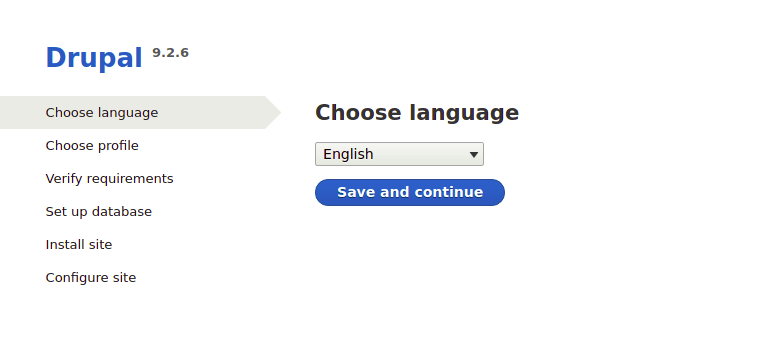
Pro tip: After completing the installer, run chmod 444 /var/www/html/drupal/sites/default/settings.php immediately if you haven’t already. The installer writes your database credentials to this file — leaving it writable is a security risk.
Step 9: Post-Installation Security Hardening
Getting Drupal running is only half the job. A production server needs a few more layers of protection before you expose it to the internet.
Lock down settings.php:
chmod 444 /var/www/html/drupal/sites/default/settings.phpAdd trusted host patterns to settings.php to prevent HTTP Host header attacks. Open the file:
vi /var/www/html/drupal/sites/default/settings.phpAdd the following at the bottom:
$settings['trusted_host_patterns'] = [
  '^drupal\.example\.com$',
];
Set up HTTPS with Let’s Encrypt (strongly recommended for production):
dnf install certbot python3-certbot-apache -y
certbot --apache -d drupal.example.com
Schedule regular database backups:
mysqldump -u drupal -p drupal > /backup/drupal_$(date +%F).sqlAdd that to a cron job to run nightly.
Keep Drupal updated. Outdated Drupal core is the most common attack vector. Check for updates regularly from the admin dashboard under Reports → Available updates, or use Drush:
drush upTroubleshooting Common Issues
Even with a clean walkthrough, server environments vary. Here are the five most common errors and their fixes:
- 403 Forbidden Error
- Cause: Apache doesn’t have permission to read Drupal files
- Fix: Re-run
chown -R apache:apache /var/www/html/drupaland apply SELinux contexts withrestorecon -Rv /var/www/html/drupal
- Database Connection Error during Web Installer
- Cause: Wrong credentials or MariaDB not running
- Fix: Verify MariaDB is active with
systemctl status mariadb. Re-check the database name, username, and password you created in Step 4
- Clean URLs Not Working (404 on all pages except homepage)
- Cause:
AllowOverride Allnot set ormod_rewritenot loaded - Fix: Confirm your
drupal.confvirtual host hasAllowOverride Allinside the<Directory>block. Runapachectl -M | grep rewriteto confirm the module is loaded
- Cause:
- White Screen of Death (WSOD)
- Cause: PHP memory limit too low or a missing extension
- Fix: Increase
memory_limitto256Min/etc/php.ini. Checkphp -mto list loaded modules and confirm all required extensions are present
- PHP Version Warning in Installer
- Cause: Default Rocky Linux PHP version is older than required
- Fix: Enable the Remi repository and install PHP 8.3:
dnf module enable php:remi-8.3 -y && dnf install php -y
Congratulations! You have successfully installed Drupal. Thanks for using this tutorial for installing Drupal Content Management System on your Rocky Linux 10 system. For additional help or useful information, we recommend you check the official Drupal website.
