How To Install FastPanel on Debian 13

Managing a Linux web server without a control panel is a real time sink. You end up writing Nginx configs by hand, setting up mail servers from scratch, and fighting with SSL certificates every time something breaks. FastPanel solves all of that with a clean, free web hosting control panel that handles websites, databases, mail, FTP, and SSL from one browser-based dashboard. This guide walks you through exactly how to install FastPanel on Debian 13, step by step, from a clean server to a fully working panel with your first site live.
Debian 13, codenamed “Trixie,” was released on August 9, 2025, and it is the current stable Debian release. It ships with the Linux 6.12 LTS kernel, modern security hardening, and APT 3.0, making it one of the most solid server OS choices available right now. FastPanel pairs well with it because the installation script works on the same Debian/APT architecture that Debian 13 inherits.
FastPanel itself is 100% free, with no per-domain limits and no monthly license fees. It bundles Nginx, Apache, PHP (with per-site version selection), MySQL 8.0, Exim, Dovecot, ProFTPD, phpMyAdmin, and Roundcube webmail into a single automated install. For developers, sysadmins, and VPS users who want a production-grade hosting stack without spending money on cPanel or Plesk, this is the setup that makes sense in 2026.
Before diving into the steps, here is what makes this tutorial different from others floating around: every command is explained, not just copied. You will know what each step does and why it matters, so if something breaks, you can fix it yourself.
What Is FastPanel and Why Use It on Debian 13?
FastPanel is a free, open-source-style web hosting control panel built specifically for Linux servers. Unlike cPanel, which charges per server and limits domains by tier, FastPanel has no licensing fees and no feature gating. You get the full feature set from the moment you install it.
Here is what FastPanel manages out of the box:
- Websites and domains, including subdomains and virtual hosts
- PHP version selection per site, so different apps can run different PHP versions
- MySQL and PostgreSQL databases with phpMyAdmin access built in
- Email accounts via Exim (outgoing) and Dovecot (IMAP/POP3), with Roundcube webmail
- FTP accounts using ProFTPD
- Free SSL certificates through Let’s Encrypt, managed from the panel
- File Manager with browser-based access
- WordPress one-click installer and CMS support
- Server resource monitoring (CPU, RAM, disk, network) in real time
- Firewall management and DDoS protection settings
Debian 13 Trixie is an excellent match for FastPanel because it is supported for five full years through 2030. The Linux 6.12 LTS kernel brings performance improvements to tmpfs, memory management, and I/O throughput, which directly benefits a web server running multiple sites. The security enhancements in Trixie, including ROP/JOP/COP protections on amd64 and arm64, give an extra layer of hardening that complements FastPanel’s built-in firewall.
For small businesses, developers spinning up client sites, and sysadmins managing VPS infrastructure, the combination of FastPanel on Debian 13 delivers a production-ready stack that is free, stable, and well-supported.
Prerequisites for This FastPanel on Debian 13 Setup
Before you run a single command, check all of these boxes. Skipping even one can cause the installation to fail partway through.
Server Requirements:
- A fresh VPS or dedicated server with no pre-installed web server software (no Nginx, Apache, MySQL, or any other control panel). FastPanel’s installer will fail if it detects conflicting software.
- Operating System: Debian 13 “Trixie” 64-bit, freshly installed
- RAM: Minimum 1 GB
- Disk Space: Minimum 5 GB free
- CPU: At least 1 core at 1 GHz
Access Requirements:
- Root SSH access to your server
- A working internet connection on the server (the installer pulls packages from remote repos)
- Port 8888 accessible from your browser (check your cloud provider’s firewall/security group)
Optional but Recommended:
- A domain name with its A record pointing to your server IP (required for SSL later)
- A password manager ready to store the auto-generated panel credentials
Take a server snapshot before starting if your provider supports it. If the install fails for any reason, you can roll back to a clean state in seconds.
Step 1: Connect to Your Debian 13 Server via SSH
Open your terminal (or PuTTY on Windows) and SSH into the server as root:
ssh root@your.server.ipReplace your.server.ip with your actual server IP address.
Verify You Are on Debian 13
Once connected, confirm you are running the right OS before doing anything else:
cat /etc/os-releaseYou should see output that includes:
NAME="Debian GNU/Linux"
VERSION="13 (trixie)"
If the output shows Debian 11 or 12, this guide still works with minor differences. If you see any other OS, stop here and re-provision your server with Debian 13.
Why this matters: FastPanel’s installer detects your OS automatically. Confirming the version upfront saves you from debugging a failed install later.
Step 2: Update the System and Install Required Packages
Always update the system before installing any server software. This ensures your package index is current, all security patches are applied, and dependencies resolve correctly.
Run this full command block as root:
apt-get update && apt-get upgrade && apt-get install ca-certificates wget && rebootHere is what each part does:
apt-get update: Refreshes the local package index from Debian’s repositoriesapt-get upgrade: Applies all pending updates, including kernel and security patchesapt-get install ca-certificates wget: Installs two critical packagesca-certificateslets the system verify HTTPS connections (required for the install script)wgetis the download utility the FastPanel installer uses to pull packages
reboot: Restarts the server so any kernel updates take effect cleanly
After the server reboots (usually 30 to 60 seconds), reconnect via SSH:
ssh root@your.server.ipDo not skip the reboot. If a kernel update was applied, running the FastPanel installer on the old kernel can cause unexpected behavior, especially on Debian 13 with its 6.12 LTS kernel.
Step 3: Run the FastPanel Installation Script
This is the core step. FastPanel uses a single automated bash script that handles the entire installation.
Run this command:
wget https://repo.fastpanel.direct/install_fastpanel.sh -O - | bash -What This Command Does
wget https://repo.fastpanel.direct/install_fastpanel.sh -O -: Downloads the installation script from FastPanel’s official repository and pipes it directly to standard output instead of saving it to a file| bash -: Takes that output and executes it as a bash script in real time
The installer is fully automated. It detects Debian 13, resolves dependencies, and installs each component in sequence. Here is the expected output you will see as it progresses:
Greetings user!
Now I will install the best control panel for you!

Start pre-installation checks
OS: Debian GNU/Linux 13 (trixie)

Installing FASTPANEL package.
[Success]
Installing MySQL 8.0 from ubuntu jammy APT Repository.
[Success]
Installing web service: nginx, apache, php.
[Success]
Installing ftp service: proftpd.
[Success]
Installing mail service: exim, dovecot.
[Success]
Installing recommended software: roundcube, phpmyadmin, etc, etc...
[Success]
The full installation takes between 5 and 15 minutes depending on your server’s internet speed and hardware. Do not close the terminal or interrupt the process. If the SSH session drops mid-install, you may end up with a partial installation that requires a clean OS reinstall to fix.
Step 4: Retrieve Your Login Credentials
When the installation completes successfully, the terminal prints your access details:
Congratulations! FASTPANEL successfully installed and available now for you at
https://your.server.ip:8888/

Login: fastuser
Password: xK9mPqLdRvTz2wYn
Copy these credentials immediately. The auto-generated password is only shown once in the terminal. If you miss it or close the window without saving it, you will need to reset the password manually via the command line.
Store the URL, login, and password in a password manager (Bitwarden, KeePass, or 1Password all work fine). You will need these to access the panel from your browser.
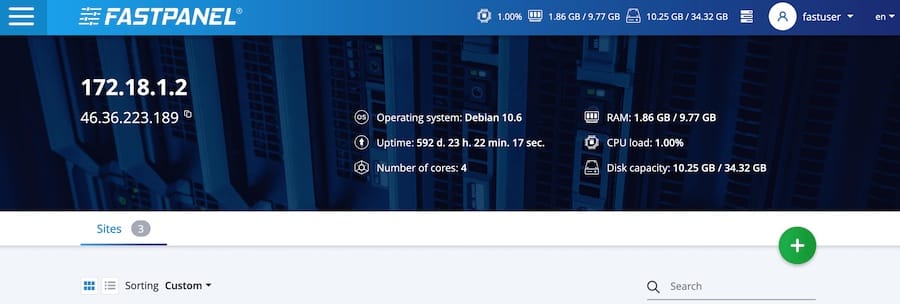
Step 5: Configure Firewall to Open Port 8888
FastPanel runs its web interface on port 8888 by default. Before you can load the panel in a browser, you need to make sure that port is open.
Using UFW (Uncomplicated Firewall)
If UFW is active on your server:
ufw allow 8888
ufw reload
Verify the rule applied:
ufw statusYou should see 8888 listed as ALLOW.
Using Cloud Provider Firewalls
If your server is on a cloud provider like Hetzner, DigitalOcean, Vultr, AWS, or Linode, you also need to open port 8888 in their network-level firewall or security group. Log into your provider’s dashboard and add an inbound TCP rule for port 8888.
Why both? UFW controls the OS-level firewall, but cloud providers often run a separate hardware-level firewall in front of your VPS. Both need to allow the port.
Step 6: Access FastPanel and Activate Your License
Open your browser and navigate to:
https://your.server.ip:8888You will see a browser warning about an untrusted SSL certificate. This is expected because FastPanel uses a self-signed cert by default. Click Advanced and then Proceed (the exact wording depends on your browser).
Log In to the Dashboard
Enter the fastuser login and the auto-generated password from Step 4.
Activate Your Free License
On your first login, FastPanel will prompt you to enter your email address to request a free license. This is mandatory:
- Enter your email address in the activation field
- Check your inbox for the license email from FastPanel
- Follow the instructions in that email to complete activation
The license is free and takes about one to two minutes to arrive by email. Once activated, the full dashboard is unlocked with no feature restrictions.
Step 7: Post-Installation Configuration on Debian 13
With the panel live, spend a few minutes on these essential setup tasks before adding any websites or databases.
Change Your Admin Password
- Click your username in the top right of the dashboard
- Navigate to Account Settings
- Set a new strong password and save
Set Up Free SSL with Let’s Encrypt
- Go to your site in the Websites section
- Click SSL Certificates
- Click New Certificate and choose Let’s Encrypt
- Select Normal Certificate and click Save
The certificate issues automatically, and your site starts serving HTTPS traffic. FastPanel handles renewal automatically as well.
Prerequisite: Your domain’s A record must point to your server IP and DNS must have fully propagated before SSL issuance will work.
Add Your First Website
- Enter your domain name
- Select the PHP version your app needs
- Choose Nginx (recommended for performance) or Apache as the web server
- Click Create
Create a MySQL Database
- Click Add Database
- Enter a database name and assign a database user with a strong password
- Click phpMyAdmin from the panel to manage the database visually
Set Up Email Accounts
- Add a mail domain (usually your site’s domain)
- Create mailboxes for each user
- Access webmail directly through the Roundcube link in the panel
Verify All Services Are Running
systemctl status nginx
systemctl status apache2
systemctl status mysql
systemctl status exim4
systemctl status dovecot
systemctl status proftpd
Each should show active (running). If any show failed, check the logs:
journalctl -u nginx --no-pager -n 50Replace nginx with the name of the failing service.
Troubleshooting Common FastPanel Installation Errors
1. Installation fails at the MySQL step
- Cause: A previous MySQL or MariaDB install exists on the server
- Fix: This requires a clean Debian 13 install. FastPanel cannot install alongside existing database software. Re-provision your server and start from a fully clean OS.
2. wget: command not found error
- Cause:
wgetwas not installed before running the FastPanel script - Fix: Run
apt-get install wget ca-certificatesand retry the install command
3. Browser cannot reach https://your.server.ip:8888
- Cause: Firewall blocking port 8888 at the OS or cloud provider level
- Fix: Run
ufw allow 8888 && ufw reloadon the server, then open port 8888 in your cloud provider’s security group or firewall dashboard
4. SSL certificate fails to issue
- Cause: Domain A record not yet pointing to the server IP, or DNS not fully propagated
- Fix: Verify your DNS with
dig yourdomain.com +short. Wait for the IP to match your server, then retry SSL issuance from the panel
5. License activation email never arrives
- Cause: Email lands in spam, or the email address was typed incorrectly during activation
- Fix: Check your spam folder first. If the email is not there, log out of FastPanel, log back in, and re-enter the email address carefully. Use a Gmail or common email provider for reliability.
Congratulations! You have successfully installed FastPanel. Thanks for using this tutorial for installing the FastPanel web-hosting control panel on Debian 13 “Trixie” system. For additional help or useful information, we recommend you check the official FastPanel website.
