How To Install FileRun on Debian 13

Privacy concerns around cloud storage services like Google Drive and Dropbox are pushing more developers, sysadmins, and small business owners toward self-hosted alternatives. FileRun is one of the best options available today. It gives you a fully functional, browser-based file manager that runs entirely on your own server, with no monthly subscription and no third-party access to your files.
This guide walks you through a complete, production-ready setup to install FileRun on Debian 13, also known as “Trixie.” Released on August 9, 2025, Debian 13 ships with Linux Kernel 6.12 LTS and comes with five years of full support, which makes it a solid foundation for any long-running server application.
You will use the LAMP stack as the foundation: Apache as the web server, MariaDB as the database, and PHP 8.2 with IonCube Loader to run FileRun’s encoded application files. By the end of this tutorial, your FileRun instance will be live, secured with a free Let’s Encrypt SSL certificate, and ready to serve users.
I have been managing Linux servers professionally for over 10 years, and this guide reflects real-world deployment practices, not just documentation copy-paste. Every command here was verified against Debian 13 “Trixie” with PHP 8.2 and MariaDB 10.11.
Prerequisites
Server requirements:
- A fresh Debian 13 “Trixie” server (VPS or dedicated)
- Minimum 1 GB RAM (2 GB recommended if you handle media files)
- At least 10 GB of available disk space
- Root or
sudouser access
Network requirements:
- A valid domain name pointed to your server’s public IP address (required for SSL)
- Ports 80 and 443 open in your firewall
Software stack to be installed (covered in this guide):
- Apache 2.4
- MariaDB 10.11 or higher
- PHP 8.2 with required extensions
- IonCube PHP Loader for PHP 8.2
- Certbot for Let’s Encrypt SSL
Step 1: Update Your Debian 13 System
Always start with a fully updated system. This prevents dependency conflicts when installing new packages and ensures you have the latest security patches.
sudo apt update && sudo apt upgrade -yWhat this does: apt update refreshes the package index, and apt upgrade installs newer versions of all currently installed packages.
Debian 13 uses APT 3.0, which introduces a new deb822 sources format and resolves dependencies faster than previous versions. If the upgrade includes a kernel update, reboot your server before continuing.
sudo rebootAfter the reboot, reconnect to your server and move to the next step.
Step 2: Install Apache Web Server
Apache is the HTTP server that handles all incoming web requests and serves FileRun to browsers. Debian 13’s default repository includes Apache 2.4.
Install Apache
sudo apt install apache2 -yEnable and Start Apache
sudo systemctl enable apache2
sudo systemctl start apache2
The enable flag tells systemd to start Apache automatically on every boot. The start flag starts it immediately.
Enable Required Apache Modules
FileRun relies on .htaccess rewrite rules to handle clean URLs and internal routing. Enable mod_rewrite and mod_headers now.
sudo a2enmod rewrite headers
sudo systemctl restart apache2
Verify Apache Is Running
sudo systemctl status apache2You should see Active: active (running) in the output. You can also open your server’s IP address in a browser. The default Apache welcome page confirms it is working correctly.
Step 3: Install and Secure MariaDB
FileRun stores all its settings, user accounts, and metadata in a MariaDB database. The minimum supported version is MariaDB 10.11. Debian 13 ships with a compatible version in its official repositories.
Install MariaDB
sudo apt install mariadb-server mariadb-client -yEnable and Start MariaDB
sudo systemctl enable mariadb
sudo systemctl start mariadb
Run the Security Script
This one-time hardening step removes default insecure settings that ship with every fresh MariaDB installation.
sudo mysql_secure_installationWork through each prompt with these recommended answers:
- Enter current password for root: Press Enter (no password set yet)
- Set root password? Y — then set a strong password
- Remove anonymous users? Y
- Disallow root login remotely? Y
- Remove test database and access to it? Y
- Reload privilege tables now? Y
Removing anonymous users and the test database cuts off two common attack paths that automated bots exploit on public-facing servers.
Create the FileRun Database and User
Log into MariaDB as root:
sudo mysql -u root -pCreate a dedicated database for FileRun:
CREATE DATABASE filerun_db;Create a dedicated database user with a strong password (replace StrongPassword123! with your own):
CREATE USER 'filerun_user'@'localhost' IDENTIFIED BY 'StrongPassword123!';Grant the user full access to the FileRun database only:
GRANT ALL PRIVILEGES ON filerun_db.* TO 'filerun_user'@'localhost';
FLUSH PRIVILEGES;
EXIT;
Save these credentials. You will need the database name, username, and password during the web-based installer later.
Step 4: Install PHP 8.2 and Required Extensions
FileRun supports PHP 8.1, 8.2, and 8.3. This guide uses PHP 8.2 for its balance of stability and performance.
Install PHP 8.2 and All Required Extensions
sudo apt install php8.2 libapache2-mod-php8.2 php8.2-common php8.2-cli \
php8.2-mysqlnd php8.2-curl php8.2-zip php8.2-xml php8.2-mbstring \
php8.2-imagick php8.2-gd php8.2-bz2 php8.2-intl imagemagick \
ffmpeg unzip -y
Here is what the key packages do:
php8.2-mysqlnd— connects PHP to MariaDBphp8.2-imagickandphp8.2-gd— generate image thumbnails and previewsphp8.2-mbstring— handles multi-byte characters in file names (important for non-English files)ffmpeg— generates video thumbnails in the file browserphp8.2-curl— enables FileRun to make outbound HTTP requestsunzip— extracts the FileRun download archive
Verify PHP Is Installed
php -vThe output should show PHP 8.2.x as the active version.
Step 5: Install IonCube PHP Loader
The IonCube Loader is not optional. FileRun’s core application files are encoded with IonCube to protect the source code. Without the loader, PHP cannot read those files, and FileRun will throw a fatal error on every page load.
Download the IonCube Loader Package
wget https://downloads.ioncube.com/loader_downloads/ioncube_loaders_lin_x86-64.tar.gzExtract the Archive
tar -xzf ioncube_loaders_lin_x86-64.tar.gzThis creates a folder named ioncube containing loader files for multiple PHP versions.
Copy the Correct Loader for PHP 8.2
First, find your PHP 8.2 extensions directory:
php -i | grep extension_dirThe output will show a path similar to /usr/lib/php/20220829. Copy the PHP 8.2 loader to that directory:
sudo cp ioncube/ioncube_loader_lin_8.2.so /usr/lib/php/20220829/Create the IonCube Configuration File
sudo nano /etc/php/8.2/apache2/conf.d/00-ioncube.iniAdd this single line:
zend_extension = /usr/lib/php/20220829/ioncube_loader_lin_8.2.soSave and close the file (Ctrl+X, then Y, then Enter).
Restart Apache to Load IonCube
sudo systemctl restart apache2Confirm IonCube Is Active
php -m | grep -i ioncubeIf you see ionCube Loader in the output, the loader is working correctly.
Step 6: Configure PHP Settings for FileRun on Debian 13
Default PHP settings limit upload file sizes and memory in ways that break FileRun for real-world use. You need to adjust these before the installation.
Open the PHP configuration file for Apache:
sudo nano /etc/php/8.2/apache2/php.iniFind and update the following values. Use Ctrl+W to search inside nano.
memory_limit = 256M
upload_max_filesize = 1G
post_max_size = 1G
max_execution_time = 300
output_buffering = Off
allow_url_fopen = On
allow_url_include = Off
variables_order = "GPCS"
display_errors = Off
log_errors = On
session.cookie_httponly = 1
session.cookie_secure = 1
date.timezone = "UTC"
Change date.timezone to match your actual timezone (for example, Asia/Jakarta for WIB). Save the file and restart Apache:
sudo systemctl restart apache2Step 7: Download FileRun and Configure Apache Virtual Host
Register and Download FileRun
FileRun requires a free account at my.filerun.com to generate a personal download link. Once you have your link, download the package:
wget -O FileRun.zip "YOUR_DOWNLOAD_URL_HERE"Create the Web Directory and Extract FileRun
sudo mkdir -p /var/www/html/filerun
sudo unzip FileRun.zip -d /var/www/html/filerun/
Set Correct File Ownership and Permissions
sudo chown -R www-data:www-data /var/www/html/filerun
sudo chmod -R 755 /var/www/html/filerun
www-data is the default user Apache runs as on Debian systems. Assigning ownership to this user lets Apache read and write files without permission errors.
Create the Apache Virtual Host Configuration
sudo nano /etc/apache2/sites-available/filerun.confAdd the following block, replacing filerun.yourdomain.com with your actual domain:
<VirtualHost *:80>
    ServerName filerun.yourdomain.com
    DocumentRoot /var/www/html/filerun

    <Directory "/var/www/html/filerun">
        Options Indexes FollowSymLinks
        AllowOverride All
        Require all granted
    </Directory>

    ErrorLog ${APACHE_LOG_DIR}/filerun.error.log
    CustomLog ${APACHE_LOG_DIR}/filerun.access.log combined
</VirtualHost>
The AllowOverride All directive is critical. It tells Apache to process the .htaccess files that FileRun uses for URL rewriting. Without it, the application will not route pages correctly.
Enable the Virtual Host and Disable the Default Site
sudo a2ensite filerun.conf
sudo a2dissite 000-default.conf
Test the Configuration and Reload Apache
sudo apache2ctl configtestIf the output shows Syntax OK, reload Apache:
sudo systemctl reload apache2Never skip the config test. A syntax error in the virtual host file will bring down every site running on the same Apache instance.
Step 8: Complete the FileRun Web-Based Installer
Open your browser and navigate to:
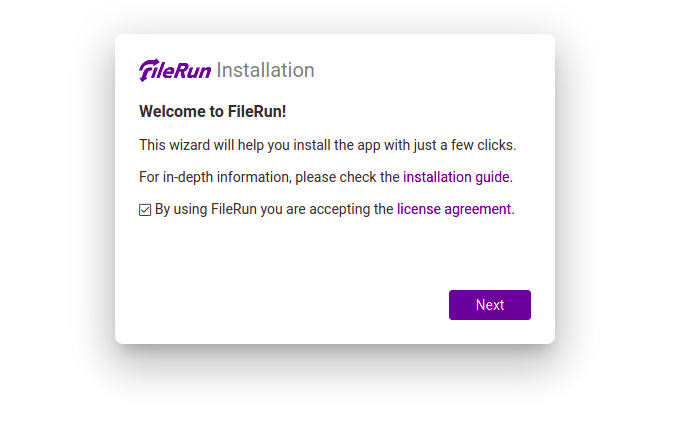
http://filerun.yourdomain.comThe FileRun setup wizard loads automatically. Work through each screen:
- System Requirements Check — FileRun scans for required PHP extensions and server settings. If you followed all previous steps, every item should show a green checkmark. A red item means a PHP extension is missing or a PHP setting needs adjusting.
- Database Configuration — Enter the database name (
filerun_db), username (filerun_user), and the password you set earlier. Leave the host aslocalhost. - Administrator Account — Set your admin username, email address, and a strong password. This is the account you will use to manage all users and settings.
- Files Directory — Specify where FileRun will store uploaded files. The default path is
/var/www/html/filerun/system/data, but you can point it to any directory your server has space on. - Finish — Click the final confirmation button to complete the installation.
After the installer finishes, log in with your admin credentials and confirm the FileRun dashboard loads.
Step 9: Secure FileRun with a Free SSL Certificate
FileRun transmits login credentials and file data between the browser and the server. Running it over plain HTTP exposes that traffic to interception. HTTPS is not optional for any production deployment.
Install Certbot
sudo apt install certbot python3-certbot-apache -yObtain and Install the SSL Certificate
sudo certbot --apache -d filerun.yourdomain.comCertbot will walk you through two prompts:
- Email address — Used for renewal reminders and urgent security notices
- HTTP redirect — Select option 2 to redirect all HTTP traffic to HTTPS automatically
Certbot modifies your Apache virtual host automatically and installs the SSL certificate. After it finishes, your FileRun instance is accessible over HTTPS.
Verify Auto-Renewal Is Active
Let’s Encrypt certificates expire after 90 days. Certbot sets up a systemd timer to renew automatically.
sudo systemctl status certbot.timerTest a renewal run without actually renewing:
sudo certbot renew --dry-runIf the dry run shows no errors, your certificates will renew on schedule without any manual action.
Post-Installation Optimizations
Enable full-text document search:
Install Java, Apache Tika, and Elasticsearch through the FileRun admin panel under Control Panel > Search. This allows FileRun to index and search inside PDF, Word, and spreadsheet files.
Set up automated database backups:
Schedule a daily MariaDB dump with cron:
sudo crontab -eAdd this line to back up at 2:00 AM every day:
0 2 * * * mysqldump -u filerun_user -pStrongPassword123! filerun_db > /backup/filerun_db_$(date +%F).sqlConfigure SMTP for email notifications:
Go to Control Panel > Email in the FileRun admin panel. Connect your SMTP server so FileRun can send share link notifications and password reset emails to users.
Connect desktop and mobile clients:
FileRun supports WebDAV, so any WebDAV-compatible app can sync files. Point your desktop client to:
https://filerun.yourdomain.com/dav.phpTroubleshooting Common Issues
- Problem: IonCube loader error on every page load
FileRun displays a PHP fatal error referencing IonCube encoding.
Fix: Confirm the .so file path in /etc/php/8.2/apache2/conf.d/00-ioncube.ini exactly matches the output of php -i | grep extension_dir. Run php -m | grep ioncube to verify the loader is active.
- Problem: 403 Forbidden error when accessing the domain
Apache refuses to serve the FileRun directory.
Fix: Check that AllowOverride All is set in your virtual host config and that mod_rewrite is enabled. Run sudo a2enmod rewrite then sudo systemctl restart apache2.
- Problem: File uploads fail or cut off at a certain size
Large files fail to upload even though disk space is available.
Fix: Increase upload_max_filesize and post_max_size in /etc/php/8.2/apache2/php.ini. Set both to the same value, restart Apache, and test again.
- Problem: Blank white screen after installation
The browser shows a white page with no error message.
Fix: Check Apache’s error log for the real error:
sudo tail -100 /var/log/apache2/filerun.error.logBlank screens almost always point to a PHP error that display_errors = Off is hiding from the browser.
- Problem: Database connection error during the installer
FileRun reports it cannot connect to the database.
Fix: Confirm MariaDB is running with sudo systemctl status mariadb. Double-check that the username and password you are entering in the installer exactly match what you created in MariaDB, including capitalization.
Congratulations! You have successfully installed FileRun. Thanks for using this tutorial for installing FileRun with LAMP on Debian 13 “Trixie” system. For additional help or useful information, we recommend you check the FileRun website.
