
FileZilla stands as one of the most reliable FTP clients in the Linux ecosystem, trusted by developers and system administrators worldwide. Whether you’re managing website files, transferring large datasets, or maintaining remote servers, this powerful open-source tool makes file transfers straightforward and secure. This comprehensive guide walks you through installing FileZilla on Fedora 43 using multiple methods, configuring it for optimal performance, and troubleshooting common issues you might encounter along the way.
Understanding FileZilla and Its Capabilities
FileZilla is more than just a file transfer program. It’s a feature-rich, cross-platform FTP client that supports FTP, FTPS, and SFTP protocols. The software originated as an open-source project and has evolved into the go-to solution for anyone needing reliable file transfer capabilities.
What makes FileZilla particularly valuable is its intuitive two-pane interface that displays your local files alongside remote server directories. This design allows you to drag and drop files seamlessly between locations. The application includes advanced features like IPv6 support, transfer speed controls, directory comparison tools, and remote file editing capabilities. You can queue multiple transfers, resume interrupted downloads, and manage multiple server connections simultaneously.
The site manager functionality lets you save frequently accessed server credentials, eliminating repetitive login processes. Meanwhile, the built-in file search and filtering options help you locate specific files quickly across complex directory structures.
Preparing Your Fedora 43 System
Before diving into the installation process, you’ll need to ensure your system meets basic requirements. Fedora 43 Workstation or Server edition works perfectly for this installation. You’ll need sudo privileges or root access to install system packages, along with an active internet connection for downloading FileZilla and its dependencies.
Having basic familiarity with terminal commands proves helpful, though this guide provides detailed instructions for each step. If you plan to test your FileZilla installation immediately, keep your FTP server credentials handy.
Updating Your System
Starting with a fully updated system prevents potential package conflicts and dependency issues. Open your terminal and execute the following command:
sudo dnf upgrade --refreshThis command refreshes your package database and upgrades all installed packages to their latest versions. The process might take several minutes depending on how many packages require updates. Enter your password when prompted, then wait for the update to complete.
Alternatively, you can use:
sudo dnf update && sudo dnf upgradeEither approach ensures your Fedora 43 system has the latest security patches and software versions before installing FileZilla.
Installing FileZilla Using DNF
The simplest installation method uses Fedora’s default package manager, DNF. This approach integrates FileZilla seamlessly with your system, ensuring it receives updates alongside other software.
Checking Package Availability
First, verify that FileZilla is available in Fedora’s repositories:
sudo dnf search filezillaThis command searches the repository database and displays available FileZilla packages. You should see results showing the FileZilla package and its description.
Installing from Default Repositories
Now install FileZilla with a single command:
sudo dnf install filezilla -yThe -y flag automatically confirms the installation, skipping manual confirmation prompts. DNF downloads FileZilla along with necessary dependencies like libfilezilla and wxBase3 libraries. The entire process typically completes within a few minutes, depending on your internet speed.
Verifying Your Installation
After installation completes, confirm FileZilla installed correctly:
filezilla --versionThis command displays the installed FileZilla version number. Seeing a version number confirms successful installation.
The DNF method offers significant advantages. It’s straightforward, keeps FileZilla updated through regular system updates, and maintains stability through tested repository packages. However, repository versions might lag behind the absolute latest release. For most users, this trade-off favors stability over cutting-edge features.
Installing FileZilla via Flatpak
Flatpak provides an alternative installation method that delivers the latest FileZilla version in a sandboxed environment. This universal packaging format runs applications isolated from your core system, offering enhanced security and access to newer releases.
Setting Up Flatpak
Check whether Flatpak is already installed:
flatpak --versionIf Flatpak isn’t installed, add it with:
sudo dnf install flatpakFedora typically includes Flatpak by default, so you might skip this step.
Enabling the Flathub Repository
Flathub serves as the primary repository for Flatpak applications. Enable it with:
flatpak remote-add --if-not-exists flathub https://flathub.org/repo/flathub.flatpakrepoThis command adds Flathub as a remote repository if it’s not already configured. The –if-not-exists flag prevents errors if Flathub is already enabled.
Completing Flatpak Integration
Reboot your system to ensure proper Flatpak integration:
sudo rebootWhile not always mandatory, rebooting guarantees that all system components recognize Flatpak’s presence.
Installing FileZilla Through Flatpak
After rebooting, install FileZilla:
flatpak install flathub org.filezillaproject.Filezilla -yThis downloads and installs FileZilla from Flathub. The installation process might take longer than the DNF method because Flatpak applications include their own runtime environments. Accept any permission requests that appear during installation.
Troubleshooting Flatpak Issues
If installation fails with a message about Flathub not being enabled, manually enable it:
flatpak remote-modify --enable flathubThen retry the installation command.
The Flatpak method provides access to the latest FileZilla release and runs the application in isolation from your system. You can even install both DNF and Flatpak versions simultaneously if needed. The drawbacks include larger disk space requirements and slightly slower application startup times compared to native packages.
Launching FileZilla on Your System
Getting FileZilla running is simple once installation completes. Multiple launch methods accommodate different user preferences.
Starting from the Terminal
If you installed via DNF, launch FileZilla by typing:
filezillaFor Flatpak installations, use:
flatpak run org.filezillaproject.FilezillaBoth commands open the FileZilla application window.
Using the GUI Application Menu
Most users prefer launching applications graphically. Click Activities or open your Applications menu, then search for “FileZilla”. Click the FileZilla icon when it appears. Right-click the icon and select “Add to Favorites” for quick future access.
You can also find FileZilla in GNOME Software Center if you prefer browsing installed applications visually.
Understanding the First Launch
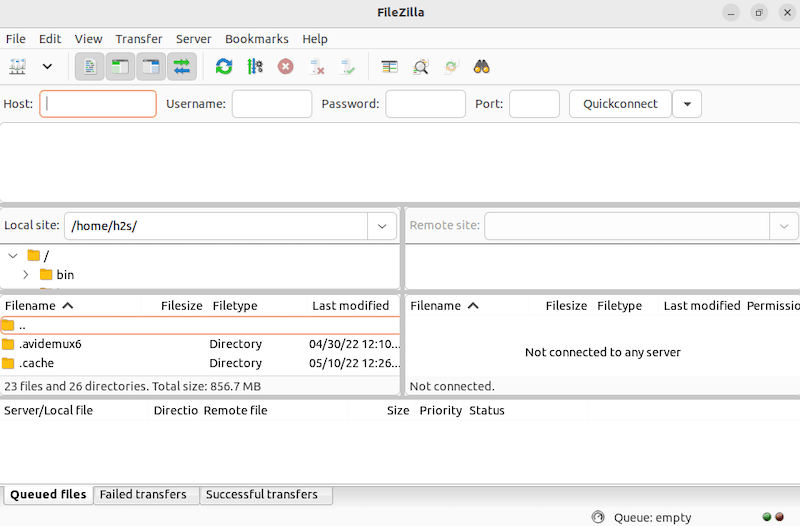
When FileZilla opens for the first time, you’ll see a divided interface. The left pane displays your local file system, while the right pane shows remote server contents once connected. The top section contains connection fields for Host, Username, Password, and Port. Below the file panes, you’ll find a message log displaying connection details and transfer information. The bottom section manages your transfer queue and displays ongoing file operations.
Configuring FileZilla for Optimal Use
Proper configuration enhances your FileZilla experience and improves security.
Navigating Essential Settings
Access FileZilla’s settings by clicking Edit → Settings. The preferences window contains numerous configuration options organized by category. Focus on these key areas initially:
Interface settings let you customize the layout, fonts, and color schemes. Adjust these based on your visual preferences and screen size.
File transfer settings control how FileZilla handles file operations. Configure default local and remote directories to save time during connections.
Connection settings manage timeout values and simultaneous connections. If you experience frequent disconnections, increase timeout values.
The passive versus active mode setting affects how FileZilla establishes data connections with FTP servers. Most modern servers work better with passive mode, which FileZilla uses by default.
Configuring the Site Manager
Site Manager streamlines connections to frequently accessed servers. Access it through File → Site Manager or press Ctrl+S.
Click “New Site” to create a server profile. Enter a descriptive name for easy identification. In the General tab, input your server’s host address (IP or domain name). Select the protocol from the dropdown menu: choose FTP for standard connections, FTPS for encrypted FTP, or SFTP for SSH-based transfers.
Set the Logon Type based on your authentication method. “Normal” requires username and password entry. “Ask for password” prompts you each connection, improving security by not storing credentials. “Key file” enables SSH key-based authentication for SFTP connections.
Enter your username and password in the respective fields. Specify the remote directory path if you always need to access a particular folder.
Click “Connect” to test your configuration. If successful, FileZilla saves these settings for future one-click connections.
Implementing Security Practices
Security should guide your FileZilla configuration decisions. Avoid saving passwords when using shared or public computers. The “Ask for password” logon type provides better security for sensitive accounts.
Always choose SFTP or FTPS over plain FTP when possible. These encrypted protocols protect your credentials and data during transmission. When connecting to an FTPS or SFTP server for the first time, FileZilla displays the server’s SSL/TLS certificate. Verify the certificate details before accepting, especially for production servers.
Connecting to Remote Servers
With FileZilla configured, you’re ready to establish server connections.
Using Quick Connect
For one-time or infrequent connections, the Quick Connect bar at the top of FileZilla provides fast access. Enter the host address in the first field—this can be an IP address like 192.168.1.100 or a domain like ftp.example.com.
Type your username in the second field, followed by your password in the third field. Enter the port number in the fourth field: use 21 for FTP or 22 for SFTP. Leave it blank to use default ports.
Click the “Quickconnect” button or press Enter. FileZilla attempts to establish a connection.
Managing Site Manager Connections
For saved servers, open Site Manager (File → Site Manager), select your configured site, and click “Connect.” This approach eliminates repetitive data entry and reduces connection errors.
Handling Certificate Verification
When connecting to secure servers, FileZilla may display a certificate verification dialog. Review the certificate details carefully. Check that the certificate’s common name matches your server’s hostname. Verify the validity period covers the current date.
If everything appears correct, check “Always trust this certificate” before clicking OK. This prevents repeated prompts for the same server. However, only trust certificates you can verify as legitimate.
Confirming Successful Connections
A successful connection populates the right pane with your server’s directory structure. The message log displays connection confirmation messages, protocol information, and the current directory path. You can now navigate through remote folders by double-clicking directories.
Performing File Operations
FileZilla excels at making file transfers intuitive and efficient.
Uploading Files to Remote Servers
Navigate to the desired local directory in the left pane. In the right pane, browse to your target remote directory. Select files or folders you want to upload—hold Ctrl to select multiple items.
Drag selected items from the left pane and drop them in the right pane. FileZilla adds them to the transfer queue and begins uploading. Alternatively, right-click selected files and choose “Upload.”
The queue section at the bottom shows transfer progress for each file. Large or numerous files queue automatically, transferring sequentially.
Downloading Files Locally
The download process mirrors uploading. Select files in the right (remote) pane, then drag them to your desired location in the left (local) pane. FileZilla downloads files to the local directory you’re currently viewing.
If a transfer interrupts due to connection issues, FileZilla can resume interrupted downloads when you reconnect. Right-click incomplete files and select “Resume” to continue from where the transfer stopped.
Managing Remote Files
FileZilla isn’t just for transfers—it manages remote files too. Right-click any remote file or folder to access management options.
Create new directories by right-clicking in empty space and selecting “Create directory.” Name the new folder and press Enter.
Delete files by selecting them and pressing Delete, or right-click and choose “Delete.” FileZilla confirms deletion to prevent accidents.
Rename files by right-clicking and selecting “Rename,” then typing the new name.
Change file permissions by right-clicking a file and selecting “File permissions.” This opens a dialog showing numeric and symbolic permission notation. Modify permissions as needed and click OK to apply changes.
Edit remote files directly by right-clicking and selecting “View/Edit”. FileZilla downloads a temporary copy, opens it in your default text editor, and uploads changes when you save.
Comparing and Synchronizing Directories
The directory comparison feature identifies differences between local and remote folders. Click View → Directory Comparison → Enable. FileZilla highlights files that differ between panes using color coding.
This proves invaluable for maintaining synchronized backups or website mirrors. You can quickly identify which files need uploading or downloading to achieve synchronization.
Resolving Common Problems
Even straightforward tools like FileZilla occasionally encounter issues. These solutions address frequent problems.
Fixing Connection Failures
If FileZilla won’t connect, verify your credentials first. Double-check username, password, and host address for typos. Confirm you’re using the correct port number—FTP uses 21, SFTP uses 22.
Firewall settings sometimes block FileZilla connections. Temporarily disable your firewall to test whether it’s causing the issue. If connection succeeds with the firewall off, create a rule allowing FileZilla through.
If the server doesn’t respond at all, it might be offline or experiencing issues. Contact your hosting provider to verify server status.
Addressing GnuTLS Errors
Certificate-related GnuTLS errors typically indicate SSL/TLS verification problems. These often resolve by updating your system’s certificate store:
sudo dnf upgrade ca-certificatesAlternatively, in FileZilla’s Site Manager, change the encryption setting to “Use explicit FTP over TLS if available” instead of requiring TLS.
Overcoming Permission Errors
“Permission denied” messages usually stem from insufficient user privileges on the remote server. Verify that your account has appropriate permissions for the target directory. Contact your server administrator if you need elevated privileges.
For SFTP connections, ensure your SSH key has correct local permissions (600 for private keys).
Switching Between Passive and Active Modes
Connection problems sometimes relate to transfer mode settings. Navigate to Edit → Settings → Connection → FTP. Find the “Transfer mode” setting and switch between Passive and Active modes. Passive mode works better for most modern setups, but some older servers require Active mode.
Troubleshooting Launch Failures
If FileZilla won’t start, verify installation integrity. For DNF installations:
which filezillaFor Flatpak installations:
flatpak list | grep -i filezillaIf the installation appears corrupted, reinstall FileZilla using the appropriate method.
Check system logs for error messages:
journalctl -xe | grep -i filezillaImproving Slow Transfer Speeds
If transfers crawl unexpectedly, check FileZilla’s speed limits. Navigate to Edit → Settings → Transfers and review Upload and Download speed limits. If limits are set, either increase them or disable speed limiting entirely.
Network congestion or server-side limitations might also throttle speeds. Test your internet connection speed independently to isolate the bottleneck.
Keeping FileZilla Updated
Regular updates provide security patches, bug fixes, and new features.
Updating DNF Installations
FileZilla installed via DNF updates automatically during system updates. Run:
sudo dnf upgrade --refreshTo specifically check for FileZilla updates:
sudo dnf check-update filezillaUpdating Flatpak Installations
Update your Flatpak FileZilla with:
flatpak update org.filezillaproject.FilezillaOr update all Flatpak applications simultaneously:
flatpak updateChecking Your Current Version
Verify which FileZilla version you’re running by opening the application and clicking Help → About. Alternatively, use the terminal:
filezilla --versionUninstalling FileZilla
If you need to remove FileZilla, the process depends on your installation method.
For DNF installations:
sudo dnf remove filezillaRemove unused dependencies:
sudo dnf autoremoveFor Flatpak installations:
flatpak uninstall org.filezillaproject.FilezillaRemove unused Flatpak runtimes:
flatpak uninstall --unusedFileZilla stores configuration files in ~/.config/filezilla/. Manually delete this directory if you want to completely remove all FileZilla traces from your system.
Congratulations! You have successfully installed FileZilla. Thanks for using this tutorial for installing the FileZilla FTP client on your Fedora 43 Linux system. For additional help or useful information, we recommend you check the official FileZilla website.

