How To Install Fish Shell on AlmaLinux 10

The command line doesn’t have to feel outdated or intimidating. If you’ve been using Bash for years, you might not realize what you’re missing—intelligent autosuggestions, vibrant syntax highlighting, and a terminal that actually helps you work faster. Fish Shell transforms your AlmaLinux 10 command-line experience from functional to exceptional.
This guide walks you through installing Fish Shell on AlmaLinux 10, from initial setup to advanced configuration. You’ll learn multiple installation methods, discover essential customization options, and understand how to make Fish work seamlessly with your existing workflow. Whether you’re a system administrator managing servers or a developer seeking a better interactive shell, Fish delivers power without complexity.
What is Fish Shell?
Fish, short for Friendly Interactive Shell, represents a modern approach to command-line interaction. Unlike traditional shells that require extensive configuration, Fish works beautifully right out of the box. It’s designed specifically for interactive use, prioritizing user experience over strict POSIX compliance.
Available across Linux, macOS, BSD, and Windows platforms, Fish has grown from an alternative shell into a productivity powerhouse. The philosophy is simple: your shell should help you, not hinder you. Every feature exists to make terminal work faster, clearer, and more enjoyable.
Key Features That Set Fish Apart
Fish Shell packs several standout features that revolutionize daily terminal use:
Autosuggestions appear as you type, drawing from your command history to predict what you want. Press the right arrow key to accept suggestions instantly. This single feature eliminates countless keystrokes throughout your day.
Syntax highlighting provides immediate visual feedback. Valid commands appear in one color, invalid ones in another. You catch typos before hitting enter, not after seeing error messages.
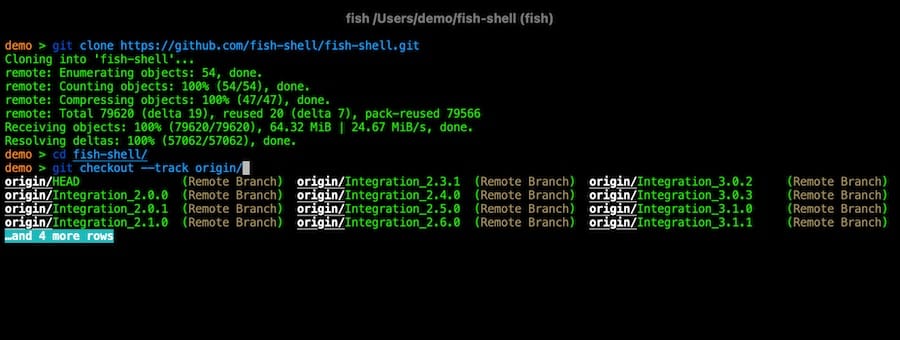
Smart tab completions understand context. Type git and press tab—Fish knows Git subcommands, options, and even branch names. This intelligence extends to Docker, systemctl, and hundreds of other tools.
Web-based configuration launches in your browser with a simple command. Customize colors, prompts, and functions through an intuitive interface instead of editing cryptic configuration files.
Cleaner scripting syntax makes Fish scripts more readable than their Bash equivalents. While not POSIX-compatible, Fish’s approach feels natural and reduces cognitive load.
Prerequisites and System Requirements
Before installing Fish Shell on your AlmaLinux 10 system, ensure you have:
- AlmaLinux 10 server or desktop installation (fully updated)
- User account with sudo privileges
- Active internet connection for downloading packages
- DNF package manager (included by default in AlmaLinux)
- Basic terminal familiarity
- At least 512MB available RAM
- Approximately 100MB free disk space
Fish operates alongside your existing shell environment. Installing Fish doesn’t replace Bash system-wide or affect system scripts. You maintain complete control over when and how you use each shell.
Understanding AlmaLinux Package Management
AlmaLinux 10, a community-driven RHEL-compatible distribution, uses DNF (Dandified YUM) as its package manager. DNF handles software installation, updates, and dependency resolution automatically. This modern package manager offers significant improvements over its predecessor, including better performance, clearer output, and enhanced dependency checking.
When you install packages through DNF, the system queries configured repositories, downloads necessary files, resolves dependencies, and installs everything in the correct order. This automation prevents broken installations and ensures system stability. For Fish Shell installation, DNF provides the simplest and most reliable method.
Installing Fish Shell Using DNF
The standard DNF installation method offers the easiest path to getting Fish running on AlmaLinux 10.
Update System Packages
Start by refreshing your package metadata:
sudo dnf makecache --refreshThis command updates DNF’s package cache with the latest repository information. You’ll see progress bars as DNF contacts each configured repository. The refresh ensures you’re installing the current Fish Shell version available for AlmaLinux 10.
Alternatively, check for available updates:
sudo dnf check-updateThis command lists packages with available updates without installing them. Regular updates maintain system security and stability.
Install Fish Shell Package
Install Fish with a single command:
sudo dnf install fish -yThe -y flag automatically confirms the installation, skipping the prompt asking “Is this ok [y/N]?” DNF downloads Fish Shell along with any required dependencies. Installation typically completes in under a minute, depending on your connection speed.
You’ll see output showing:
- Package size and download progress
- Transaction summary (packages being installed)
- Installation progress
- Complete message
Verify Installation
Confirm Fish installed correctly:
fish --versionYou should see output like fish, version 3.7.0 (version numbers vary based on repository packages). This confirms Fish is installed and accessible.
Check the installation path:
which fishThis returns /usr/bin/fish, showing where the Fish binary resides.
Launch Fish Shell
Start Fish for the first time:
fishYour prompt changes immediately. Notice the different appearance—cleaner, more colorful, more modern. Fish welcomes you to a better command-line experience.
Type a command and watch autosuggestions appear in gray text. Press Tab to see contextual completions. Type an invalid command and observe the red syntax highlighting.
Exit Fish and return to Bash:
exitYou’re back in your previous shell. Fish remains installed and ready whenever you type fish.
Installing Fish from Source (Advanced Method)
Advanced users wanting the absolute latest features can build Fish from source. This method requires more technical knowledge and ongoing manual updates.
Install Build Dependencies
First, install development tools:
sudo dnf groupinstall "Development Tools"
sudo dnf install cmake ncurses-devel pcre2-devel
These packages provide compilers, build tools, and libraries Fish needs during compilation.
Download and Build Fish
Clone the Fish repository from GitHub:
git clone https://github.com/fish-shell/fish-shell.git
cd fish-shell
Create a build directory and compile:
mkdir build
cd build
cmake ..
make
sudo make install
The compilation process takes several minutes. Once complete, Fish installs to /usr/local/bin/fish by default.
Verify the installation:
/usr/local/bin/fish --versionImportant consideration: Source installations require manual updates. You won’t receive automatic updates through DNF. For most users, the DNF method provides better long-term maintenance.
Post-Installation Configuration
Setting Fish as Your Default Shell
You can make Fish your default shell for automatic startup. This change is optional—many users prefer launching Fish manually to keep Bash for scripting.
First, add Fish to the system’s valid shells list:
echo /usr/bin/fish | sudo tee -a /etc/shellsVerify Fish appears in the file:
cat /etc/shellsChange your default shell:
chsh -s /usr/bin/fishFor other users (requires root):
sudo chsh -s /usr/bin/fish usernameLog out completely and log back in for changes to take effect. Your terminal now opens in Fish automatically.
Confirm the change:
echo $SHELLThis displays /usr/bin/fish, confirming Fish is your default shell.
Reverting to Bash: If you change your mind, the process reverses easily:
chsh -s /usr/bin/bashLog out and back in to restore Bash as default.
Understanding Fish Configuration Files
Fish stores configuration in ~/.config/fish/. This directory structure differs from Bash’s home-directory dotfiles approach.
Key files and directories:
config.fish— Main configuration file (equivalent to.bashrc)fish_variables— Universal variables storagefunctions/— Directory for custom functionsconf.d/— Additional configuration snippets
Fish automatically creates these locations when needed. Unlike Bash, you don’t need to source configuration files manually. Fish loads config.fish automatically on startup.
Basic Configuration and Customization
Access Fish’s web-based configuration interface:
fish_configYour browser opens to Fish’s configuration panel. Here you can:
- Choose color schemes
- Preview and select prompt styles
- View functions and variables
- Customize abbreviations
- Browse available themes
Changes apply immediately without restarting Fish.
Creating aliases in Fish uses functions:
alias ll='ls -lh'
alias lla='ls -lha'
Make aliases permanent by adding them to ~/.config/fish/config.fish.
Setting environment variables:
set -x EDITOR vim
set -x PATH $PATH /opt/custom/bin
The -x flag exports variables, making them available to child processes.
Persistent environment variables:
set -Ux VARIABLE valueUniversal variables (-U) persist across sessions and terminals.
Installing Fish Plugin Manager and Plugins
Fisher Plugin Manager
Fisher manages Fish plugins efficiently. Install Fisher from within Fish shell (not Bash):
fish
curl -sL https://raw.githubusercontent.com/jorgebucaran/fisher/main/functions/fisher.fish | source && fisher install jorgebucaran/fisher
This command downloads and installs Fisher in one step. Verify installation:
fisher --versionBasic Fisher commands:
fisher install plugin-name— Install pluginfisher update— Update all pluginsfisher remove plugin-name— Remove pluginfisher list— List installed plugins
Essential Plugins
Tide Prompt provides a beautiful, informative prompt:
fisher install IlanCosman/tideConfiguration wizard runs automatically. Tide displays Git status, command duration, exit codes, and more—all customizable.
z for Directory Jumping:
fisher install jethrokuan/zAfter using z, it learns your frequently visited directories. Jump anywhere with partial matches: z proj takes you to /home/user/projects.
fzf.fish for Fuzzy Finding:
fisher install PatrickF1/fzf.fishThis adds fuzzy file finding, command history search, and more. Press Ctrl+R for interactive history search.
These plugins transform Fish from excellent to extraordinary. Start with these three, then explore others as needs arise.
Using Fish Shell Effectively
Autosuggestions in Action
As you type, Fish suggests commands from your history. Suggestions appear in gray text. Accept the entire suggestion with the right arrow key. Accept one word at a time with Alt+Right Arrow.
Type frequent commands once. Fish remembers and suggests them instantly thereafter.
Tab Completion Power
Fish’s tab completion understands context. Try these:
git <Tab>Fish lists Git subcommands: add, commit, push, pull, etc. Type git che<Tab> and Fish completes to checkout.
systemctl <Tab>Fish knows systemctl commands and services. This intelligence extends to countless programs.
Command History
Press up arrow to navigate history. Unlike Bash, Fish filters history based on what you’ve typed. Type sudo then press up—only commands starting with sudo appear.
Built-in Help System
Access help anytime:
helpYour browser opens Fish’s comprehensive documentation.
For specific commands:
help set
help function
This context-sensitive help beats searching online documentation.
Fish Syntax Basics
Fish syntax differs from Bash in several ways:
Variable setting:
set my_variable "value"Conditionals:
if test -f file.txt
    echo "File exists"
end
Loops:
for file in *.txt
    echo $file
end
Fish’s syntax reads more naturally than Bash’s cryptic operators. While different, it’s usually simpler once learned.
Troubleshooting Common Issues
Fish Not Found After Installation
If fish command fails, verify installation:
sudo dnf list installed | grep fishReinstall if necessary:
sudo dnf reinstall fishCheck your PATH:
echo $PATHEnsure /usr/bin appears in PATH.
Permission Denied Setting Default Shell
When chsh fails, verify Fish is listed in /etc/shells:
cat /etc/shellsIf missing, add it:
echo /usr/bin/fish | sudo tee -a /etc/shellsThen retry chsh -s /usr/bin/fish.
Scripts Not Working (POSIX Incompatibility)
Fish isn’t POSIX-compliant. Bash scripts won’t run in Fish without modification. The solution: use the right tool for each job.
Keep Bash for automation scripts (add shebang: #!/bin/bash). Use Fish for interactive terminal work. They coexist perfectly.
Slow Startup Times
Too many plugins slow Fish startup. Diagnose with:
time fish -c exitThis measures startup time. Remove unnecessary plugins. Consider lazy-loading plugins that aren’t immediately needed.
Accessing Previous Bash Aliases
Convert Bash aliases to Fish functions. Edit ~/.config/fish/config.fish and add:
alias old_alias='original_command'Or create proper functions for complex aliases.
Getting Help
When stuck, consult:
- Official documentation:
helpcommand or fishshell.com - GitHub issues: github.com/fish-shell/fish-shell
- Community forums and Reddit
- Stack Overflow fish-shell tag
The Fish community is welcoming and responsive.
Congratulations! You have successfully installed Fish Shell. Thanks for using this tutorial for installing the Fish Shell on your AlmaLinux OS 10 system. For additional or useful information, we recommend you check the official Fish Shell website.
