How To Install Floorp Browser on AlmaLinux 10

If you run AlmaLinux 10 as your daily workstation or development machine, you already know it ships with Firefox as the default browser. Firefox is solid, but it offers limited UI flexibility and keeps telemetry enabled unless you manually turn it off. Floorp Browser solves both problems out of the box. This guide walks you through exactly how to install Floorp Browser on AlmaLinux 10 using three officially supported methods: Flatpak, Snap, and a portable Tarball. By the end, you will have Floorp running, configured, and set as your default browser.
What Is Floorp Browser and Why Should You Care?
Floorp is a free, open-source web browser built on top of Mozilla Firefox’s Gecko engine. It was created by Ablaze, a student-led development team based in Japan, and has accumulated over 396,000 Flathub installs as of early 2026.
The browser keeps full compatibility with every Firefox extension available on addons.mozilla.org. That means uBlock Origin, Privacy Badger, and every developer tool extension you already use will work without a single change.
What makes Floorp worth switching to?
- Flexible UI customization: Floorp is the first Firefox-based browser to let you move the tab bar to the left, right, or bottom of the screen.
- Workspaces and web panels: You get tab groups with container support and quick-access side panels for tools like Slack, Notion, or any web app.
- Privacy-first defaults: Mozilla telemetry is disabled by default, and you get built-in fingerprinting protection and a “share mode” that hides your bookmarks during screen sharing.
- Regular security updates: Floorp syncs with upstream Firefox security patches on a consistent release cycle.
- Available architectures: x86_64 and aarch64, both officially supported on Linux.
AlmaLinux 10 (codenamed “Purple Lion”) is a RHEL 10-compatible enterprise Linux distribution released in May 2025. It ships with GNOME as the default desktop environment and uses DNF as its package manager. Because AlmaLinux 10 follows the RHEL ecosystem, it does not support Floorp’s official apt PPA repository, which is Debian and Ubuntu only. You need one of the three methods covered here: Flatpak, Snap, or a direct Tarball install.
Prerequisites
Before you run a single command, confirm the following:
- OS: AlmaLinux 10.0 or 10.1 Stable with a desktop environment (GNOME recommended).
- User privileges: A non-root user account with
sudoaccess. - Internet connection: Required for downloading packages and repository metadata.
- Minimum hardware: 2-core CPU, 4 GB RAM, 40 GB available storage.
- Software dependencies for Floorp on Linux: GTK+ 3.14 or higher, glibc 2.17 or higher, libstdc++ 4.8.1 or higher.
- Terminal access: GNOME Terminal or any terminal emulator you prefer.
Start by updating your system. This step prevents dependency conflicts during installation:
sudo dnf update -yThis command refreshes all installed packages to their latest versions using DNF, AlmaLinux’s default package manager.
Step 1: Choose Your Installation Method
AlmaLinux 10 does not have a native .rpm package for Floorp in its official repositories or via COPR at a stable production level. The officially supported Linux installation paths from the Floorp team are:
- Flatpak via Flathub — Recommended for most desktop users. Sandboxed, auto-updates, officially maintained.
- Snap via Snapcraft — A solid alternative with automatic background updates.
- Tarball — Portable, no root required, gives you full manual control.
The table below helps you pick the right method for your situation:
| Method | Root Required | Auto-Updates | Sandboxed | Complexity |
|---|---|---|---|---|
| Flatpak | No (after setup) | Yes | Yes | Low |
| Snap | Yes (for snapd) | Yes | Yes | Medium |
| Tarball | No | No (manual) | No | Medium |
Pick one and follow the corresponding section. If you are a sysadmin setting this up on a shared workstation, Flatpak is the cleanest option.
Step 2: Install Floorp Browser via Flatpak (Recommended)
Flatpak is the preferred universal packaging format for RHEL-based desktops. Floorp has an official Flatpak listing on Flathub under the app ID one.ablaze.floorp, maintained directly by the Ablaze team.
Step 2.1: Install Flatpak
Check if Flatpak is already installed:
flatpak --versionIf you get a version number back, skip to Step 2.2. If the command is not found, install it:
sudo dnf install flatpak -yThis pulls in the Flatpak runtime and all required dependencies from AlmaLinux’s base repository.
Step 2.2: Add the Flathub Remote Repository
sudo flatpak remote-add --if-not-exists flathub https://dl.flathub.org/repo/flathub.flatpakrepoThis registers Flathub as a trusted source for Flatpak applications. The --if-not-exists flag prevents errors if you run this command more than once.
Step 2.3: Install Floorp from Flathub
flatpak install flathub one.ablaze.floorpThe installer will ask you to confirm. Type y and press Enter. The download is approximately 122 MB and installs to around 319 MB after extraction.
Expected output:
Looking for matches...
oneablaze.floorp  Floorp  flathub
Proceed with these changes to the system installation? [Y/n]: y
Step 2.4: Launch Floorp
flatpak run one.ablaze.floorpYou can also find Floorp in the GNOME application launcher by pressing the Super key and searching for “Floorp.”
Step 2.5: Keep Floorp Updated
flatpak update one.ablaze.floorpTo update all your Flatpak applications at once, run:
flatpak updateStep 3: Install Floorp Browser via Snap
The Snap package for Floorp is officially listed on the Snap Store and runs in a confined environment with automatic background updates. Snap is not pre-installed on AlmaLinux 10, so you need to set up Snapd first.
Step 3.1: Enable the EPEL Repository
EPEL (Extra Packages for Enterprise Linux) is an official Fedora project that provides additional packages for RHEL-based systems. Snapd is available through EPEL on AlmaLinux 10:
sudo dnf install epel-release -yVerify EPEL is active:
sudo dnf repolist | grep epelYou should see epel listed with an enabled status.
Step 3.2: Install Snapd
sudo dnf install snapd -yThis installs the Snap daemon, which manages snap package downloads, updates, and confinement.
Step 3.3: Enable the Snapd Socket
sudo systemctl enable --now snapd.socketThis command tells systemd to start the Snapd communication socket immediately and enable it on every future boot.
Expected output:
Created symlink /etc/systemd/system/sockets.target.wants/snapd.socket
  -> /usr/lib/systemd/system/snapd.socket.
Step 3.4: Enable Classic Snap Support
sudo ln -s /var/lib/snapd/snap /snapThis symbolic link is required for classic snap confinement to work correctly. After running this, log out and back into your desktop session, or reboot:
sudo rebootStep 3.5: Install Floorp via Snap
sudo snap install floorpSnap downloads and installs Floorp along with all its required runtime dependencies automatically.
Step 3.6: Launch Floorp
floorpOr find it in the GNOME Applications menu. Snaps create desktop entries automatically after installation.
Step 3.7: Update or Remove Floorp
Snaps update in the background automatically. To force a manual update:
sudo snap refresh floorpTo uninstall:
sudo snap remove floorpStep 4: Install Floorp Browser via Tarball (Portable Method)
The Tarball method is ideal when you do not have root access, work on a shared server, or want a self-contained portable installation you can move between machines. It requires no package manager after the initial download.
Step 4.1: Download the Official Tarball
Always pull from the official Floorp GitHub Releases page to avoid tampered binaries:
wget https://github.com/Floorp-Projects/Floorp/releases/latest/download/floorp-linux-x86_64.tar.bz2This downloads the latest stable x86_64 tarball directly to your current directory.
Step 4.2: Extract the Archive
tar -xvjf floorp-linux-x86_64.tar.bz2-xextracts the archive.-vshows the extraction progress.-jhandles.bz2compression.-fspecifies the filename.
This creates a floorp/ folder in your current directory.
Step 4.3: Move Floorp to a Permanent Location
mkdir -p ~/.tarball-installations
mv floorp ~/.tarball-installations/floorp
Keeping it under your home directory means no root permissions are needed for any step.
Step 4.4: Make the Binary Executable
chmod +x ~/.tarball-installations/floorp/floorpStep 4.5: Run Floorp
~/.tarball-installations/floorp/floorpStep 4.6: Create a Desktop Entry (Optional but Recommended)
Without a desktop entry, Floorp will not appear in the GNOME app launcher. Create one manually:
mkdir -p ~/.local/share/applications
nano ~/.local/share/applications/floorp.desktop
Paste the following content and replace YOUR_USERNAME with your actual Linux username:
[Desktop Entry]
Name=Floorp
Keywords=web;browser;internet
Exec=/home/YOUR_USERNAME/.tarball-installations/floorp/floorp %u
Icon=/home/YOUR_USERNAME/.tarball-installations/floorp/browser/chrome/icons/default/default128.png
Terminal=false
Type=Application
MimeType=text/html;text/xml;application/xhtml+xml;x-scheme-handler/http;x-scheme-handler/https;
Categories=Network;WebBrowser;
Actions=new-window;new-private-window;profile-manager-window;

[Desktop Action new-window]
Name=Open a New Window
Exec=/home/YOUR_USERNAME/.tarball-installations/floorp/floorp --new-window %u

[Desktop Action new-private-window]
Name=Open a New Private Window
Exec=/home/YOUR_USERNAME/.tarball-installations/floorp/floorp --private-window %u

[Desktop Action profile-manager-window]
Name=Open the Profile Manager
Exec=/home/YOUR_USERNAME/.tarball-installations/floorp/floorp --ProfileManager
Save the file with Ctrl+O, then exit with Ctrl+X. Floorp will appear in your GNOME application launcher within a few seconds.
Step 5: Post-Installation Configuration
Step 5.1: Set Floorp as Your Default Browser
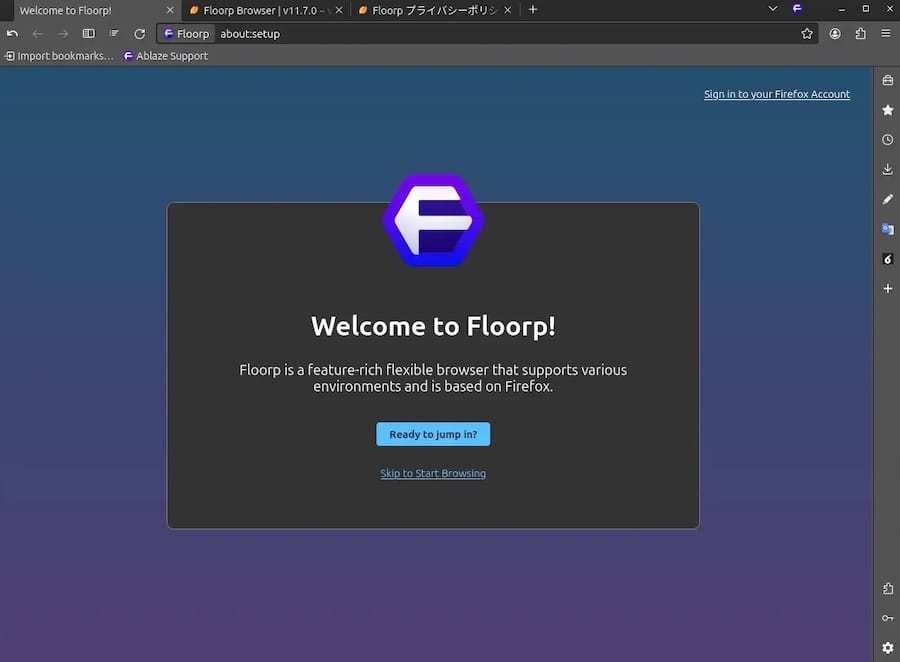
Open Floorp, go to Settings > General > Default Browser, and click Make Default. Alternatively, open GNOME Settings, navigate to Default Applications, and select Floorp under the Web category.
Step 5.2: Configure Privacy Settings
Floorp disables Mozilla telemetry by default, but you should still review the privacy settings to get the full benefit:
- Open Settings > Privacy & Security.
- Set Enhanced Tracking Protection to Strict mode.
- Disable WebRTC to prevent IP address leaks during video calls.
- Disable WebGL if you want to block graphics-based fingerprinting.
These settings apply immediately with no restart required.
Step 5.3: Install Firefox Extensions
Since Floorp is built on the Firefox engine, every Firefox add-on works natively. Open https://addons.mozilla.org directly in Floorp and install extensions the same way you would in Firefox.
Recommended extensions for a privacy-focused and productive setup:
- uBlock Origin — Blocks ads and malicious scripts.
- Privacy Badger — Learns and blocks invisible trackers.
- Cookie AutoDelete — Removes cookies automatically after you close a tab.
Step 5.4: Explore Floorp-Specific Features
Right-click the tab bar to access tab bar position settings and move tabs to the left or right sidebar. Enable Workspaces from the toolbar to create separate browsing sessions for different projects, with isolated login states per workspace.
Step 6: Verify the Installation
Confirm Floorp installed correctly before calling this done.
For Flatpak:
flatpak list | grep floorpFor Snap:
snap list floorpFor Tarball:
~/.tarball-installations/floorp/floorp --versionYou can also check the version inside the browser by going to Help > About Floorp. Verify that extensions install properly, that your privacy settings save between sessions, and that Floorp handles all browser protocol links correctly as your default browser.
Troubleshooting Common Issues
Even on a clean AlmaLinux 10 install, you may hit a few snags. Here are the most common problems and how to fix them.
1. Floorp fails to launch after Flatpak install
This usually points to a missing or corrupted runtime. Run:
flatpak repairThen try launching Floorp again. If the problem continues, remove and reinstall the app:
flatpak uninstall one.ablaze.floorp
flatpak install flathub one.ablaze.floorp
2. snap command not found after installing Snapd
The Snap binary path has not loaded into your session yet. Log out completely and log back in, or reboot:
sudo rebootAfter login, run snap version to confirm Snapd is active.
3. Tarball binary returns “Permission denied”
The executable bit is missing. Fix it with:
chmod +x ~/.tarball-installations/floorp/floorp4. Flathub remote not found during install
You skipped or the remote-add command failed. Re-run it:
sudo flatpak remote-add --if-not-exists flathub https://dl.flathub.org/repo/flathub.flatpakrepoThen retry the install command.
5. EPEL repository fails to enable on AlmaLinux 10
On some AlmaLinux 10 minimal installs, the EPEL release package name differs. Try:
sudo dnf install https://dl.fedoraproject.org/pub/epel/epel-release-latest-10.noarch.rpmAfter that, confirm EPEL is listed:
sudo dnf repolist enabled | grep epelHow To Uninstall Floorp Browser on AlmaLinux 10
If you need to remove Floorp cleanly, use the command that matches your installation method.
Flatpak:
flatpak uninstall one.ablaze.floorpSnap:
sudo snap remove floorpTarball:
rm -rf ~/.tarball-installations/floorp
rm ~/.local/share/applications/floorp.desktop
rm ~/.local/bin/floorp
To remove leftover profile data and cached settings, also delete the profile directories:
rm -rf ~/.var/app/one.ablaze.floorp
rm -rf ~/.floorp
This leaves your system completely clean with no residual files.
Congratulations! You have successfully installed Floorp. Thanks for using this tutorial to install the latest version of the Floorp Browser on AlmaLinux OS 10 system. For additional help or useful information, we recommend you check the official Floorp website.
