How To Install FOSSBilling on Fedora 43

Running a hosting business or managing billing for digital services without a solid client management system is a pain. You either pay for expensive SaaS tools or wrestle with outdated open-source projects that have gone stale. FOSSBilling changes that equation entirely. It is a free, open-source billing and client management platform that gives you full control over invoicing, payment gateways, client portals, and automated renewals, all on your own server.
This guide walks you through exactly how to install FOSSBilling on Fedora 43, covering every component from Nginx and MariaDB to PHP 8.2, SELinux configuration, SSL setup, and the cron job that keeps everything running. Fedora 43 is a strong choice for this stack. It ships with DNF5 for faster package management, up-to-date PHP packages via the Remi repository, and SELinux enforcing by default, which means your server starts with a serious security posture rather than an afterthought.
By the end of this tutorial, you will have a production-ready FOSSBilling on Fedora 43 setup, secured with Let’s Encrypt SSL and configured to handle automated billing tasks reliably.
What Is FOSSBilling?
FOSSBilling is the actively maintained successor to BoxBilling, rebuilt and improved by an open-source community. The current stable release is version 0.7.x, which introduced support for PHP 8.2 through 8.4 and dropped PHP 8.1 entirely.
The platform handles everything a hosting or digital services business needs. That includes a self-service client portal, invoice automation, multi-currency support, a modular extension system, and a REST API.
Because you host it yourself, you own all your data. There are no per-seat fees, no vendor lock-in, and no surprise pricing changes.
System Requirements
Before touching a single command, confirm your server meets these requirements.
PHP version: 8.2, 8.3, or 8.4 (PHP 8.1 is no longer supported as of FOSSBilling 0.7.x)
Required PHP extensions:
intlopensslpdo_mysqlxmldomiconvjsonzlibcurl>= 7.34.0
Recommended PHP extensions for performance:
mbstringopcacheimagickorgmagickGDbz2
Database: MySQL >= 8 or MariaDB >= 10.3
Web server: Nginx with the correct server block configuration, Apache with mod_rewrite, LiteSpeed, or OpenLiteSpeed
PHP configuration minimums:
memory_limit: at least64M(256M recommended for loaded setups)max_execution_time: 30 seconds minimum; increase to 60 for slower servers
Minimum hardware: 2 GB RAM, 20 GB storage, 1 vCPU
Prerequisites
Make sure you have the following in place before starting:
- A fresh Fedora 43 server or VPS with root or sudo access
- A registered domain name or subdomain pointed to your server’s public IP address (sub-folder installs are not supported by FOSSBilling)
- Open firewall ports: 22 (SSH), 80 (HTTP), 443 (HTTPS)
- The
nanoorvimtext editor installed - Basic comfort with the Linux terminal and DNF package manager
- A plan for SSL (this guide uses Let’s Encrypt via Certbot)
- SELinux awareness: Fedora 43 ships with SELinux in Enforcing mode; you will configure it properly in this guide rather than disable it
Step 1: Update Your Fedora 43 System
Starting with a fully updated system prevents dependency conflicts between Nginx, PHP-FPM, and MariaDB. On Fedora 43, this uses DNF5, which resolves dependencies faster than older DNF versions.
sudo dnf update -yIf the update includes a new kernel, reboot before continuing:
sudo rebootOnce back online, verify your Fedora release:
cat /etc/fedora-releaseExpected output:
Fedora release 43 (Forty Three)Step 2: Install and Configure Nginx
Nginx is the web server that will serve FOSSBilling to your visitors. Install it directly from Fedora’s official repositories:
sudo dnf install nginx -yEnable Nginx to start automatically at boot and start it now in a single command:
sudo systemctl enable --now nginxConfirm it is running:
sudo systemctl status nginxYou should see active (running) in the output. Now open HTTP and HTTPS traffic through firewalld, Fedora’s default firewall manager:
sudo firewall-cmd --permanent --add-service=http
sudo firewall-cmd --permanent --add-service=https
sudo firewall-cmd --reload
Visit your server’s IP address in a browser. The default Nginx welcome page confirms the service is live. FOSSBilling files will live in /var/www/fossbilling, not the default Nginx document root.
Step 3: Install and Secure MariaDB
MariaDB stores all FOSSBilling data: client records, invoices, orders, and configuration. Install it with:
sudo dnf install mariadb-server -yEnable and start the service:
sudo systemctl enable --now mariadbRun the security wizard to remove anonymous users, disable remote root login, and drop the test database:
sudo mysql_secure_installationAnswer the prompts as follows for a hardened setup:
- Set a strong root password: Yes
- Remove anonymous users: Yes
- Disallow root login remotely: Yes
- Remove test database: Yes
- Reload privilege tables: Yes
Create the FOSSBilling Database and User
Log in to MariaDB as root:
sudo mysql -u root -pRun these SQL commands to create a dedicated database and user for FOSSBilling. Replace StrongPassword with a secure password of your own:
CREATE DATABASE fossbilling;
CREATE USER 'fossuser'@'localhost' IDENTIFIED BY 'StrongPassword';
GRANT ALL PRIVILEGES ON fossbilling.* TO 'fossuser'@'localhost';
FLUSH PRIVILEGES;
EXIT;
This isolates FOSSBilling’s data under its own database user, limiting the blast radius if anything goes wrong.
Step 4: Install PHP 8.2 and Required Extensions
Fedora 43’s default PHP packages may ship with PHP 8.4. FOSSBilling 0.7.x supports PHP 8.2 through 8.4, so you can install the default or pin to 8.2 using the Remi repository for precise version control.
Option A: Install via Remi Repository (Recommended for version pinning)
Add the Remi repo for Fedora 43:
sudo dnf install https://rpms.remirepo.net/fedora/remi-release-43.rpm -y
sudo dnf module enable php:remi-8.2 -y
Option B: Install the System Default PHP
If you are comfortable with whatever PHP version Fedora 43 ships, skip Remi and install directly.
Install PHP, PHP-FPM, and All Required Extensions
sudo dnf install php php-fpm php-mysqlnd php-intl php-xml php-json php-mbstring php-opcache php-curl php-gd php-zip php-bcmath php-iconv php-openssl -yVerify the installed PHP version:
php --versionEnable and start PHP-FPM:
sudo systemctl enable --now php-fpmConfigure PHP-FPM to Run as the Nginx User
Open the PHP-FPM pool configuration file:
sudo nano /etc/php-fpm.d/www.confFind these two lines and change apache to nginx:
user = nginx
group = nginx
Tune php.ini for FOSSBilling
Open the main PHP configuration:
sudo nano /etc/php.iniLocate and update these values:
memory_limit = 256M
upload_max_filesize = 16M
post_max_size = 32M
max_execution_time = 600
max_input_vars = 3000
Restart PHP-FPM to apply all changes:
sudo systemctl restart php-fpmVerify all critical extensions loaded correctly:
php -m | grep -E 'intl|pdo_mysql|curl|xml|json|zlib'Each extension name should appear in the output. If one is missing, install it with sudo dnf install php-<extensionname> -y.
Step 5: Download FOSSBilling
Create the web root directory where FOSSBilling will live:
sudo mkdir -p /var/www/fossbillingInstall curl and unzip if they are not already present:
sudo dnf install curl unzip -yDownload the latest stable FOSSBilling release directly from the official GitHub releases page. Always use the stable release, not a preview build, for production servers:
sudo curl -Lo /tmp/fossbilling.zip \
  https://github.com/FOSSBilling/FOSSBilling/releases/latest/download/FOSSBilling.zip
Extract the archive into your web root:
sudo unzip /tmp/fossbilling.zip -d /var/www/fossbillingSet the correct ownership so Nginx and PHP-FPM can read and write the files:
sudo chown -R nginx:nginx /var/www/fossbilling
sudo chmod -R 755 /var/www/fossbilling
Confirm the directory structure looks correct:
ls /var/www/fossbillingExpected output will include directories like data, install, modules, themes, vendor, and files like index.php and cron.php.
Step 6: Configure the Nginx Server Block for FOSSBilling on Fedora 43 Setup
This step is where many installations fail. The Nginx server block must match the exact structure FOSSBilling expects, including URL rewriting rules and security blocks.
Create a new configuration file:
sudo nano /etc/nginx/conf.d/fossbilling.confPaste the following configuration, replacing yourdomain.com with your actual domain and confirming the PHP-FPM socket path:
server {
    listen 80;
    server_name yourdomain.com;
    return 301 https://yourdomain.com$request_uri;
}

server {
    listen 443 ssl http2;
    ssl_certificate /etc/letsencrypt/live/yourdomain.com/fullchain.pem;
    ssl_certificate_key /etc/letsencrypt/live/yourdomain.com/privkey.pem;
    ssl_stapling on;
    ssl_stapling_verify on;

    set $root_path '/var/www/fossbilling';
    server_name yourdomain.com;
    index index.php;
    root $root_path;

    try_files $uri $uri/ @rewrite;
    sendfile off;
    include /etc/nginx/mime.types;

    location ~* \.(ini|sh|inc|bak|twig|sql)$ {
        return 403;
    }

    location ^~ /vendor/ {
        return 403;
    }

    location = /config.php {
        return 403;
    }

    location ~ /\.(?!well-known\/) {
        return 403;
    }

    location ~* /uploads/.*\.php$ {
        return 403;
    }

    location ~* /data/(?!(assets/gateways/)) {
        return 403;
    }

    location @rewrite {
        rewrite ^/page/(.*)$ /index.php?_url=/custompages/$1;
        rewrite ^/(.*)$ /index.php?_url=/$1;
    }

    location ~ \.php {
        fastcgi_split_path_info ^(.+\.php)(/.+)$;
        fastcgi_pass unix:/run/php-fpm/www.sock;
        fastcgi_param PATH_INFO $fastcgi_path_info;
        fastcgi_param SCRIPT_FILENAME $document_root$fastcgi_script_name;
        fastcgi_intercept_errors on;
        include fastcgi_params;
    }

    location ~* ^/(css|img|js|flv|swf|download)/(.+)$ {
        root $root_path;
        expires off;
    }
}
Test the configuration for syntax errors before applying:
sudo nginx -tExpected output:
nginx: the configuration file /etc/nginx/nginx.conf syntax is ok
nginx: configuration file /etc/nginx/nginx.conf test is successful
Reload Nginx:
sudo systemctl reload nginxStep 7: Handle SELinux Permissions on Fedora 43
This is the step that trips up most Fedora installations. Because Fedora 43 runs SELinux in Enforcing mode by default, Nginx cannot read or write /var/www/fossbilling without the correct SELinux file context applied.
Apply the correct SELinux context to the FOSSBilling directory:
sudo semanage fcontext -a -t httpd_sys_rw_content_t "/var/www/fossbilling(/.*)?"
sudo restorecon -Rv /var/www/fossbilling
Allow Nginx to make outbound network connections. This is required for payment gateway integrations and external API calls:
sudo setsebool -P httpd_can_network_connect onIf you encounter unexpected permission errors during or after installation, check the SELinux audit log for blocked operations:
sudo ausearch -m avc -ts recentDo not set SELinux to permissive mode on a production server. Configuring the correct contexts takes five minutes and keeps your server hardened.
Step 8: Secure with SSL Using Certbot
FOSSBilling requires SSL to be active and working before you run the web installer. This lets the application auto-detect HTTPS and configure itself accordingly.
Install Certbot and the Nginx plugin:
sudo dnf install certbot python3-certbot-nginx -yObtain and auto-install a Let’s Encrypt certificate:
sudo certbot --nginx -d yourdomain.comCertbot will update your Nginx config with the correct certificate paths and reload the service automatically.
Enable automatic certificate renewal:
sudo systemctl enable --now certbot-renew.timerTest the renewal process:
sudo certbot renew --dry-runA successful dry run confirms your certificates will renew without manual intervention every 90 days.
Step 9: Run the FOSSBilling Web Installer
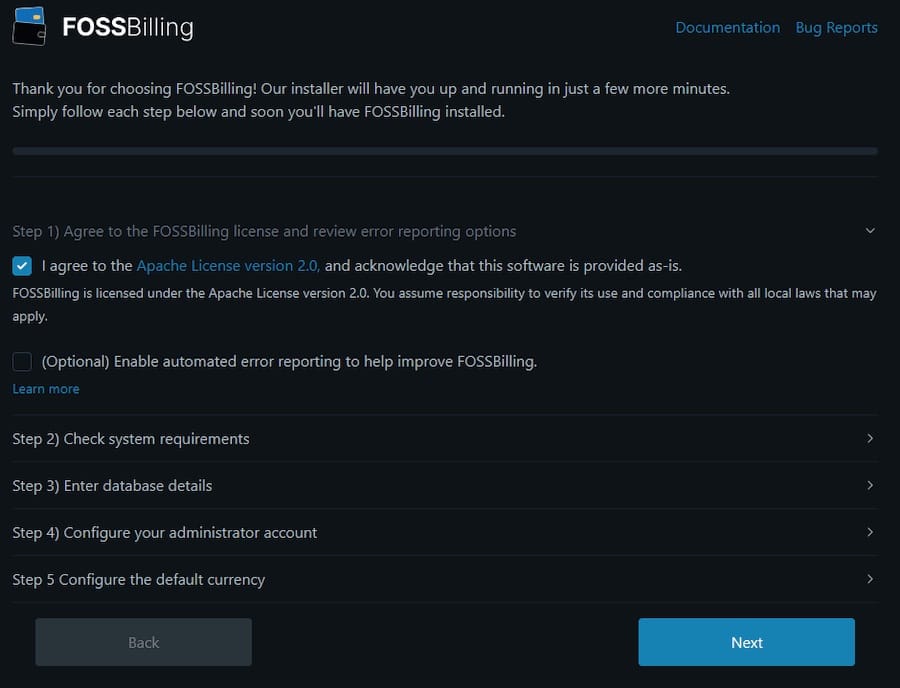
Open your browser and navigate to https://yourdomain.com. The application will automatically redirect you to /install/install.php.
Work through the installer steps in order:
- License Agreement – Read and accept the FOSSBilling open-source license.
- System Check – The installer validates all PHP extensions and directory permissions. Resolve any red items before moving forward. Green across the board means you are ready to proceed.
- Database Configuration – Enter:
- Host:
localhost - Database name:
fossbilling - Username:
fossuser - Password: the password you set in Step 3
- Host:
- Administrator Account – Set a strong admin email address and password. This is your master login.
- Currency Configuration – The price format must contain
{{price}}as a placeholder. For example:${{price}}or{{price}} USD. The installer will reject a format without it. - Install – Click the Install button and wait for the success confirmation page.
If you see a 500 or 404 error at this stage, re-check file ownership from Step 5 and the SELinux context from Step 7. If you hit a database error, manually empty the fossbilling database tables and try again.
After installation completes, remove the installer directory to prevent unauthorized reinstallation:
sudo rm -rf /var/www/fossbilling/installStep 10: Configure the Cron Job
FOSSBilling depends entirely on its cron job for automated renewals, invoice generation, expired order processing, and outbound email dispatch. Without it, none of those processes run.
The recommended interval is every 5 minutes. If 15 minutes pass without cron execution, the admin dashboard will display a warning notification.
Find the exact cron command inside your admin panel at Settings > Scheduled Tasks. To add it directly, open the cron table for the nginx user:
sudo crontab -u nginx -eAdd this line:
*/5 * * * * /usr/bin/php /var/www/fossbilling/cron.phpSave and exit. Verify the cron job was saved:
sudo crontab -u nginx -lConfirm the PHP binary path matches the version serving your site:
which php
php --version
A version mismatch between the CLI PHP and the PHP-FPM version serving the site is a common silent failure point.
Post-Installation Configuration
Log in to your admin panel at https://yourdomain.com/admin with the credentials you set during installation.
Initial setup tasks to complete right away:
- SMTP configuration: Navigate to Settings > Email and add your SMTP provider details. Without this, FOSSBilling cannot send invoices or client notifications.
- Payment gateways: Go to Settings > Payment Gateways and configure Stripe, PayPal, or whichever processors your business uses.
- Products and services: Add your service catalog under Products & Services.
- Email templates: Customize invoice, welcome, and renewal email templates at Settings > Email Templates.
- Company branding: Set your company name, logo, and contact details under Settings > General.
- Modules: Browse the module system to add domain registrar integrations, WHM/cPanel provisioning, or other extensions.
Schedule regular backups of both /var/www/fossbilling/data and your MariaDB database. A mysqldump cron job running daily is a smart baseline for any production billing system.
Troubleshooting Common Issues
HTTP 500 error after installation
This almost always comes from SELinux blocking Nginx on Fedora. Re-run the context commands from Step 7:
sudo restorecon -Rv /var/www/fossbilling
sudo setsebool -P httpd_can_network_connect on
Then check /var/log/nginx/error.log for specific blocked paths.
PHP extension errors in the system check
Run php -m to list all loaded extensions. The most commonly missing one is pdo_mysql. Install it with:
sudo dnf install php-mysqlnd -y && sudo systemctl restart php-fpmCron job not executing
Verify the PHP binary path with which php and confirm it returns the same version shown by php --version. If you installed PHP via Remi, the binary may sit at /usr/bin/php or /usr/local/bin/php depending on your setup.
Nginx 403 Forbidden on FOSSBilling files
Check ownership first:
ls -la /var/www/fossbillingAll files should be owned by nginx:nginx. If not, re-run sudo chown -R nginx:nginx /var/www/fossbilling. Also verify the SELinux context with ls -Z /var/www/fossbilling.
Database connection failure during install
Log back into MariaDB and double-check that the fossuser account has full privileges on the fossbilling database:
sudo mysql -u root -p -e "SHOW GRANTS FOR 'fossuser'@'localhost';"If privileges are missing, re-run the GRANT ALL PRIVILEGES command from Step 3.
Congratulations! You have successfully installed FOSSBilling. Thanks for using this tutorial to install the latest version of FOSSBilling on Fedora 43 Linux system. For additional help or useful information, we recommend you check the official FOSSBilling website.
