
Managing user accounts, authentication, and access control across multiple Linux systems can quickly become a nightmare. Enter FreeIPA—an integrated security information management solution that transforms identity management from a daily headache into a streamlined process. Think of it as Active Directory for Linux environments, combining LDAP, Kerberos, DNS, and certificate management into one powerful package.
FreeIPA delivers centralized authentication, single sign-on capabilities, and comprehensive policy management through an intuitive web interface. Whether managing a small office network or an enterprise infrastructure, this identity management platform simplifies user administration while strengthening security posture. This comprehensive guide walks through every step of installing FreeIPA on Fedora 43, from initial system preparation to post-installation configuration. By the end, you’ll have a fully operational identity management server ready to handle authentication for your entire network.
What is FreeIPA?
FreeIPA (Free Identity, Policy, and Audit) serves as an integrated security information management solution specifically designed for Linux and Unix environments. The platform combines multiple open-source technologies into a cohesive system that handles identity management, authentication, and authorization.
Under the hood, FreeIPA integrates 389 Directory Server for LDAP services, MIT Kerberos for authentication, SSSD for client integration, Dogtag Certificate System for PKI infrastructure, and BIND for DNS management. This integrated approach eliminates the complexity of manually configuring and synchronizing separate services. Users gain centralized account management, automated host enrollment, policy enforcement, and trust relationships with Active Directory domains. Compared to traditional LDAP setups requiring manual configuration of multiple components, FreeIPA provides a turnkey solution with simplified management and enhanced security features.
Prerequisites and System Requirements
Hardware Requirements
Before diving into installation, ensure your system meets minimum specifications. The server requires at least 2 vCPUs, though 4 or more cores are recommended for production environments handling numerous authentication requests. RAM allocation should be minimum 4GB, with 8GB or more strongly advised for production deployments.
Disk space requirements deserve careful consideration. Allocate at least 20GB of free space to accommodate directory databases, logs, certificates, and system growth. The /var/lib/dirsrv directory stores LDAP data and can grow substantially depending on the number of users, groups, and hosts managed.
Software Requirements
Fedora 43 Server Edition must be installed and fully updated before proceeding. Root access or sudo privileges are essential for installation and configuration tasks. An active internet connection enables package downloads and updates. The system requires a static IP address configuration to ensure consistent accessibility—DHCP-assigned addresses cause problems with Kerberos and DNS integration.
A properly configured Fully Qualified Domain Name (FQDN) is absolutely critical. FreeIPA relies heavily on DNS resolution, and incorrect hostname configuration ranks among the most common installation failures.
Network Requirements
Static IP addressing is non-negotiable. Dynamic addresses break Kerberos authentication and DNS records. Ensure reliable network connectivity to all client systems that will authenticate against the FreeIPA server. If operating within an existing DNS infrastructure, plan for proper domain delegation or integration.
Pre-Installation Preparation
Step 1: Update Your System
Begin by bringing all system packages to their latest versions. Open a terminal and execute:
sudo dnf update -yThis command updates the entire system, including security patches and bug fixes. Package updates may take several minutes depending on internet speed and the number of outdated packages. If kernel updates install, reboot the system before continuing:
sudo rebootStarting with a fully updated system prevents compatibility issues and ensures access to the latest features.
Step 2: Set Hostname and FQDN
FreeIPA demands a properly configured FQDN. Use the hostnamectl command to set your server’s complete hostname:
sudo hostnamectl set-hostname ipa.example.comReplace “ipa.example.com” with your actual domain. The hostname should follow the format: hostname.domain.tld. Verify the configuration immediately:
hostname -fThis command should return your complete FQDN. If it returns only the short hostname, DNS or system configuration requires adjustment. The importance of proper FQDN configuration cannot be overstated—it affects every component of FreeIPA functionality.
Step 3: Configure /etc/hosts File
Edit the hosts file to establish local name resolution. Open the file with a text editor:
sudo nano /etc/hostsAdd an entry matching your server’s IP address to its FQDN and short hostname:
192.168.1.10 ipa.example.com ipaThe format follows: IP_ADDRESS FQDN SHORTNAME. Ensure the IP address matches your static assignment. This configuration enables initial resolution before DNS fully integrates. Save and exit the editor. Incorrect /etc/hosts entries cause mysterious installation failures and authentication problems down the line.
Step 4: Configure Time Synchronization
Kerberos authentication absolutely requires accurate time synchronization. Time drift exceeding five minutes between servers and clients causes authentication failures. Fedora 43 uses chronyd for time synchronization. Enable and start the service:
sudo systemctl enable --now chronydVerify synchronization status:
chronyc trackingThe output displays current time offset and synchronization status. Look for small offset values (under 100ms ideally) and “Reference ID” pointing to a time server. Proper time sync prevents countless headaches during client enrollment and daily operations.
Step 5: Configure SELinux
FreeIPA works seamlessly with SELinux in enforcing mode. Check current SELinux status:
sudo getenforceFor production systems, maintain enforcing mode for maximum security. If troubleshooting installation problems, temporarily switching to permissive mode helps isolate SELinux-related issues:
sudo setenforce 0Remember to re-enable enforcing mode after resolving problems. SELinux provides important security boundaries that should remain active in production environments.
Installing Required Packages
Install FreeIPA Server Package
The primary installation begins with downloading the FreeIPA server package. Execute:
sudo dnf install -y ipa-serverThis command automatically resolves and installs numerous dependencies including directory server components, Kerberos libraries, and management tools. Package installation typically completes within 2-5 minutes depending on internet speed. The installed packages exceed 100MB combined.
Install DNS Components
While optional, integrated DNS dramatically simplifies FreeIPA deployment. Install DNS server components:
sudo dnf install -y ipa-server-dns bind bind-dyndb-ldapIntegrated DNS allows FreeIPA to manage service records, automatic client discovery, and dynamic updates. Organizations with existing DNS infrastructure can skip this step, though manual DNS record creation becomes necessary. For new deployments, integrated DNS reduces complexity significantly.
Install Additional Tools
Additional packages extend functionality. The ipa-client package installs automatically as a dependency, enabling local client configuration. For environments requiring Active Directory integration, install trust components:
sudo dnf install -y ipa-server-trust-adVerify successful installation by checking package presence:
rpm -qa | grep ipa-serverThis lists all installed FreeIPA server packages, confirming readiness to proceed.
Configuring Firewall Rules
Firewall configuration must occur before running the installer. FreeIPA services require multiple ports for proper operation. HTTP and HTTPS (ports 80 and 443) serve the web interface. LDAP and LDAPS (389 and 636) handle directory queries. Kerberos uses ports 88 and 464 for authentication and password changes. DNS operates on port 53 when using integrated DNS.
Configure firewall rules using firewall-cmd:
sudo firewall-cmd --add-service={http,https,dns,freeipa-ldap,freeipa-ldaps,kerberos,kpasswd} --permanentThe –permanent flag ensures rules persist across reboots. Reload the firewall to activate changes:
sudo firewall-cmd --reloadVerify active rules:
sudo firewall-cmd --list-allThe output should display all FreeIPA-related services in the services line. Missing firewall rules cause client connection failures and mysterious authentication errors.
Running the FreeIPA Installation
Interactive Installation
Launch the FreeIPA server installer:
sudo ipa-server-install --mkhomedirThe –mkhomedir flag configures automatic home directory creation when users first log in. The installer launches an interactive wizard guiding through configuration options.
Installation Wizard Steps
The wizard prompts for several critical configuration choices. First, it asks whether to configure integrated DNS. Type “yes” if you installed DNS components earlier, or “no” for external DNS management.
The installer confirms your server hostname and FQDN. Verify these carefully—incorrect values cause installation failure. Next, provide the domain name in lowercase (example.com). The Kerberos realm name follows, traditionally uppercase (EXAMPLE.COM). While technically these can differ, matching them to your domain simplifies configuration.
Create a Directory Manager password when prompted. This password protects the directory database and should be strong and carefully recorded. The Directory Manager account bypasses normal access controls for administrative tasks. Next, set the IPA admin password. This account handles daily administrative tasks through the web interface and command line. Note these are separate accounts with distinct purposes.
If using integrated DNS, the installer requests DNS forwarder addresses. These handle queries for external domains. Common choices include public DNS servers:
8.8.8.8
8.8.4.4
Press Enter after each forwarder, then Enter again with no input to finish the list. The wizard asks about reverse DNS zone configuration. For private networks, answer “yes” to create reverse zones automatically.
The installer displays a configuration summary. Review carefully before proceeding. Type “yes” to begin installation. The process takes 10-15 minutes, displaying progress for each component configured.
Non-Interactive Installation
For automation or repeated deployments, supply all parameters directly:
sudo ipa-server-install --setup-dns \
  --forwarder 8.8.8.8 \
  --forwarder 8.8.4.4 \
  -r EXAMPLE.COM \
  -n example.com \
  -p DirectoryManagerPassword \
  -a AdminPassword \
  --mkhomedir \
  --unattended
Replace passwords and domain names with actual values. The –unattended flag bypasses confirmation prompts. This approach suits scripted deployments and infrastructure-as-code implementations.
Post-Installation Configuration
Verify Installation Success
Successful installation concludes with a message indicating the server is ready. Verify all services started correctly:
sudo ipactl statusThis command displays status for each FreeIPA component. All services should show “RUNNING” status. Services include Directory Server, Certificate Authority, Kerberos KDC, Kadmin, named (DNS), httpd, and several others.
Obtain Kerberos Ticket
Authenticate as the admin user:
kinit adminEnter the admin password set during installation. Successful authentication obtains a Kerberos ticket. Verify ticket acquisition:
klistThe output displays your ticket, including expiration time (typically 24 hours). Kerberos tickets enable single sign-on and authorize administrative commands.
Test FreeIPA Commands
Confirm proper operation with basic commands:
ipa user-find adminThis searches for the admin user, displaying account details. Test DNS functionality:
ipa dns-show example.comThis displays DNS zone information. Check server configuration:
ipa config-showSuccessful command execution confirms the FreeIPA installation functions correctly.
Enable Cockpit for Web Management
Cockpit provides a convenient web-based system management interface. Install and enable it:
sudo dnf install -y cockpit
sudo systemctl enable --now cockpit.socket
Access Cockpit at https://your-server-ip:9090. Cockpit complements FreeIPA’s web interface with system-level management capabilities.
Accessing the FreeIPA Web Interface
Open a web browser and navigate to your FreeIPA server:
https://ipa.example.com/ipa/ui/Alternatively, use the IP address directly. The browser displays a security warning about the self-signed SSL certificate. Click through the warning to proceed—production deployments should replace this certificate with one from a trusted certificate authority.
Log in using “admin” as the username and the admin password from installation. The web interface provides comprehensive management capabilities organized into sections. The Identity section manages users, groups, hosts, and services. Policy handles Host-Based Access Control, sudo rules, and SELinux user maps. Authentication configures OTP, password policies, and Kerberos settings. Network Services manages DNS zones and services.
The interface offers intuitive navigation with detailed forms for creating and modifying objects. Most administrative tasks can be completed through either the web interface or command line, allowing administrators to choose their preferred method.
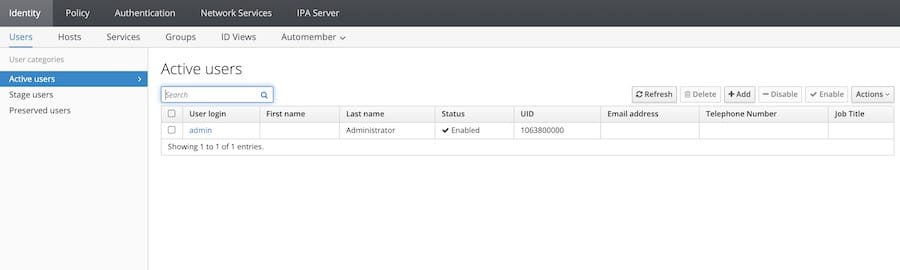
Creating Your First User
Demonstrate FreeIPA functionality by adding a user account. Through the web interface, navigate to Identity → Users and click the “Add” button. Complete required fields including username, first name, and last name. Optionally set an initial password or generate a temporary one requiring change at first login.
Via command line:
ipa user-add jsmith --first=John --last=Smith --passwordThe system prompts for password entry twice. Verify user creation:
ipa user-show jsmithThe output displays complete user information. When the user first logs into a system configured as a FreeIPA client, automatic home directory creation occurs thanks to the –mkhomedir flag used during installation.
Common Troubleshooting Issues
Installation Fails with DNS Errors
DNS-related failures typically stem from incorrect hostname or /etc/hosts configuration. Verify FQDN resolution:
hostname -fThis must return the complete FQDN. Check that /etc/hosts contains the correct IP and hostname mapping. Reverse DNS lookups should also work correctly. Test with:
host $(hostname -f)Correct any mismatches before retrying installation.
Web Interface Not Accessible
SSL connection errors or unresponsive web interfaces often indicate service problems. Restart all FreeIPA services:
sudo ipactl restartCheck service status afterward. Review firewall rules ensuring port 443 allows connections. Examine log files for detailed error information:
sudo tail -f /var/log/httpd/error_log
sudo tail -f /var/log/ipa/install.log
Logs reveal specific component failures requiring attention.
Time Synchronization Problems
Kerberos authentication fails when system time drifts beyond acceptable limits. Verify time synchronization:
timedatectlCheck that NTP synchronization shows “yes.” Restart chronyd if needed:
sudo systemctl restart chronydMonitor synchronization:
watch chronyc trackingTime offset should steadily decrease. Client systems must also maintain accurate time synchronization.
Firewall Blocking Services
If clients cannot reach services, firewall rules may be missing or incorrect. List current rules:
sudo firewall-cmd --list-allVerify required services appear. Check that services are listening on expected ports:
sudo ss -tulpn | grep -E '(389|636|88|443)'Each critical port should show a listening service. Temporarily disabling the firewall helps isolate whether rules cause problems, though this should never be done in production environments.
Congratulations! You have successfully installed FreeIPA. Thanks for using this tutorial for installing FreeIPA on your Fedora 43 Linux system. For additional or useful information, we recommend you check the official FreeIPA website.

