How To Install FreeIPA on Linux Mint 22

Managing multiple Linux systems with individual user accounts quickly becomes a nightmare. Password resets multiply. Access control fragments across machines. Security policies vary wildly. FreeIPA solves these headaches by providing centralized identity management, authentication, and access control for your entire Linux infrastructure.
Linux Mint 22 “Wilma,” based on Ubuntu 24.04 LTS, offers a stable foundation for deploying FreeIPA server solutions. This comprehensive guide walks you through every step of installing and configuring FreeIPA on Linux Mint 22, from initial system preparation to accessing the web interface and troubleshooting common issues. Whether you’re managing a small office network or building enterprise infrastructure, you’ll learn how to implement this powerful identity management platform.
By the end of this tutorial, you’ll have a fully functional FreeIPA server managing users, groups, authentication policies, and DNS services across your Linux environment.
Understanding FreeIPA
FreeIPA stands as an integrated security information management solution designed specifically for Linux and Unix environments. Think of it as Active Directory for Linux—but open source and built on proven technologies.
The platform combines several critical components into a cohesive system. At its core, FreeIPA integrates an LDAP directory server for storing user and host information, Kerberos for secure authentication, DNS services for name resolution, and PKI (Public Key Infrastructure) for certificate management. These technologies work together seamlessly, eliminating the complexity of manually integrating separate services.
Organizations choose FreeIPA for centralized user management across dozens or hundreds of Linux machines. Instead of creating local accounts on each system, administrators define users once in FreeIPA and deploy them everywhere. The same principle applies to groups, hosts, and access policies. Security improves dramatically when authentication happens through Kerberos tickets rather than passwords transmitted across networks.
Prerequisites and System Requirements
Hardware Requirements
Your Linux Mint 22 system needs adequate resources to run FreeIPA effectively. The minimum specifications include 2 CPU cores, 4GB of RAM, and 20GB of disk space. Pay special attention to the /var/lib/dirsrv directory, which requires at least 10GB for directory server data as your user base grows.
Production environments benefit from more generous specifications. Consider 4 CPU cores, 8GB RAM, and 50GB disk space for better performance and scalability. Linux Mint 22 requires a 64-bit processor, which aligns perfectly with FreeIPA’s architecture.
Network Requirements
Proper network configuration makes or breaks FreeIPA installations. Your server must have a Fully Qualified Domain Name (FQDN) that resolves correctly both forward and reverse. Static IP address assignment is non-negotiable—DHCP addresses cause authentication failures when they change.
DNS configuration deserves careful planning. You’ll either integrate FreeIPA’s built-in DNS server or ensure your existing DNS infrastructure can delegate the necessary domains. The hostname must be set correctly using the hostnamectl command before installation begins.
Time synchronization through NTP is critical for Kerberos authentication. Even small time differences between servers and clients cause ticket validation failures, so configure NTP before proceeding.
Software Prerequisites
Start with a fully updated Linux Mint 22 installation. The system should be running the latest kernel version (6.8 series) and all security patches applied. You’ll need root or sudo access throughout the installation process.
An active internet connection enables package downloads from repositories. Ensure your firewall allows outbound connections for APT package management.
Preparing Your Linux Mint 22 System
System Updates
Begin by updating all system packages to their latest versions:
sudo apt-get update
sudo apt-get upgrade -y
sudo apt-get dist-upgrade -y
This process applies security patches and resolves potential dependency conflicts. Reboot if kernel updates were installed to ensure the new kernel is active.
Hostname and DNS Configuration
Set your server’s hostname to match its FQDN:
sudo hostnamectl set-hostname ipa.example.comReplace ipa.example.com with your actual FQDN. Edit the /etc/hosts file to include both the FQDN and short hostname:
192.168.1.100   ipa.example.com ipa
127.0.0.1       localhost
Verify the configuration works correctly:
hostname -fThis command should return your FQDN. If it returns only the short hostname, DNS resolution isn’t configured properly.
Configure your DNS server in /etc/resolv.conf:
nameserver 192.168.1.1
search example.com
Firewall Configuration
FreeIPA requires several ports open for proper operation. Configure UFW (Uncomplicated Firewall) on Linux Mint 22:
sudo ufw allow 80/tcp
sudo ufw allow 443/tcp
sudo ufw allow 389/tcp
sudo ufw allow 636/tcp
sudo ufw allow 88/tcp
sudo ufw allow 464/tcp
sudo ufw allow 88/udp
sudo ufw allow 464/udp
sudo ufw allow 123/udp
sudo ufw enable
These ports handle HTTP/HTTPS web interface access (80, 443), LDAP directory queries (389, 636), Kerberos authentication (88, 464), and NTP time synchronization (123).
Installing Required Dependencies
Linux Mint 22 uses APT package management inherited from Ubuntu. Install necessary transport packages and certificates:
sudo apt-get install apt-transport-https ca-certificates software-properties-common -yThese packages enable secure repository connections and certificate validation. Ubuntu-based systems like Linux Mint sometimes encounter dependency challenges with FreeIPA packages designed primarily for Red Hat-based distributions. Installing these prerequisites minimizes potential conflicts.
Verify the installations completed successfully:
dpkg -l | grep apt-transport-https
dpkg -l | grep ca-certificates
Adding FreeIPA Repository
FreeIPA packages aren’t included in default Linux Mint repositories. Download and add the FreeIPA repository list:
sudo wget https://www.freeipa.org/page/Releases/4.8.0/ubuntu18/ipa.list -O /etc/apt/sources.list.d/freeipa.listWhile this repository targets Ubuntu 18.04, it provides compatible packages for Ubuntu 24.04-based Linux Mint 22. Import the repository GPG key:
sudo apt-key adv --keyserver keyserver.ubuntu.com --recv-keys REPOSITORY_KEYUpdate the package cache to include FreeIPA packages:
sudo apt-get updateNote that Ubuntu-based FreeIPA installations may require alternative approaches. Some administrators opt for Docker containers as a workaround for package compatibility issues.
Installing FreeIPA Server Package
Install the core FreeIPA server package:
sudo apt-get install freeipa-server -yFor integrated DNS functionality, also install the DNS package:
sudo apt-get install freeipa-server-dns -yThe installation pulls in numerous dependencies, including 389 Directory Server, Kerberos KDC, Apache web server, and certificate management tools. This process typically takes 5-10 minutes depending on your internet connection speed.
Monitor disk space during installation, particularly in /var/lib/dirsrv where directory server data resides. Confirm successful installation:
ipa-server-install --versionThis command displays the installed FreeIPA version, confirming packages installed correctly.
Configuring FreeIPA Server
Running the Installation Script
Launch the FreeIPA server configuration wizard:
sudo ipa-server-installThis interactive script prompts for various configuration parameters. Each decision affects how your identity management infrastructure operates, so consider your requirements carefully.
Configuration Parameters
The wizard asks whether to configure integrated DNS. If your network already has DNS infrastructure, answer “no.” For self-contained environments, integrated DNS simplifies management by automatically creating necessary service records.
Domain name: Enter your organization’s domain (e.g., example.com). This domain should match your network’s DNS domain for seamless integration.
Realm name: FreeIPA uses Kerberos realms for authentication. The realm is typically the uppercase version of your domain (e.g., EXAMPLE.COM). This convention follows Kerberos naming standards.
Directory Manager password: Create a strong password for the Directory Manager account. This super-user account has unrestricted access to the LDAP directory. Use at least 12 characters with mixed case, numbers, and symbols.
IPA admin password: Set a separate password for the IPA administrative user. This account handles day-to-day administrative tasks through the web interface and CLI. Never use the same password for both accounts.
Server hostname: The wizard displays your configured FQDN. Verify it matches your expectations before proceeding.
NTP server configuration: Allow automatic NTP configuration unless you have specific time synchronization requirements.
Installation Process
After confirming your choices, the wizard begins configuring services. The process includes:
- Generating SSL/TLS certificates for secure communications
- Creating the LDAP directory schema and initial database
- Configuring the Kerberos KDC with your realm
- Setting up the Apache web server for the management interface
- Creating service principals and keytabs
- Configuring DNS if selected
Installation typically completes in 10-15 minutes. Progress messages scroll by as each component initializes. Don’t interrupt this process, as partial configurations are difficult to clean up.
Post-Configuration Verification
Once installation completes, verify all services are running:
sudo ipactl statusThis command displays the status of all FreeIPA components. You should see “RUNNING” status for:
- Directory Service (ns-slapd)
- Kerberos KDC (krb5kdc)
- Kerberos Admin (kadmin)
- HTTP Service (httpd)
- NTP Service (chronyd)
- DNS Service (named) if configured
Test Kerberos authentication for the admin user:
kinit adminEnter your IPA admin password when prompted. Successful authentication proves Kerberos is functioning correctly. Check your ticket:
klistThis displays your Kerberos ticket details, including expiration time.
Review installation logs for warnings or errors:
sudo less /var/log/ipaserver-install.logMinor warnings are normal, but errors indicate problems requiring attention.
Accessing FreeIPA Web Interface
FreeIPA provides a powerful web-based management interface. Open your web browser and navigate to:
https://ipa.example.com/ipa/uiReplace ipa.example.com with your server’s FQDN.
Your browser displays an SSL certificate warning because FreeIPA uses a self-signed certificate. This is expected behavior. Add a security exception to proceed. For production environments, consider importing the FreeIPA CA certificate into client browsers to eliminate these warnings.
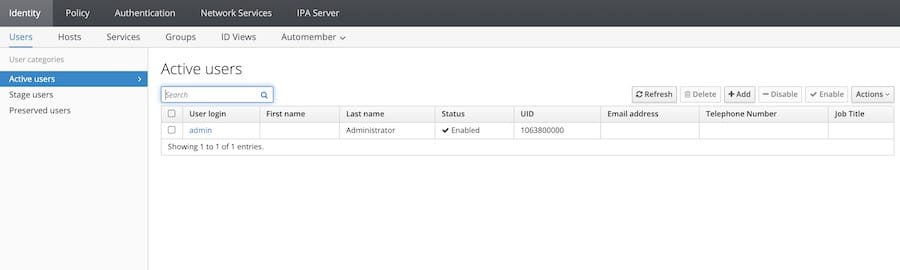
Login using the admin username and the IPA admin password you created during configuration. The web interface loads, presenting the dashboard with navigation tabs for Identity, Policy, Authentication, and Network Services.
The Web UI provides two modes: self-service for regular users changing their own passwords and managing personal information, and administration for managing the entire infrastructure. The interface you see offers full administrative capabilities.
Modern browsers like Firefox and Chrome work best with the FreeIPA web interface. Configure your browser to support Kerberos authentication for single sign-on capabilities. This advanced feature allows automatic login without entering credentials when accessing from Kerberos-authenticated workstations.
Essential Post-Installation Tasks
Creating Users and Groups
Add your first user account through the web interface. Click the “Identity” tab, then “Users,” and finally “Add”. Fill in required fields including username, first name, last name, and initial password. Users must change this temporary password on first login.
Alternatively, use the command-line interface:
ipa user-add jdoe --first=John --last=Doe --email=jdoe@example.comCreate organizational groups to manage permissions efficiently:
ipa group-add developers --desc="Development Team"
ipa group-add-member developers --users=jdoe
Configure password policies under the “Policy” tab to enforce security requirements like minimum length, complexity, and expiration intervals.
Service Management
Control FreeIPA services using the ipactl command:
sudo ipactl start    # Start all services
sudo ipactl stop     # Stop all services
sudo ipactl restart  # Restart all services
These commands manage the entire service stack simultaneously. Enable automatic startup at boot (usually configured by default):
sudo systemctl enable ipaCheck individual service status through systemctl if troubleshooting specific components:
sudo systemctl status dirsrv@EXAMPLE-COM.service
sudo systemctl status krb5kdc.service
Security Hardening
Disable anonymous LDAP binds to prevent unauthorized directory access:
ipa config-mod --disable-anon-bind=TRUEReview and optimize firewall rules. Remove any test rules and ensure only necessary ports remain open. Configure fail2ban to block repeated failed authentication attempts.
FreeIPA automatically manages SSL/TLS certificates, but monitor expiration dates:
ipa cert-find --allImplement regular backup procedures. FreeIPA includes built-in backup tools:
sudo ipa-backupBackups save to /var/lib/ipa/backup/ by default. Store copies off-server for disaster recovery scenarios.
Testing Authentication
Verify complete authentication workflows. From a client machine (or the server itself), request a Kerberos ticket:
kinit jdoe@EXAMPLE.COMTest LDAP queries to confirm directory access:
ldapsearch -x -b "dc=example,dc=com" -h ipa.example.comConfirm DNS resolution for IPA services:
host -t SRV _kerberos._tcp.example.com
host -t SRV _ldap._tcp.example.com
These SRV records should resolve to your FreeIPA server, enabling automatic service discovery for clients.
Common Issues and Troubleshooting
Installation Failures
Missing dependencies cause frequent installation problems. If apt-get install fails, check error messages for specific missing packages. Install them manually and retry.
Package conflicts in Ubuntu-based systems like Linux Mint sometimes block installation. Check for conflicting packages:
sudo apt-cache policy freeipa-serverInsufficient disk space in /var causes installation failures. Monitor space during installation:
df -h /varHostname resolution failures prevent proper configuration. Verify FQDN resolution before running ipa-server-install:
ping -c 3 $(hostname -f)Service Connection Issues
“Failed connection to FreeIPA” errors typically indicate service problems. Check service status:
sudo ipactl statusRestart stopped services:
sudo ipactl restartSSL/TLS certificate errors (Error 443) block web interface access. Verify the web server is running:
sudo systemctl status httpdCheck SSL certificate validity:
openssl s_client -connect localhost:443DNS resolution problems affect service discovery. Test DNS queries:
dig ipa.example.com
dig -x 192.168.1.100
Both forward and reverse DNS must resolve correctly for FreeIPA to function properly.
Authentication Problems
Kerberos ticket generation failures often result from time synchronization issues. Verify system time matches accurately:
timedatectl statusEnsure NTP is active and synchronized. Time differences greater than 5 minutes cause Kerberos to reject authentication requests.
LDAP bind errors indicate directory server problems. Check the directory service logs:
sudo tail -f /var/log/dirsrv/slapd-EXAMPLE-COM/errorsKeytab file issues prevent service authentication. Regenerate keytabs if corrupted:
ipa-getkeytab -s ipa.example.com -p host/client.example.com -k /etc/krb5.keytabResolution Steps
Always start troubleshooting by reviewing log files. FreeIPA logs extensively to /var/log/dirsrv/ and /var/log/ipa/. These logs reveal specific error messages guiding resolution.
Service restart resolves many transient issues:
sudo ipactl restartCertificate problems sometimes require updates:
sudo ipa-certupdateThis command refreshes certificates across the system.
Test port accessibility from client machines:
nc -zv ipa.example.com 443
nc -zv ipa.example.com 389
nc -zv ipa.example.com 88
Failed connections indicate firewall or network routing problems.
Congratulations! You have successfully installed FreeIPA. Thanks for using this tutorial for installing the latest version of FreeIPA open source identity management system on Linux Mint 22 system. For additional help or useful information, we recommend you check the official FreeIPA website.
