How To Install Ghost on Debian 13

Ghost has become one of the most popular open-source publishing platforms for bloggers, content creators, and publishers who want a fast, modern, and SEO-friendly content management system. Built on Node.js, Ghost offers a clean interface, powerful membership features, and excellent performance that outshines many traditional CMS platforms. If you’re running Debian 13 and want complete control over your publishing platform, installing Ghost on your server is an excellent choice.
This comprehensive guide walks you through every step of installing Ghost CMS on Debian 13, from initial server preparation to accessing your fully functional admin panel. You’ll learn how to configure NGINX as a reverse proxy, set up MySQL database, install Node.js, and implement SSL security with Let’s Encrypt. Whether you’re launching a personal blog or a professional publication, this tutorial provides everything you need to get Ghost running smoothly on your Debian server.
Understanding Ghost CMS
Ghost distinguishes itself from WordPress and other content management systems through its focused approach to publishing. The platform uses a beautiful Markdown editor that makes writing enjoyable and distraction-free. Ghost includes built-in membership and subscription features, allowing creators to monetize their content without third-party plugins. The newsletter functionality integrates seamlessly with your publication, making email marketing effortless.
The technical architecture relies on Node.js for the runtime environment, NGINX as a reverse proxy server, and MySQL or MariaDB for database management. This modern stack delivers exceptional speed and performance. Ghost also functions as a headless CMS, providing RESTful APIs for developers who want to build custom frontends or mobile applications.
Self-hosting Ghost on Debian 13 gives you complete control over your data, customization options, and hosting costs. While Ghost(Pro) offers managed hosting, self-hosting is more economical for those comfortable with server administration. You can run multiple Ghost instances, customize server configurations, and implement advanced security measures tailored to your needs.
Prerequisites and System Requirements
Before beginning the installation process, ensure your Debian 13 server meets the minimum specifications. Ghost requires at least 1GB of RAM, though 2GB or more is recommended for production environments. Your server should have a dual-core processor running at 1.0 GHz or faster, with at least 2GB of available storage space. Start with a fresh Debian 13 installation for the smoothest setup experience.
The software stack includes Node.js version 18 or 20 LTS, which powers the Ghost application. You’ll need MySQL 8.0 or MariaDB as the database server. NGINX serves as the web server and reverse proxy. The systemd init system manages Ghost as a background service. Ghost-CLI, an official command-line tool, automates the installation and configuration process.
A registered domain name pointing to your server’s IP address is essential. Configure DNS A records to route traffic properly. Your server needs open ports for HTTP (80), HTTPS (443), and SSH (22). Finally, ensure you have root access or sudo privileges to execute administrative commands throughout the installation.
Step 1: Initial Server Preparation
Connect to your Debian 13 server via SSH and begin by updating the system packages to their latest versions:
sudo apt update && sudo apt upgrade -yInstall essential build tools required for compiling native Node.js modules:
sudo apt install build-essential -yIf sudo isn’t already installed, add it now:
apt install sudo -yConfigure your server’s timezone to match your location:
sudo timedatectl set-timezone Your_TimezoneIf Apache web server is installed, remove it to prevent port conflicts with NGINX:
sudo systemctl stop apache2
sudo apt purge apache2* -y
sudo apt autoremove -y
Optionally, configure UFW firewall for basic security:
sudo apt install ufw -y
sudo ufw allow 22/tcp
sudo ufw allow 80/tcp
sudo ufw allow 443/tcp
sudo ufw enable
Step 2: Create Dedicated Ghost User
Running Ghost under a non-root user account follows security best practices and protects your system from potential vulnerabilities. Create a new user specifically for Ghost:
sudo adduser ghostadminSet a strong password when prompted. Add the new user to the sudo group to grant administrative privileges:
sudo usermod -aG sudo ghostadminSwitch to the newly created user account:
su - ghostadminVerify sudo access works correctly:
sudo whoamiThis should return “root,” confirming proper sudo configuration. Using a dedicated user account isolates Ghost from system processes and limits potential security breaches. This approach aligns with OWASP security standards for web application deployment.
Step 3: Install and Configure NGINX
NGINX serves as the reverse proxy server, handling incoming HTTP requests and forwarding them to Ghost. Install NGINX with this command:
sudo apt install nginx -yStart the NGINX service and enable it to launch automatically on system boot:
sudo systemctl start nginx
sudo systemctl enable nginx
Check that NGINX is running properly:
sudo systemctl status nginxYou should see an “active (running)” status. Open your web browser and navigate to your server’s IP address. The default NGINX welcome page confirms successful installation. NGINX’s excellent performance and reverse proxy capabilities make it the preferred web server for Ghost installations.
Step 4: Install MySQL/MariaDB Database Server
Ghost stores all your content, settings, and user data in a MySQL or MariaDB database. Install MariaDB, a community-developed MySQL fork:
sudo apt install mariadb-server -yStart and enable the database service:
sudo systemctl start mariadb
sudo systemctl enable mariadb
Secure your database installation by running the security script:
sudo mysql_secure_installationFollow the prompts to set a root password, remove anonymous users, disable remote root login, and delete the test database. These steps harden your database security.
Now create a dedicated database and user for Ghost. Access the MySQL prompt:
sudo mysql -u root -pExecute these SQL commands:
CREATE DATABASE ghost_prod;
CREATE USER 'ghostcms'@'localhost' IDENTIFIED BY 'YourStrongPasswordHere';
GRANT ALL PRIVILEGES ON ghost_prod.* TO 'ghostcms'@'localhost';
FLUSH PRIVILEGES;
QUIT;
Replace “YourStrongPasswordHere” with a secure password. Save these credentials—you’ll need them during Ghost installation.
Step 5: Install Node.js LTS Version
Ghost requires Node.js 18 or 20 LTS (Long Term Support) to function properly. Debian’s default repositories often contain older Node.js versions, so install from the official NodeSource repository:
curl -fsSL https://deb.nodesource.com/setup_20.x | sudo -E bash -
sudo apt install nodejs -y
Verify the installation by checking versions:
node -v
npm -v
You should see Node.js version 20.x and npm version 10.x or higher. Update npm to the latest version:
sudo npm install -g npm@latestNode.js provides the JavaScript runtime environment that executes Ghost’s application code, while npm manages the software packages Ghost depends on.
Step 6: Install Ghost-CLI
Ghost-CLI is the official command-line interface tool that automates Ghost installation, configuration, and management. Install it globally using npm:
sudo npm install -g ghost-cli@latestVerify the installation:
ghost --versionGhost-CLI streamlines complex tasks like setting up NGINX reverse proxies, configuring SSL certificates, creating systemd services, and managing database connections. The tool includes built-in diagnostic capabilities with the ghost doctor command that checks your system for common configuration issues.
Step 7: Set Up Ghost Installation Directory
Ghost must be installed in an empty directory with proper ownership and permissions. Create the installation directory using your domain name:
sudo mkdir -p /var/www/yourdomain.comSet correct ownership to your Ghost user:
sudo chown ghostadmin:ghostadmin /var/www/yourdomain.comApply appropriate permissions:
sudo chmod 775 /var/www/yourdomain.comNavigate into the directory:
cd /var/www/yourdomain.comEnsure this directory is completely empty before proceeding. Ghost-CLI will refuse to install if it detects existing files, preventing accidental overwrites.
Step 8: Install Ghost Using Ghost-CLI
Now comes the main installation. From within your empty installation directory, execute:
ghost installGhost-CLI will prompt you with several configuration questions. Enter your blog URL as https://yourdomain.com (use HTTPS if you plan to enable SSL). For MySQL hostname, enter localhost. Provide the MySQL username ghostcms and the password you created earlier. Confirm the database name as ghost_prod.
Answer “Yes” when asked to set up NGINX. This automatically configures NGINX as a reverse proxy for Ghost. Answer “Yes” for SSL setup, which installs and configures Let’s Encrypt certificates. Answer “Yes” to set up systemd, creating a background service for Ghost. Finally, answer “Yes” to start Ghost immediately.
Ghost-CLI performs numerous tasks automatically: downloading the latest Ghost version, installing npm dependencies, creating database tables, generating configuration files, setting up NGINX virtual hosts, obtaining SSL certificates, creating systemd service files, and setting proper file permissions. The entire process typically takes 5-10 minutes.
Watch for any error messages during installation. Ghost-CLI provides clear feedback about each step’s success or failure.
Step 9: Configure SSL with Let’s Encrypt
SSL encryption is mandatory for Ghost’s admin panel and highly recommended for your entire site. Ghost-CLI automatically obtains Let’s Encrypt certificates during installation when you answer “Yes” to SSL setup.
The certificates are stored in /etc/letsencrypt/live/yourdomain.com/. Ghost-CLI configures NGINX to use these certificates and redirects all HTTP traffic to HTTPS. Let’s Encrypt certificates expire after 90 days, but Ghost-CLI sets up automatic renewal through systemd timers.
Verify SSL is working by navigating to https://yourdomain.com in your browser. You should see a secure connection indicator in the address bar. If automatic SSL setup fails, manually run:
ghost setup sslCommon SSL issues include incorrect DNS configuration, firewall blocking port 80, or insufficient permissions. Always ensure your domain’s DNS A record points to your server before requesting certificates.
Step 10: Access and Configure Ghost Admin Panel
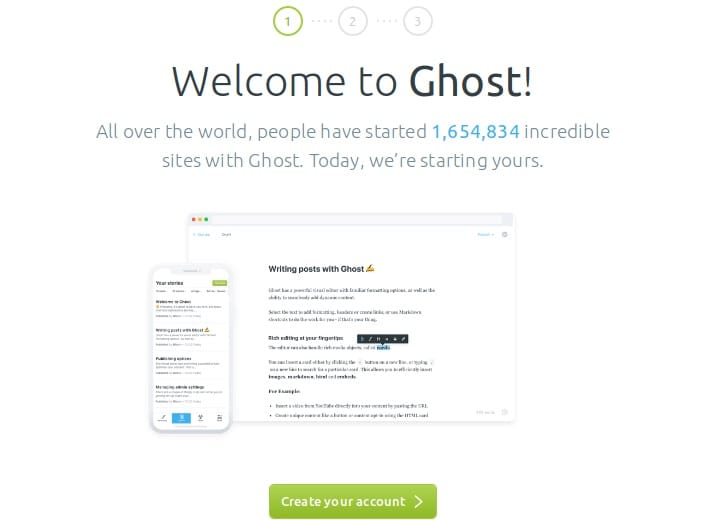
With Ghost successfully installed and running, access the admin panel by navigating to https://yourdomain.com/ghost in your web browser. You’ll see the initial setup screen prompting you to create your administrator account.
Enter your site title, full name, email address, and a strong password. This account has complete control over your Ghost publication. Click “Create Account” to finish the setup.
The Ghost admin interface is intuitive and organized. The dashboard shows publication statistics and recent activity. The Posts section manages your articles and draft content. Pages create static content like About and Contact pages. Members manages your subscriber database if you enable membership features. Settings contains all configuration options. Design lets you install and customize themes. Integrations connects third-party services.
Essential Ghost Management Commands
Ghost-CLI provides powerful commands for managing your installation. Start Ghost with:
ghost startStop the Ghost service:
ghost stopRestart Ghost to apply configuration changes:
ghost restartCheck Ghost’s current status:
ghost statusView recent log entries for troubleshooting:
ghost logUpdate Ghost to the latest version:
ghost updateRun system diagnostics to identify configuration problems:
ghost doctorGhost’s configuration file is located at /var/www/yourdomain.com/config.production.json. You can manually edit database credentials, URLs, mail settings, and other options here. Always restart Ghost after making configuration changes.
Post-Installation Configuration
Log into your Ghost admin panel and navigate to Settings. Under General settings, customize your site title, description, and timezone. Set your publication language and locale preferences. Add meta data for search engine optimization, including title templates and meta descriptions.
Connect your social media accounts under Social accounts settings. This enables social sharing features and displays your profiles in your theme. Navigate to Design to install a new theme or customize your current one. Ghost includes the default Casper theme, but hundreds of free and premium themes are available.
Configure email delivery under Email settings. Ghost requires email for member notifications, password resets, and newsletter delivery. You can use Mailgun, SendGrid, or any SMTP service. Set up navigation menus to organize your site structure. Enable membership features if you plan to offer paid subscriptions or members-only content.
Install integrations for analytics (Google Analytics, Plausible), search functionality, or comment systems. Configure privacy settings to comply with GDPR and other data protection regulations.
Security Best Practices
Always run Ghost exclusively over HTTPS to protect data transmission. Keep Ghost updated by running ghost update regularly. Security patches and bug fixes are released frequently. Update your Debian system packages monthly:
sudo apt update && sudo apt upgrade -yMaintain your MySQL security by using strong passwords and limiting remote access. Configure UFW firewall rules to restrict unnecessary ports. Consider changing the default SSH port and disabling root login.
Implement a comprehensive backup strategy. Back up your Ghost database weekly:
sudo mysqldump -u root -p ghost_prod > ghost_backup_$(date +%Y%m%d).sqlBack up your content directory containing images and themes:
sudo tar -czf ghost_content_backup_$(date +%Y%m%d).tar.gz /var/www/yourdomain.com/contentStore backups off-site or in cloud storage. Test backup restoration periodically to ensure reliability.
Install fail2ban to protect against brute-force attacks:
sudo apt install fail2ban -yOnly install themes and integrations from trusted sources. Review Ghost logs regularly for suspicious activity. Use strong passwords for all accounts and enable two-factor authentication when available.
Performance Optimization Tips
Optimize Ghost’s performance by enabling NGINX caching. Edit your NGINX configuration to cache static assets like CSS, JavaScript, and images. Use a CDN (Content Delivery Network) like Cloudflare to serve static content globally with reduced latency.
Optimize images before uploading. Ghost includes built-in image processing, but pre-optimizing images reduces server load. Keep your database optimized by removing unused data. Monitor server resources using tools like htop or netdata to identify bottlenecks.
Consider implementing Redis caching for advanced performance improvements. Remove unused themes and integrations to reduce memory consumption. Keep Ghost and all dependencies updated to benefit from performance improvements.
Common Troubleshooting Issues
If Ghost won’t start, check available memory with free -h. Ghost requires sufficient RAM to operate. Review logs with ghost log to identify specific errors. Run ghost doctor to diagnose system configuration issues.
Database connection errors typically indicate incorrect credentials or a stopped MySQL service. Verify MySQL is running with sudo systemctl status mariadb. Check database credentials in your configuration file.
NGINX configuration errors prevent Ghost from loading. Test NGINX syntax with sudo nginx -t. Review NGINX error logs at /var/log/nginx/error.log. Verify the proxy configuration points to Ghost’s default port 2368.
Permission issues cause various problems. Check file ownership with ls -la in your Ghost directory. Reset permissions if necessary:
sudo chown -R ghostadmin:ghostadmin /var/www/yourdomain.com
sudo find /var/www/yourdomain.com -type d -exec chmod 775 {} \;
sudo find /var/www/yourdomain.com -type f -exec chmod 664 {} \;
SSL certificate errors often result from incorrect DNS configuration. Verify your domain’s A record points to your server. Check Let’s Encrypt logs for specific error messages. Manually renew certificates with ghost setup ssl.
500 Internal Server errors require log investigation. Check both Ghost logs and NGINX error logs. Verify all configuration files have correct syntax. Ensure Ghost’s database connection is functioning properly.
Congratulations! You have successfully installed Ghost. Thanks for using this tutorial for installing Ghost CMS on Debian 13 “Trixie” system. For additional help or useful information, we recommend you check the official Ghost website.
