
In this tutorial, we will show you how to install GIMP on Linux Mint 21. For those of you who didn’t know, GIMP (GNU Image Manipulation Program) is an open-source piece of software used for image manipulation. It offers advanced tools for graphic designers, photographers, graphical illustrators as well as scientists for high-quality image manipulation. GIMP is available for the Linux, macOS, and Windows operating systems.
This article assumes you have at least basic knowledge of Linux, know how to use the shell, and most importantly, you host your site on your own VPS. The installation is quite simple and assumes you are running in the root account, if not you may need to add ‘sudo‘ to the commands to get root privileges. I will show you the step-by-step installation of a GIMP image editor on Linux Mint 21 (Vanessa).
Prerequisites
- A server running one of the following operating systems: Linux Mint 21 (Vanessa).
- It’s recommended that you use a fresh OS install to prevent any potential issues.
- SSH access to the server (or just open Terminal if you’re on a desktop).
- A
non-root sudo useror access to theroot user. We recommend acting as anon-root sudo user, however, as you can harm your system if you’re not careful when acting as the root.
Install GIMP on Linux Mint 21 Vanessa
Step 1. Before running the tutorial below, it’s important to make sure your system is up to date by running the following apt commands in the terminal:
sudo apt update
sudo apt install software-properties-common apt-transport-https wget ca-certificates gnupg2
Step 2. Installing GIMP on Linux Mint 21.
By default, GIMP is not available on the Linux Mint 21 base repository. Now we add the Rob Savoury repository to your system using the following command:
echo 'deb [signed-by=/usr/share/keyrings/rob-savoury.gpg] https://ppa.launchpadcontent.net/savoury1/gimp/ubuntu jammy main' | sudo tee -a /etc/apt/sources.list.d/gimp-rob-savoury.list
Next, import the GPG key:
sudo gpg --no-default-keyring --keyring /usr/share/keyrings/rob-savoury.gpg --keyserver keyserver.ubuntu.com --recv-keys E996735927E427A733BB653E374C7797FB006459
Now start by updating the packages list and install GIMP stable by using the command below:
sudo apt update
sudo apt install gimp
Step 3. Accessing GIMP on Linux Mint 21.
Once we finish with the installation, we will find GIMP in the Mint menu, in the Graphics section or you can launch it through the terminal with the help of the command shown below:
gimp
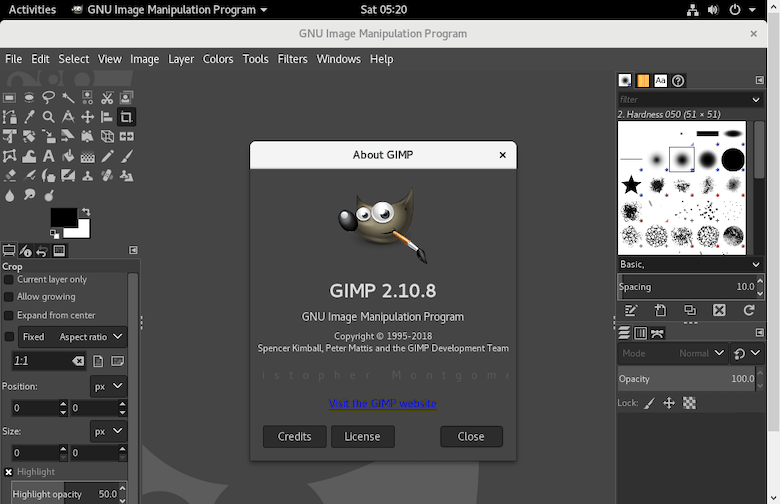
Congratulations! You have successfully installed GIMP. Thanks for using this tutorial for installing the latest version of the GIMP open source image editor on the Linux Mint system. For additional help or useful information, we recommend you check the official GIMP website.


