How To Install Gittyup on AlmaLinux 10

Managing Git repositories from the command line works perfectly fine for experienced developers. But sometimes, a visual interface makes complex branching, staging, and merge operations significantly easier to understand and execute. Gittyup delivers exactly that—a powerful graphical Git client designed to help you visualize your repository history, manage changes efficiently, and streamline your development workflow.
AlmaLinux 10, as a robust enterprise-grade Linux distribution and RHEL alternative, provides an excellent foundation for development environments. Installing Gittyup on this stable platform gives you the best of both worlds: enterprise reliability combined with modern Git visualization tools. This comprehensive guide walks you through three proven installation methods, each suited for different use cases and experience levels.
Whether you’re a system administrator managing multiple repositories, a developer transitioning from Windows or macOS, or a Linux enthusiast exploring GUI alternatives to command-line Git, you’ll find step-by-step instructions, troubleshooting solutions, and configuration tips to get Gittyup running smoothly on your AlmaLinux 10 system.
Understanding Gittyup
Gittyup represents the continuation of the GitAhead project, maintained as an open-source graphical Git client focused on clarity and usability. Unlike bloated Git GUIs that overwhelm users with features, Gittyup takes a streamlined approach to repository management.
The application excels at providing a single branch view that keeps you focused on your current work without distraction. Its double tree view elegantly separates staged changes from unstaged modifications, making the staging area concept—often confusing in command-line Git—visually intuitive. You can stage or unstage changes line by line, not just file by file, giving you granular control over what goes into each commit.
Additional features include customizable keyboard shortcuts, fullscreen history and diff views (activated with Ctrl+M), multi-repository support through tabs, built-in terminal access, and visual blame viewing. Commit message templates help maintain consistency across your team, while author override functionality proves invaluable when committing on behalf of others.
For developers who understand Git conceptually but find command-line operations tedious, Gittyup accelerates productivity. Visual conflict resolution becomes straightforward. Repository history transforms from cryptic commit hashes into an understandable flow. You spend less time remembering commands and more time writing code.
System Requirements and Prerequisites
Before installing Gittyup, verify your AlmaLinux 10 system meets the necessary requirements. Your processor should be 64-bit x86_64 architecture running at minimum 1.1 GHz, though faster processors improve application performance. RAM requirements start at 1 GB, but 2 GB or more delivers better responsiveness when working with large repositories.
Allocate at least 10 GB of free disk space, with 20 GB recommended for comfortable operations. Since Gittyup is a graphical application, you need a properly configured desktop environment—GNOME, KDE Plasma, XFCE, or another GUI environment running on X11 or Wayland.
Software prerequisites include a fully updated AlmaLinux 10 installation with an active internet connection for downloading packages. You’ll need sudo or root privileges for system-wide installations, though the AppImage method works with regular user permissions. Critically, Git must be installed since Gittyup functions as a frontend to Git’s backend operations.
Preparing Your AlmaLinux 10 System
Proper preparation prevents installation issues. Start by updating your system to ensure all packages reflect the latest security patches and compatibility improvements:
sudo dnf update -y
sudo dnf makecache --refresh
This process refreshes package metadata and upgrades installed software. Depending on how recently you updated, this might take a few minutes. The DNF package manager, AlmaLinux’s default, handles dependency resolution automatically.
Next, verify Git installation. Check if Git already exists on your system:
git --versionIf the command returns a version number, Git is installed. Otherwise, install it:
sudo dnf install git -yConfigure Git with your identity information, which Gittyup inherits for commit operations:
git config --global user.name "Your Full Name"
git config --global user.email "[email protected]"
For some installation methods, particularly building from source, you’ll need development tools:
sudo dnf groupinstall "Development Tools" -yThe EPEL (Extra Packages for Enterprise Linux) repository expands available software beyond AlmaLinux’s base repositories:
sudo dnf install epel-release -yWith these prerequisites satisfied, you’re ready to proceed with installation.
Installation Method 1: Using Flatpak (Recommended for Most Users)
Flatpak offers the most straightforward Gittyup installation experience on AlmaLinux 10. This universal package format works across Linux distributions, provides automatic updates, and isolates applications in sandboxed environments for improved security.
Installing Flatpak on AlmaLinux 10
AlmaLinux 10 may include Flatpak by default, but if not, install it easily:
sudo dnf install flatpak -yVerify the installation succeeded:
flatpak --versionAdding the Flathub Repository
Flathub serves as the primary repository for Flatpak applications, hosting thousands of packages including Gittyup. Add it to your system:
flatpak remote-add --if-not-exists flathub https://flathub.org/repo/flathub.flatpakrepoThe –if-not-exists flag prevents errors if Flathub is already configured. This command registers the repository without requiring additional confirmation.
Installing Gittyup from Flathub
Now install Gittyup with a single command:
flatpak install flathub com.github.Murmele.Gittyup -yFlatpak downloads Gittyup along with any required runtime dependencies. The download size typically ranges from 100-200 MB depending on whether Qt5 runtimes are already installed. The installation process handles everything automatically—no manual dependency management required.
Launching Gittyup
Run Gittyup from your terminal:
flatpak run com.github.Murmele.GittyupAlternatively, search for “Gittyup” in your application menu. Most desktop environments automatically detect newly installed Flatpak applications and add them to the application launcher within seconds.
Managing Your Flatpak Installation
Flatpak simplifies long-term maintenance. Update Gittyup to the latest version:
flatpak update com.github.Murmele.Gittyup -yOr update all installed Flatpak applications simultaneously:
flatpak update -yIf you need to remove Gittyup:
flatpak uninstall com.github.Murmele.Gittyup -yList all installed Flatpak applications:
flatpak listThe Flatpak method shines for its simplicity and reliability. Updates arrive automatically through Flathub. Sandboxing protects your system from potential application issues. For most AlmaLinux 10 users, this represents the optimal installation choice.
Installation Method 2: Using AppImage (Portable and Quick)
AppImage provides a completely self-contained application format. One file contains everything Gittyup needs to run. No installation, no root privileges, no system modifications—just download and execute.
Downloading the Gittyup AppImage
Navigate to your Downloads directory and fetch the latest AppImage:
cd ~/Downloads
wget https://github.com/Murmele/Gittyup/releases/latest/download/Gittyup-x86_64.AppImage
Alternatively, visit the GitHub releases page in your browser, download the AppImage manually, and save it to your preferred location.
Making the AppImage Executable
Linux requires explicit permission to execute files. Grant this permission:
chmod +x Gittyup-x86_64.AppImageThis command modifies the file attributes to mark it as executable. You only need to do this once.
Running Gittyup
Execute the AppImage directly:
./Gittyup-x86_64.AppImageGittyup launches immediately. You can also double-click the file in your file manager if it’s configured to execute AppImages.
System Integration (Optional)
For easier access, move the AppImage to a directory in your PATH:
mkdir -p ~/.local/bin
mv Gittyup-x86_64.AppImage ~/.local/bin/gittyup
Ensure ~/.local/bin is in your PATH by adding this line to your ~/.bashrc if not already present:
export PATH="$HOME/.local/bin:$PATH"Reload your shell configuration:
source ~/.bashrcNow launch Gittyup from anywhere by typing gittyup in your terminal.
For desktop integration—application menu entries and file associations—consider installing AppImageLauncher, which automatically handles these tasks when you first run an AppImage.
The AppImage method excels when you want to test Gittyup without system installation, need a portable version on a USB drive, or work on a system where you lack administrative privileges. The trade-off is manual update management—you must download new versions yourself rather than receiving automatic updates.
Installation Method 3: Building from Source (For Advanced Users)
Compiling Gittyup from source code gives you access to the absolute latest features, allows custom compilation flags, and provides insight into the application’s architecture. This method requires more time and technical knowledge but offers maximum flexibility.
Installing Build Dependencies
Gittyup requires Qt5 development libraries, CMake, and libgit2. Install these prerequisites:
sudo dnf groupinstall "Development Tools" -y
sudo dnf install cmake qt5-qtbase-devel qt5-qttools-devel git libgit2-devel openssl-devel -y
These packages provide compilers, build tools, and necessary libraries. The installation size exceeds 500 MB, so ensure adequate disk space.
Cloning the Gittyup Repository
Download the source code from GitHub:
cd ~
git clone https://github.com/Murmele/Gittyup.git
cd Gittyup
The repository includes submodules—nested Git repositories containing additional dependencies. Initialize and fetch them:
git submodule init
git submodule update
Compiling Gittyup
Create a separate build directory to keep source files clean:
mkdir build
cd build
Configure the build with CMake:
cmake ..CMake analyzes your system, verifies dependencies, and generates build files. If errors appear, they typically indicate missing dependencies.
Compile the application using all available CPU cores for speed:
make -j$(nproc)Compilation takes 5-15 minutes depending on your processor. The $(nproc) command automatically detects your CPU core count and parallelizes the build accordingly.
Installing Gittyup System-Wide
Install the compiled application:
sudo make installThis copies Gittyup binaries to /usr/local/bin and related files to appropriate system directories.
Alternatively, run Gittyup directly from the build directory without installing:
./gittyupVerifying Your Build
Confirm Gittyup installed correctly:
gittyup --versionThe version string appears if compilation and installation succeeded.
Building from source provides the bleeding edge of Gittyup development but demands more effort. You must manually pull updates, recompile, and reinstall for new features. Most users find the Flatpak or AppImage methods more practical.
Configuring Gittyup After Installation
First launch presents Gittyup’s clean interface. Take a moment to configure preferences for optimal workflow.
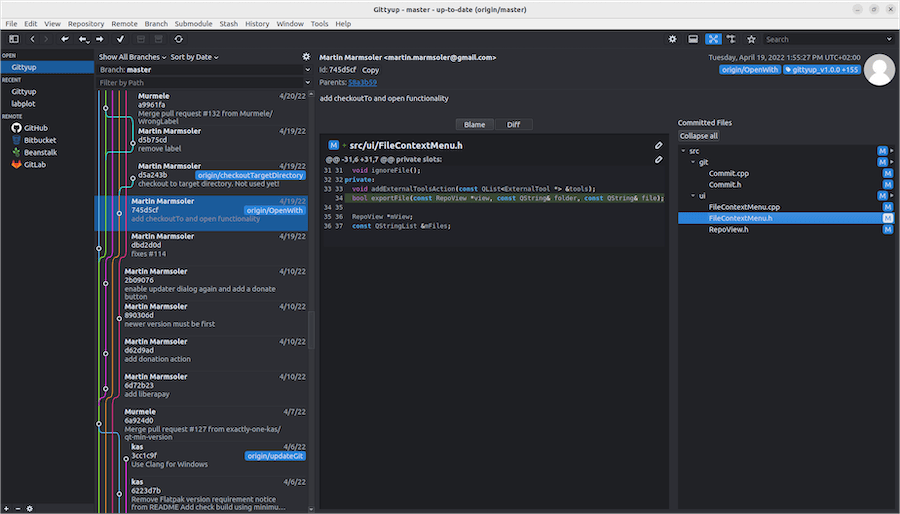
Access settings through Edit > Preferences (or Gittyup > Preferences on some desktop environments). Choose between light and dark themes to match your desktop environment and reduce eye strain during long coding sessions.
Verify Git integration by opening an existing repository. Navigate to File > Open Repository and select any folder containing a .git directory. Gittyup displays the commit history, current branch, and working directory status. If errors appear, verify your Git configuration in the terminal.
Customize keyboard shortcuts under the preferences menu. Gittyup allows remapping virtually every action. Set shortcuts matching your muscle memory from other tools to minimize adjustment time.
Configure your preferred diff and merge tools. While Gittyup includes built-in diff viewing, you might prefer external tools like Meld or KDiff3 for complex merges. Specify these in the preferences.
Adjust font family and size for comfortable reading, especially important when reviewing lengthy diffs or commit messages. Larger repositories benefit from performance tuning—disable resource-intensive features if Gittyup feels sluggish.
For remote repositories requiring SSH authentication, ensure your SSH keys are properly configured. Generate a key pair if needed:
ssh-keygen -t ed25519 -C "[email protected]"Add the key to your SSH agent and upload the public key to GitHub, GitLab, or your Git hosting service.
Verifying Your Gittyup Installation
Test core functionality to ensure everything works correctly. Open a repository and examine the commit history—commits should load and display with author information, timestamps, and messages.
Create a test branch to verify branching operations. Make a trivial change to a file, then stage and unstage it using Gittyup’s double tree view. This confirms the staging area interface functions properly.
Perform a commit with a custom message. The commit should appear in the history immediately. View the diff for your commit to ensure diff rendering works.
Test the blame feature by right-clicking a file and selecting blame view. This displays which commit last modified each line, useful for understanding code evolution.
If any functionality fails, check that Git itself works from the command line. Repository corruption or Git configuration issues cause problems for Gittyup since it relies on Git’s backend.
Troubleshooting Common Issues
Gittyup Won’t Launch: If clicking the icon produces no window, launch from terminal to see error messages. Common causes include missing Git installation, corrupted display server configuration, or missing dependencies. Verify Git is installed with git –version and your display server runs correctly by launching other graphical applications.
Flatpak Permission Errors: Flatpak’s sandbox restricts file system access. Grant additional permissions if Gittyup cannot access certain directories:
flatpak override --user --filesystem=host com.github.Murmele.GittyupThis allows access to your entire home directory. Adjust permissions according to your security requirements.
AppImage Execution Fails: “Permission denied” errors indicate missing executable permission. Reapply it with chmod +x. If the AppImage still won’t run, verify FUSE support, which AppImage requires. Install it:
sudo dnf install fuse fuse-libs -yRepository Won’t Open: If Gittyup refuses to open a valid Git repository, the repository might be corrupted. Navigate to the repository in terminal and run:
git fsckThis checks integrity and reports issues. Sometimes file permission problems prevent access—ensure your user account has read/write permissions for the repository directory.
SSH Authentication Failures: Clone and push operations fail without proper SSH configuration. Test your SSH connection:
ssh -T [email protected]A successful authentication message confirms SSH works. If it fails, review your SSH key setup and ensure the key is added to your Git hosting service account.
Performance Issues with Large Repositories: Repositories with tens of thousands of commits may load slowly. Enable shallow history in Gittyup’s preferences to limit the number of commits loaded initially. Consider using Git’s sparse checkout for monorepos where you only work in specific subdirectories.
For persistent issues, consult the GitHub Issues page for Gittyup. The maintainers and community actively respond to bug reports and feature requests. Check logs for detailed error messages—Flatpak logs appear in journal, while compiled versions typically log to ~/.local/share/Gittyup/.
Congratulations! You have successfully installed Gittyup. Thanks for using this tutorial to install the latest version of the Gittyup graphical Git client on AlmaLinux OS 10. For additional help or useful information, we recommend you check the official Gittyup website.
